Caution
This function is not available for use with the P-series robot.
To calibrate the robot, select Service Tool in the main menu and click the Robot Calibration -> Kinematic Calibration button.

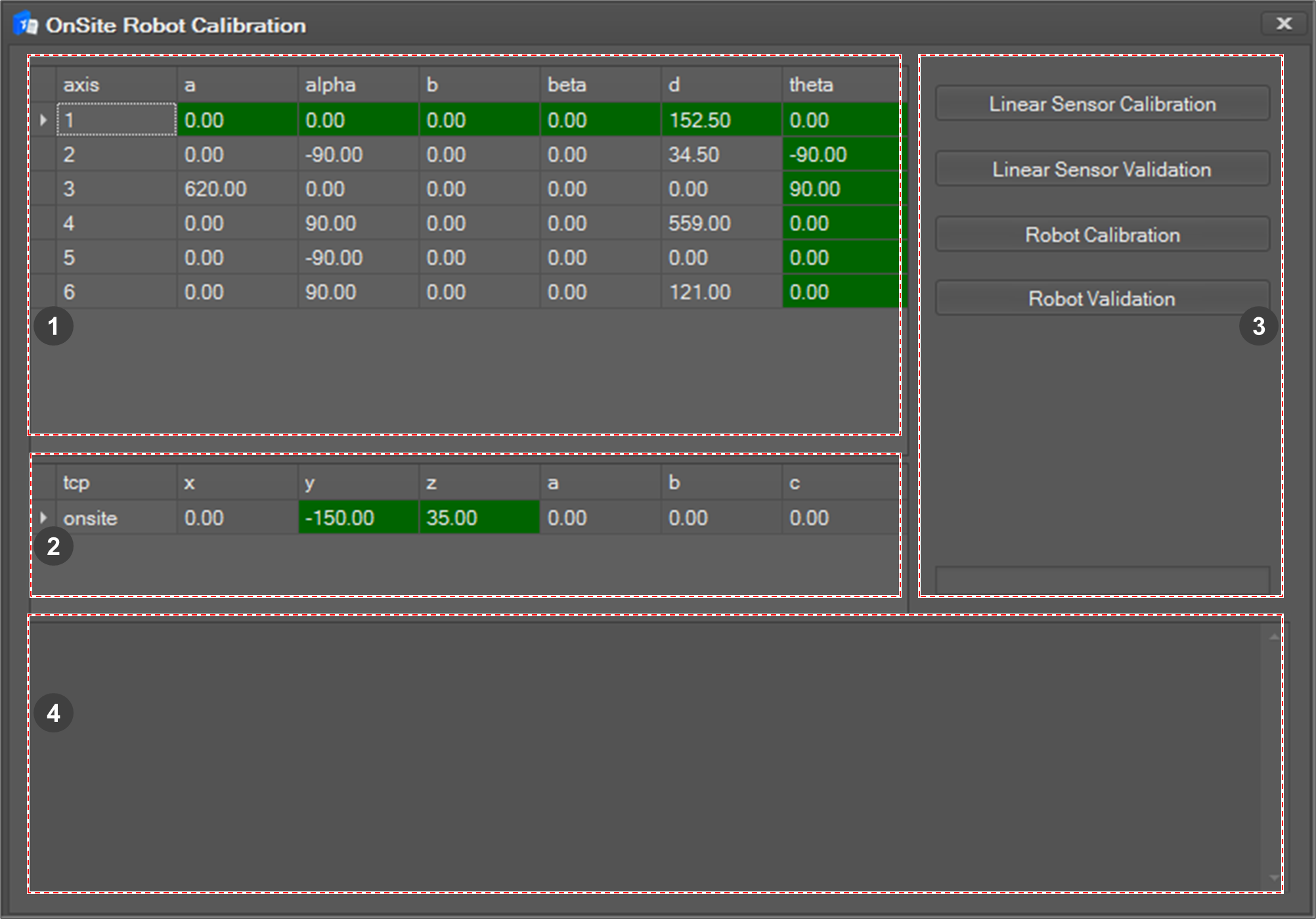
The OnSite Robot Calibration window will appear.
|
➊ |
DH parameter |
Describes kinematic parameter of each axis. |
|
➋ |
Tool parameter |
Indicates the tool center position value. |
|
➌ |
On-site Calibration |
The On-site Calibration tab is composed of four menus for calibration. |
|
➍ |
Log Window |
Shows messages generated during calibration. |

To calibrate a robot, you need to perform the next four procedures.
-
Linear Sensor Calibration
-
Linear Sensor Validation
-
Robot Calibration
-
Robot Validation
Linear Sensor Calibration
The Linear Sensor Calibration function calibrates the one-dimensional linear position sensor used for on-site robot kinematic calibration. This function finds offset, slope variable of sensor, and saves these values. If you’ve never done this in your computer before, you must do this.
To start calibration,
-
Select Linear Sensor Calibration in the On-site Calibration tab.
-
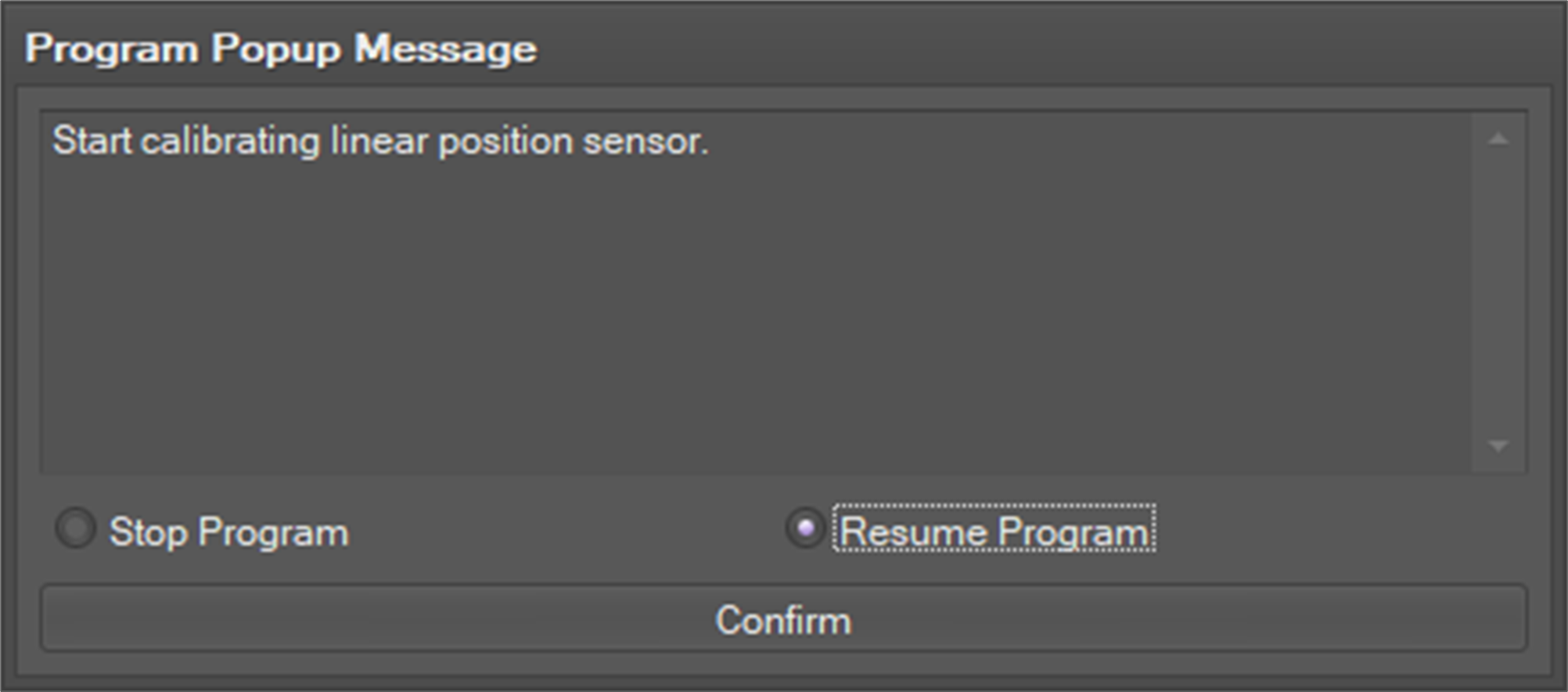
The first message informs you that the calibration procedure will start. Click the OK button if you are ready.
-
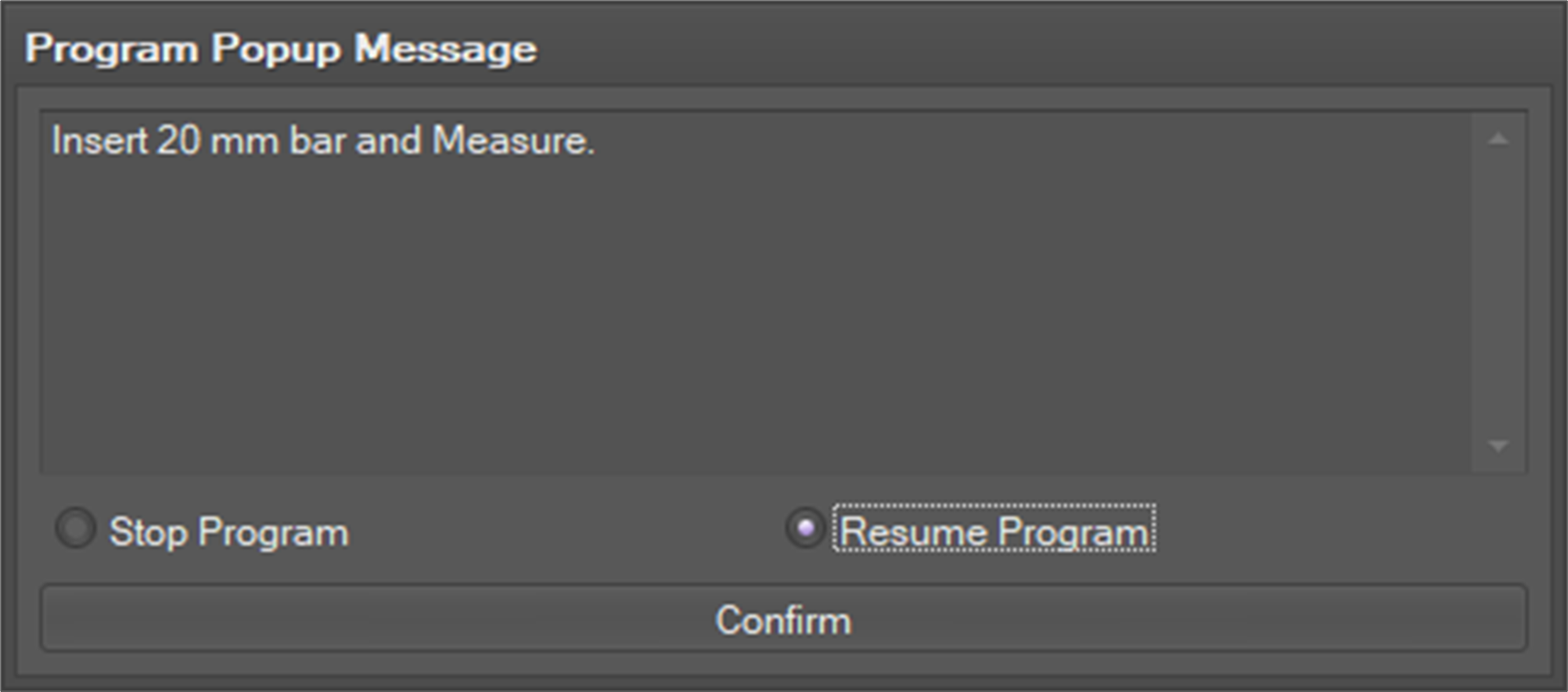
The next message informs you to insert a bar with a specific length in the linear position sensor. After inserting the bar, click the OK button.
-
You need to repeat this step for several bar lengths.
-
-
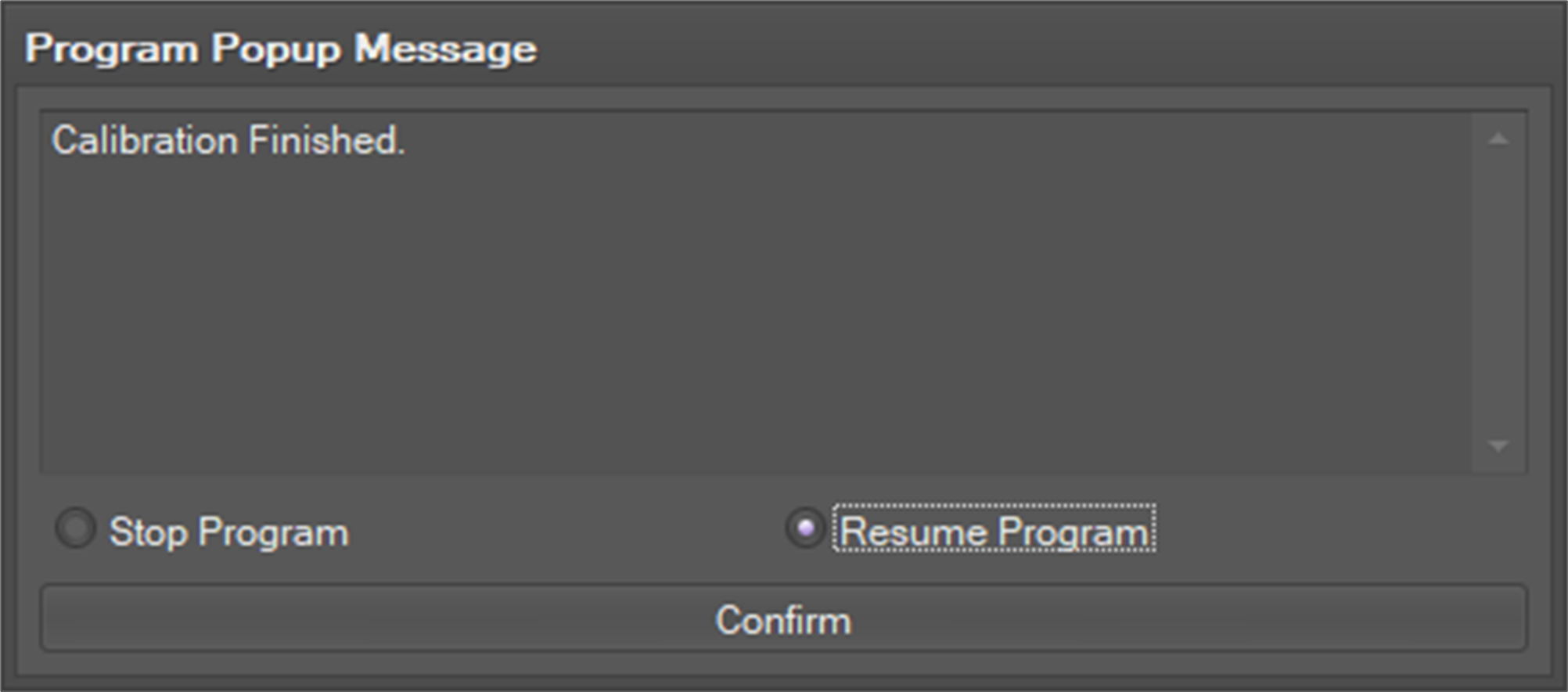
Click the OK button when the measuring is done.
-
If you do not click the OK button, the results will not be saved.
-
Linear Sensor Validation
The Linear Sensor Validation function checks whether the linear position sensor is calibrated well. The whole procedure is the same as the Linear Sensor Calibration function, except you measure less time.
To start validation,
-
Select Linear Sensor Validation in the On-site Calibration tab.
-
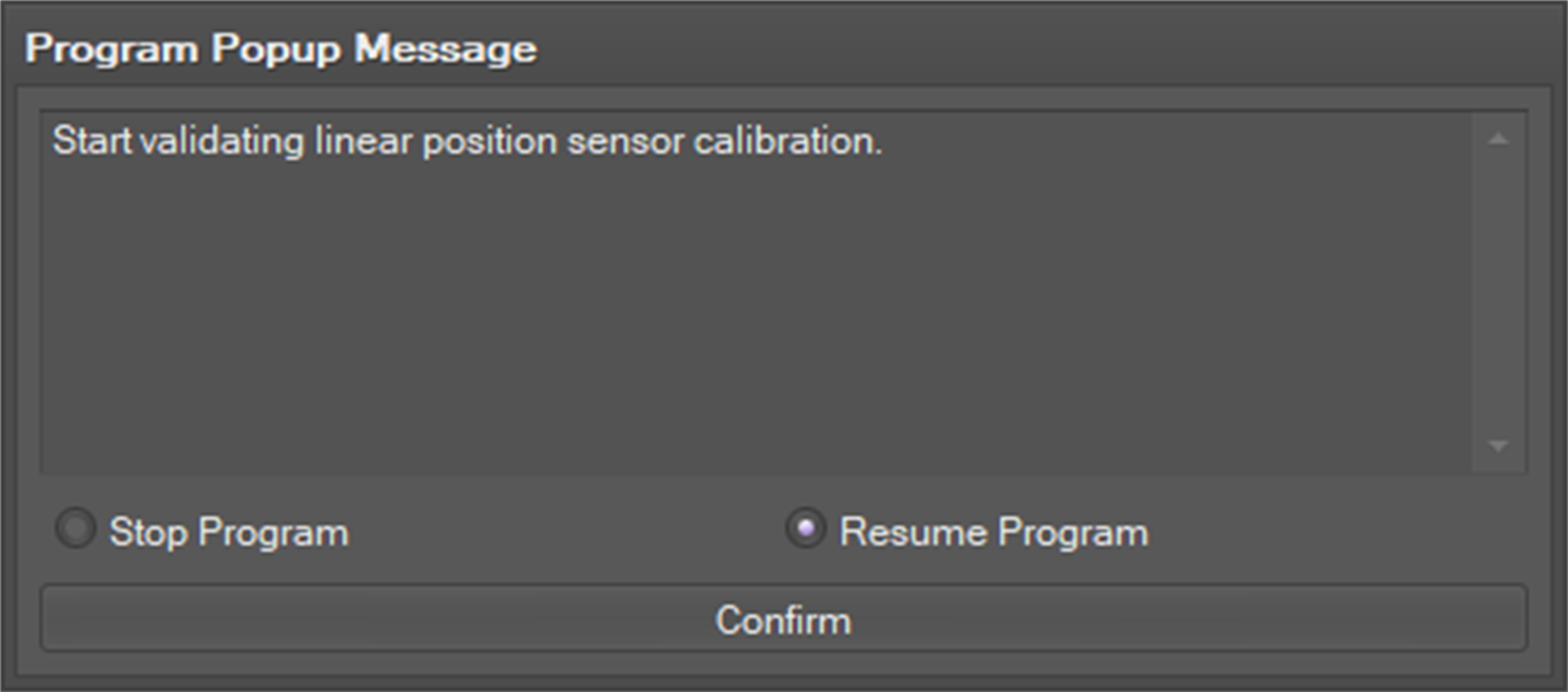
The first message informs you that the validation procedure will start. Press the OK button if you are ready.
-
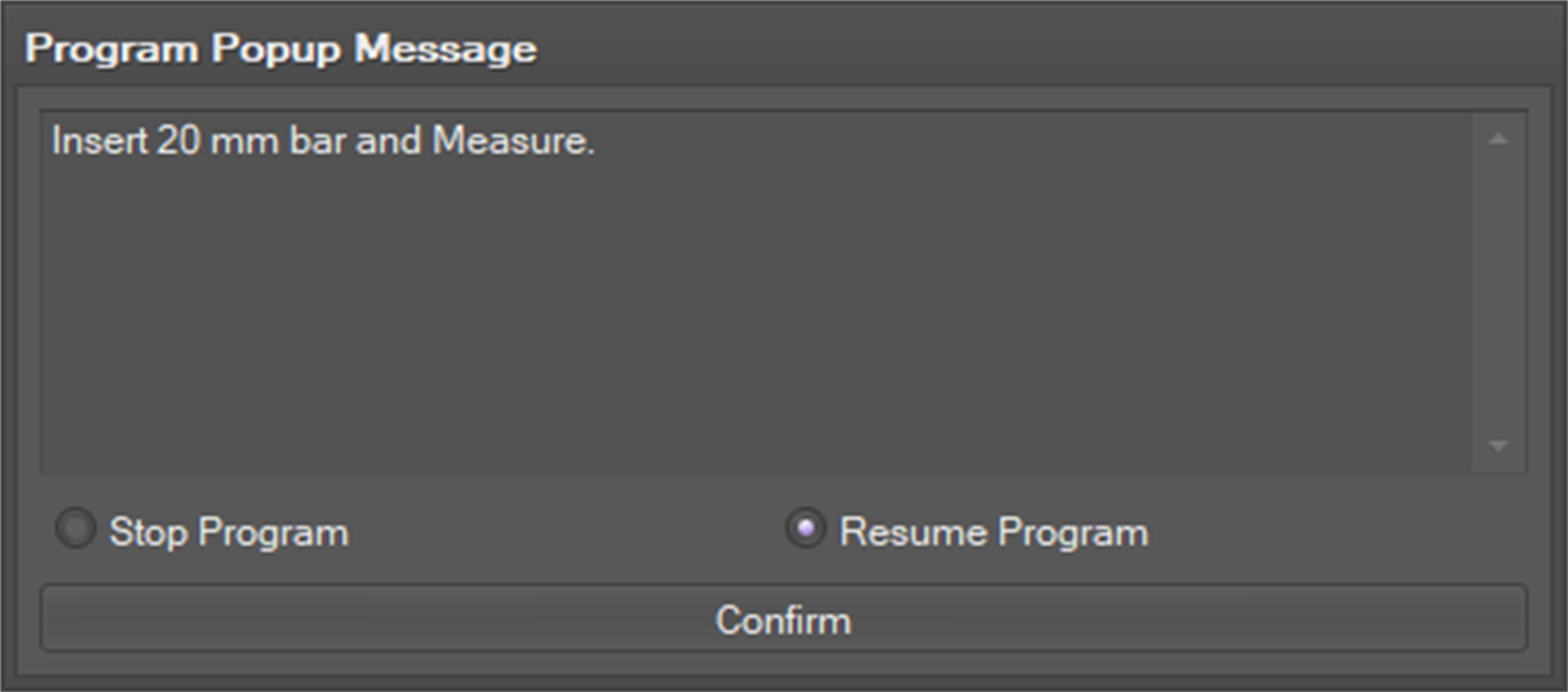
The next message informs you to insert the calibration bar with a specific length in the linear position sensor. After inserting the bar, press the OK button.
-
You need to repeat this step several times.
-
-
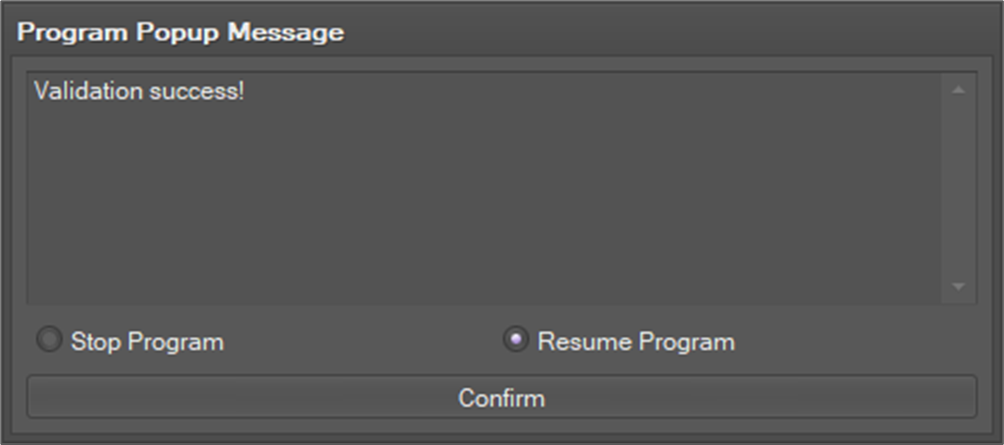
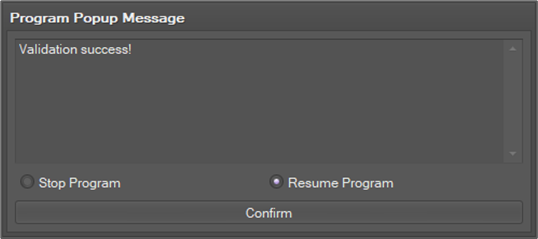
If validation succeeds, you will see the next message.
-
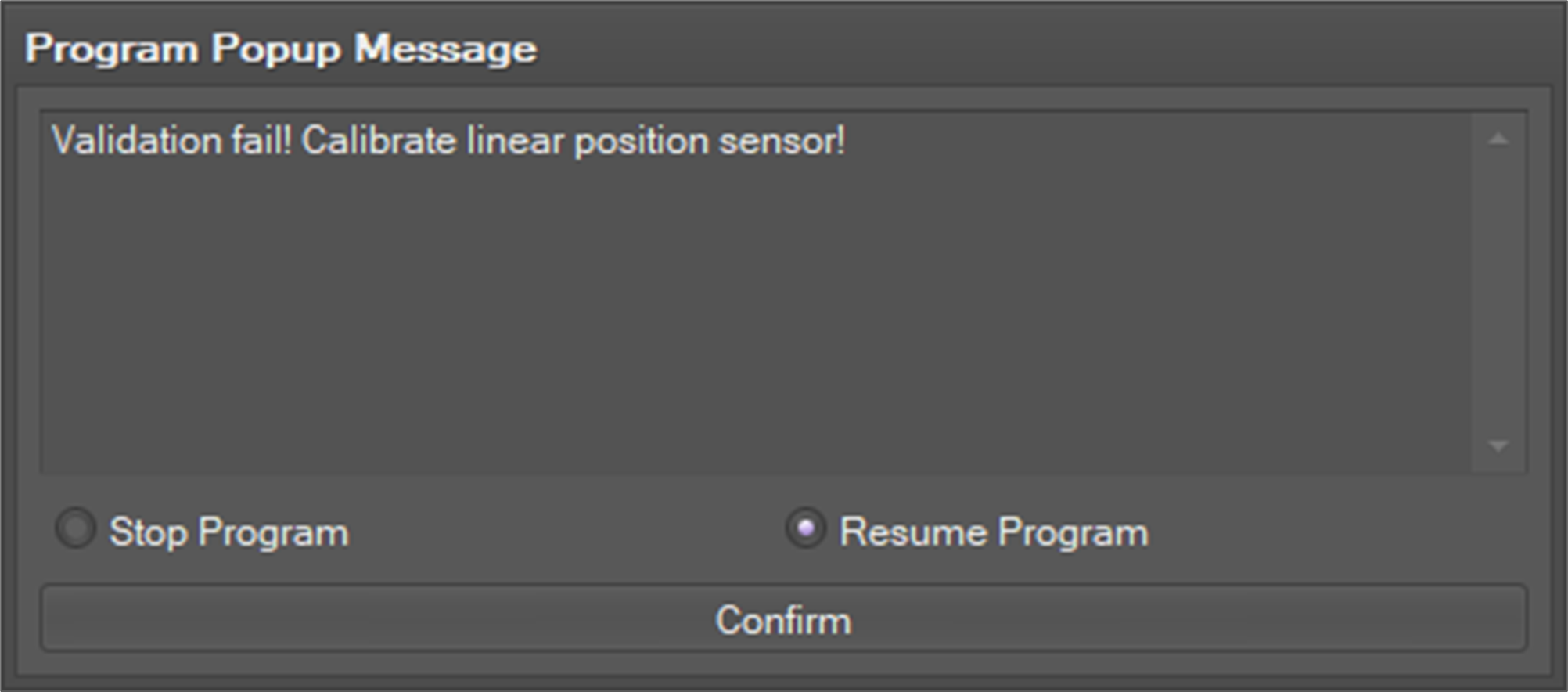
If validation fails, you will see a failure message. In this case, you must do the Linear Sensor Calibration procedure again.
Robot Calibration
The Robot Calibration function does kinematic calibration with on-site calibration toolbox.
To start calibration,
-
Select Robot Calibration in the On-site Calibration tab.
-
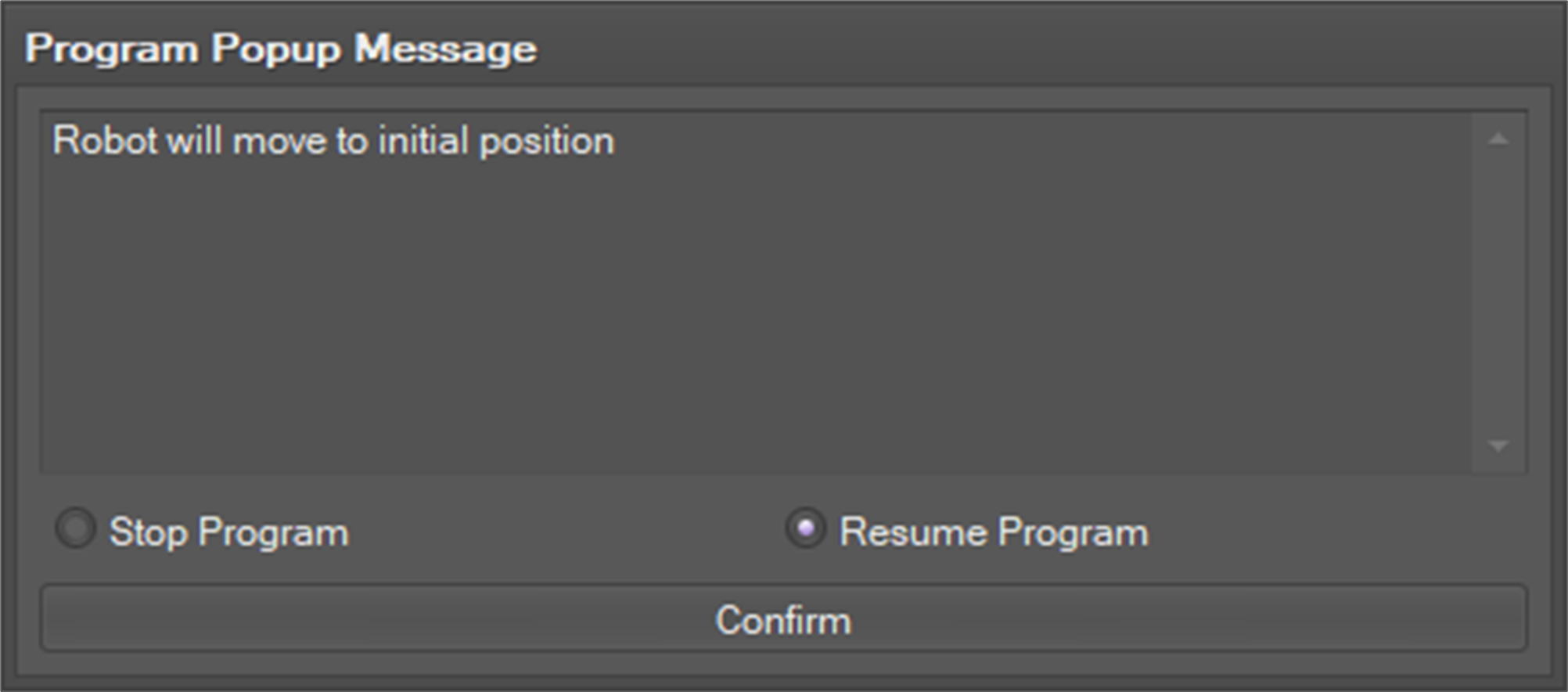
The first message informs you that the robot will move to the initial position. Click the OK button.
-
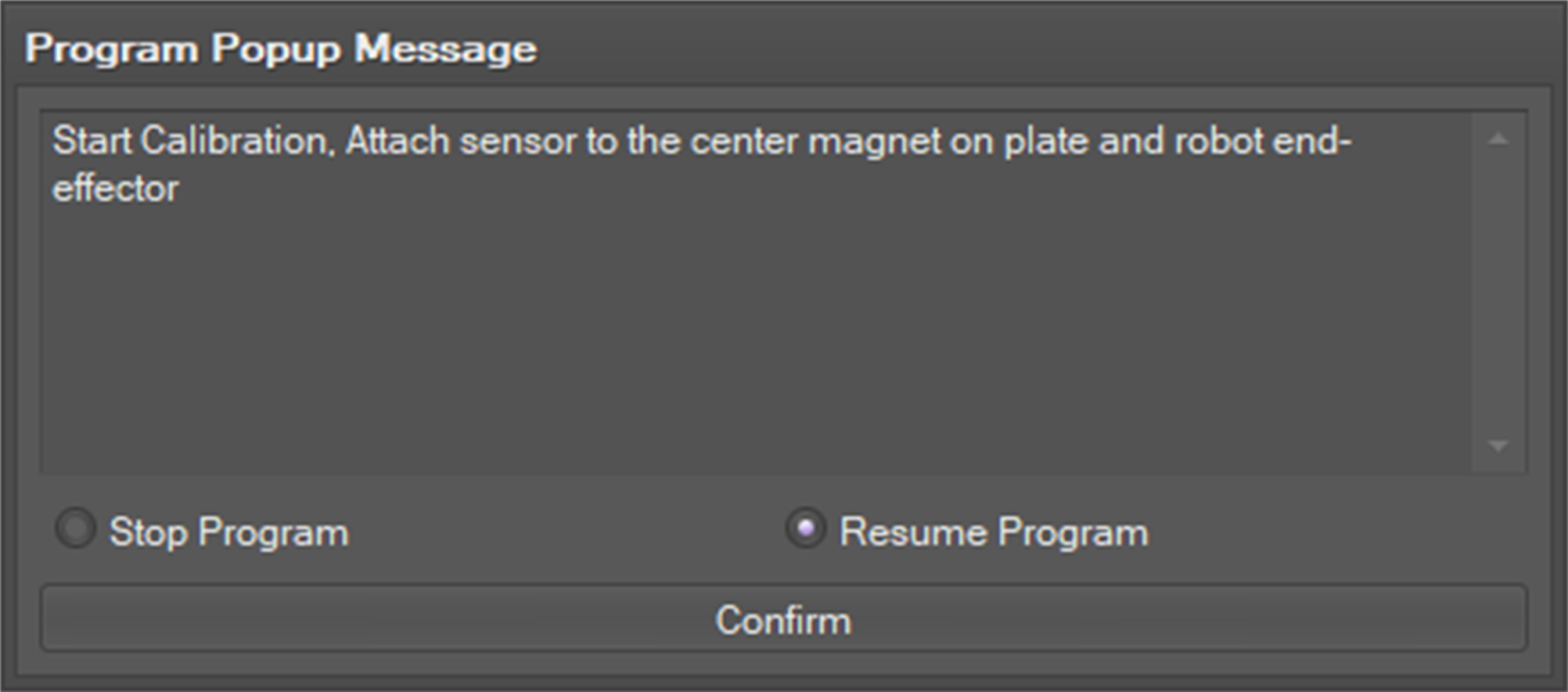
After the robot moves to the initial position, the next message will inform you to attach the sensor to the center magnetic holder (number 1 is sculpted on the plate) and the robot end-effector. If you are ready, click the OK button.
-
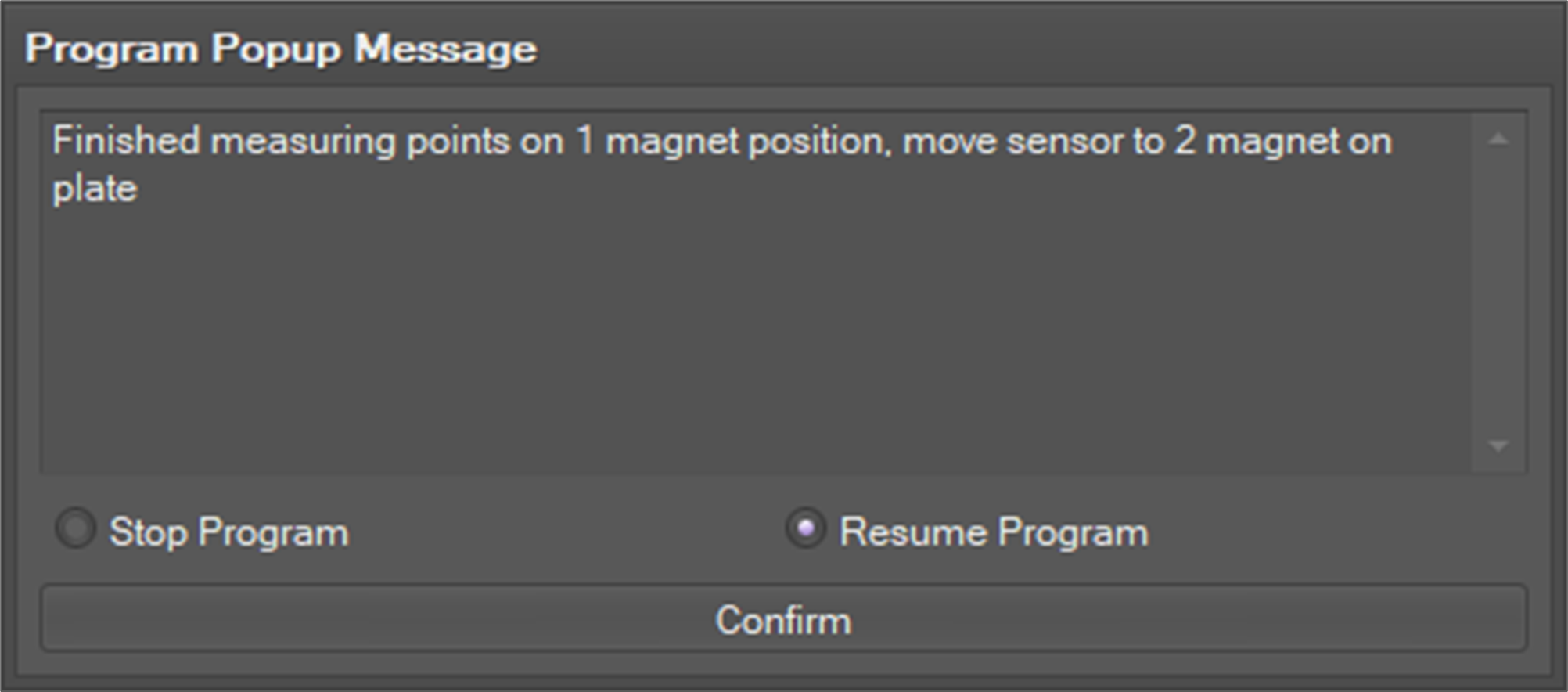
After the robot moves around the first magnetic holder, the next message will inform you to move the bottom of sensor to the next holder. If you are ready, click the OK button.
-
You need to repeat these steps on five magnetic holders.
-
-
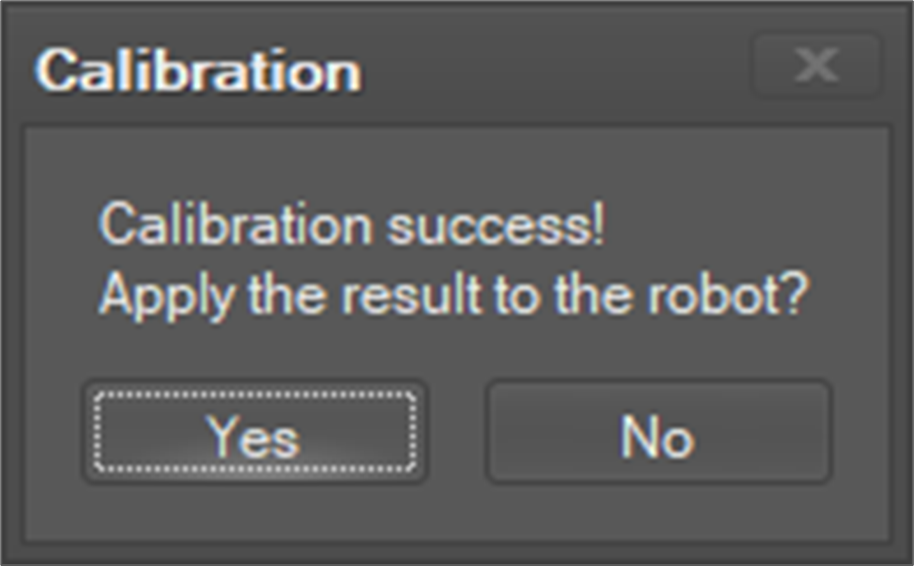
If calibration succeeds, you will see the next message. Click the Yes button if you want to set this result on the robot
-
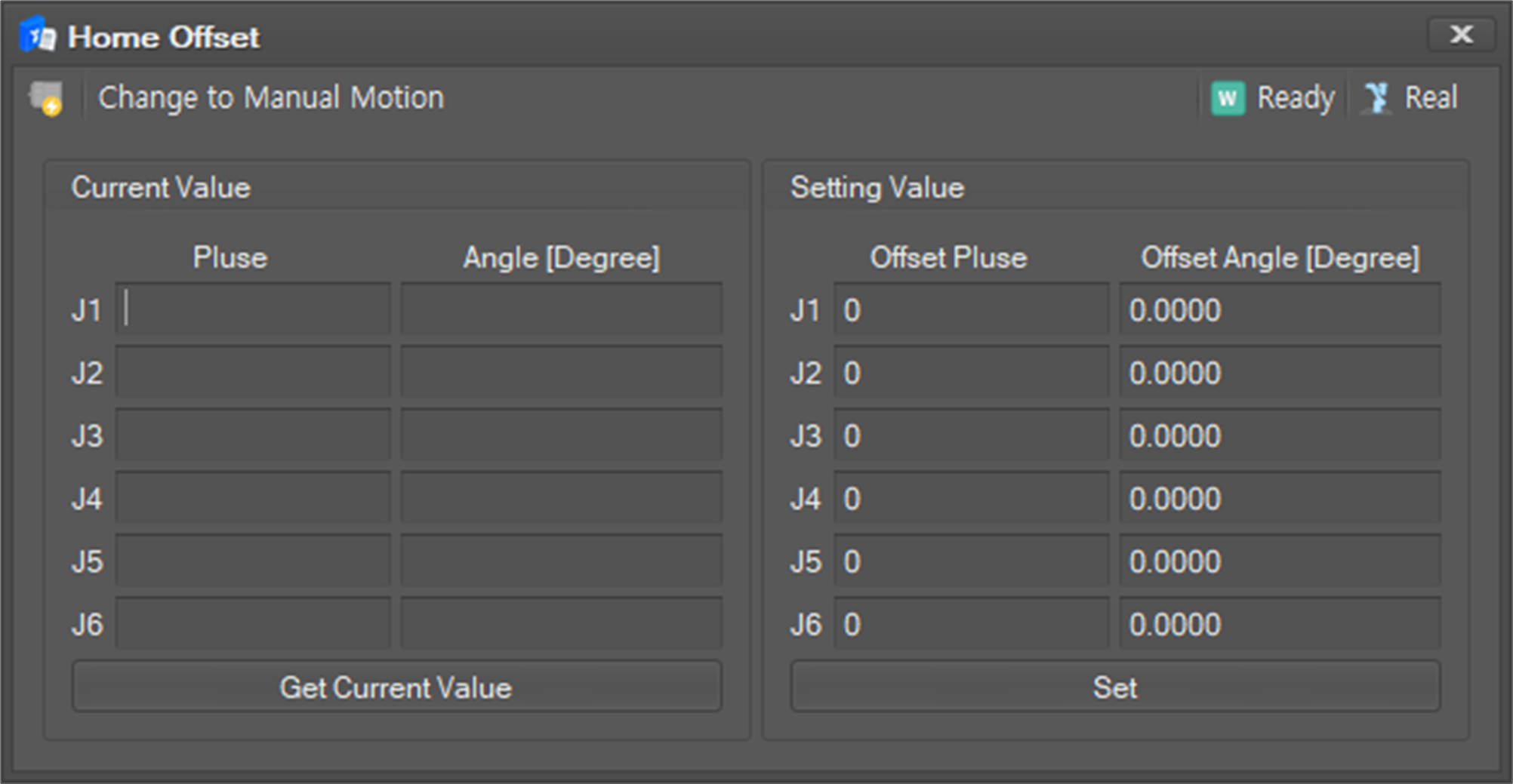
The setup window will pop up as shown below. Click the Set button to update the calibration results.
If the calibration result is updated, it informs you to reboot the system.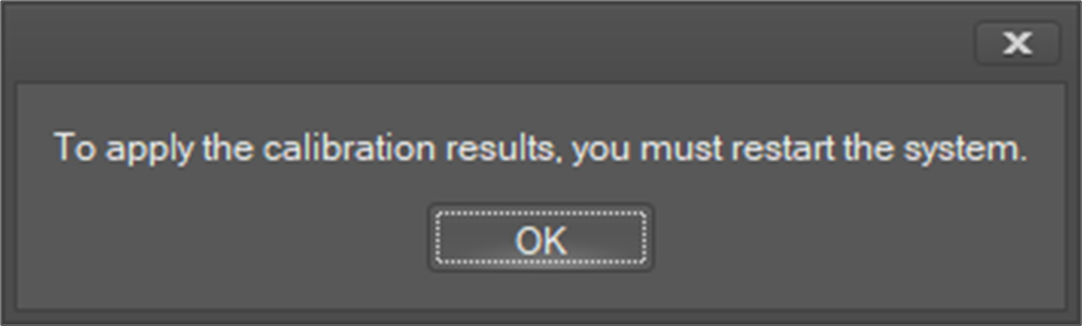
-
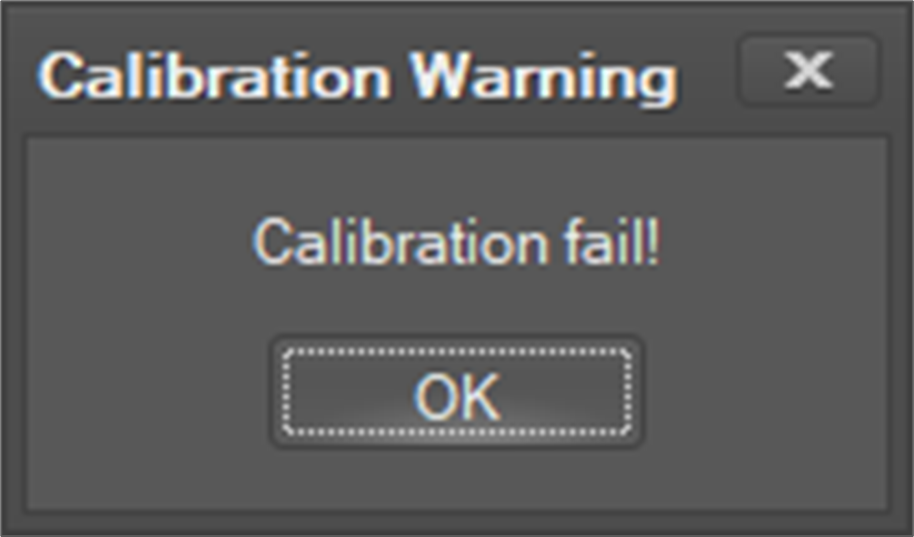
If calibration fails, it will inform you of the failure.
-
If you want to retry calibration, restart the procedure from linear sensor calibration.
Robot Validation
The Robot Validation function checks whether a robot is calibrated well. It will change its orientation while fixing the end-effector position. If calibration is not done well, the end-effector position will change while moving.
To start the validation procedure,
-
Select Robot Validation in the On-site Calibration tab.
-
The first message informs you that the robot will move. Click the Confirm button.
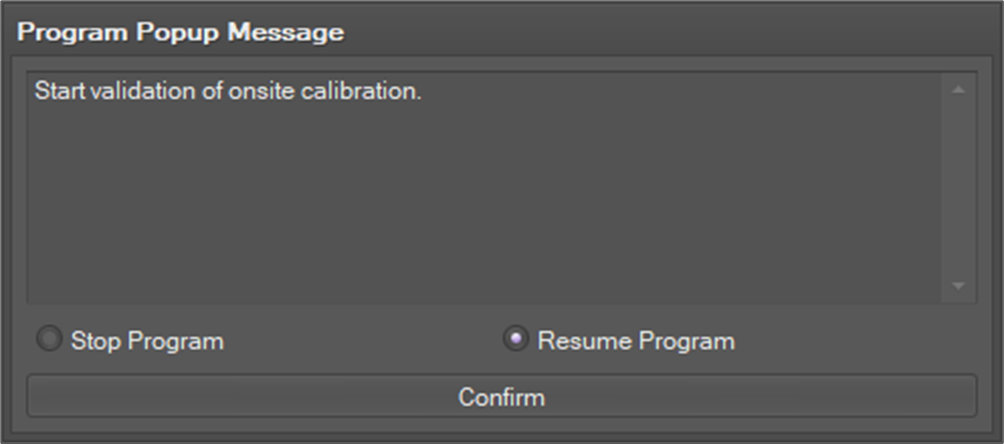
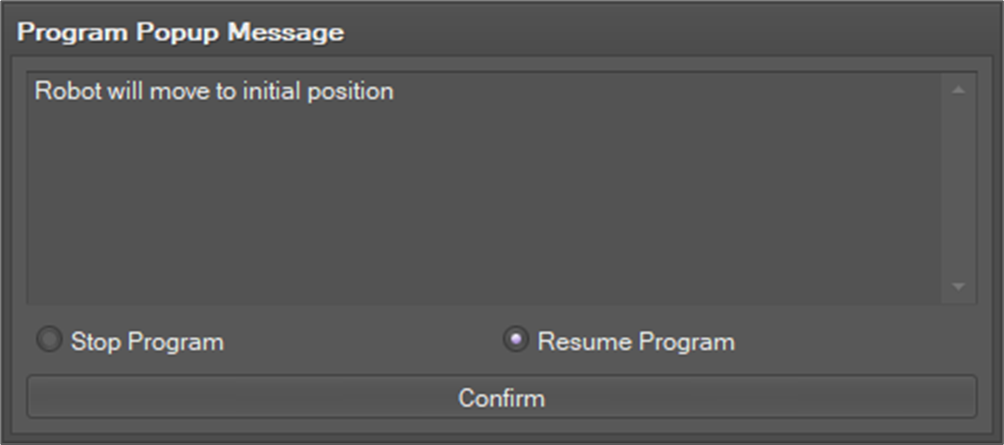
-
After the robot moves to the initial position, the next message will inform you to attach the sensor to the first magnetic holder and robot end-effector. If you are ready, press the Confirm button.
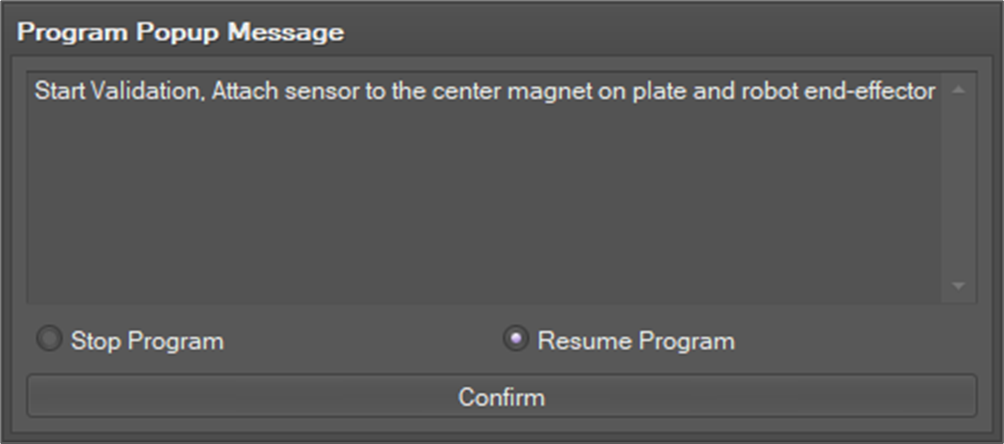
-
After the robot moves several times, the results will pop up.