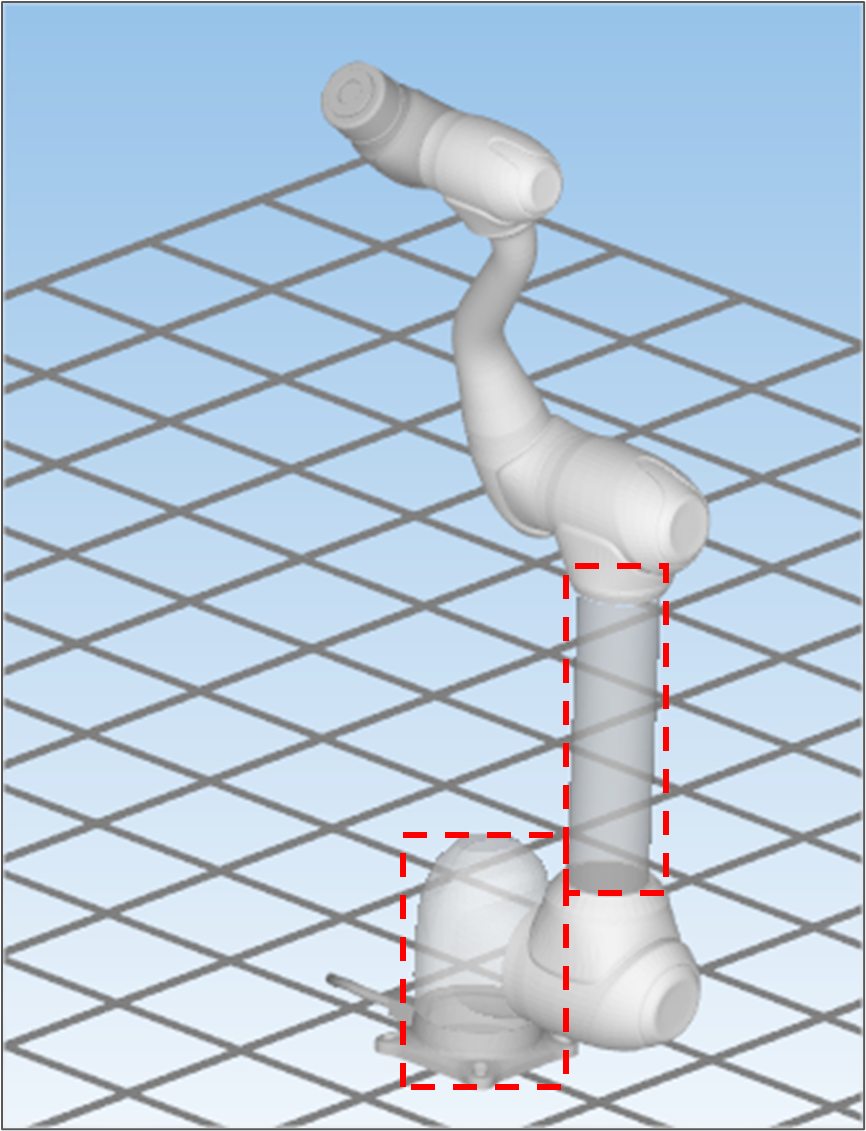
Show or hide objects
To show or hide a scene object, click the buttons below for the object type.

|
|
Show/Hide Grid Line |
|
|
|
Show/Hide Tool Coordination |
|
|
|
Show/Hide Motion Trajectory |
|
|
|
Show/Hide Robot Shape |
|
|
|
Show/Hide Robot Body Bounding Volume |
|
|
|
Show/Hide Tool Shape |
|
|
|
Show/Hide Local Zone, Show/Hide Space Limit Zone |
Controller version GF020500 or later |
|
|
Show/Hide Operation Space |
Controller version GF020400
|
|
|
Show/Hide Collaborative Workspace |
|
|
|
Show/Hide Protected Zone |
|
|
|
Show/Hide Collision Detection Mute Zone |
|
|
|
Show/Hide Tool Orientation Limit Zone |


Move
Click the Move 
Rotate
Click the Rotate 
To fix the rotation axis, press the number key.
|
Key |
Action |
|
“1” |
Rotation along X axis |
|
“2” |
Rotation along Y axis |
|
“3” |
Rotation along Z axis |
|
“4” |
Rotation along View Right direction |
|
“5” |
Rotation along View Up direction |
|
“6” |
Rotation along View Forward direction |
If you want to change the center of rotation, hold down the Ctrl key and click on the object you want to focus on.

Zoom
-
Zoom In: Click the Zoom In

-
Zoom Out: Click Zoom Out

Select
Click the Select 
Fit scene
To reset the zoom ratio and rotation center, click the Fit Scene 
|
Menu Button |
Shortcut |
Function |
|
|
F2 |
Rotate |
|
|
F3 |
Select |
|
|
F4 |
Move |
|
|
F5 |
Fit scene |


Change the viewpoint
To change the viewpoint, click one of the View Direction buttons. If you click the To –X button, the scene rotates so that the forwarding direction directs to the –X direction.

Projection Mode
To change projection mode, click the Orthogonal 


The default projection mode is orthogonal projection.
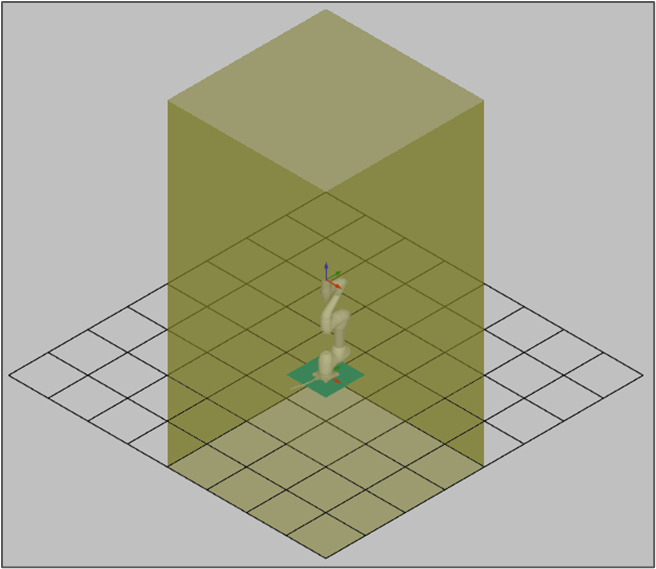
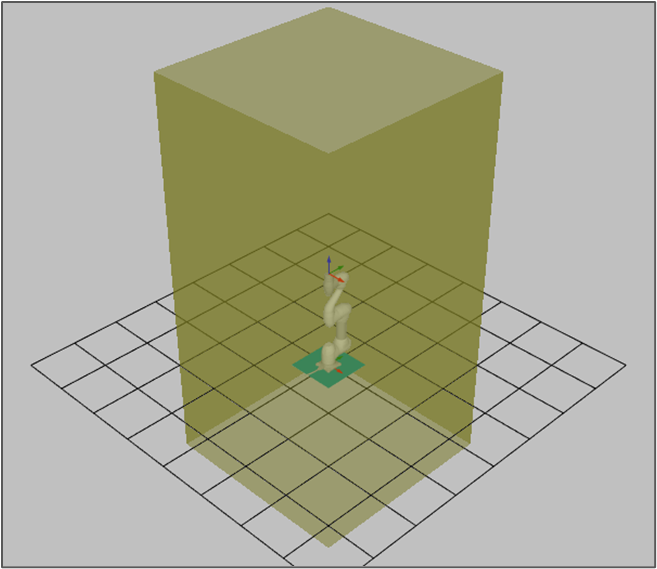
Orthogonal projection Perspective projection
Change the object view property
-
To make the selected object transparent, click the Transparent

-
To make the selected object opaque, click the Opaque