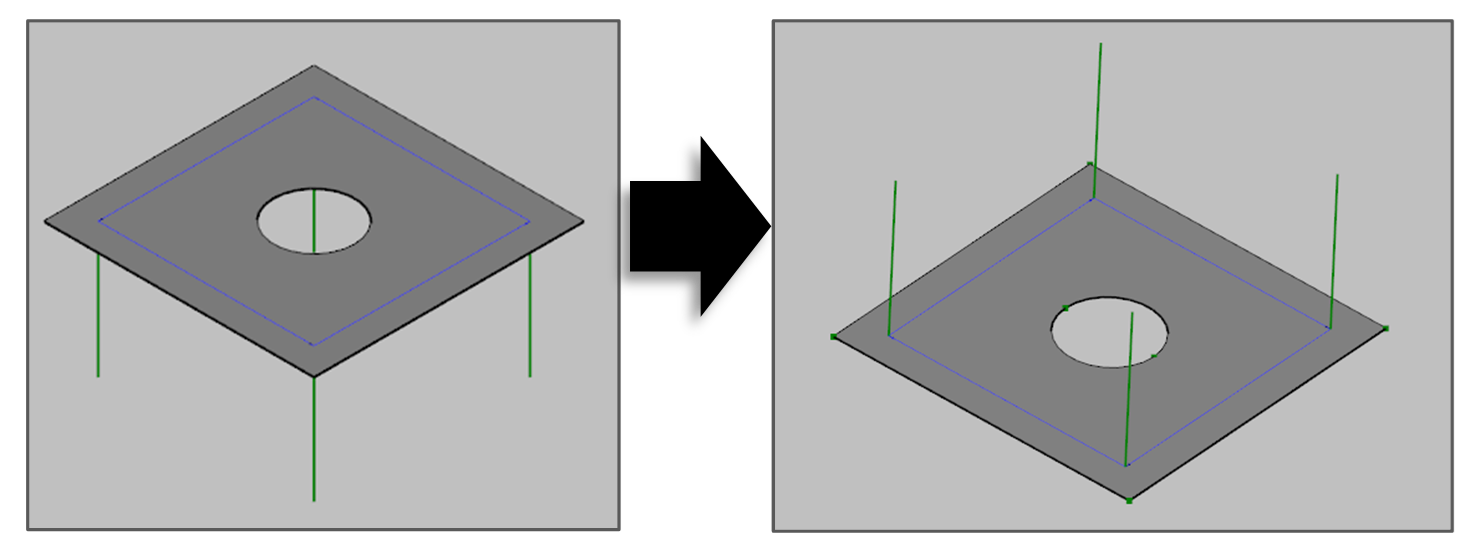
It provides the ability to edit planes/surfaces.
Merge Surface
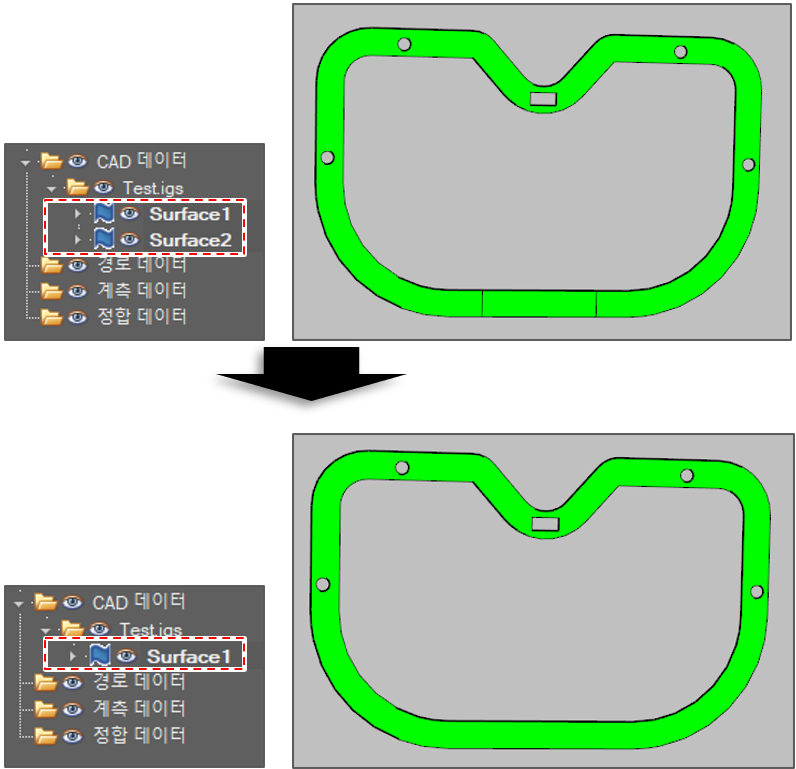
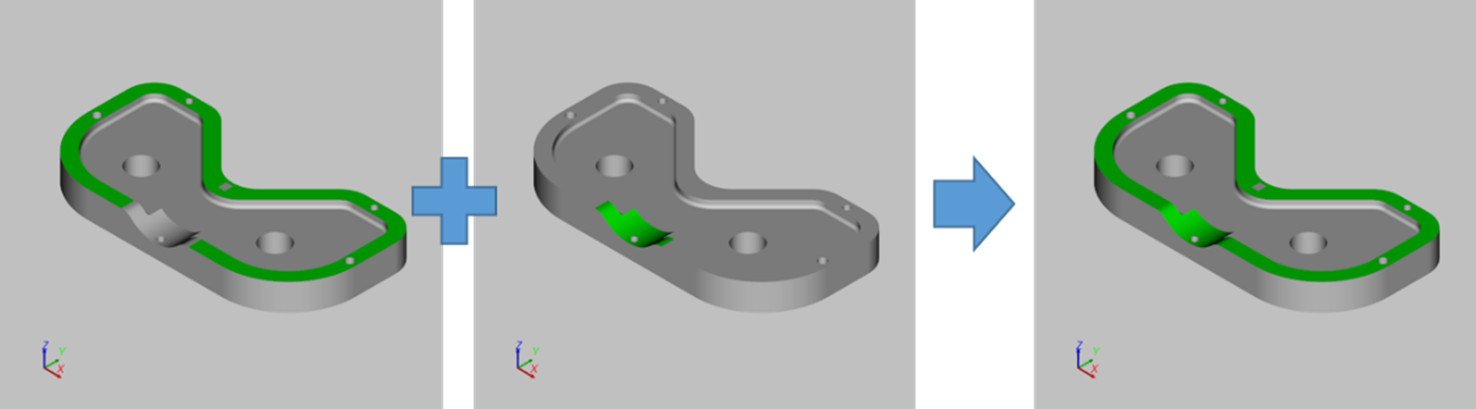
The function merges surfaces into a surface.
-
Click [Create Surface] button in the menu bar.

-
Select [Merge Surface] option in the active window.
-
Select 2 or more surface objects.
-
Click the [Run] button.
Split Surface
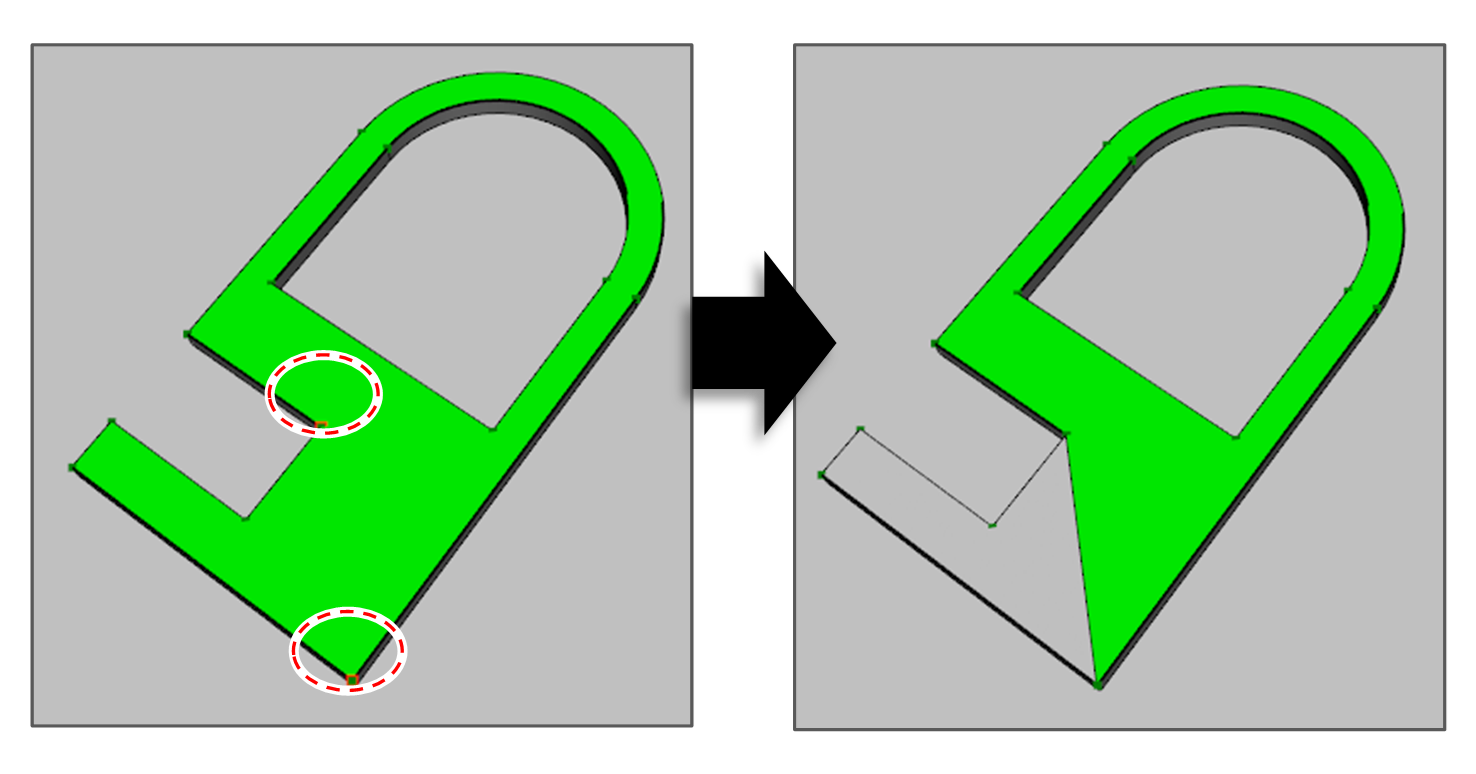
The function splits a surface into 2 surfaces.
-
Click [Create Surface] button in the menu bar.
-
Select [Split Surface] option in the active window.
-
Select a surface object to split.
-
Select 2 points on the surface edge to decide the segmentation direction.
-
Click the [Run] button.
Create Circular Hole On Surface
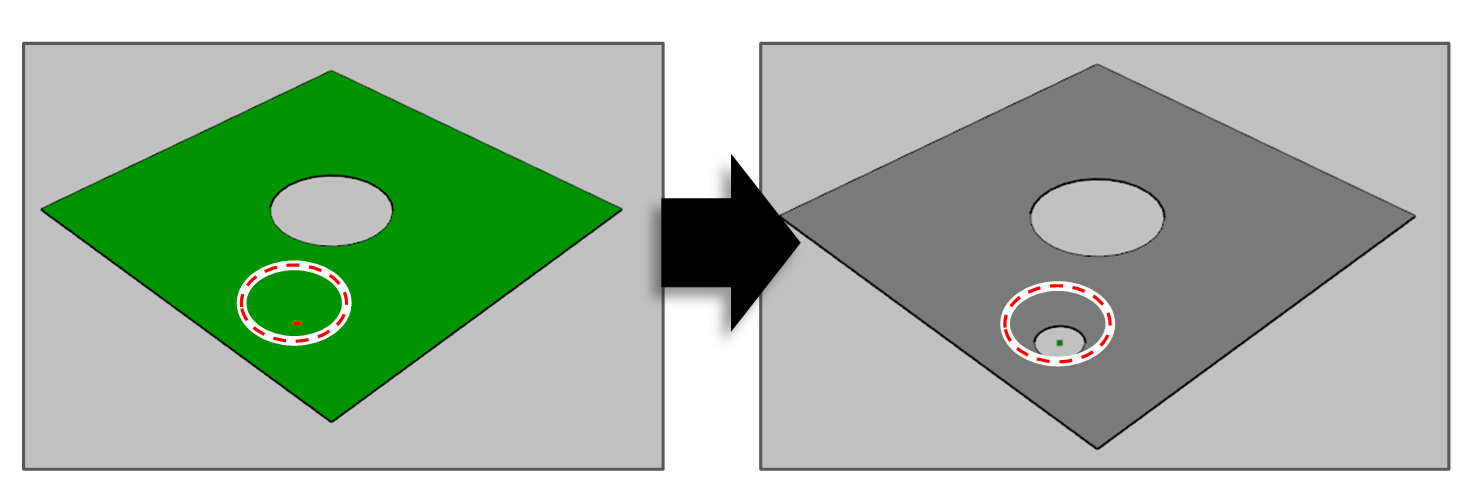
The function makes a circle-shaped hole inside a surface. The hole can be treated as an obstacle when generating a path.
-
Click [Create Surface] button in the menu bar.
-
Select [Create Circular Hole On Surface] option in the active window.
-
Select a surface object to make a hold.
-
Select a point on the surface. The point decides the hole center.
-
Set the radius of the hole.
-
Click the [Run] button.
Create Polygon-shape Hole On Surface
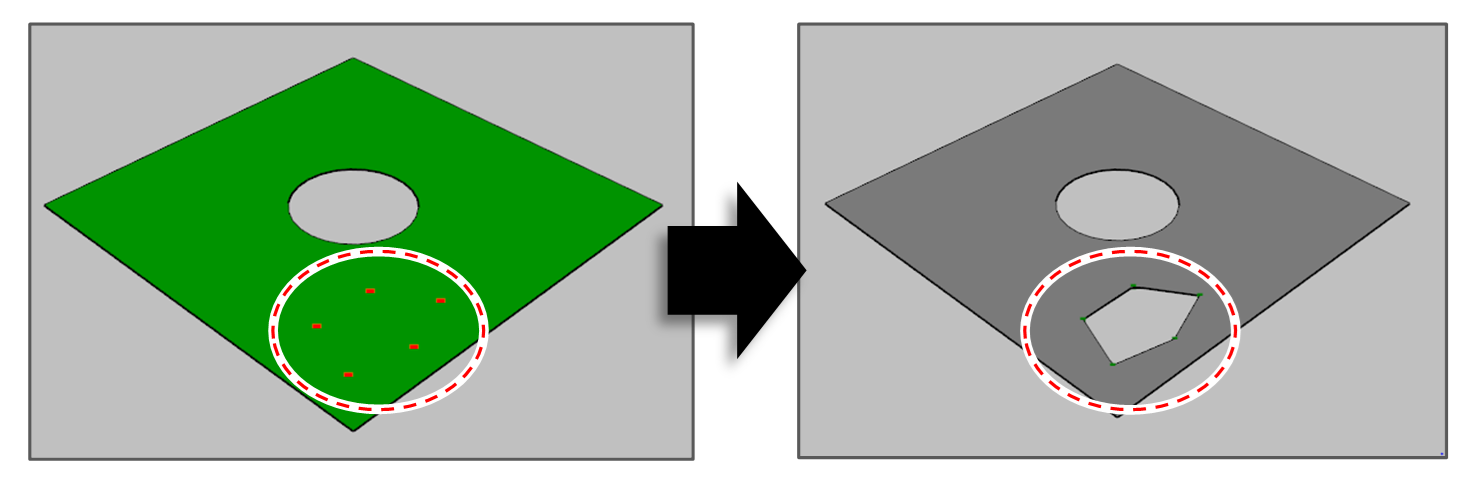
The function makes a polygon-shaped hole inside a surface.
-
Click [Create Surface] button in the menu bar.
-
Select [Create Polygon-shape Hole On Surface] option in the active window.
-
Select a surface to make a hole.
-
Select 3 or more points on the surface.
Selection sequence decides the polygon shape. -
Click the [Run] button.
Create Curved-shape Hole On Surface
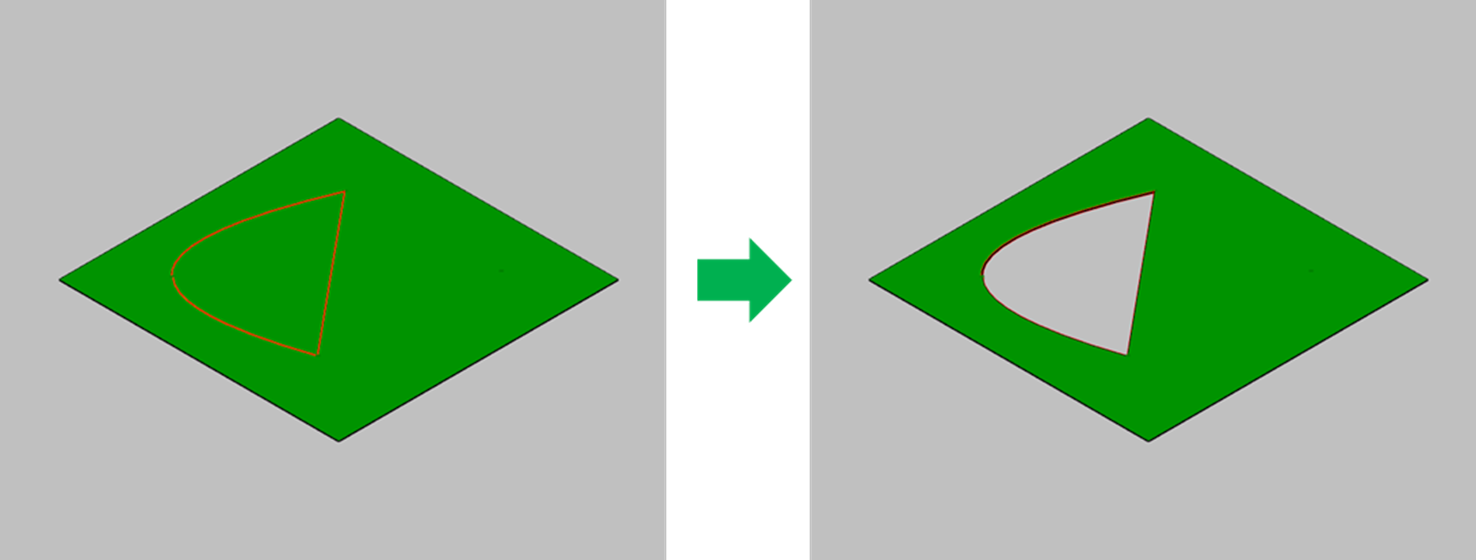
The function makes a curve-shaped hole inside a surface.
-
Click [Create Surface] button in the menu bar.
-
Select [Create Curved-shape Hole On Surface] option in the active window.
-
Select a surface to make a hole.
-
Select curves on the surface.
The selected curves should compose a loop. -
Click the [Run] button.
Reverse Surface
The function reverses the direction of loops which composed the surface. The direction of the loop decides the direction of normal vector of the surface. So the function can be used to reverse the initial path orientation when creating a path.
-
Click [Create Surface] button in the menu bar.
-
Select [Reverse Surface] option in the active window.
-
Select 1 or more surface objects.
-
Click the [Run] button.