
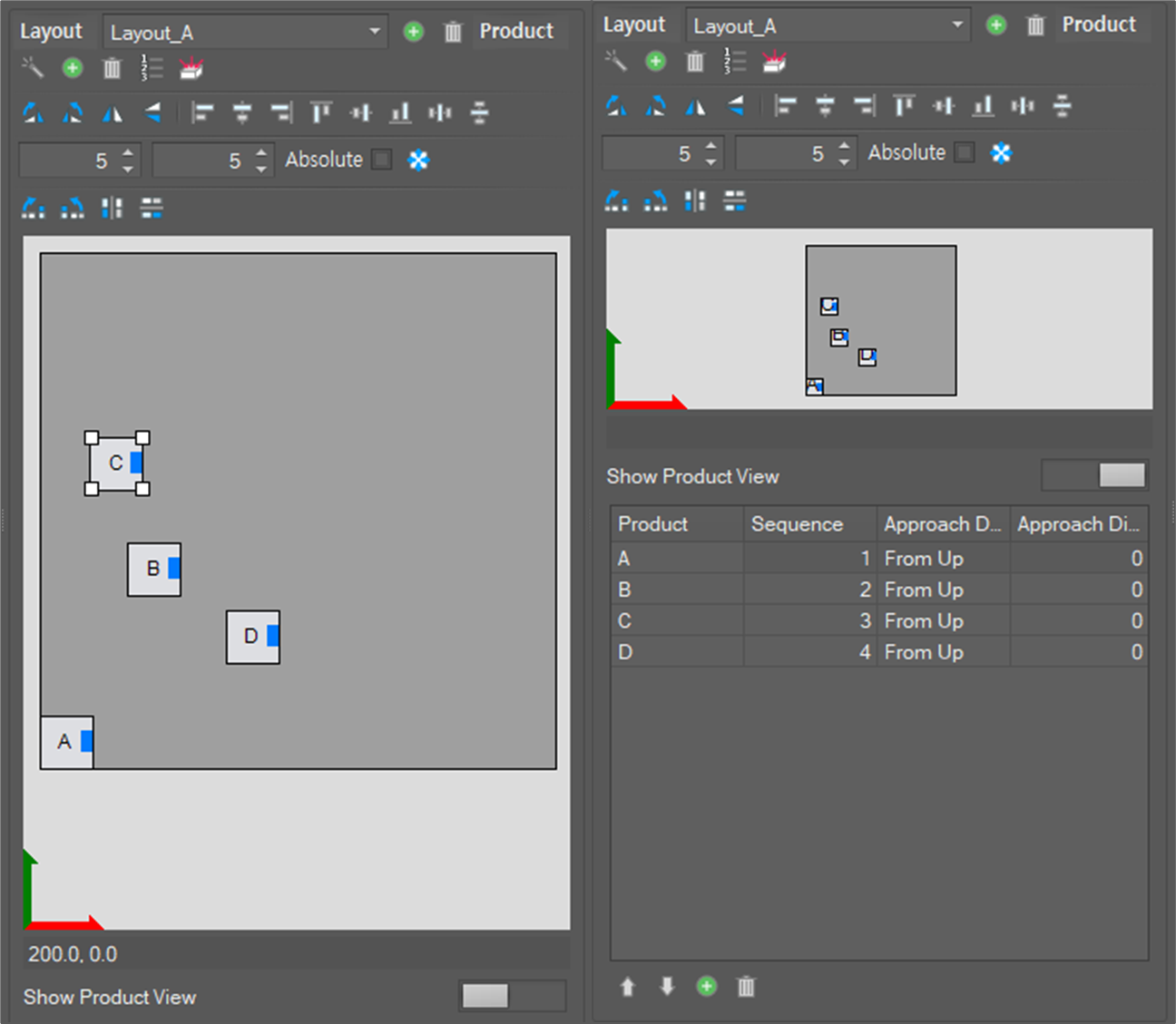
The Layout window is used to deploy products onto the plate area that were created in the Create Pattern window. It also is possible to set the direction and distance to/from the products when operating a robot. Products shown on the screen are displayed with capital letters in the alphabetical order of the products, and the forward direction of each product is marked with a blue box.
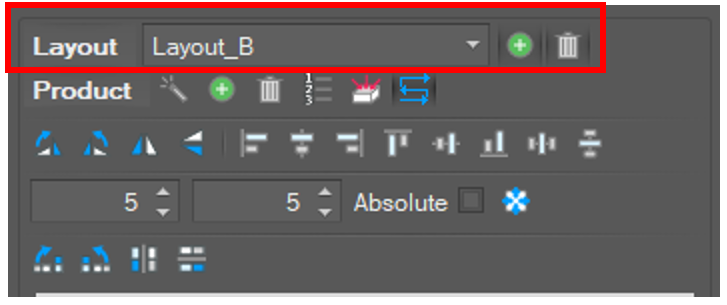
The layout toolbox is shown below.
|
|
Select Layout |
Select a layout to work with |
|
|
Add a layout |
Add a layout |
|
|
Delete the selected layout |
Delete the selected layout |



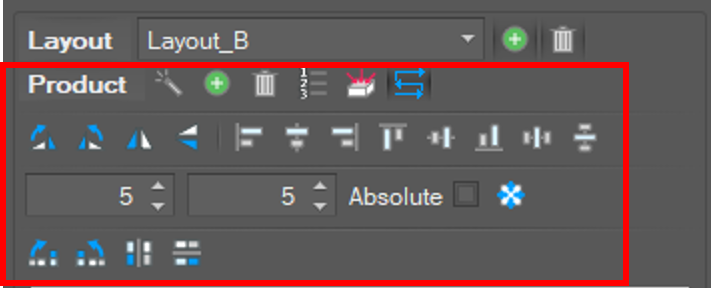
The product toolbox is shown below.
|
|
Auto Create Product |
Deploy products onto the current working layout automatically |
|
|
Add Product |
Add a product to the current layout |
|
|
Delete Product |
Delete the selected product |
|
|
Change Product Order |
Change the order of products deployed on the current layout Products are sorted in ascending order according to the order in which they were clicked. |
|
|
Change Approaching Properties |
Set the approaching and retreating direction and distance to/from a product |
|
|
Show work order |
The order of operations of the products is indicated by arrows. |
|
|
Rotate clockwise 90º |
Rotate a single product clockwise 90º |
|
|
Rotate counterclockwise 90º |
Rotate a single product counterclockwise 90º |
|
|
Flip Horizontal |
Flip the single product horizontally |
|
|
Flip Vertical |
Flip the single product vertically |
|
|
Align Left |
Align the selected multiple products to the left |
|
|
Align Center |
Align the selected multiple products to the center |
|
|
Align Right |
Align the selected multiple products to the right |
|
|
Align Top |
Align the selected multiple products to the top |
|
|
Align Bottom |
Align the selected multiple products to the bottom |
|
|
Distribute Horizontally |
Space the selected multiple products out horizontally with an equal distance between |
|
|
Distribute Vertically |
Space the selected multiple products out vertically with an equal distance between |
|
|
Single Move |
Single relative move the selected (single, multiple) product(s) to the X- or Y-axis (can move to the absolute point with options) |
|
|
Rotate multiple products clockwise 90º |
Rotate multiple products clockwise90º |
|
|
Rotate multiple products counterclockwise 90º |
Rotate multiple products counterclockwise 90º |
|
|
Flip Horizontal - Multiple Products |
Flip multiple products horizontally |
|
|
Flip Vertical - Multiple Products |
Flip multiple products vertically |




In the Product Layout screen, it is possible to select object(s) by clicking or dragging with the mouse. It is possible to move the selected object(s) by dragging them with the mouse. There are additional shortcuts available.
|
Mouse click + ctrl |
Cancel Project Selection |
Cancel the selection of the selected project |
|
Mouse drag + alt |
Copy Product |
Copy the selected product |
|
Mouse drag + shift |
Paste Product |
Paste the selected product to another product or plate |
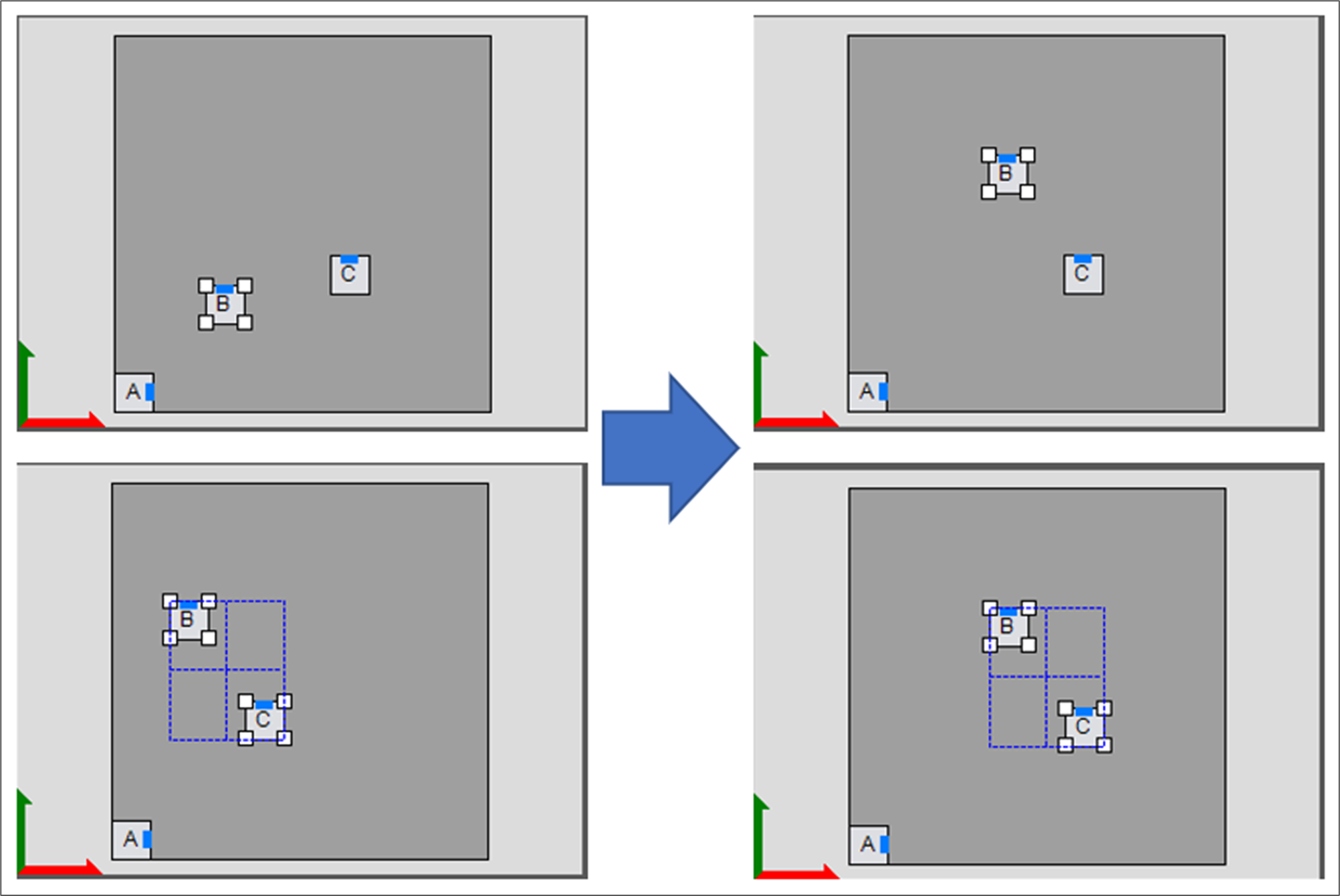
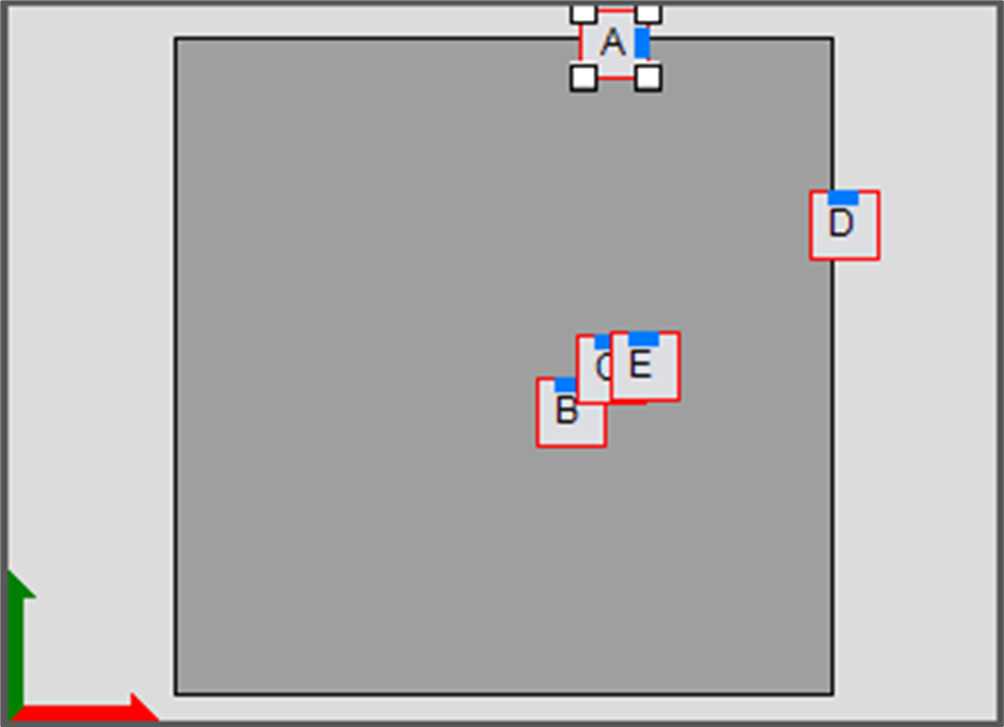
The Product layout screen has a function for detecting collisions. When product outlines overlap, their color changes to red.
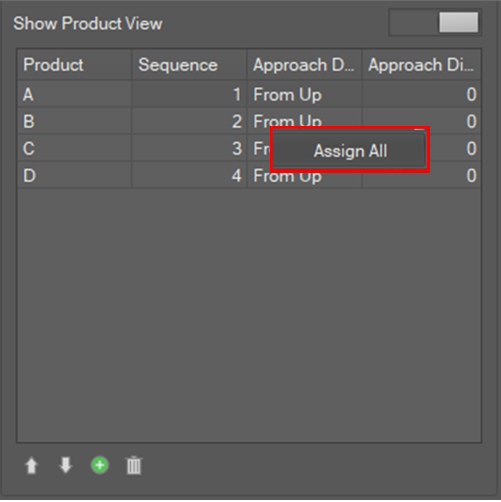
The Product Order window can be enabled using the View Product Order toggle button, and it is possible to modify currently deployed product(s). You can modify the order and approaching distance, and add or delete a product(s).
Batch application of approach direction and approach distance can be set using the right-click menu that appears when you right-click the value you want to assign all.