When the program starts, it automatically tries to connect to the controller.
If it is successfully connected to the controller, the connection state is updated on the monitoring bar.

Disconnect from the controller
To disconnect from the controller, select Home on the main menu and click the Disconnect button.

-
It is also possible to disconnect from the controller by clicking the connection state and selecting Disconnect on the monitoring bar.
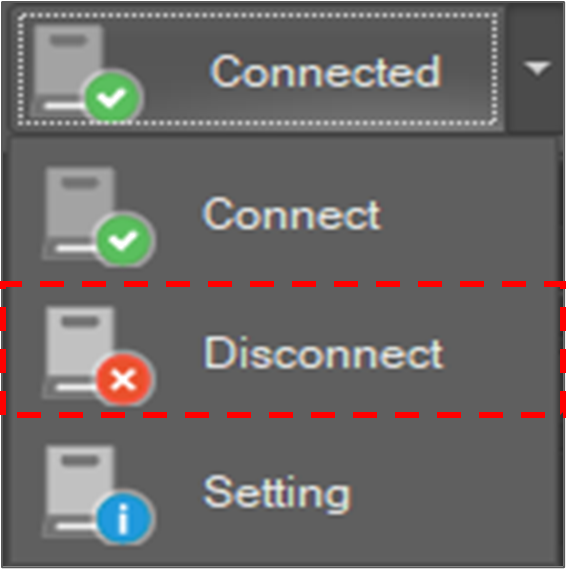
After the connection is disconnected from the controller, you must connect to the controller manually to connect to the controller.
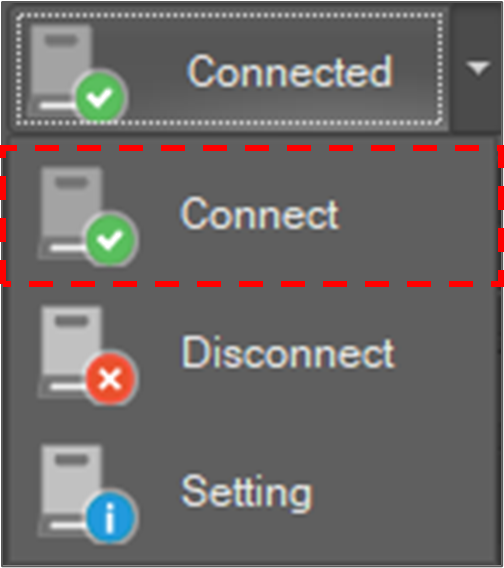
To connect to the controller, select Home on the main menu and click the Connect button.

-
It is also possible to connect to the controller by clicking the connection state and selecting Connect on the monitoring bar.
Change the connection configuration
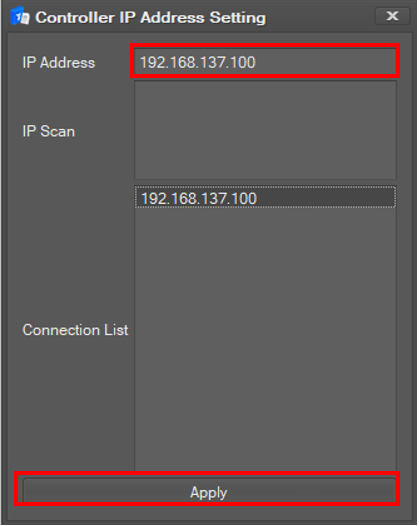
The controller’s default IP address is 192.168.137.100, so this software’s connection address is also set to 192.168.137.100 by default.
-
Before changing the connection configuration, make sure that the connection is disconnected from the controller.
To change the connection address,
-
Select Home on the main menu and click the Setting button.

-
Type a new address in the Controller IP Address field and click the Apply button.