
This is a type of cradle that allows the target to be placed in a set formation.
-
All targets on a pallet can be handled with minimum (4-point) instructions.
-
Workpieces can be approached sequentially by entering the row, column, stack and thickness.
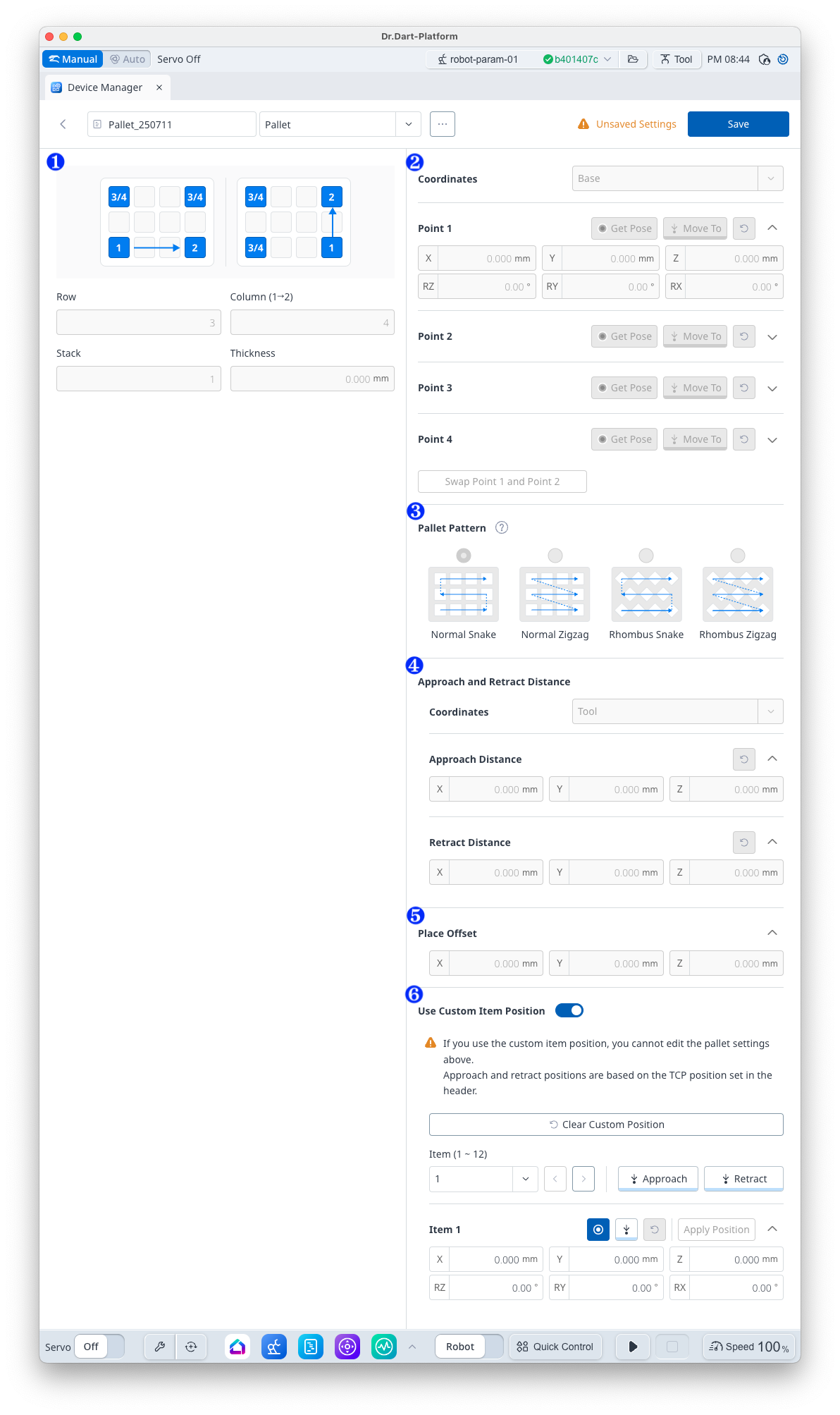
|
Item |
Description |
|
|---|---|---|
|
1 |
Pallet Row/Column/Stack/Thickness |
This is for entering the number of the row/column/stack and the stack height.
|
|
2 |
Save Pose |
This selects a reference coordinate and saves a reference point.
|
|
3 |
Pallet Pattern |
This selects the robot’s movement pattern.
|
|
4 |
Approach/Retract Distance |
This is for entering the approach/retract distance in x, y and z values from the tool. In general, to retract 100 mm in the z-direction, “0, 0, -100” must be entered. |
|
5 |
Place Offset |
This enters the offset values to apply to the points created based on the 4 poses (positions).
|
|
6 |
Use Custom Item Position |
You can use [Use Custom Item Position] to see the palette points created, or you can change the location arbitrarily. [Clear Custom Position] button: All custom location information can be initialized.
You can enter a value in the item field or select from the list to select the points you want to check through the
|


