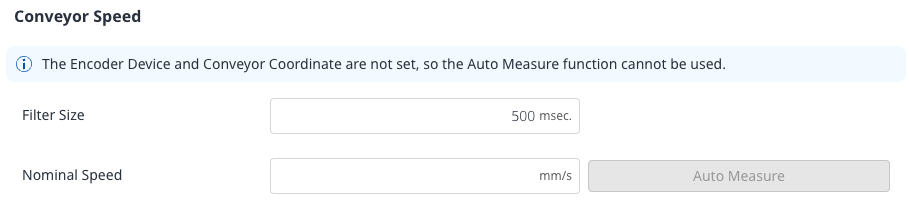
In [Conveyor Speed] panel, set the conveyor speed ([Filter Size], [Nominal Speed]) and [Conveyor Section].
[Filter Size] is the size of the conveyor speed filter. Select an intuitive moving-average filter under Conveyor Tracking. Increase the filter value if there is vibration in the robot and reduce the value if the tracking performance in the conveyor acceleration section is low.
Measure [Nominal Speed] using the [Auto Meausre] button while operating the conveyor. If the conveyor speed is 200% higher than Nominal Speed, it can be used to provide information. It does not require an accurate value, so entering a design specification value without actual measuring is acceptable.
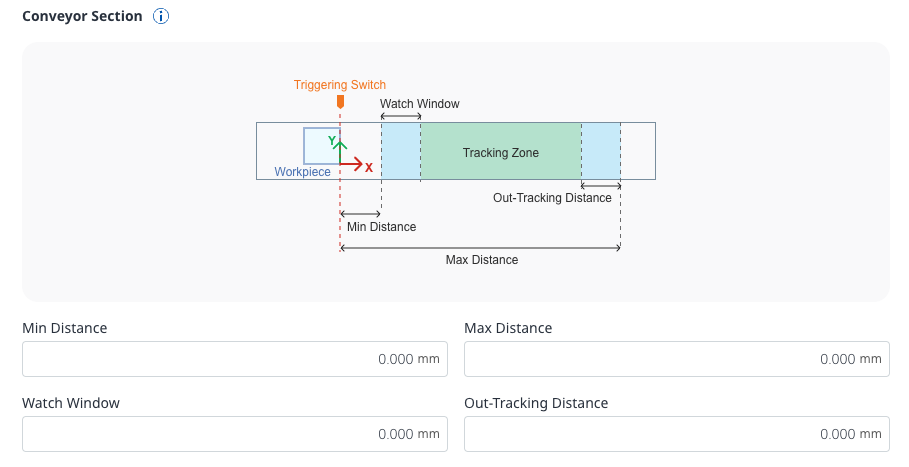
Next, set up [Conveyor Section].
[Min Distance] and [Max Distance] are related to the work section of Conveyor Tracking. A larger [Min Distance] value allows the work to begin at a location further away from the workpiece detection switch. The robot can conduct conveyor tracking up to an area the size of the [Max Distance] value, but not that of the [Out-Tracking Distance].
If the robot enters the [Out-Tracking Distance], it generates an error and decelerates. Increase the [Out-Tracking Distance] to apply gradual deceleration.
[Watch Window] is the area where work candidates are determined. Workpieces in this area can only become work targets once the work begins. Starting from the [Min Distance], setting a wider area will increase the number of work targets. However, in a worst-case scenario, this can cause workpieces at the end of the [Watch Window] to become targets, so it is recommended that the watch window size be adjusted to allow all work in the tracking zone to be completed.