
1. Monitoring Screen
-
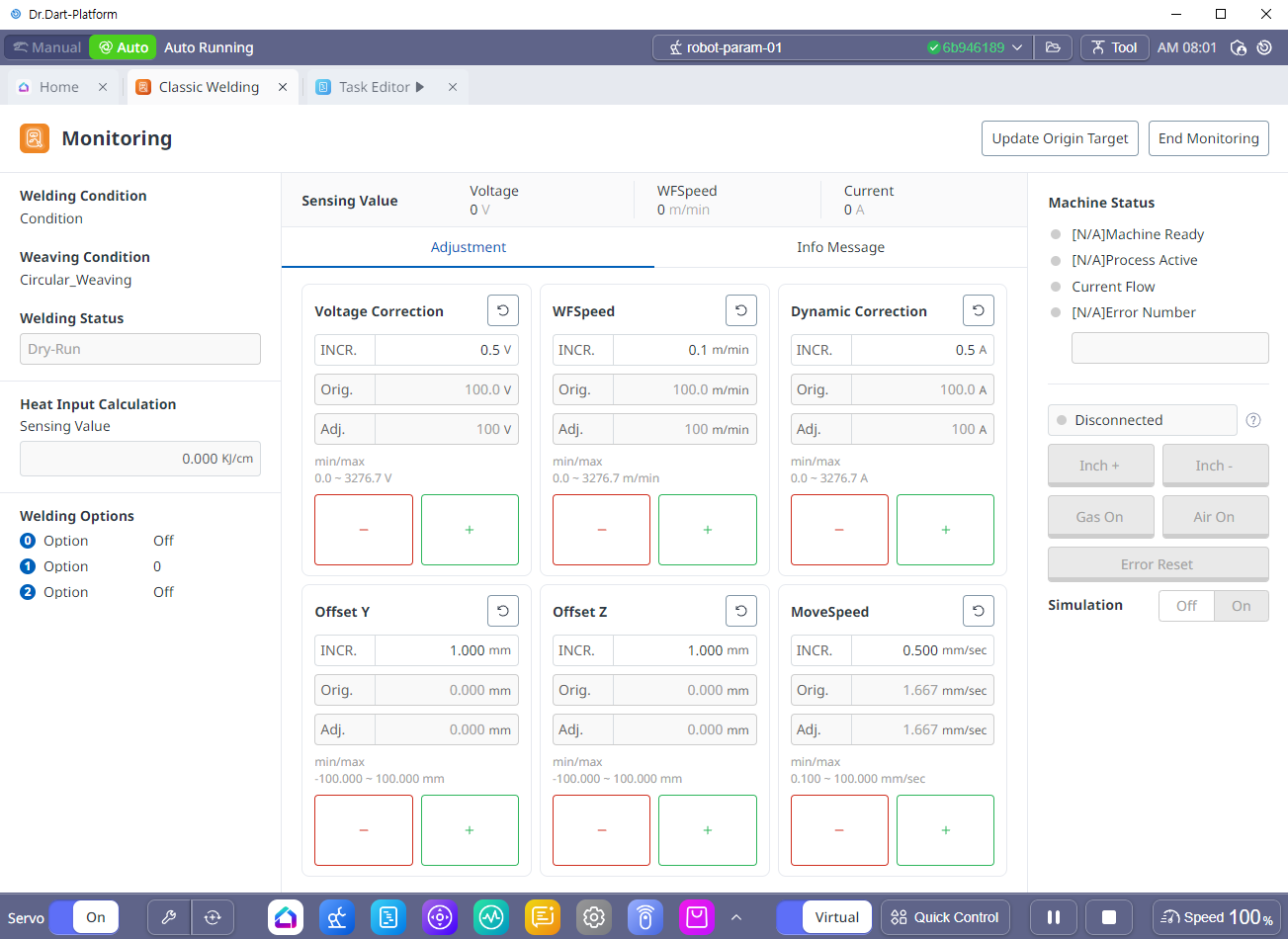
When a Task set to digital welding in the Task Editor is running, the digital welding monitoring screen appears as shown below.
|
No |
Category |
Desc |
|---|---|---|
|
1 |
Welding Condition |
Display the name of the welding condition being used in the currently running task. |
|
2 |
Weaving Condition |
Display the name of the weaving condition being used by the currently running task. |
|
3 |
Welding Status |
Displays the current welding progress status of a task that includes welding. ("Welding in progress", "Error occurred", "Dry run", "Not welding in progress", etc.) |
|
4 |
Welding Options |
If a signal is registered in “Other” in the input tab of “Communication Settings” of digital welding, the detected value is displayed in real time in that section. |
|
5 |
Sensing Value |
Show the voltage, current, and feed speed values detected from the welding machine. |
|
6 |
Voltage Correction |
You can adjust the voltage value by the set INCR value using the + and - buttons below. |
|
7 |
WFSpeed |
You can adjust the transmission speed value by the set INCR value using the + and - buttons below. |
|
8 |
Dynamic Correction |
You can adjust the dynamic correction value by the set INCR value using the + and - buttons below. |
|
9 |
Offset Y |
You can adjust the offset Y value of the selected weaving by the set INCR value using the + and - buttons below. |
|
10 |
Offset Z |
You can adjust the offset Z value of the selected weaving by the set INCR value using the + and - buttons below. |
|
11 |
MoveSpeed |
When welding, you can adjust the movement speed by the set INCR value using the + and - buttons below. |
|
12 |
Update Origin Target |
Save the adjusted values as the default values for the selected welding conditions. |
|
13 |
Machine Status |
Displays the status of the welder from the welding machine. To view this item, the signal must be set in the “Monitoring” item in the Input tab of “Communication Settings”. |
|
14 |
Simulation |
You can play the welding task without running the welder. If you turn the simulation mode “on” and then play the task, you can check the path and weaving motion first, and adjust interference or offsets on the welding path to prevent unexpected errors during actual welding. |