1. Dart-Platform v2 Data Backup and Conversion
-
Install Dart-Bridge SW through the installation file.
-
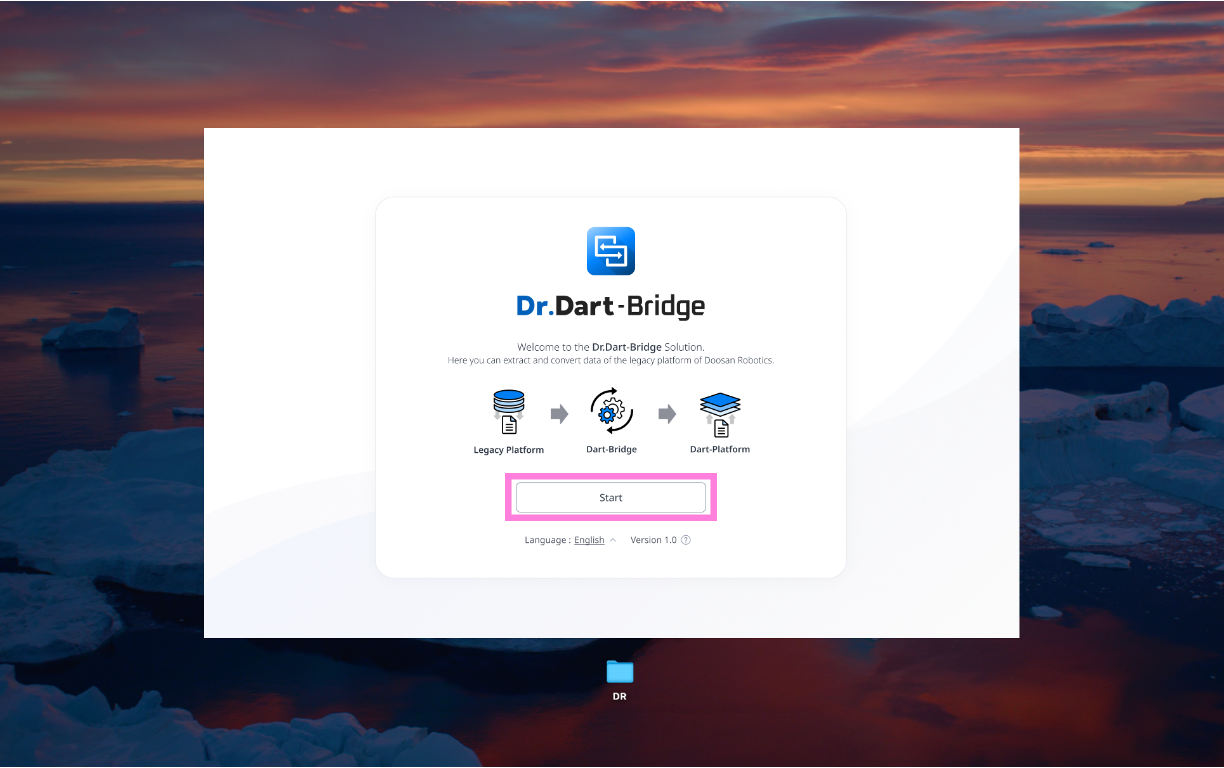
On the landing page, click the [Start] button.
-
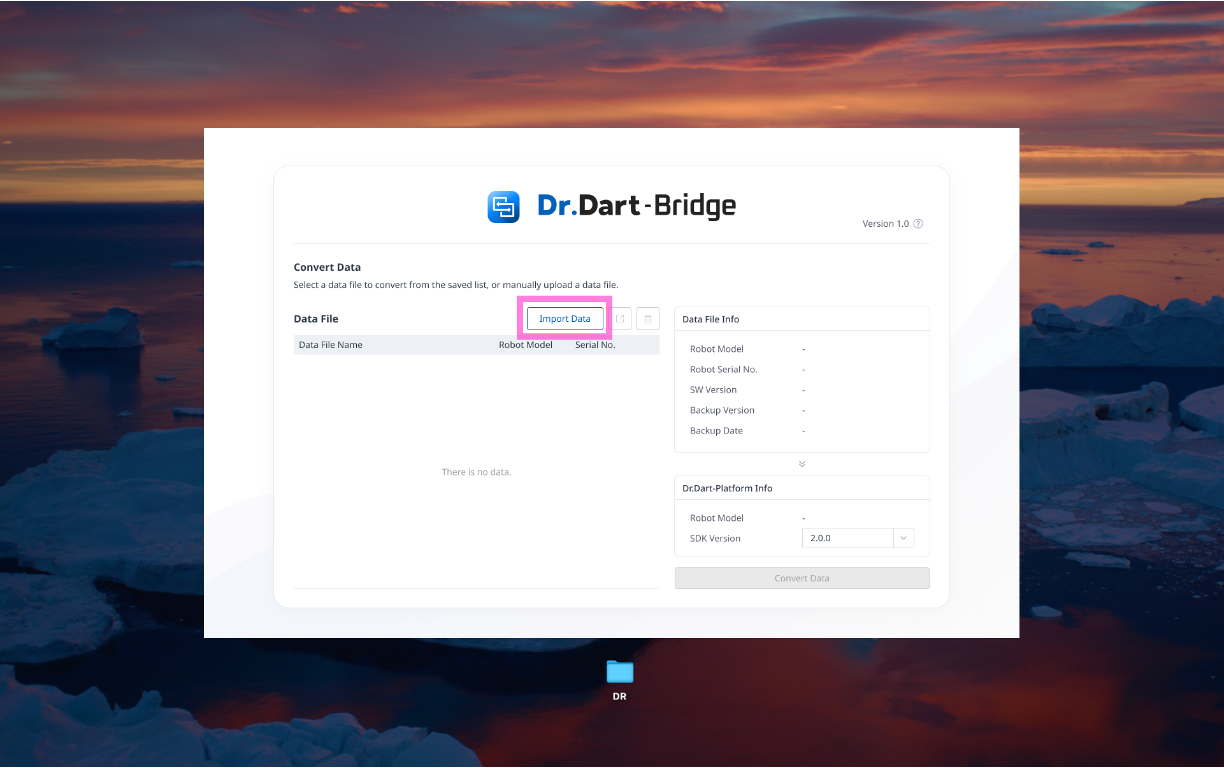
Click the [Import Data] button on the main screen.
-
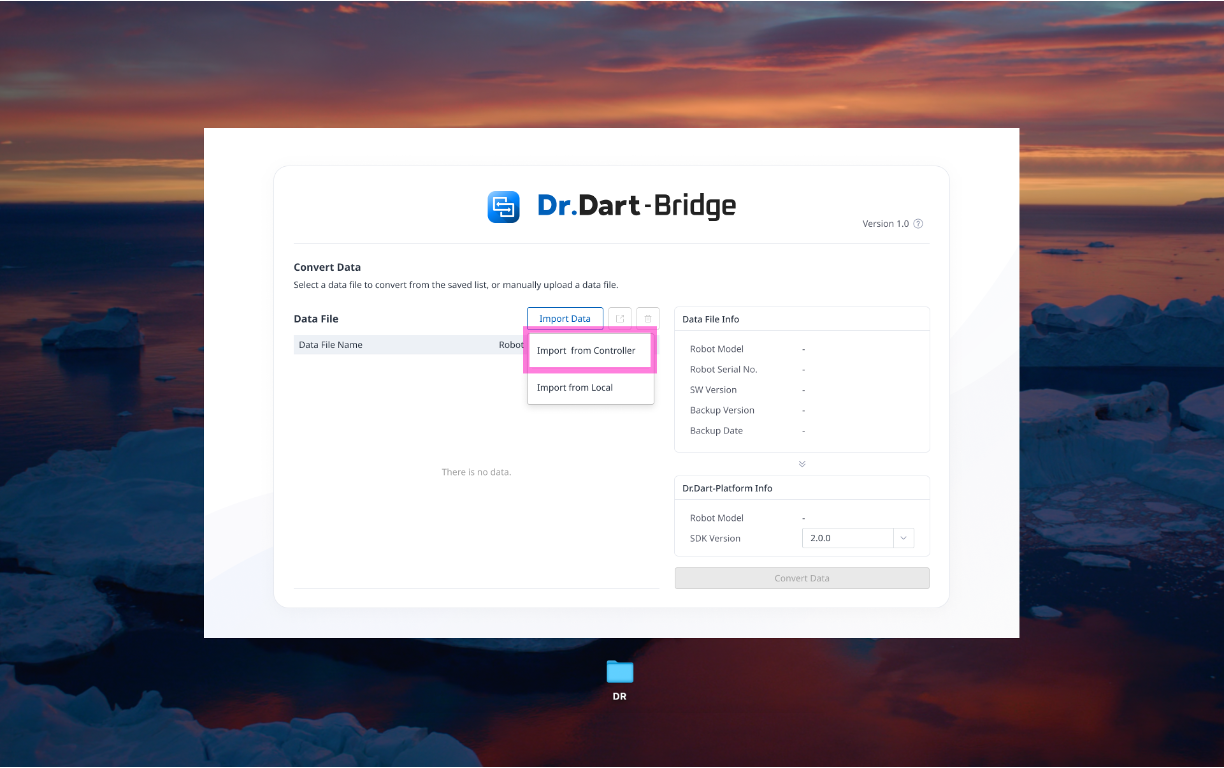
Select the method of importing data (import directly from the controller or import already extracted data files)
-
Select or enter an IP on an import pop-up call from the controller, then click the [Import] button.
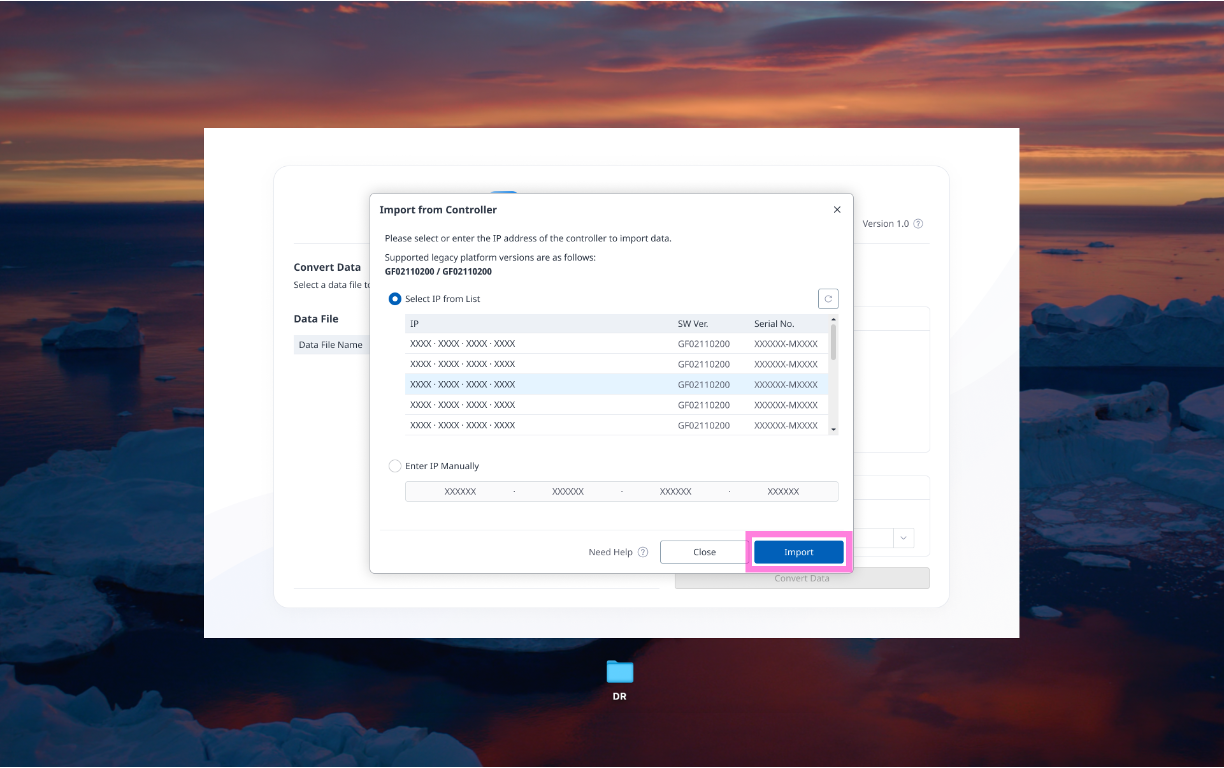
-
Imported data is listed in the data file list. Select the data file in the list and click the [Convert Data] button.
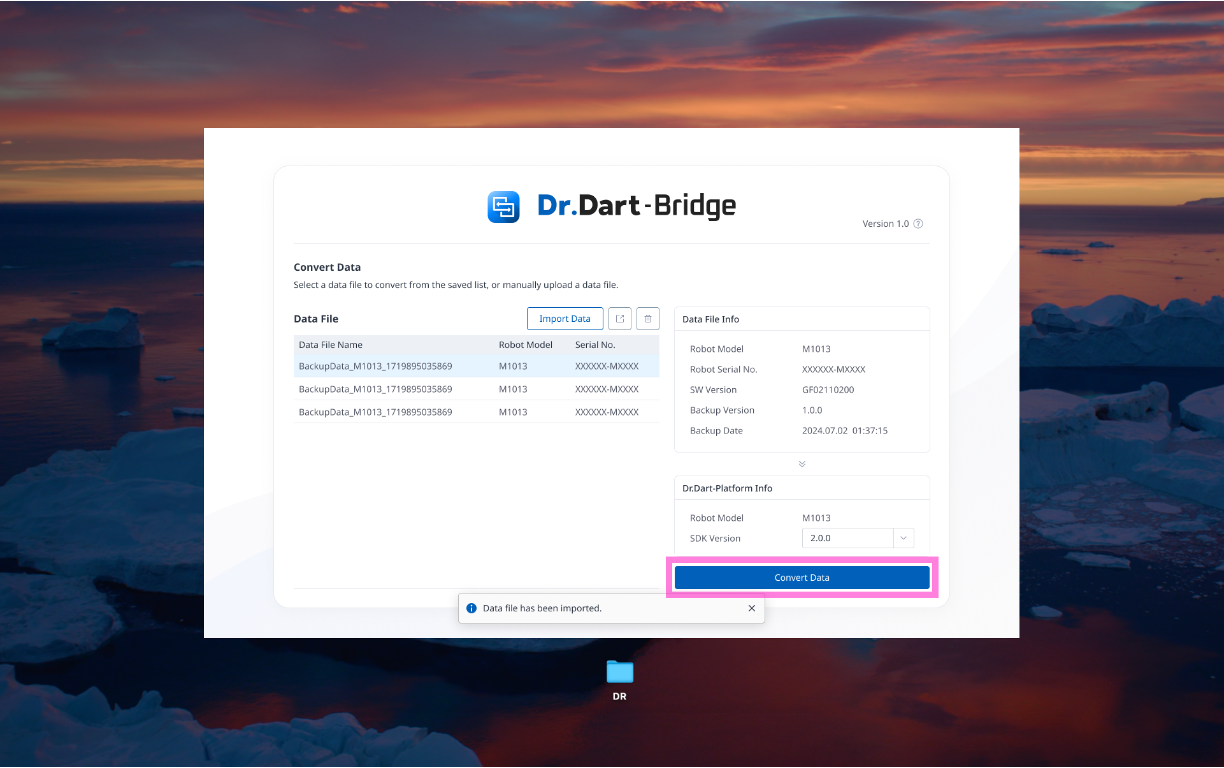
-
Starts the data conversion.
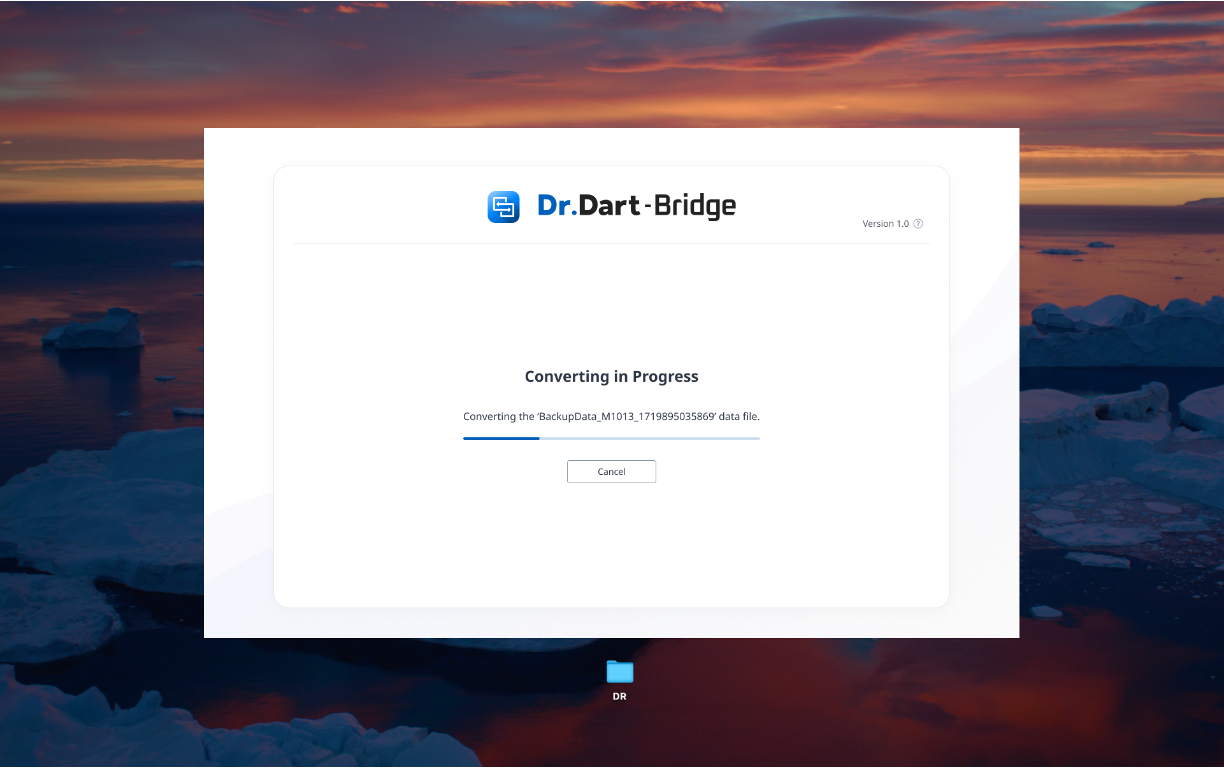
-
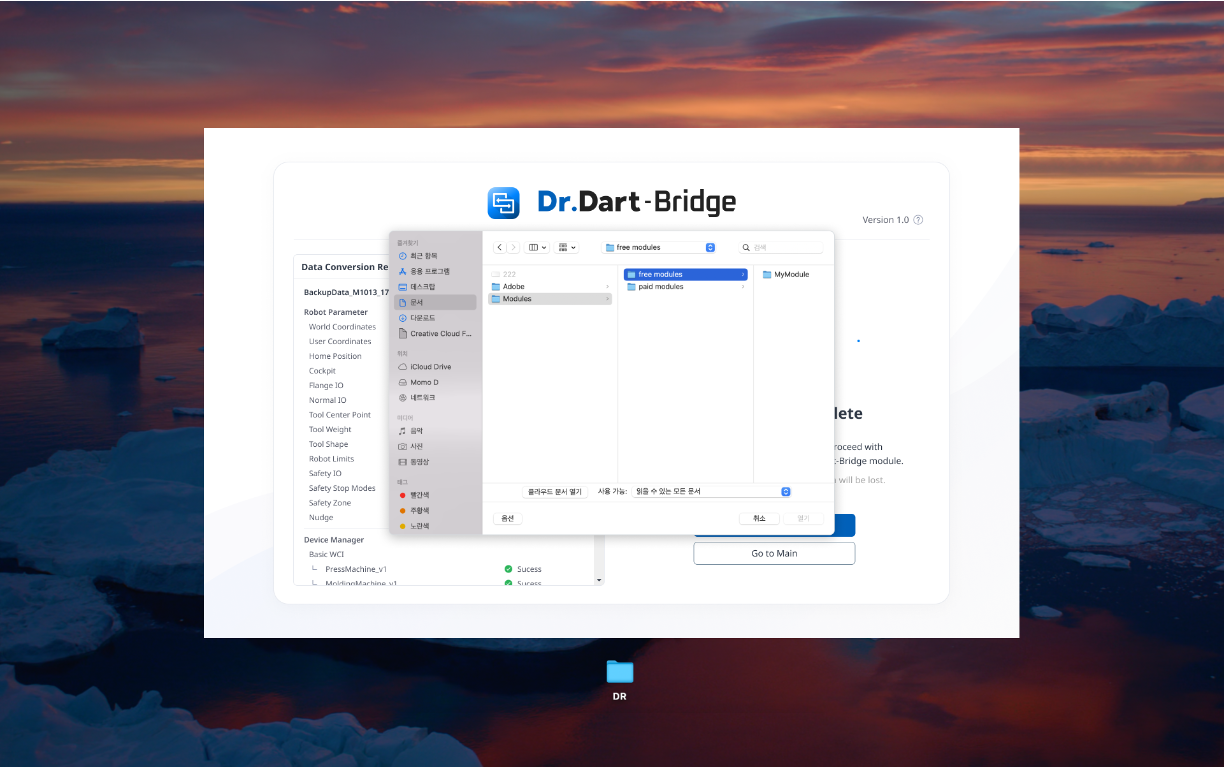
The completion screen will be called upon completion of the data conversion. Click the [Export Data] button.
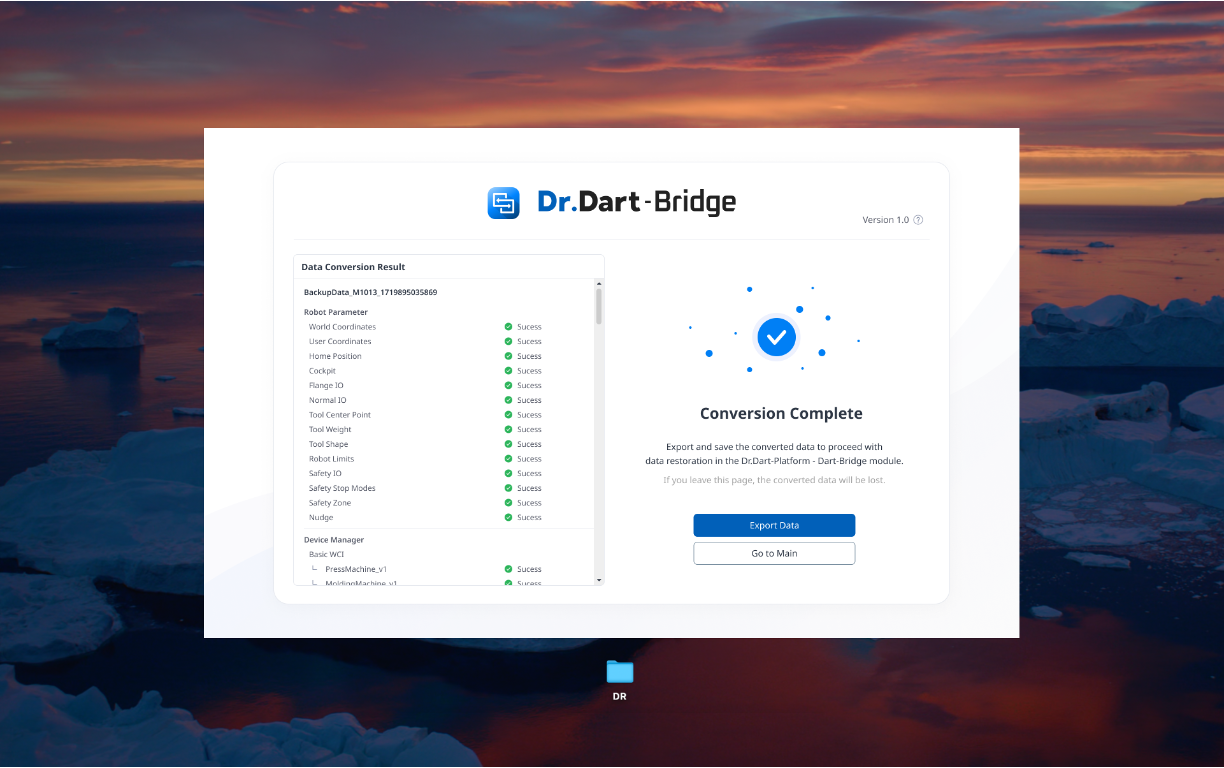
-
Call the local file explorer pop-up to specify where the data is to be exported.
-
The converted file is stored in the selected location.
2. Data Migration to Dart-Platform v3
-
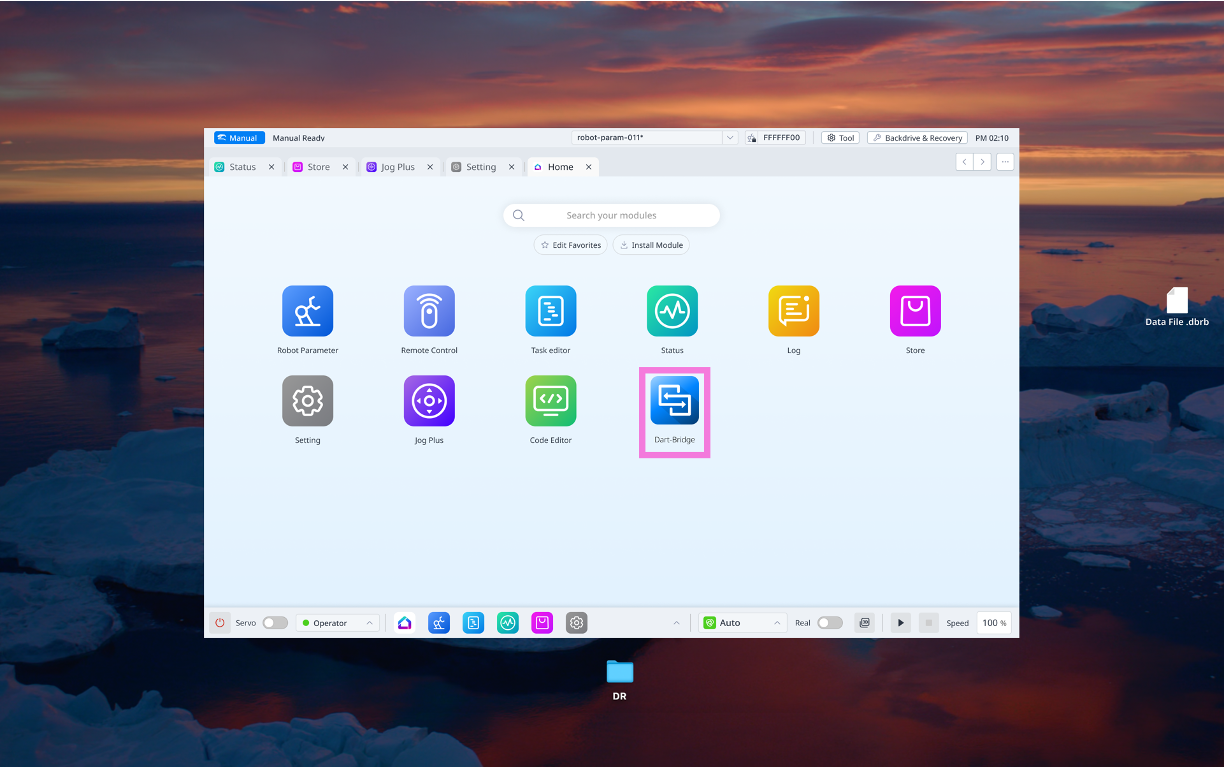
Run the Dart-Bridge module of the Dart-Platform.
-
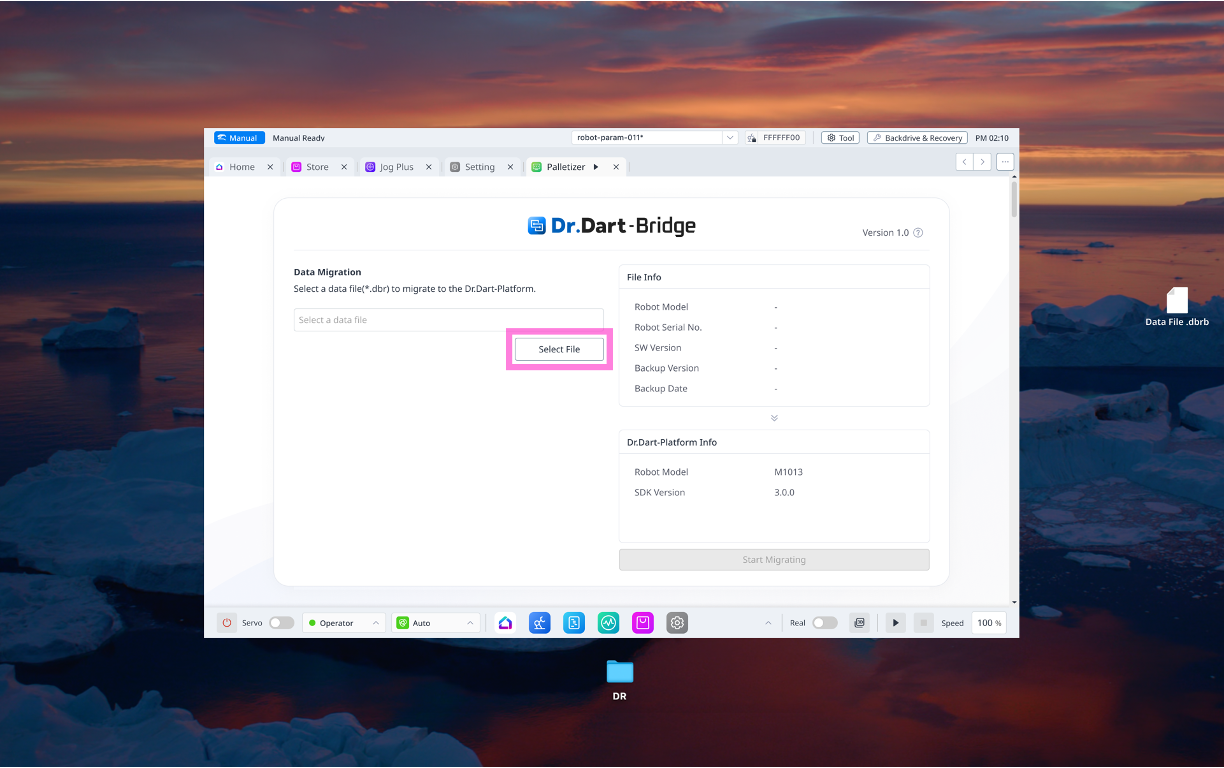
Click the [Select File] button on the Dart-Bridge module main screen.
-
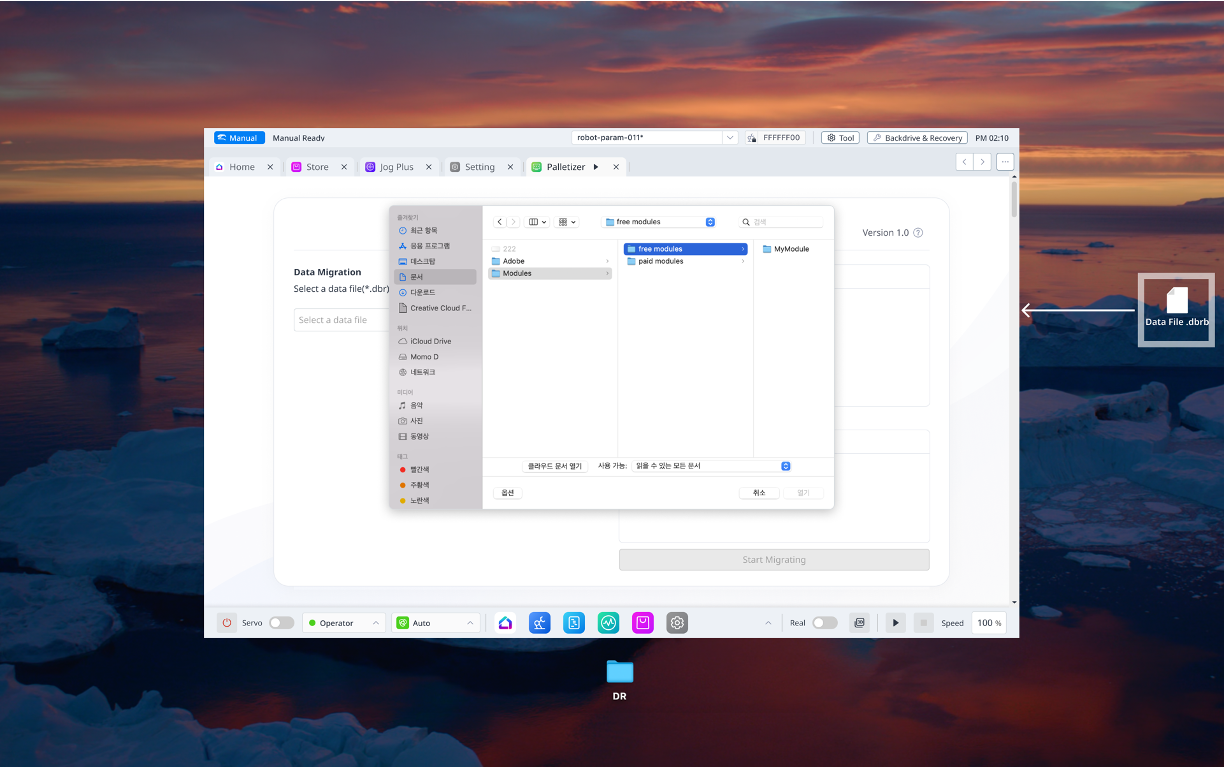
When the Local File Explorer pop-up is called, select the file you converted through Dart-Bridge SW.
-
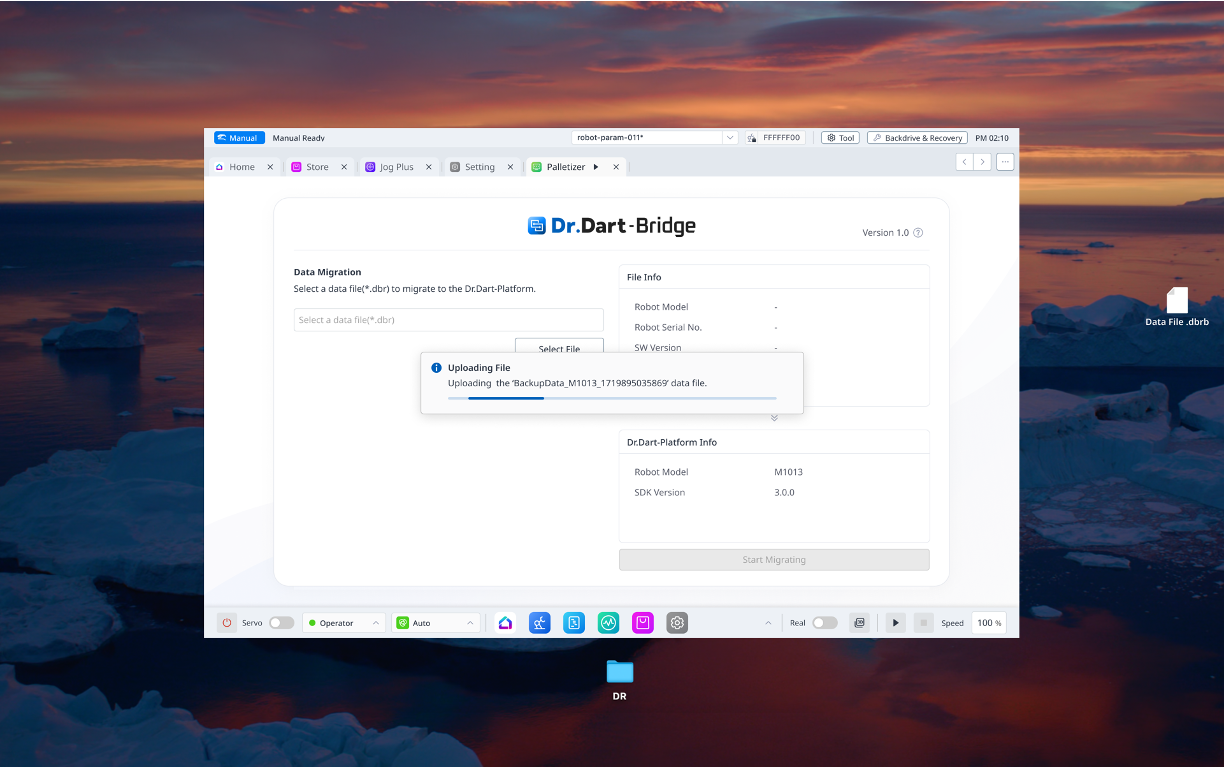
Upload to the selected file module.
-
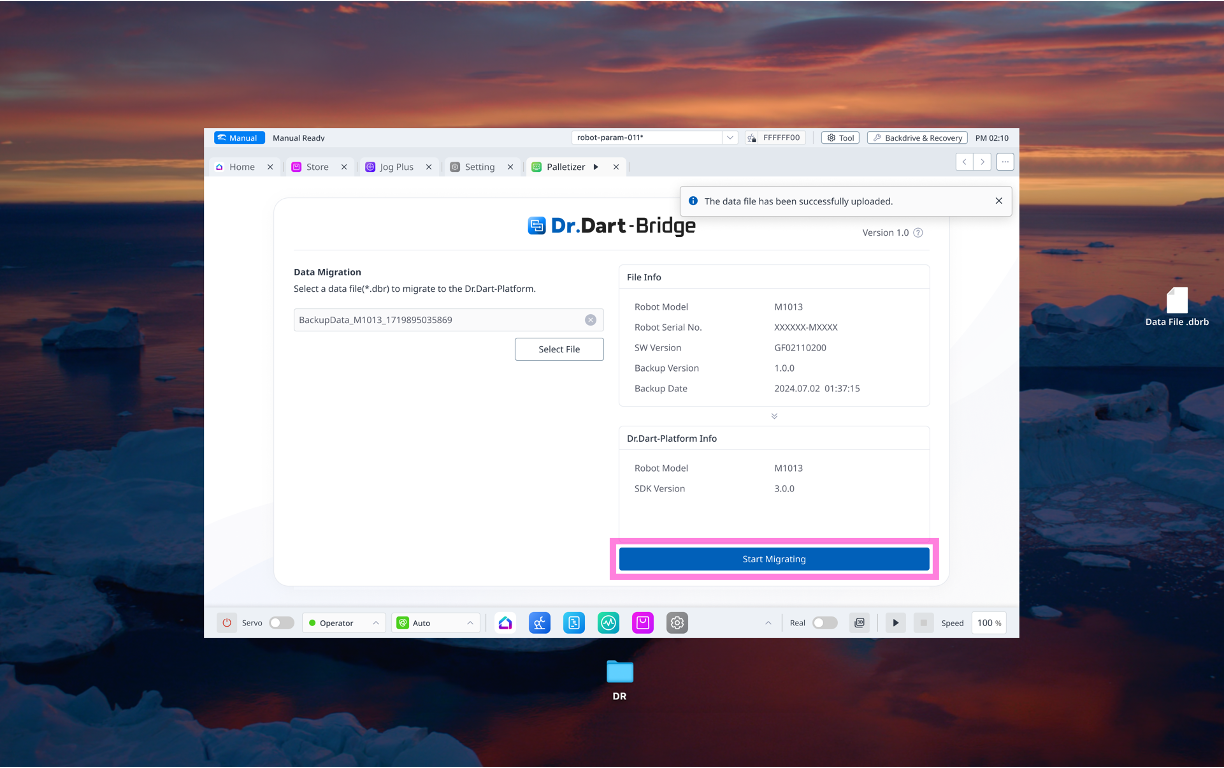
When the file is uploaded, click the [Start Migrating] button.
-
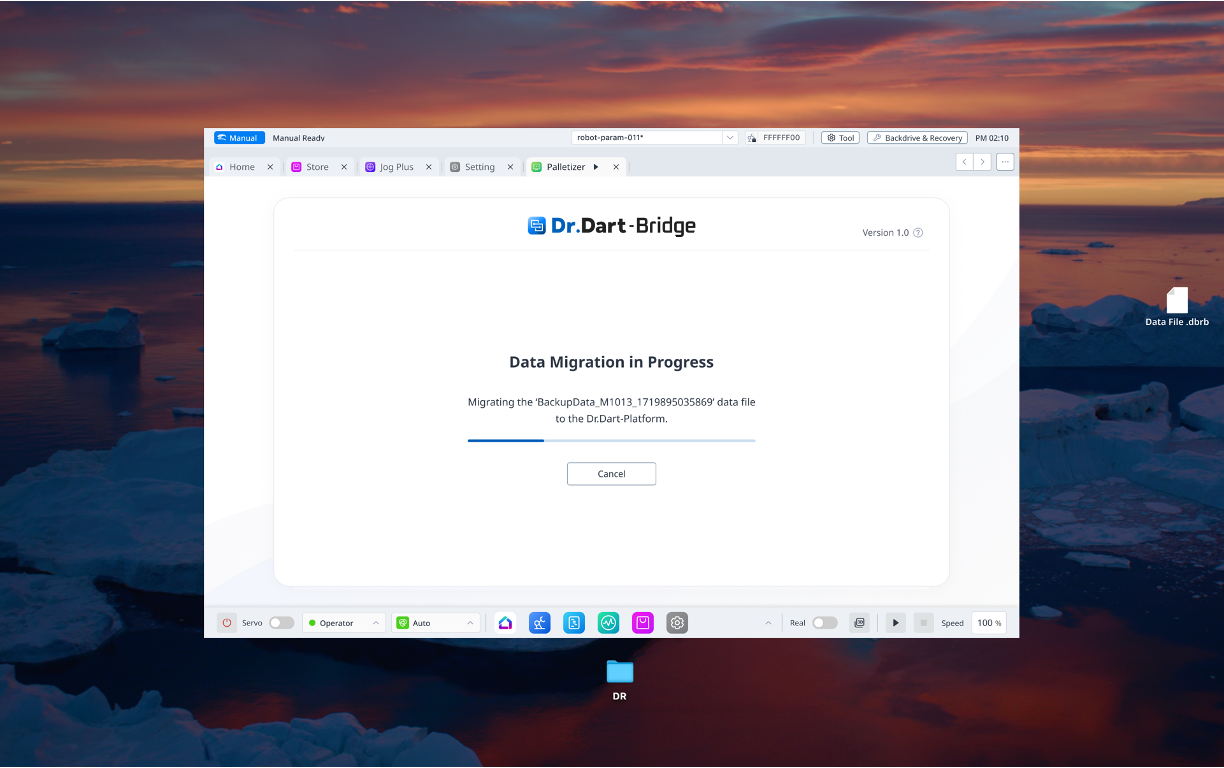
Start data migration.
-
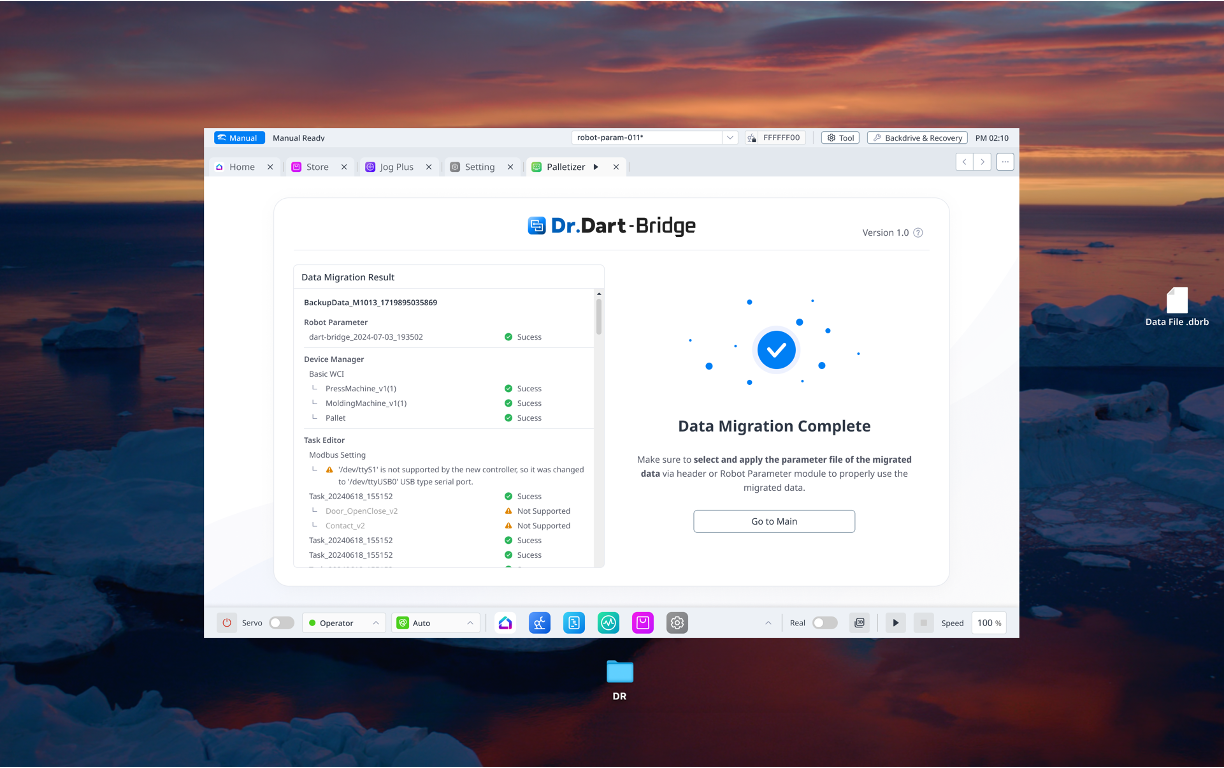
Complete the data migration.