
1. Coach Marks
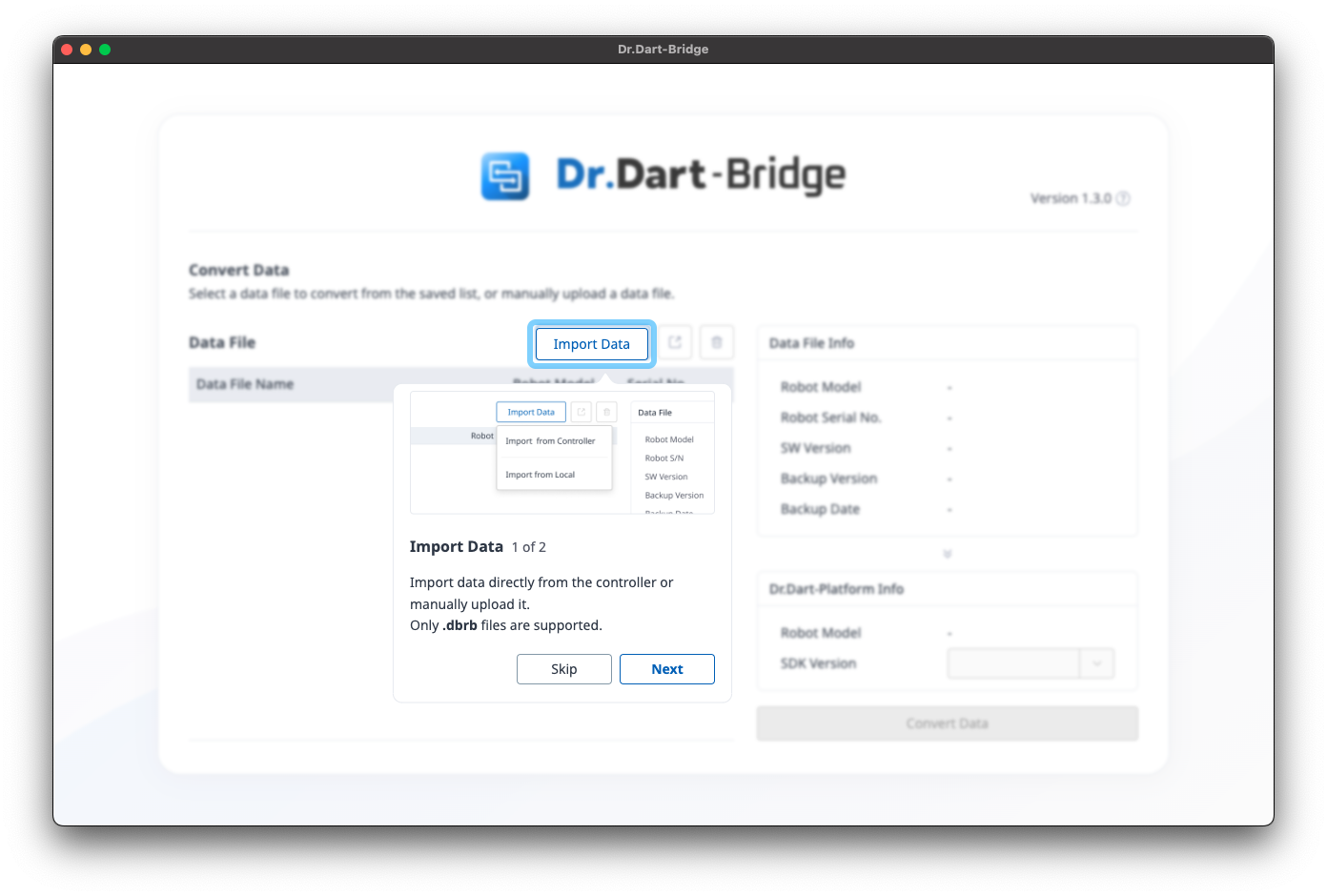
The first time you enter the default screen, you will see information about key features.
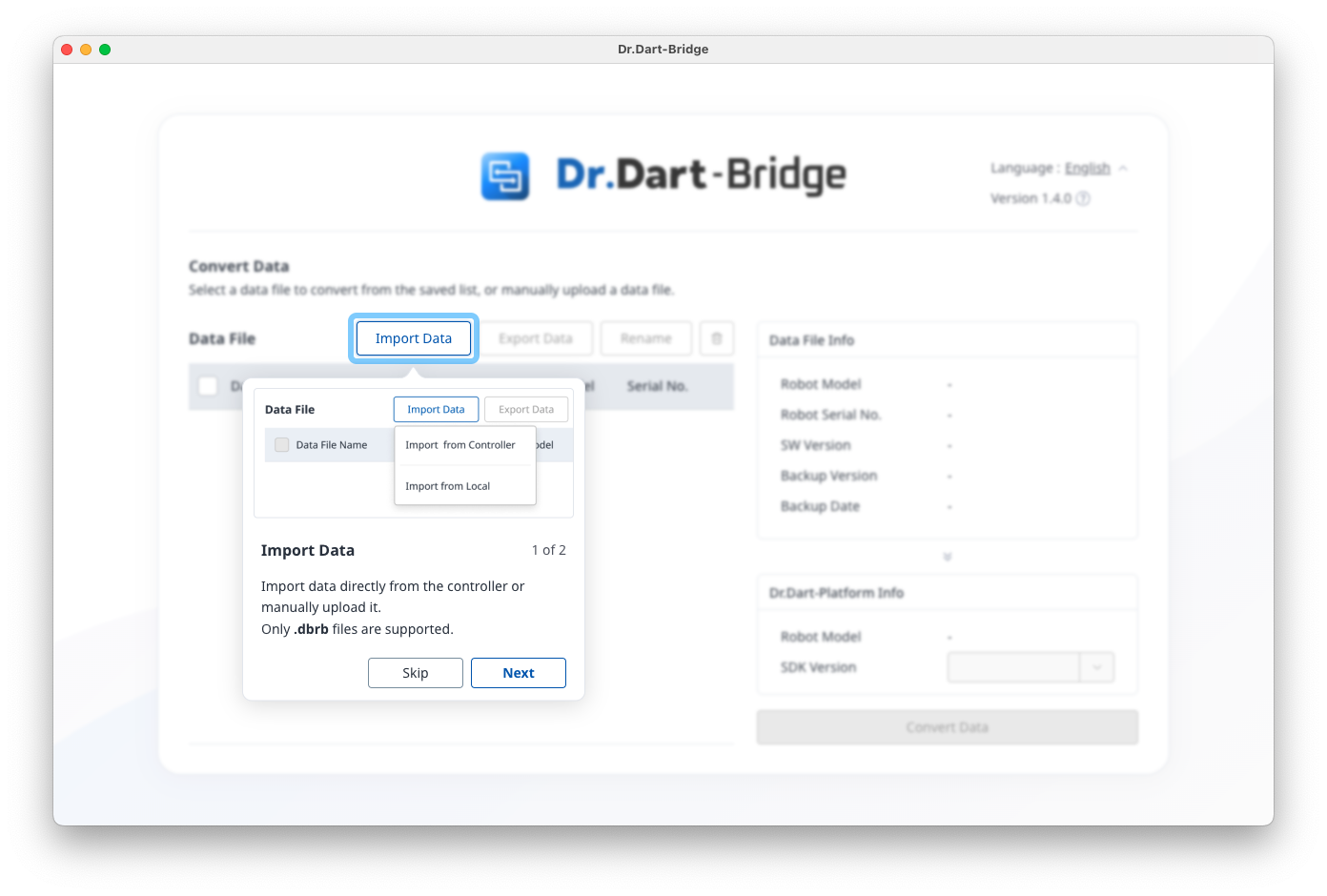
When entering the main screen for the first time, a Dart-Bridge will pop up.
2. Main Screen Features
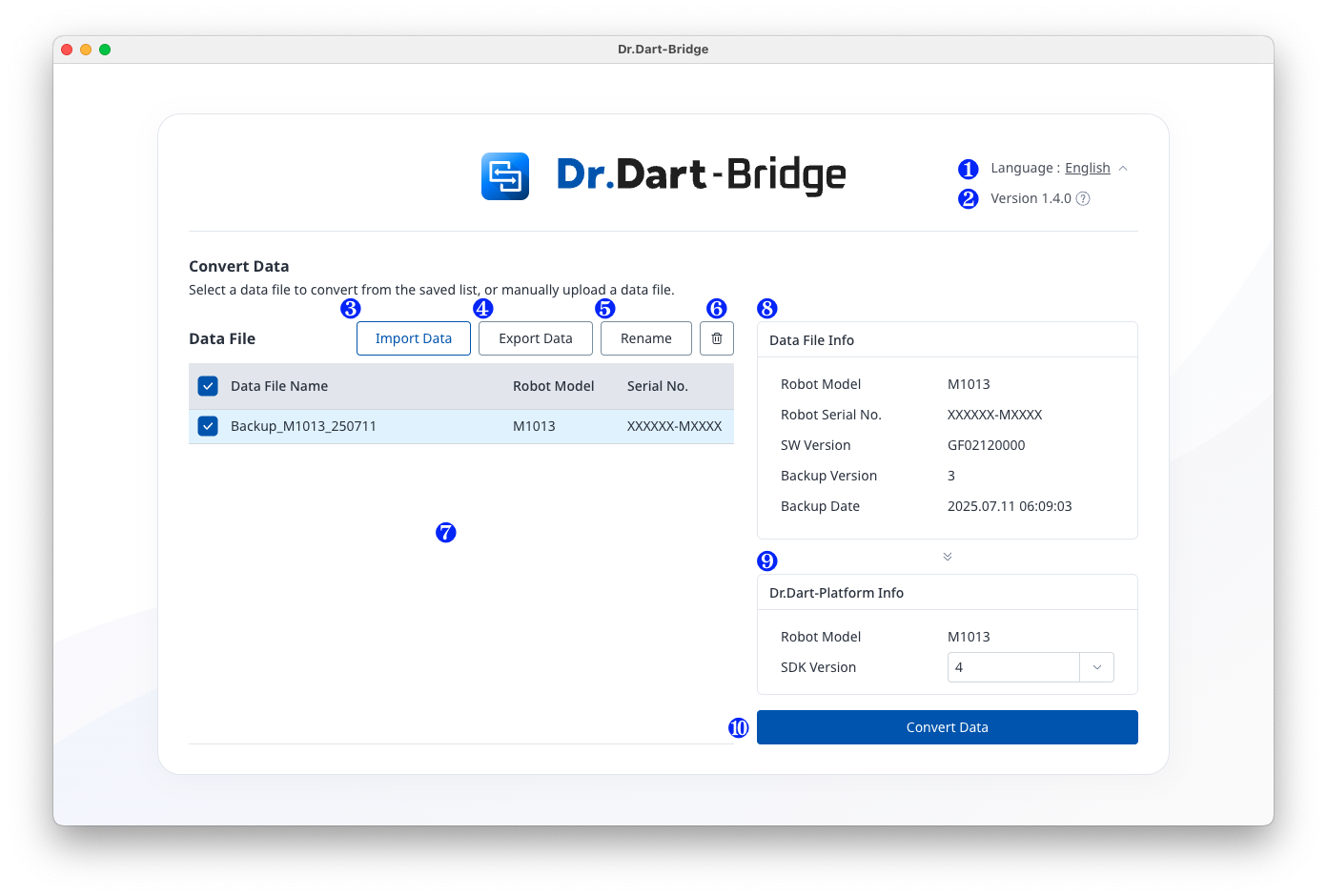
|
Item |
Function |
|
|---|---|---|
|
1 |
Language Information |
You can change the currently configured language information to another language. |
|
2 |
Version Information |
You can check the current version and details of the Dart-Bridge SW. |
|
3 |
Import Data |
Back up data from the Dart-Platform v2 controller or load the backed up data file. |
|
4 |
Export Data |
Export the saved backup data to a file. |
|
5 |
Rename |
Rename the saved backup data. |
|
6 |
Delete |
Deletes the selected backup data. |
|
7 |
Data List |
Displays a list of saved backup data. |
|
8 |
Data File Info |
Displays the details of the selected backup data. |
|
9 |
Dr.Dart-Platform Info |
Displays and configures the information to which you want to convert backup data. ※ Robot Model information is configured in the same way as the backed up data. ※ The SDK version list depends on the backup data version, and details can be found in the detailed version information. |
|
10 |
Convert Data |
Start the data conversion. |
3. Import Data > Import from Controller
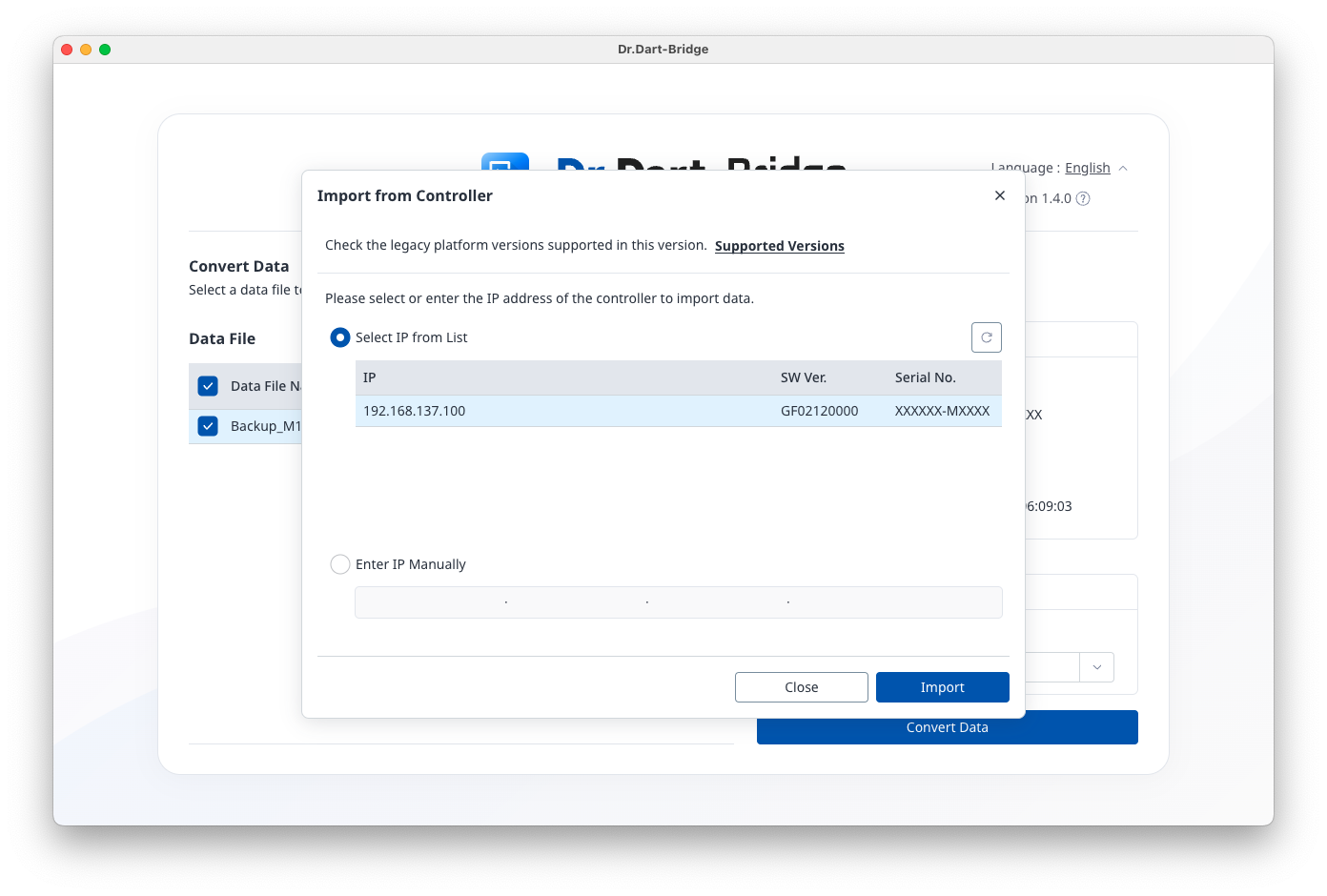
When you select the [Import from Controller] menu, the following dialog opens.
The [Select IP from List] list displays a list of controller IPs connected to the PC.
Select an IP or enter it directly and click the [Import] button to import data from the destination controller.
4. Import Data > Import from Local
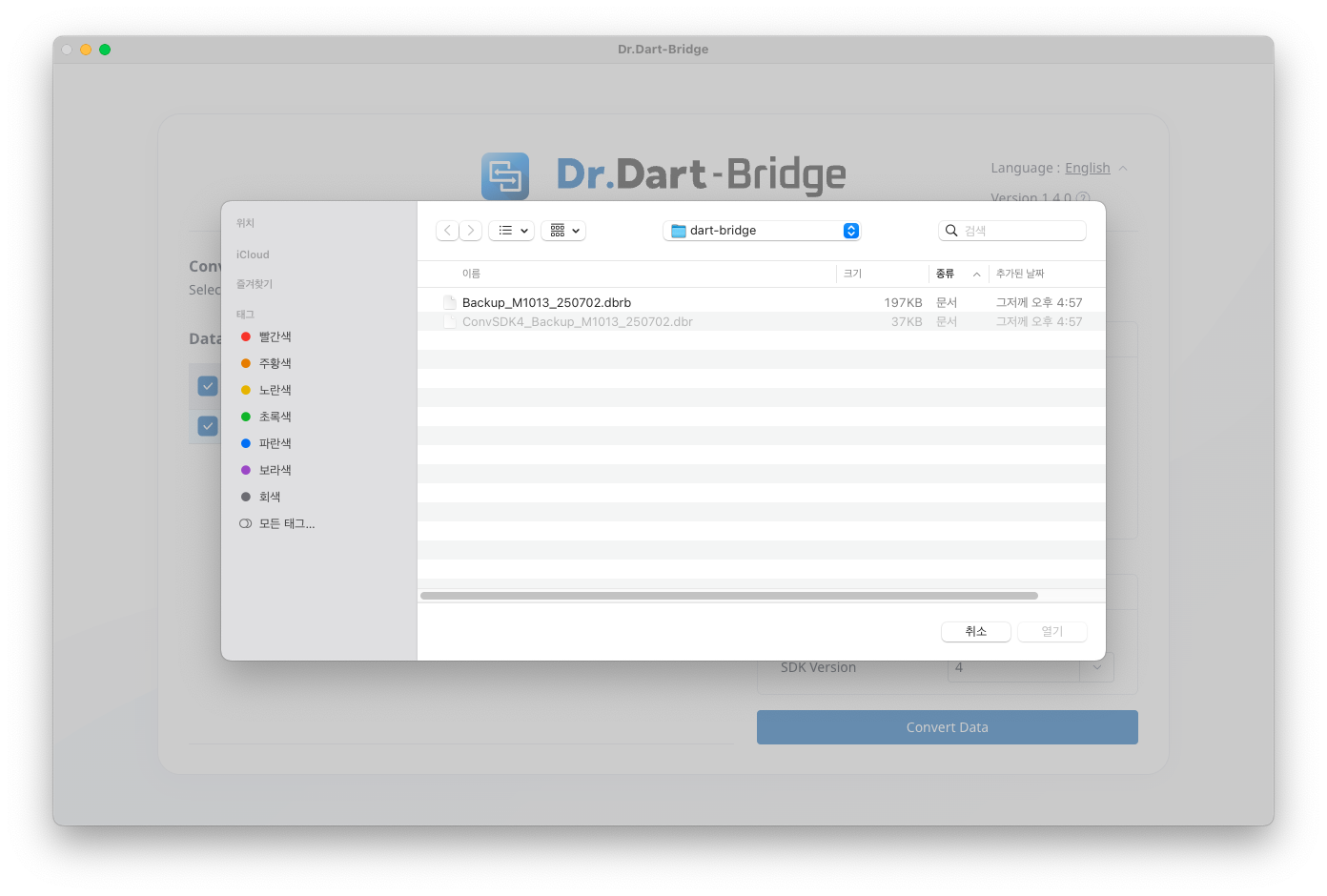
When you select the [Import from Local] menu, the Select File dialog opens.
When the user selects a backup data file (*.dbrb) and clicks [Open] , the data is imported.
If the import is successful, the backup data will be displayed in the [Data List].
5. Select backup data
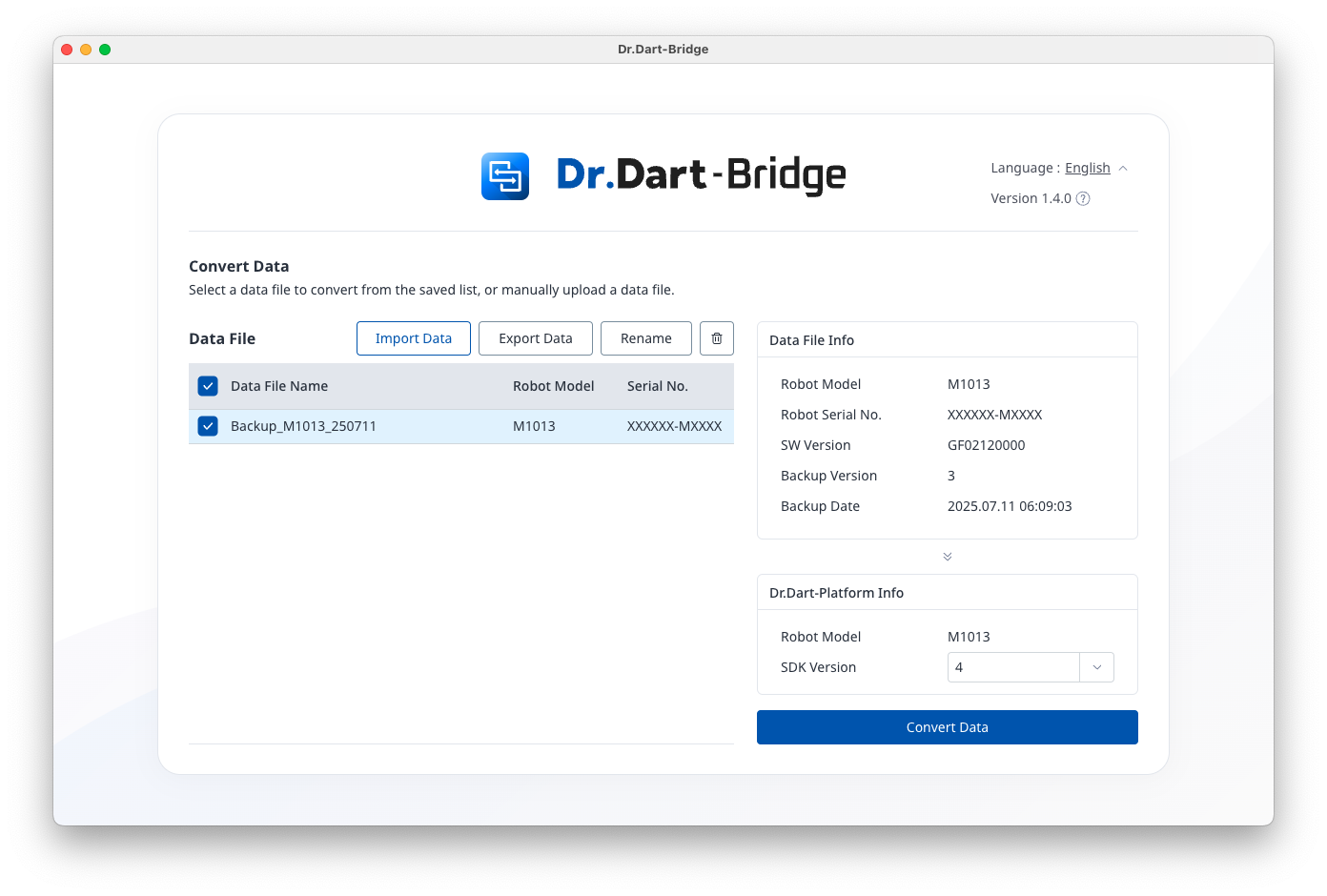
When you select data from the [Data List], the [Data File Info] panel displays backup information for that file, and the [Dr.Dart-Platform Info] panel displays a list of convertible Dart-Platform v3 SDK versions.
The [Convert Data] button is enabled only if one backup data is selected in the [Data List].
6. Convert Data
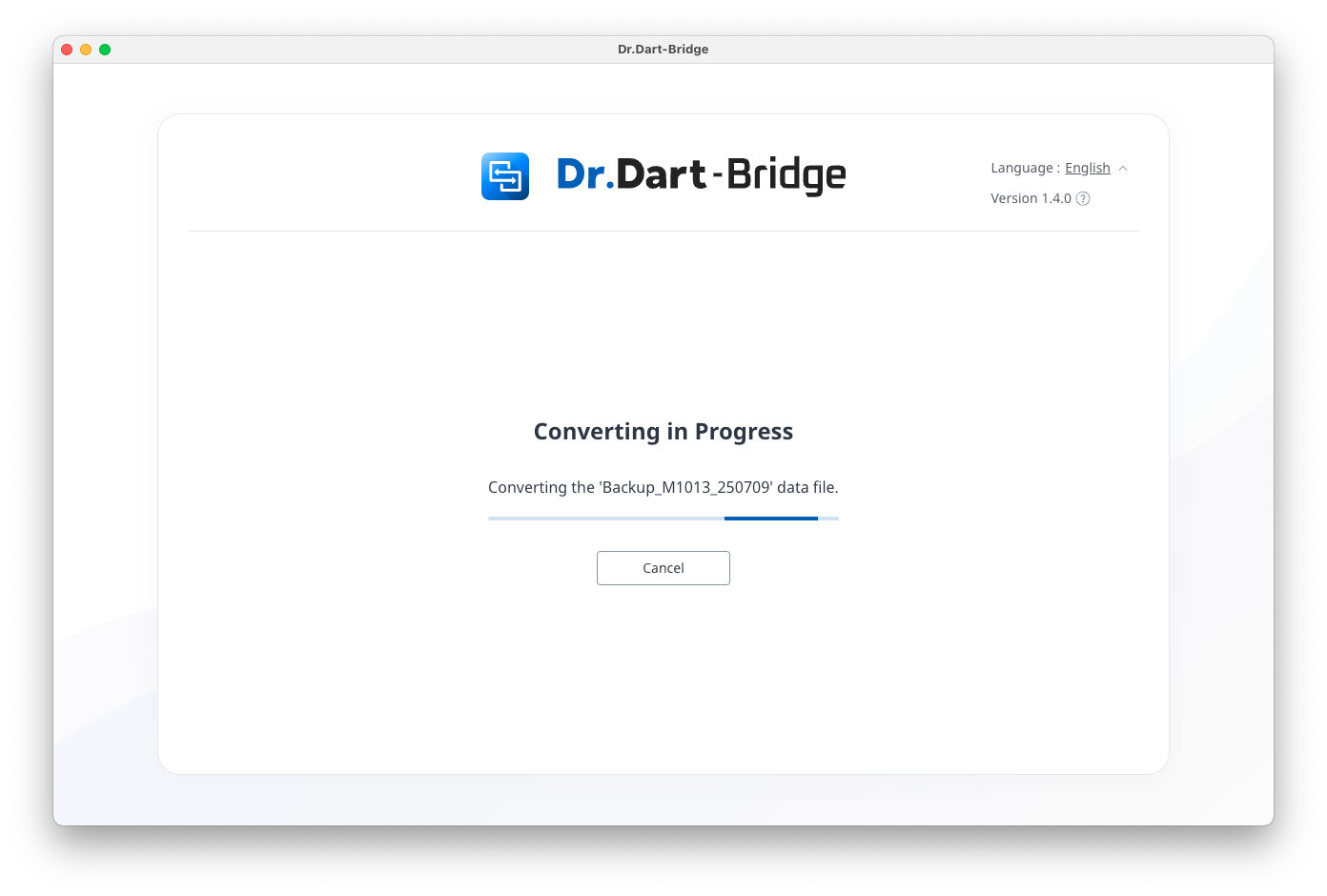
Click the [Convert Data] button to convert the selected backup data into data that matches the target Dart-Platform v3 SDK version.
7. Data conversion successful
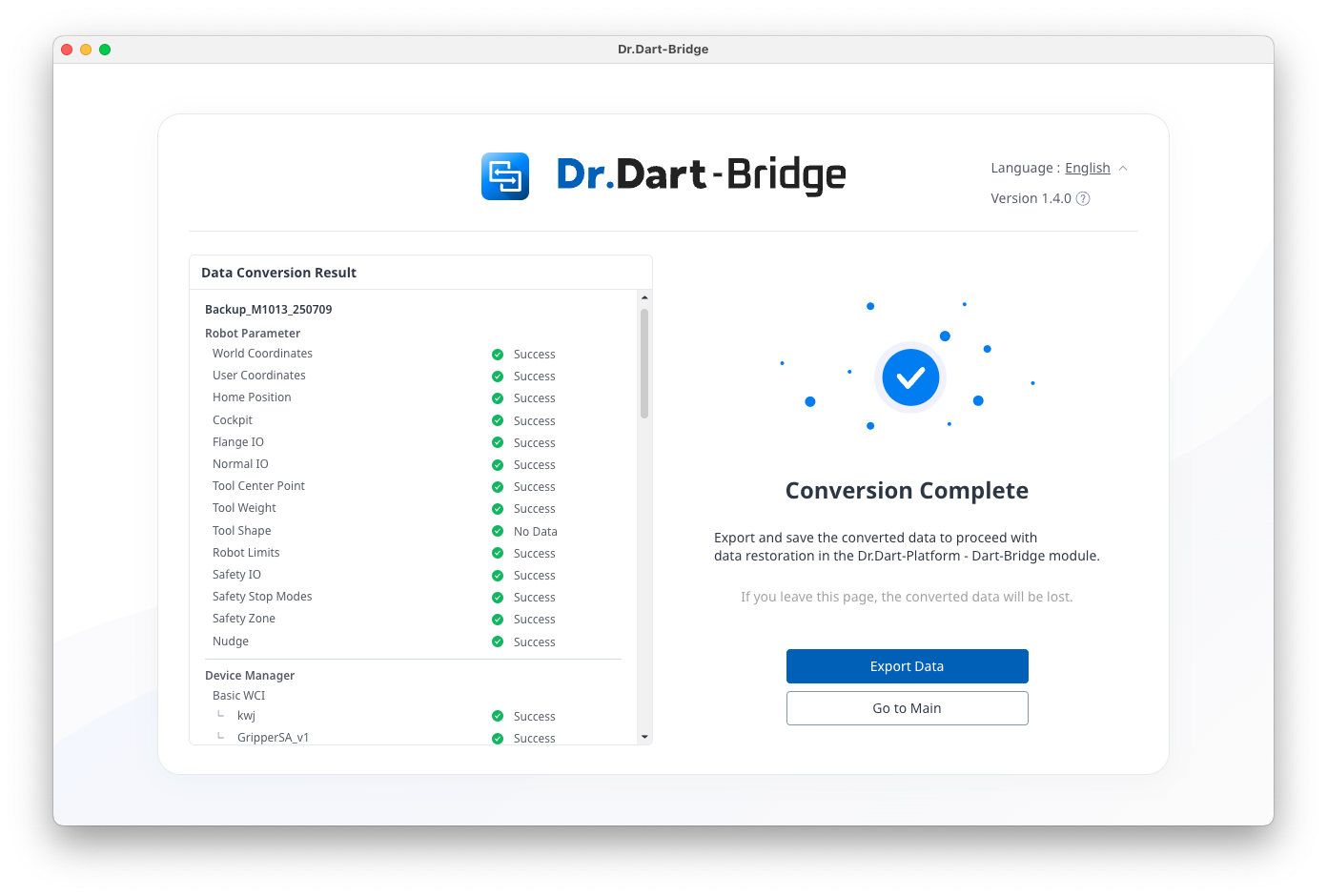
If the data conversion is successful, the conversion result information is displayed.
You can save the converted file (*.dbr) to your PC by clicking the [Export Data] button.
If you leave the page, the converted data is not stored and is lost.
8. Data conversion failure
If the data conversion fails, a failure screen is displayed.
Click the [Retry] button to perform the data conversion again.
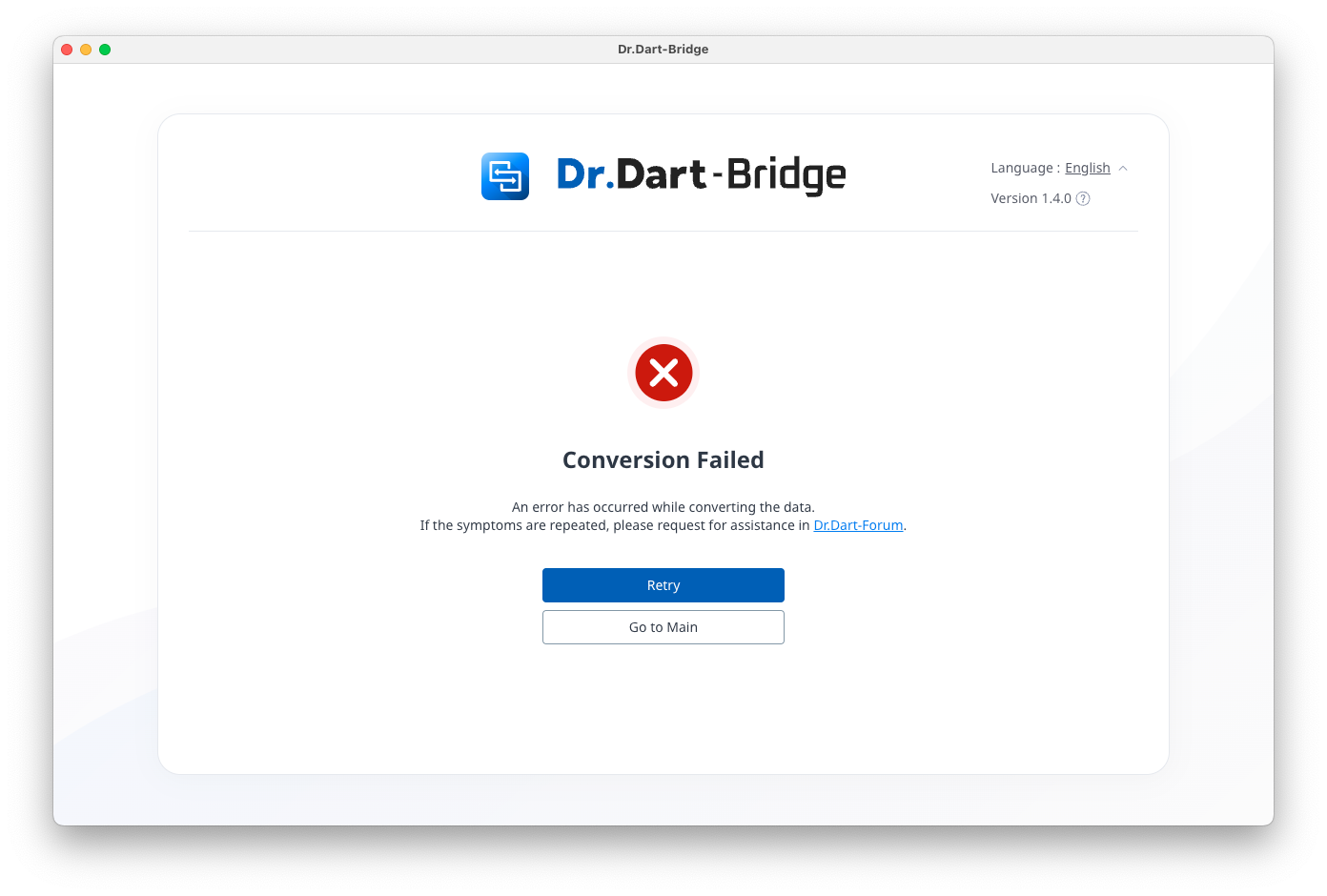
When you click the [Dr. Dart-Forum] text, you will be directed to the Dr. Dart-Formum site through an external browser.