
Breadcrumbs

Slave Monitoring

Slave Monitoring Screen Layout
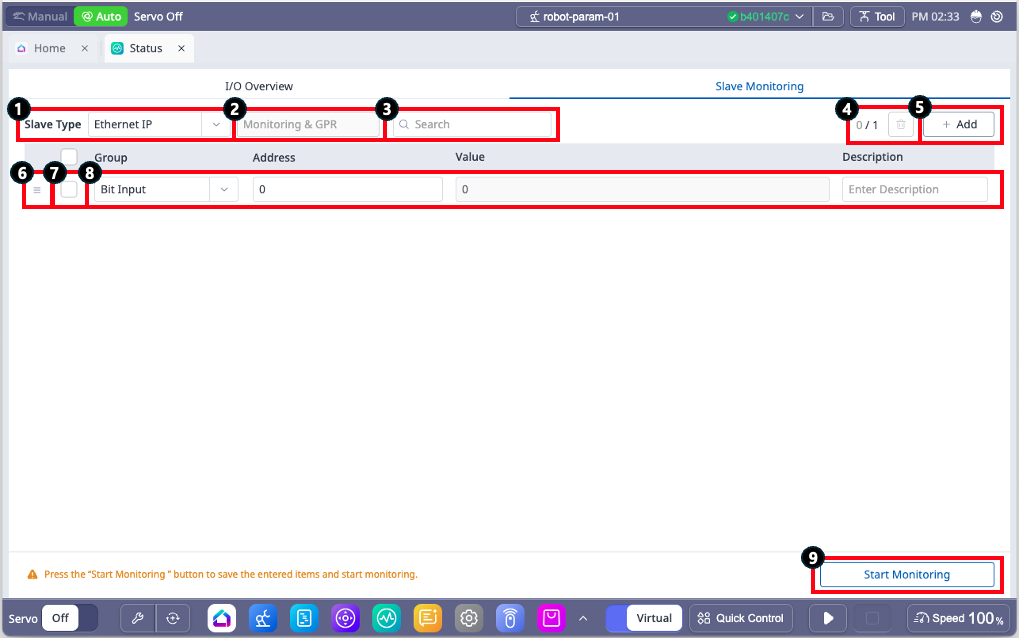
external_Slave Monitoring.png

Items

Description

1

Slave Type

Change the communication method for monitoring.

  • You can select one among Modbus, Ethernet IP, or Profinet.

2

Ethernet Adapter Type

Check the Adapter Type of the currently configured Ethernet IP.

  • This item is displayed only when the Slave Type is set to Ethernet IP.

  • The setting can be configured in the PLC menu of the Setting module.

3

Search

Search register data being monitored.

  • The Value and Description containing the entered value will be the search targets.

4

Remove monitoring data

Remove data with activated check boxes.

  • The number on the left displays the count of currently selected data and the total data count.

5

Add monitoring data

Add monitoring data.

  • Up to 1,000 entries can be added.

6

Reorder


A button to change the order of data.

  • Hold and drag the button to rearrange the data order.

7

Check Box

Select the data to be removed.

8

Data setting

Configure the group, address, description, and display method for the monitoring data.

For Modbus

  • Group : Select whether it is a Holding Register or Coil.

  • Address : Enter the GPR Address to be monitored.

  • Value : Choose the output type for the monitored value and verify it.

  • Description : Add a description to the monitoring data that has been added.

For Ethernet IP and Profinet

  • Group : Select the GPR group.

    • For Ethernet IP, the selectable mode changes according to the adapter type set in the PLC mode in the Setting module.

    • For Profinet, the menu is fixed based on Monitoring & GPR.

  • Address : Enter the GPR Address for monitoring.

  • Value : Check the monitoring values.

  • Description : Add a description to the monitoring data that has been added.

9

Start/Stop Monitoring

This button allows starting or stopping the monitoring process.

  • When monitoring starts, all fields except Slave Type, Search Box, and Description are disabled.

  • Monitoring will end if the Stop Monitoring button is clicked, navigation to I/O Overview occurs, or the status module is closed.

  • Monitoring cannot be started if there is no monitoring data for any Slave Type or if invalid data exists due to changes in the Ethernet IP's Adapter Type.