
Controller Digital Input
-
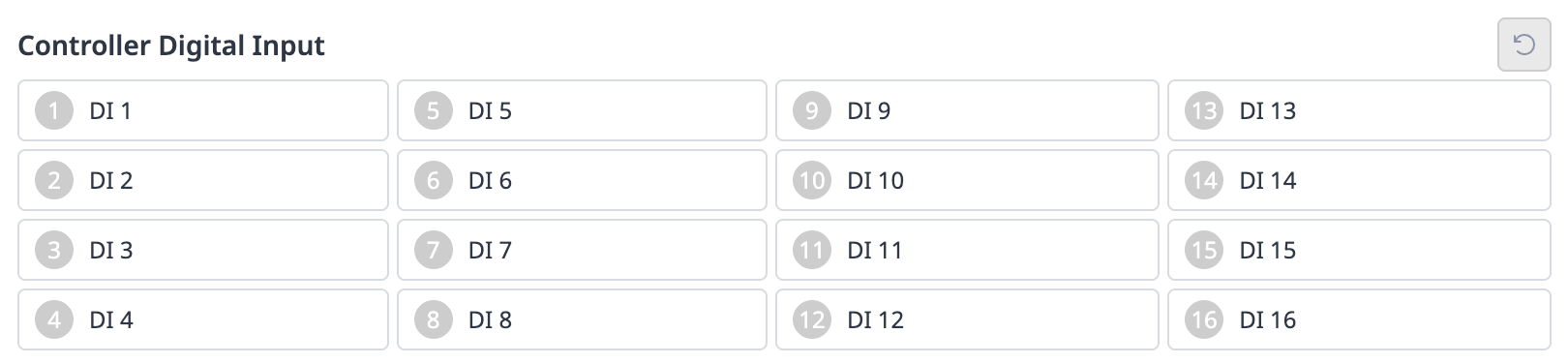
Check the port number of the device connected to the controller.
-
The following is displayed depending on the digital input status of the corresponding number.
-
If the digital signal is a high signal, the icon is displayed in light green.
-
If the digital signal is a low signal, the icon is displayed in gray.
-
Note
The same is true when the digital input is set as a safety input, the icon is displayed in blue when the digital signal is high, and gray when it is low.
Safety Input

-
Check the port number of the device connected to the controller.
-
The following is displayed depending on the digital input status of the corresponding number.
-
If the digital signal is a high signal, the icon is displayed in light green.
-
If the digital signal is a low signal, the icon is displayed in gray.
-
Controller Digital Output
-
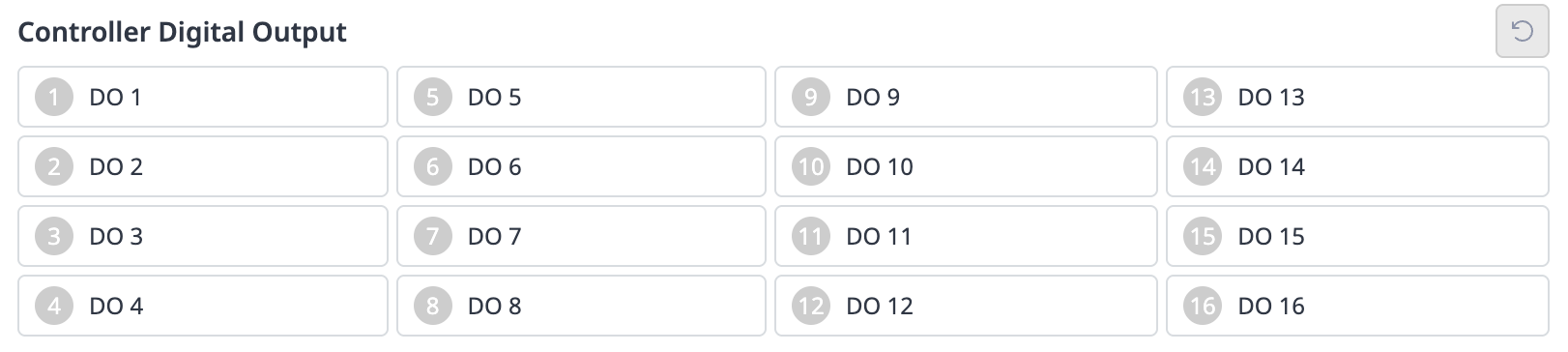
Check the port number of the device connected to the controller or flange.
-
Click the On/Off icon corresponding to the port number to activate or deactivate digital output.
-
When the On icon is pressed, the icon changes to light green and the corresponding port is enabled.
-
When the Off icon is pressed, the icon changes to gray and the corresponding port is disabled.
-
Controller Analog Input
-
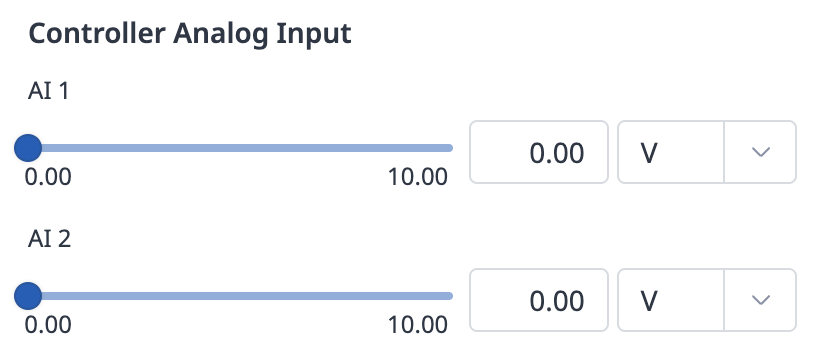
Click the drop-down list on the Controller Analog Input to select the item to check.
-
Check the analog input information of the selected item displayed on the screen.
Note
The analog input value cannot set the input value in the status window.
Controller Analog Output
-
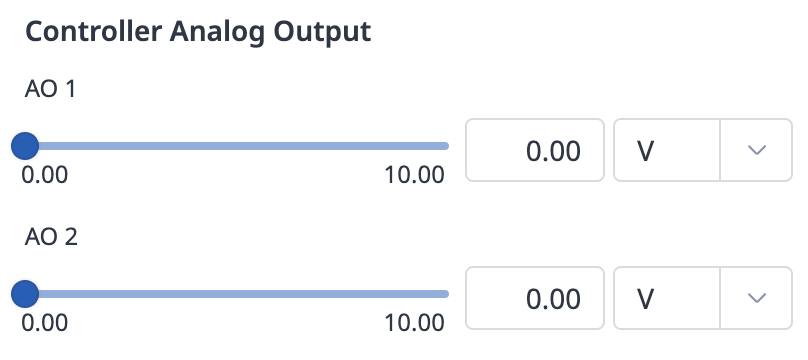
Click the drop-down list on the Controller Analog Output to select the item to check.
-
Analog output information of the selected item is displayed on the right side of the drop-down list.
-
The default value for analog output signal type is voltage.
-
-
Change the analog output value.