
Safety Zone settings screen
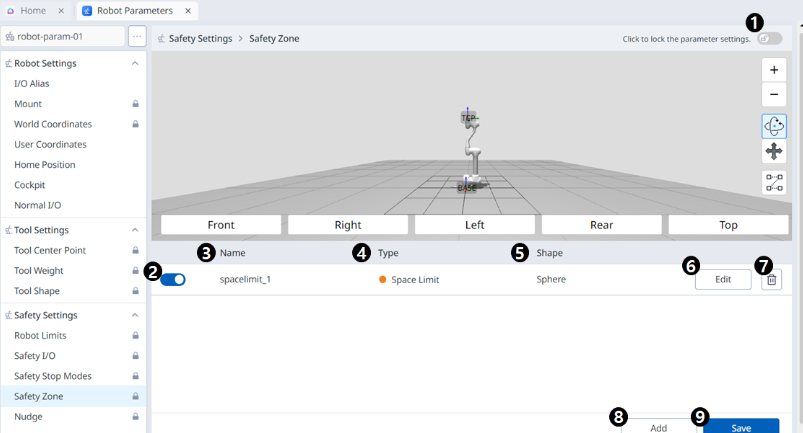
Menu
|
Items |
Description |
|
|---|---|---|
|
1 |
Lock toggle button |
Used to lock the set value. The safety password is required for modifying the set value. |
|
2 |
Choose Whether to Enable |
This button allows you to apply/unapply the created Safety Zone. |
|
3 |
Zone Name |
The name given by the user when creating the Safety Zone |
|
4 |
Zone Type |
Safety Zone types (each type has different parameters to set)
|
|
5 |
Zone shape |
Safety Zone shapes
|
|
6 |
Edit |
|
|
7 |
Delete |
This button allows the safe zone to be deleted. |
|
8 |
Add |
|
|
9 |
Save |
This button allows any changes to the settings in relation to the Safety Zone to be saved. |
Sphere
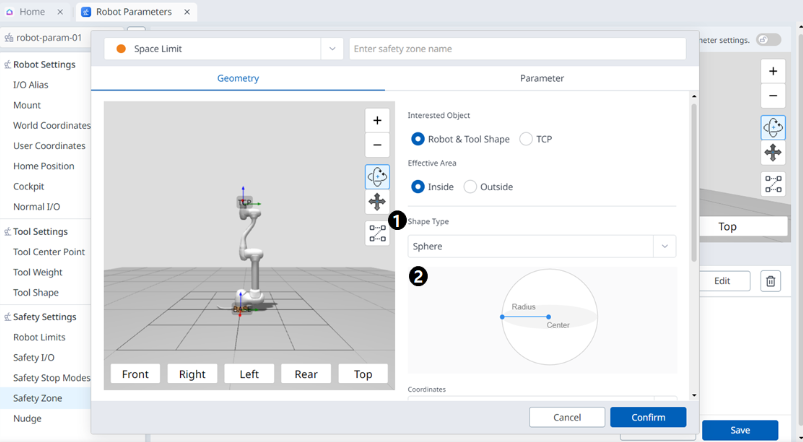
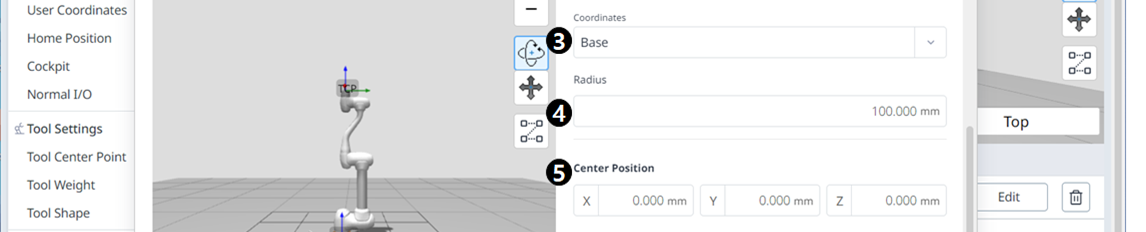
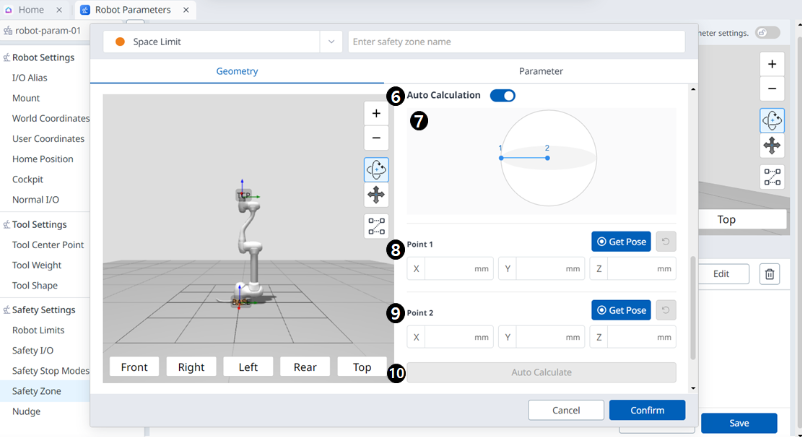

Menu
|
Items |
Description |
|
|---|---|---|
|
1 |
Shape Type |
The desired Shape type can be selected from this drop-down. |
|
2 |
Shape Image |
This is the area where the image of the selected type is seen. |
|
3 |
Coordinates |
Either Base or World coordinates can be selected from this drop-down. |
|
4 |
Radius |
This is where the radius value is entered. |
|
5 |
Center Position |
The center value can be set in these fields for each of the X-, Y-, and Z-axes. |
|
6 |
Auto Calculation |
This button allows the Auto Measure option to be enabled. |
|
7 |
Auto Calculation Image |
This area is where the image required for Auto Measure is seen. This appears when the Auto Measure option is enabled. |
|
8 |
Point 1 |
Each field is where the value for Point 1 is entered. |
|
9 |
Point 2 |
Each field is where the value for Point 2 is entered. |
|
10 |
Auto Calculate |
This button allows the Auto Calculate to be executed. |
|
11 |
Space Expansion |
This field is where the Space Expansion can be set. |
|
12 |
Cancel |
This button allows the setting to be canceled. |
|
13 |
Confirm |
This button allows you to confirm the setting. |
Cylinder
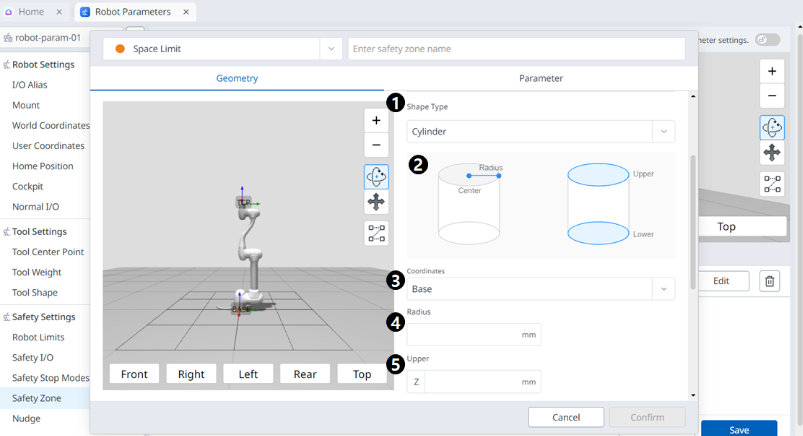
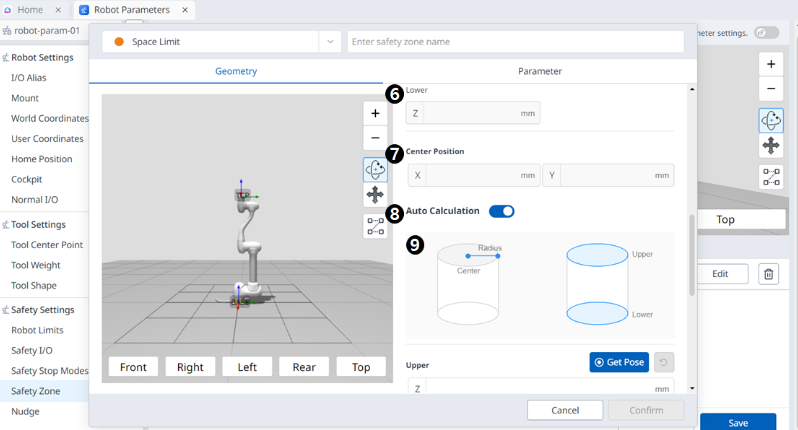
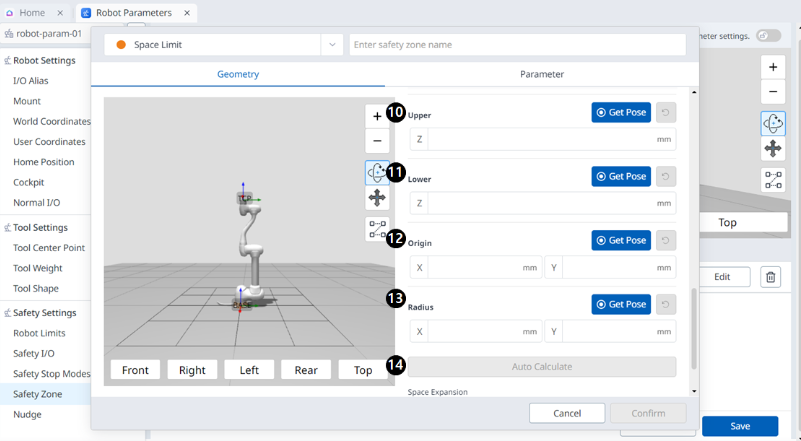

Menu
|
Items |
Description |
|
|---|---|---|
|
1 |
Shape Type |
The desired Shape type can be selected from this drop-down. |
|
2 |
Shape Image |
This is the area where the image of the selected type is seen. |
|
3 |
Coordinates |
Either Base or World coordinates can be selected from this drop-down. |
|
4 |
Radius |
This is where the radius value is entered. |
|
5 |
Upper |
This field is where the upper value is entered. |
|
6 |
Lower |
This field is where the lower value is entered. |
|
7 |
Center Position |
The center value can be set in these fields for each of the X- and Y-axes. |
|
8 |
Auto Calculate |
This button allows the Auto Measure option to be enabled. |
|
9 |
Auto Calculate Image |
This area is where the image required for Auto Measure is seen. This appears when the Auto Measure option is enabled. |
|
10 |
Upper |
This field is where the upper value is entered. |
|
11 |
Lower |
This field is where the lower value is entered. |
|
12 |
Origin |
This field is where the origin value is entered. |
|
13 |
Radius |
This field is where the radius value is entered. |
|
14 |
Auto Calculate |
This button allows the Auto Calculate to be executed. |
|
15 |
Space Expansion |
This field is where the Space Expansion can be set. |
|
16 |
Cancel |
This button allows the setting to be canceled. |
|
17 |
Confirm |
This button allows you to confirm the setting. |
Cuboid
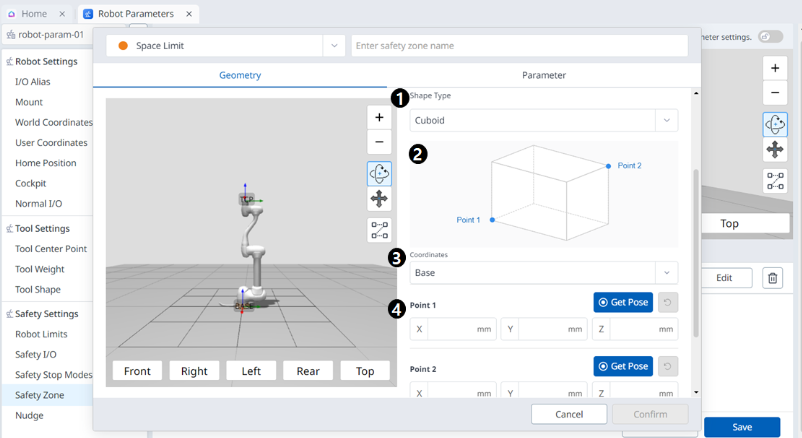
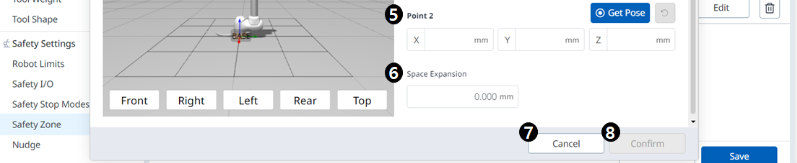
Menu
|
Items |
Description |
|
|---|---|---|
|
1 |
Shape Type |
The desired Shape type can be selected from this drop-down. |
|
2 |
Shape Image |
This is the area where the image of the selected type is seen. |
|
3 |
Coordinates |
Either Base or World coordinates can be selected from this drop-down. |
|
4 |
Point 1 |
Each field is where the value for Point 1 is entered. |
|
5 |
Point 2 |
Each field is where the value for Point 2 is entered. |
|
6 |
Space Expansion |
This field is where the Space Expansion can be set. |
|
7 |
Cancel |
This button allows the setting to be canceled. |
|
8 |
Confirm |
This button allows you to confirm the setting. |
Tilted Cuboid
4 Points
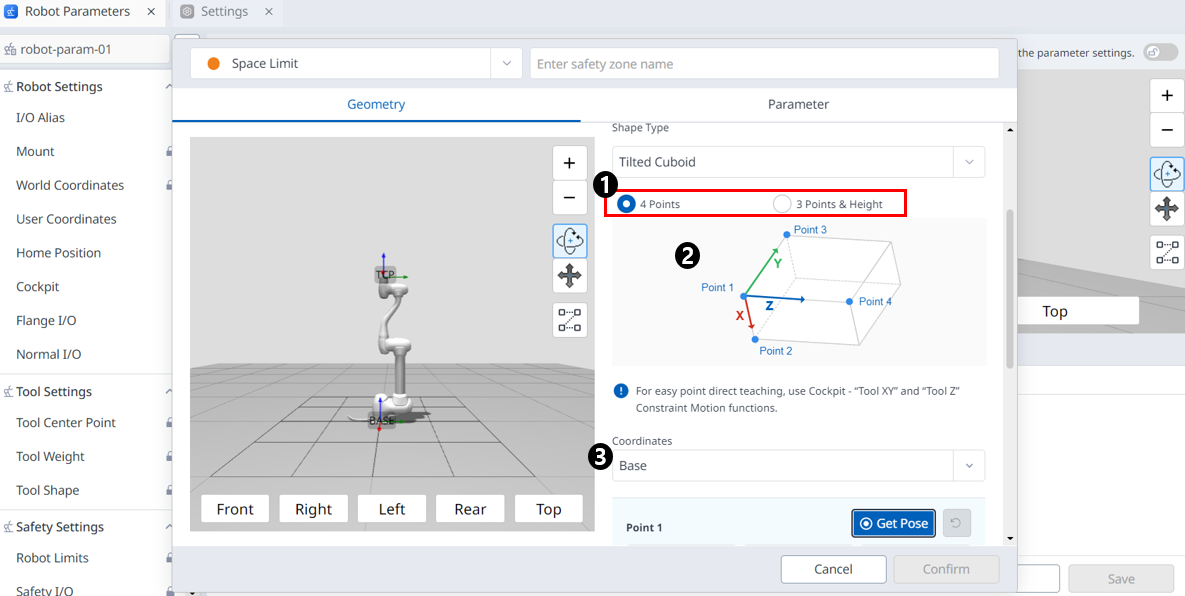
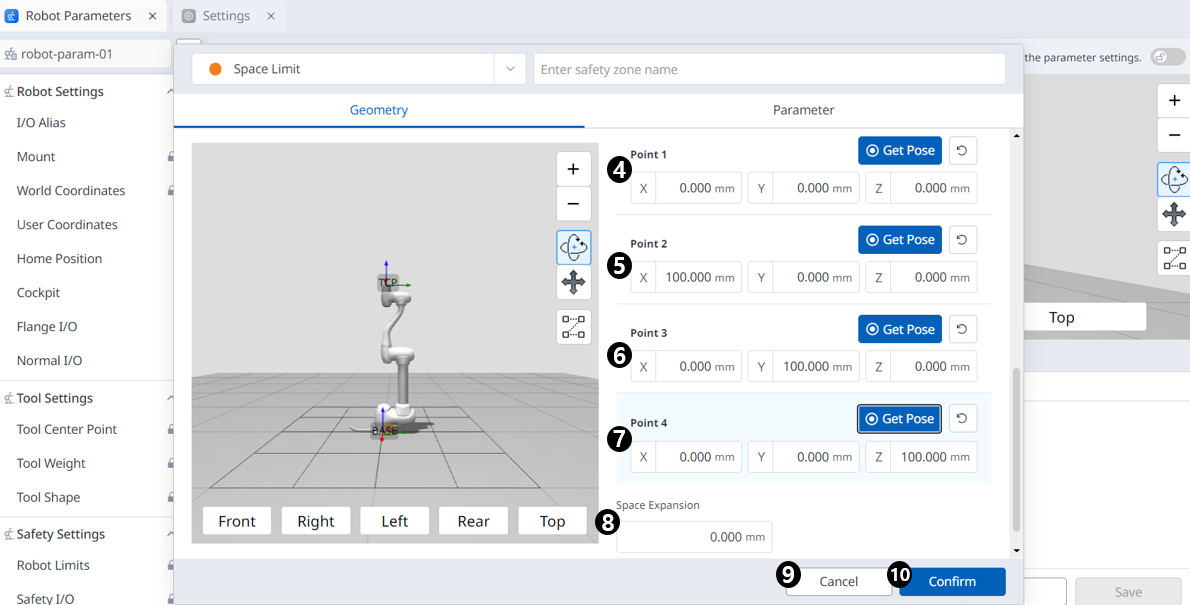
Menu
|
Items |
Description |
|
|---|---|---|
|
1 |
input method |
You can choose the input method you want. |
|
2 |
Space Image |
This is the area where the image of the selected type is seen. |
|
3 |
Coordinates |
Either Base or World coordinates can be selected from this drop-down. |
|
4 |
Point 1 |
Each field is where the value for Point 1 is entered. |
|
5 |
Point 2 |
Each field is where the value for Point 2 is entered. |
|
6 |
Point 3 |
Each field is where the value for Point 3 is entered. |
|
7 |
Point 4 |
Each field is where the value for Point 4 is entered. |
|
8 |
Space Expansion |
This field is where the Space Expansion can be set. |
|
9 |
Cancel |
This button allows the setting to be canceled. |
|
10 |
Confirm |
This button allows you to confirm the setting. |
3 Points & Height
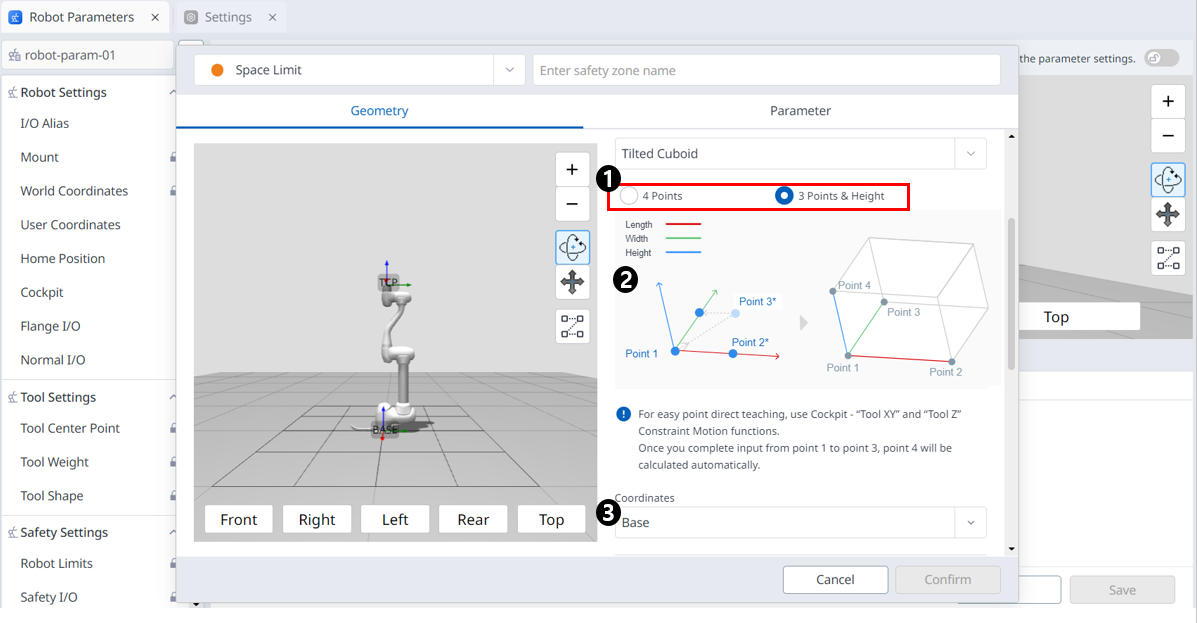
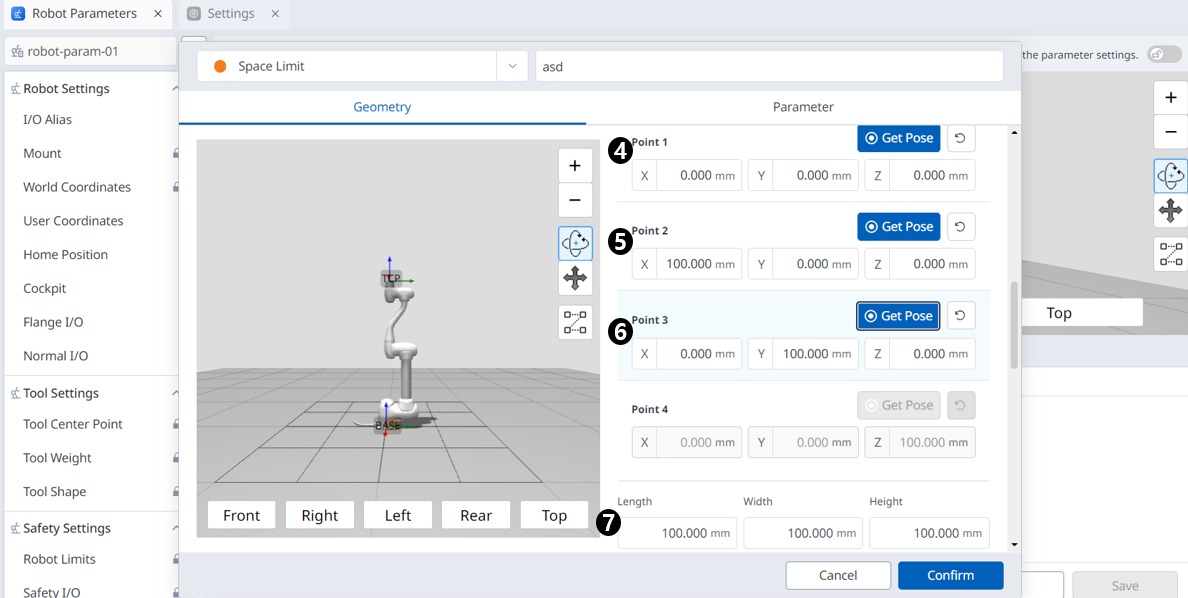
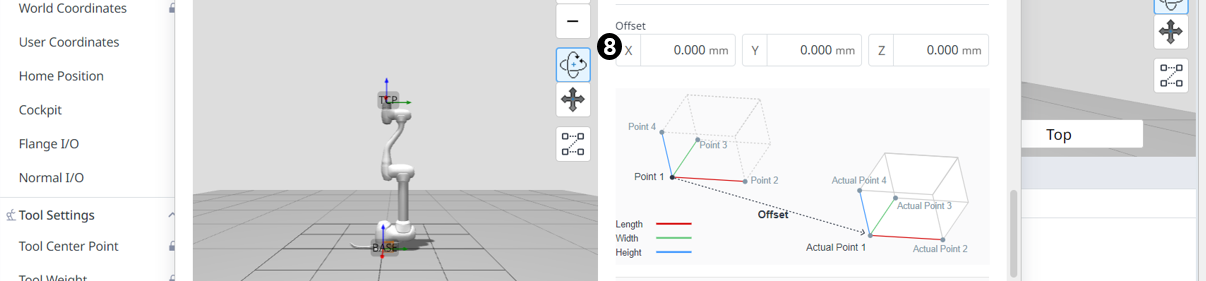
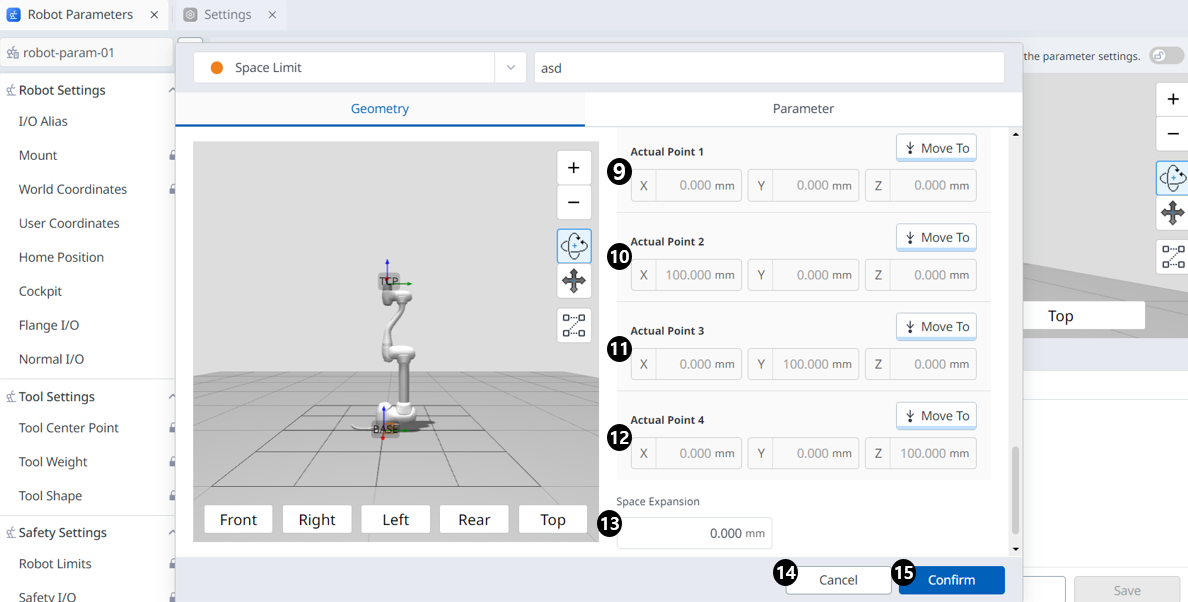
Menu
|
Items |
Description |
|
|---|---|---|
|
1 |
input method |
You can choose the input method you want. |
|
2 |
Space Image |
This is the area where the image of the selected type is seen. |
|
3 |
Coordinates |
Either Base or World coordinates can be selected from this drop-down. |
|
4 |
Point 1 |
Each field is where the value for Point 1 is entered. |
|
5 |
Point 2 |
Each field is where the value for Point 2 is entered. |
|
6 |
Point 3 |
Each field is where the value for Point 3 is entered. |
|
7 |
size settings |
Enter the Length, Width, and Height values. |
|
8 |
offset settings |
Enter an offset value. |
|
9 |
Actual Point 1 |
You can check the Actual Point 1 value calculated based on the 3 point, size, and offset information. |
|
10 |
Actual Point 2 |
You can check the Actual Point 2 value calculated based on the 3 point, size, and offset information. |
|
11 |
Actual Point 3 |
You can check the Actual Point 3 value calculated based on the 3 point, size, and offset information. |
|
12 |
Actual Point 4 |
You can check the Actual Point 4 value calculated based on the 3 point, size, and offset information. |
|
13 |
Space Expansion |
This field is where the Space Expansion can be set. |
|
14 |
Cancel |
This button allows the setting to be canceled. |
|
15 |
Confirm |
This button allows you to confirm the setting. |
Multi-plane Box
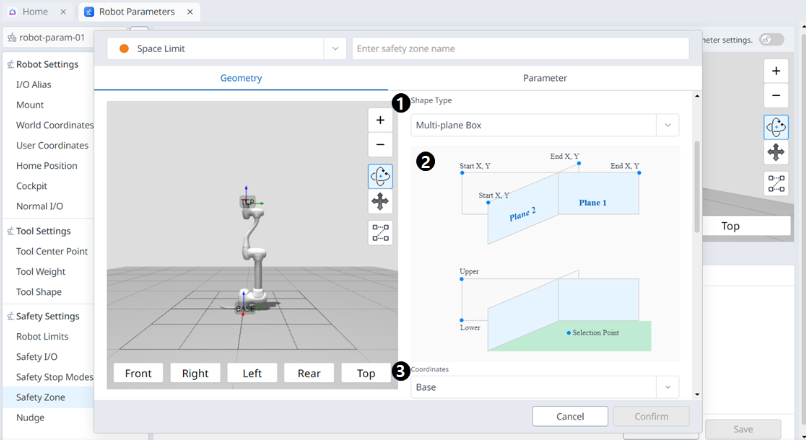
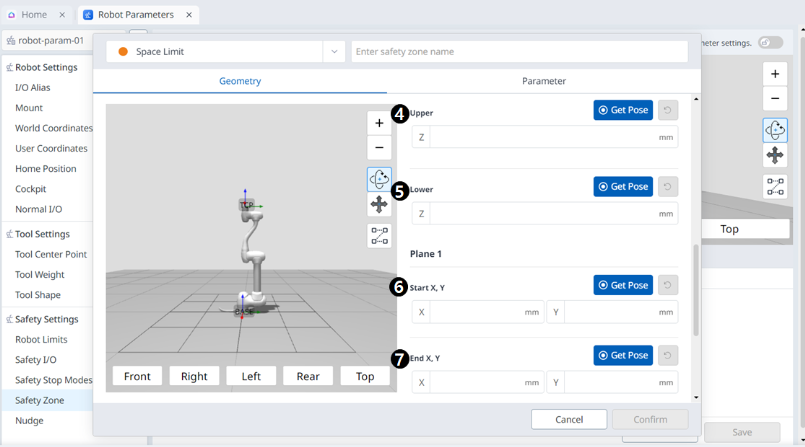
Menu
|
Items |
Description |
|
|---|---|---|
|
1 |
Shape Type |
The desired Shape type can be selected from this drop-down. |
|
2 |
Shape Image |
This is the area where the image of the selected type is seen. |
|
3 |
Coordinates |
Either Base or World coordinates can be selected from this drop-down. |
|
4 |
Upper |
This field is where the upper value is entered. |
|
5 |
Lower |
This field is where the lower value is entered. |
|
6 |
Plane Start X, Y |
This field is where the start point of the plane is entered. |
|
7 |
Pane End X,Y |
This field is where the end point of the plane is entered. |
|
8 |
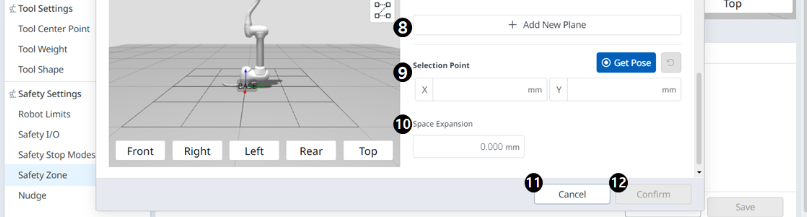
Add New Plane |
Clicking this button adds a new plane. |
|
9 |
Selection Point |
Each field is where the Selection Point values are entered. |
|
10 |
Space Expansion |
This field is where the Space Expansion can be set. |
|
11 |
Cancel |
This button allows the setting to be canceled. |
|
12 |
Confirm |
This button allows you to confirm the setting. |