Tapping the Store module redirects you to the Dr.Dart-Store link.
Note
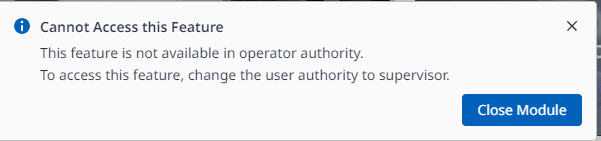
At this time, the Store module can only be executed at the administrator level.
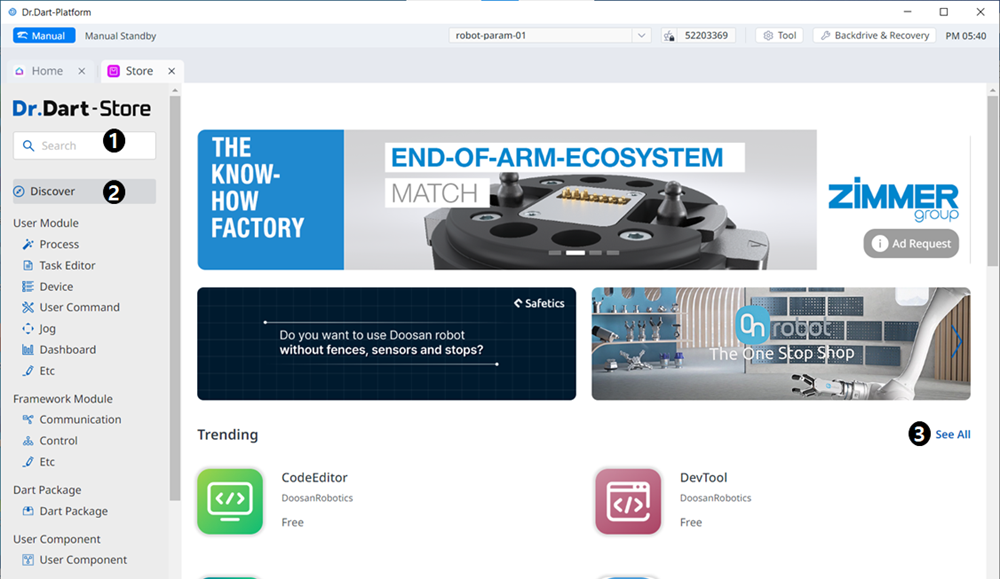

Menu
|
Items |
Description |
|
|---|---|---|
|
1 |
Search |
This field is where you search for any module. |
|
2 |
Menu Bar |
The categorization is based on the features of the module. |
|
3 |
Trending |
This is the Home screen, where the currently popular modules are seen. |
|
4 |
FAQs |
This is where you can find the frequently asked questions regarding the Store. |
|
5 |
Account |
If you are not logged in, go to the login screen. If you are logged in, tap to go to the user's account and manage account settings and module uploads/downloads. |
Note
In the existing legacy Dart-Platform, communication modules were installed as standard, but in the current Dr.Dart-Platform 3, there are communication modules that must be downloaded through the Store separately from the basic modules.
The list below is modules that are installed as standard in Dr.Dart-Platform3.
-
TCPModbusSlave
-
ModbusMaster
-
Serial
-
TCP
-
AdmittanceControl
-
ImpedanceControl
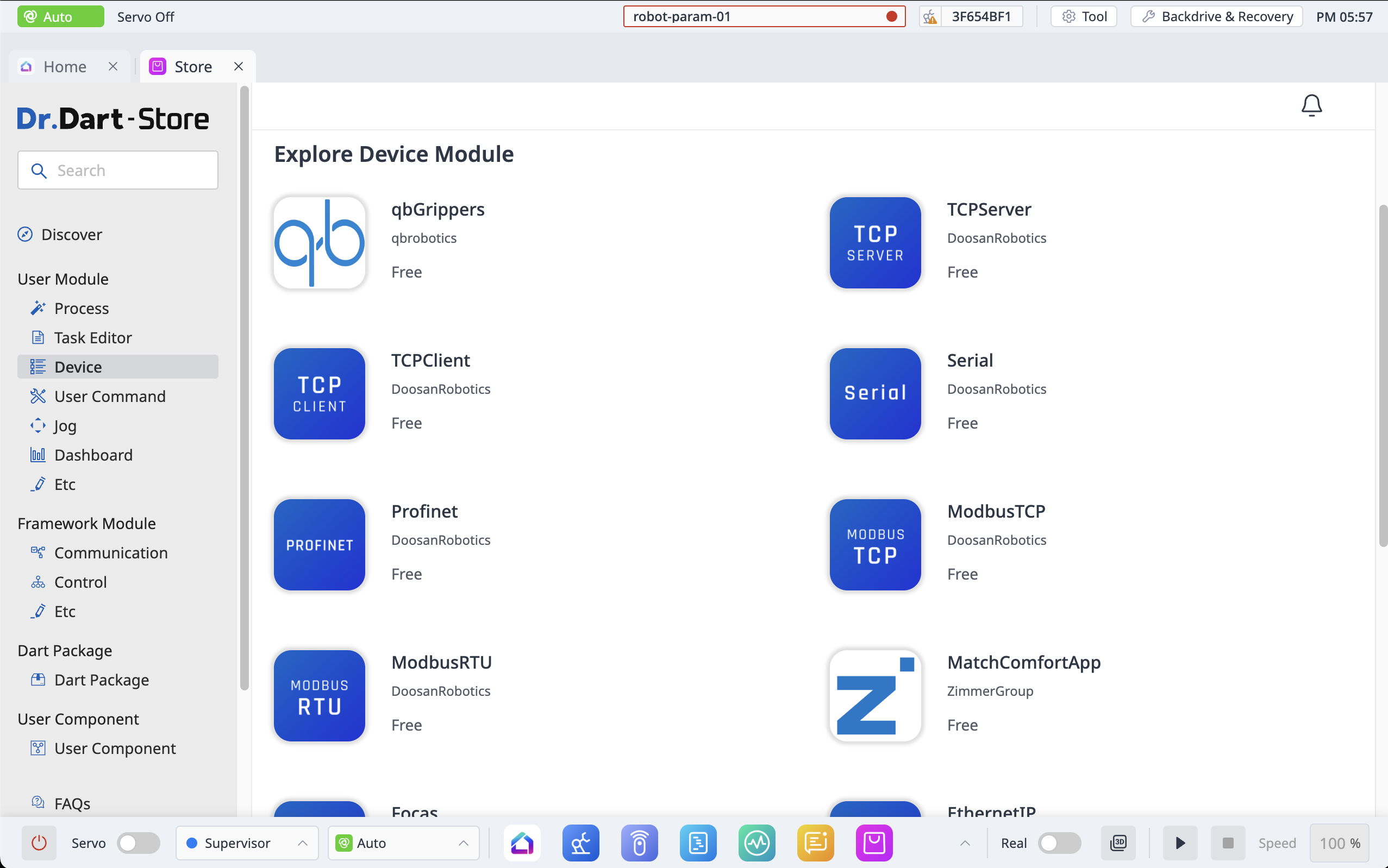
You can download the modules below from the User Module > Device section of the Store.
-
Focas Master
-
Digital IO TEST
-
ModbusTCP Master
-
ModbusRTU Master
-
TCP Client
-
TCP Server
-
Serial
-
IndustrialEthernet GPR Test
Activate or deactivate modules
After purchasing a paid module through Dr. Dart-Store, it must go through an activation process when executing the module.
In the case of a paid module, it cannot be executed in the inactive state, and when the module is deleted or refunded, the module must be in the inactive state.
Activation
When online:
If you are logged in to Dr. Dart-Store, it will be automatically activated if the paid module information you are trying to run matches the store login ID. If you are not logged in to the store or if your credentials do not match, a log-in pop-up will occur.
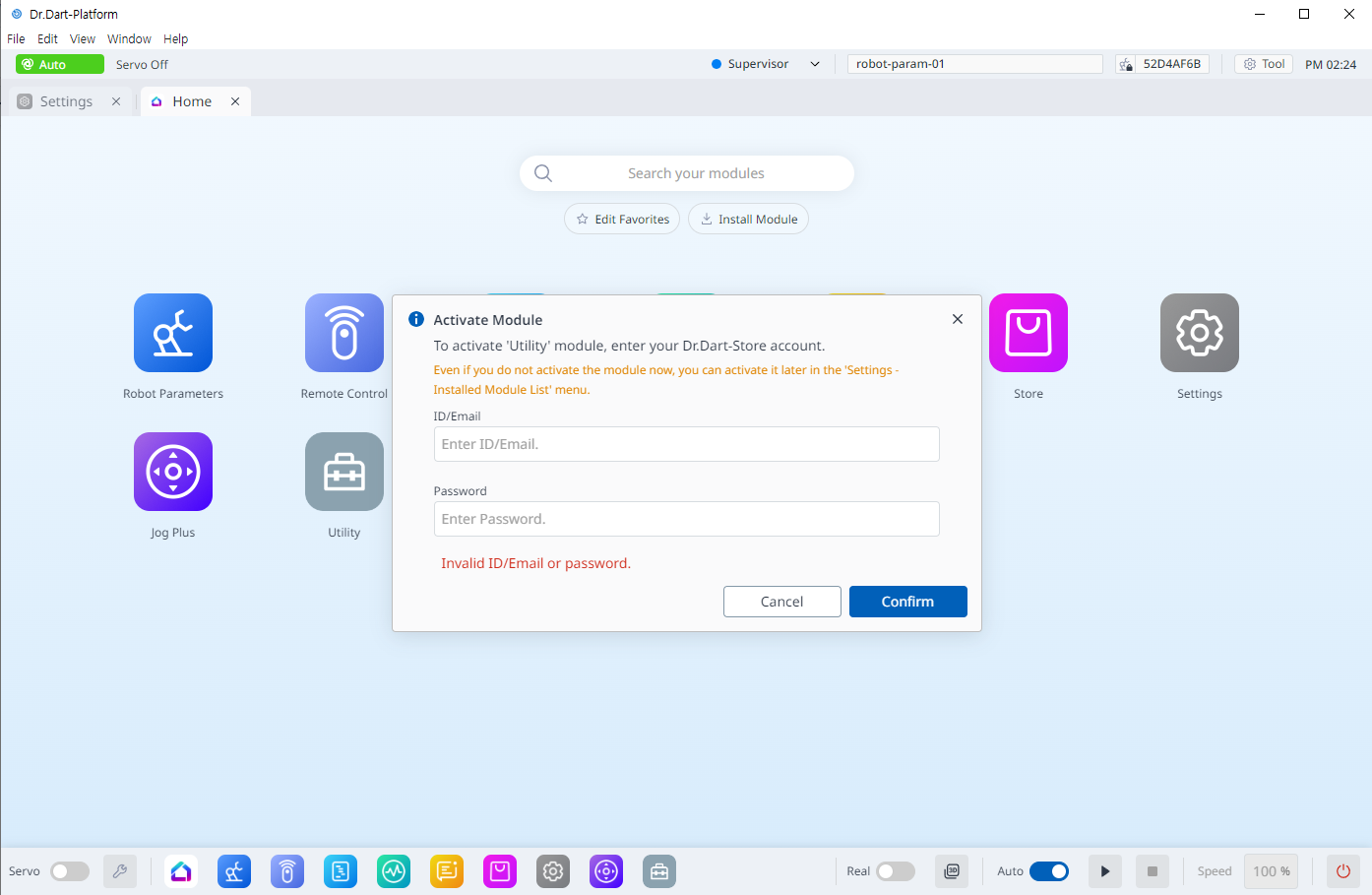
You can also activate it from the Installed Module List menu of the Setting module using the option button of the module you want to activate.
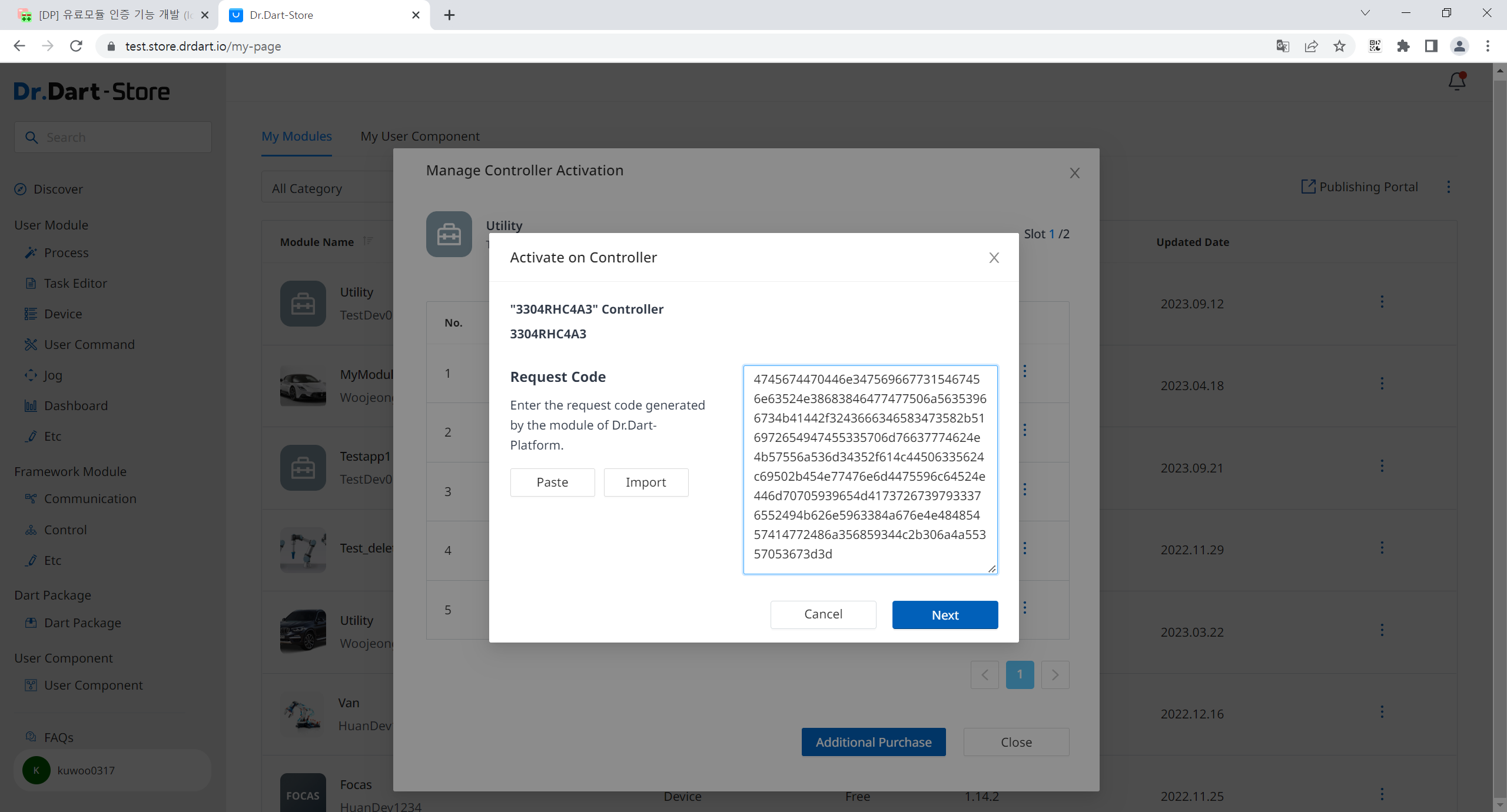
When offline:
It can be activated from the Installed Module List menu of the Setting module by using the option button on the module you wish to activate. The module activation code must be issued and authenticated online by Dr. Dart-Store.
Deactivation
When online:
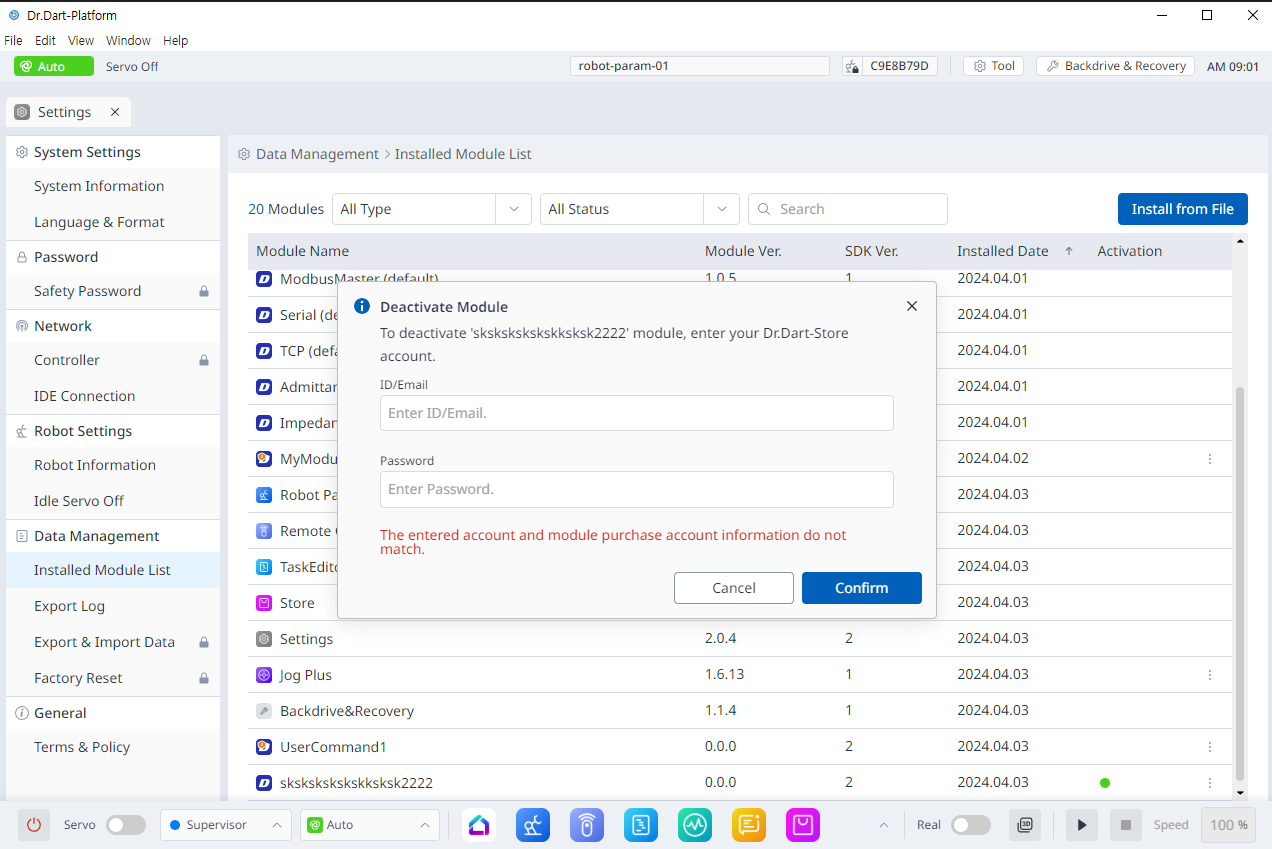
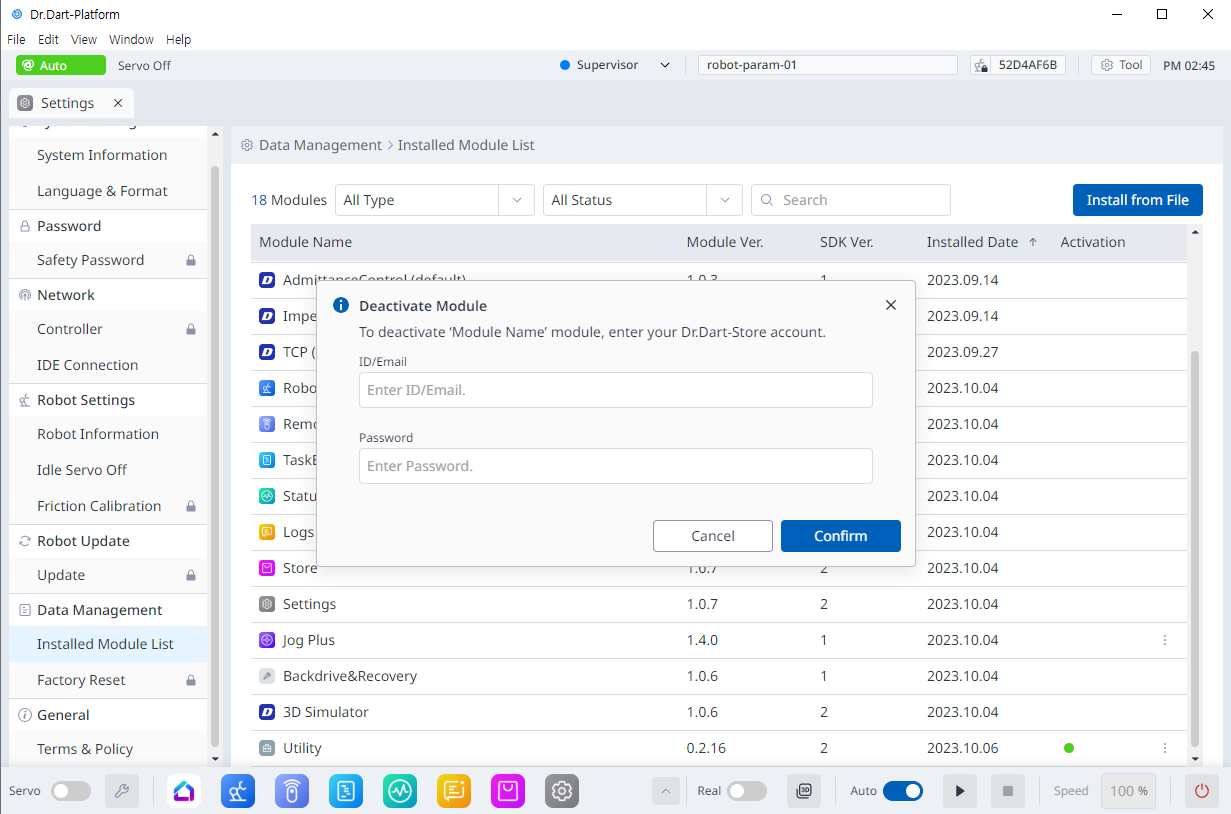
You can deactivate it using the option button of the module you want to deactivate in the Installed Module List menu of the Setting module. The paid module information that you want to deactivate and the store login ID must match when this operation is executed. If you are not logged in to the store or if your credentials do not match, a log-in pop-up will occur.
When offline:
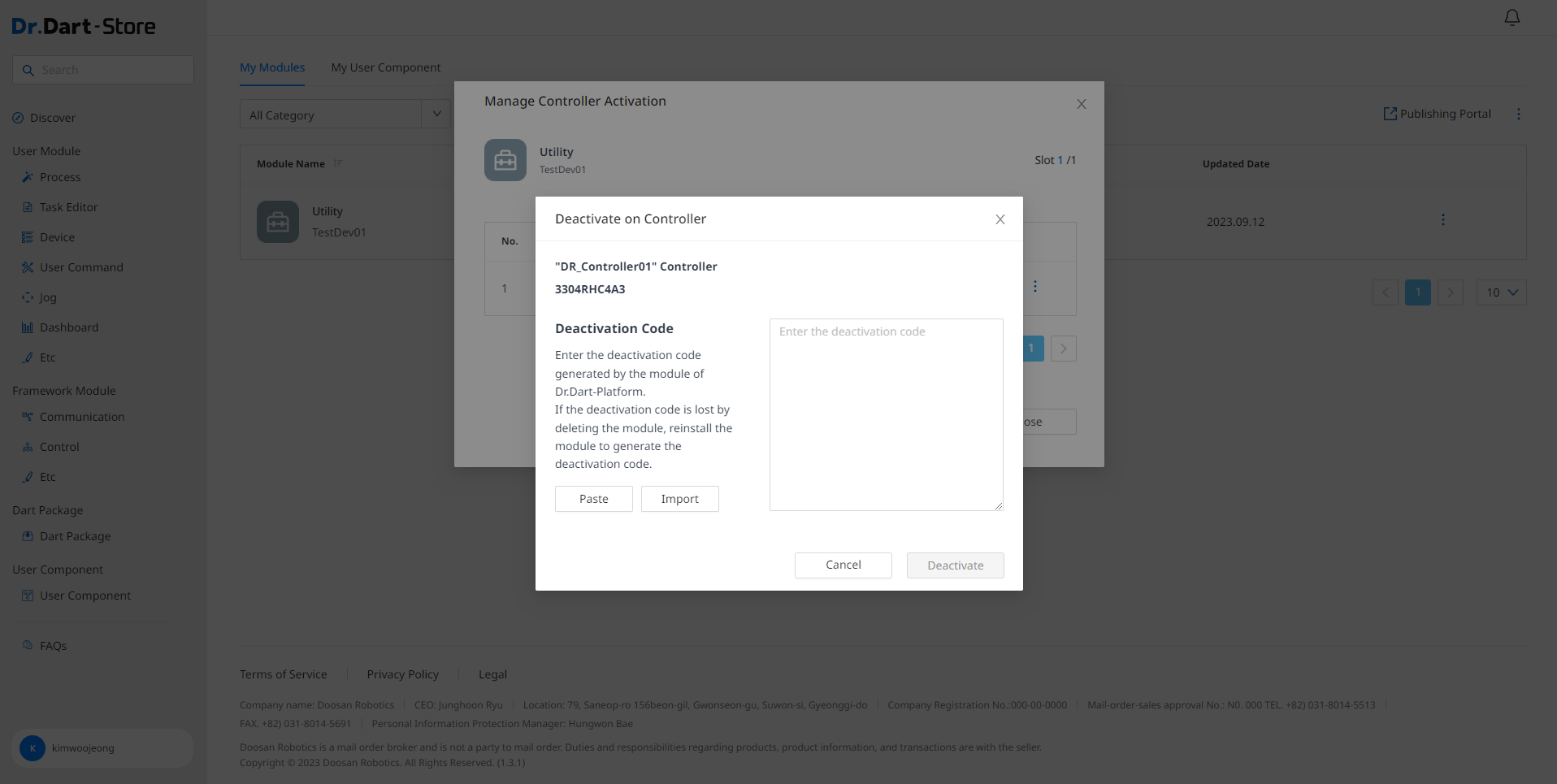
You can disable the option button to deactivate the module to deactivate the module menu to disable the option button. If you receive module deactivation code, the module is immediately disabled.
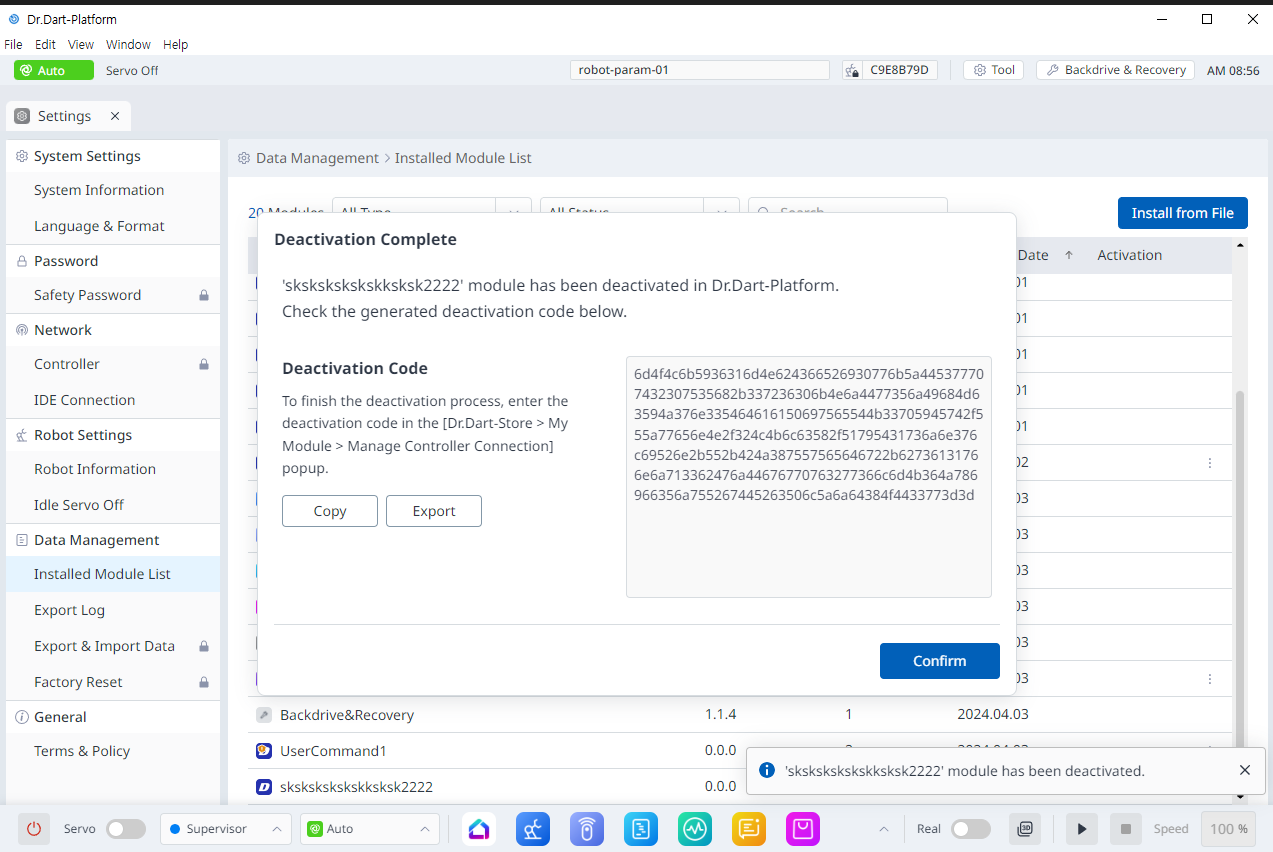
You must copy the corresponding deactivation code and switch it from online to deactivated on the Store via Dr. Dart-Store.