

To access the Recovery module, tap the Recovery button located at the bottom.
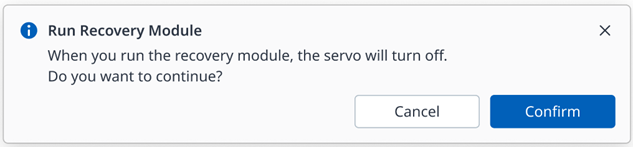
If the servo is enabled when the Recovery module is launched, the following pop-up appears and the servo is automatically turned off.
Using Software Recovery Mode
|
|
|
|
|---|---|---|
|
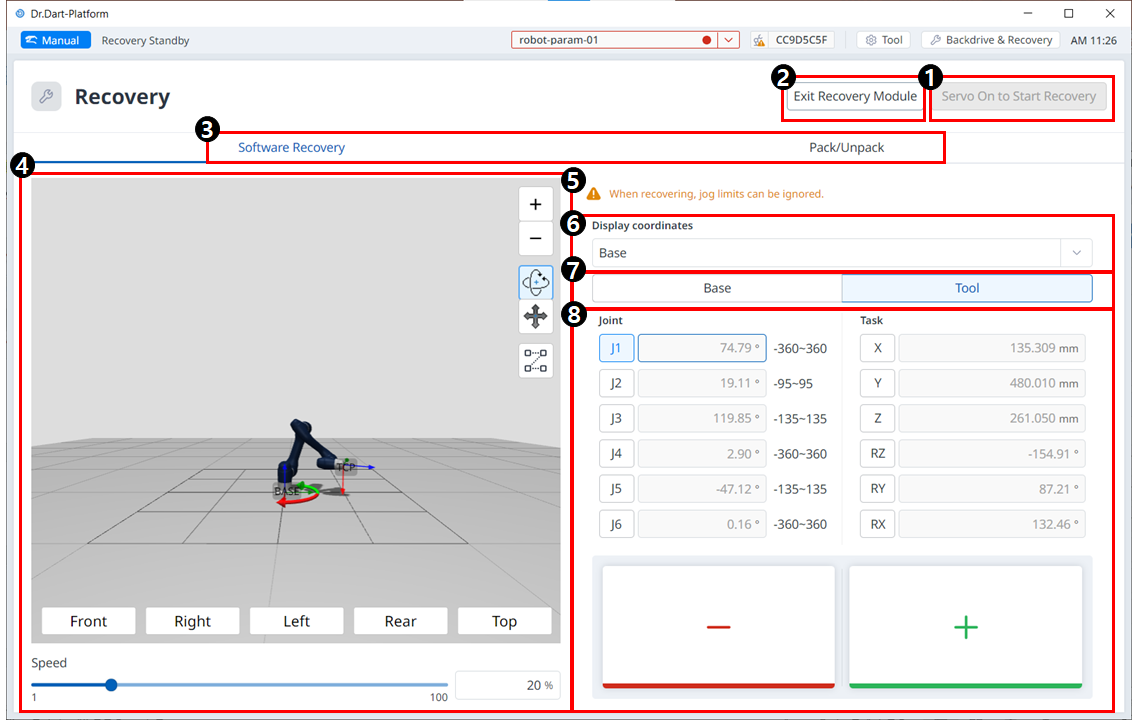
1 |
Servo On to Start Recovery |
This is a button to enable the servo before entering Recovery mode. |
|
2 |
Exit Recovery |
This button allows you to exit the Recovery module. |
|
3 |
Header |
This section allows you to select either Software Recovery mode or pack/unpack mode. |
|
4 |
3D Simulation |
This area allows you to preview a 3D simulation of the set values. |
|
5 |
Warning Message |
This explains the precautions. |
|
6 |
Display Coordinates |
This is where you can set the coordinate based on Base or World. |
|
7 |
Base/Tool Button |
This is where you can set the value based on Base or Tool. |
|
8 |
Joint/Task |
This section allows you to enter the desired values to make the robot move. |
To use the software recovery mode, follow these steps:
-
-
For definitions of the buttons in the cockpit, refer to Cockpit
-
Changes made to the setting are reflected on the simulation window on the left in real time.
-
-
When the setting is complete, tap the X button on the top left to close the window.
Software repair mode is not available when the joint angle limit is exceeded by 3 degrees.
Using Pack/Unpack
|
|
|
|
|---|---|---|
|
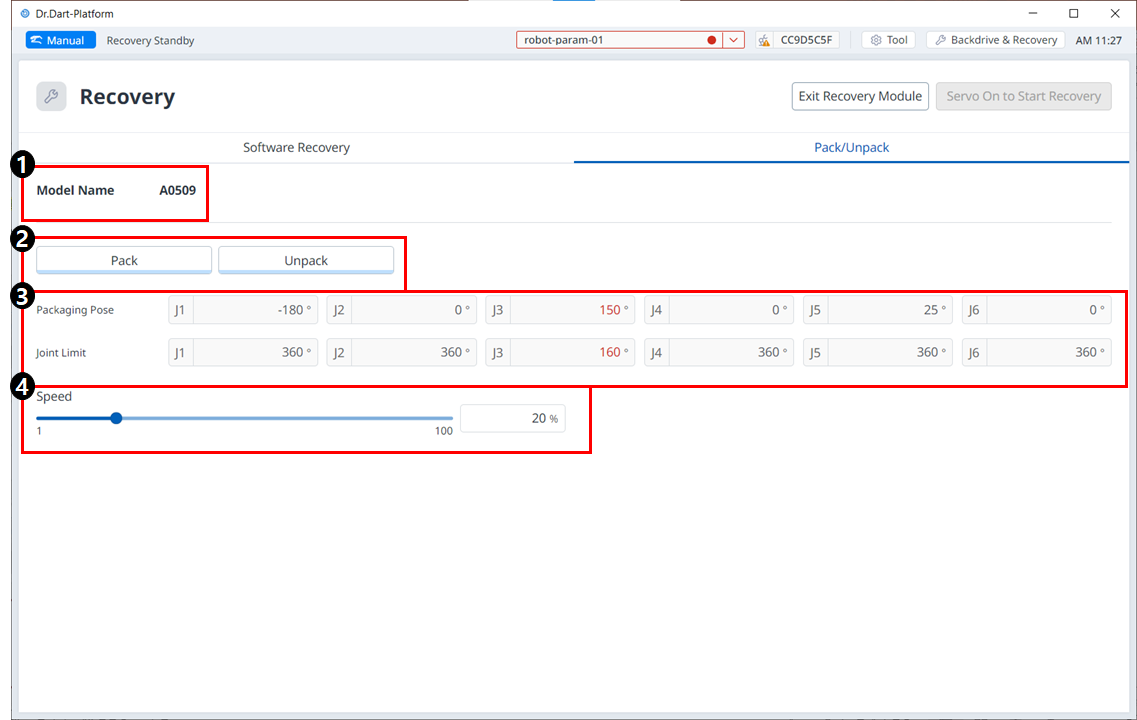
1 |
Model Name |
The name of the connected robot model appears. |
|
2 |
Pack/Unpack |
Either Pack or Unpack can be selected. |
|
3 |
Packaging Pose/joint Limit |
The pose and joint limit values appear. |
|
4 |
Speed Ratio |
The speed of the pack or unpack mode can be adjusted via a slider or input. |
To configure the packaging mode, follow these steps:
-
Tap the Recovery menu in the header pane.

-
Select the Packaging Mode tab.

-
Tap the Servo On to Start Recovery button to enable packaging mode.

-
The robot automatically moves to the set packaging pose.
-
The Pack button allows you to put the robot in the Pack position and the Unpack button allows you to put the robot in the Default Home Position.
-