
World Coordinates
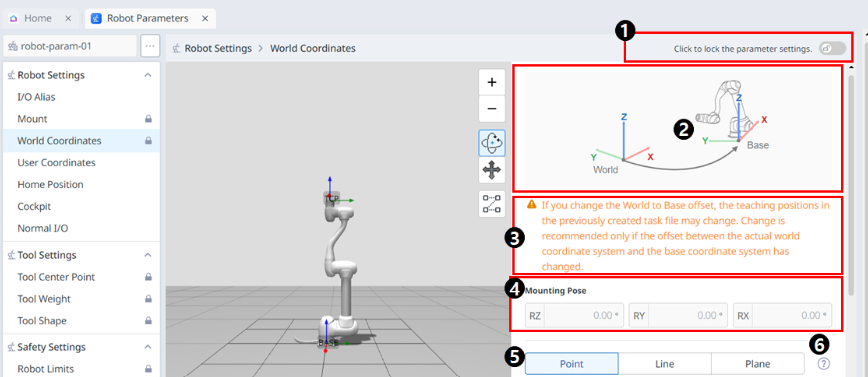
World coordinates can be set in Robot Parameters > Robot Settings > World Coordinates.
-
-
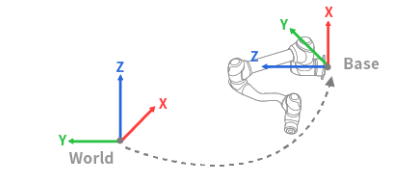
Changing the world coordinates will apply the same move/rotation to the robot simulator screen.
|
|
|
|
|---|---|---|
|
1 |
Lock Toggle Button |
|
|
2 |
Information Image |
This is an informative image required for the setting. |
|
3 |
Information Message |
This is an informative message required for the setting. |
|
4 |
Mounting Pose |
This section includes Mounting Pose values for Rz, Ry, and Rx. |
|
5 |
Point, Line and Plane settings |
This is where you can select and set the desired items among point, line and plane. |
|
6 |
Teaching Guide |
This is a guide for setting up point, line and plane. |
|
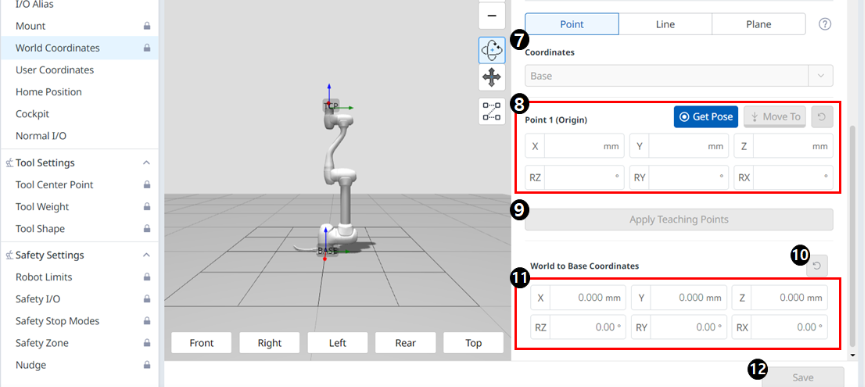
7 |
Coordinates |
This is where you can select the desired coordinate between Base and World. |
|
8 |
Point 1 setting |
This is where you can set the settings for each of the 6 axes, as well as Get Pose and Move To. |
|
9 |
Apply Teaching Points button |
This button allows you to enter the desired settings and apply them. |
|
10 |
World to Base Coordinates Reset |
This button allows you to reset the World to Base Coordinates already entered. |
|
11 |
World to Base Coordinates setting |
This is where you can enter settings for the 6 axes. |
|
12 |
Apply button |
The setting value can be applied. |
User Coordinates
|
|
|
|
|---|---|---|
|
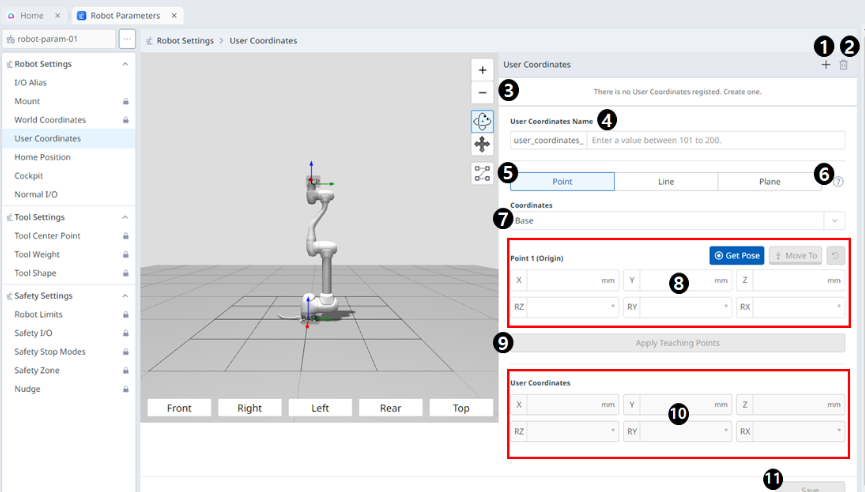
1 |
Add New |
|
|
2 |
Delete |
This button allows you to delete the selected User Coordinate. |
|
3 |
Selected User Coordinates |
This is a list of the User Coordinates added. |
|
4 |
User Coordinates Name |
|
|
5 |
Point, Line and Plane settings |
This is where you can set each point, line, and plane. |
|
6 |
Information icon |
A guide to User Coordinates is provided. |
|
7 |
Coordinates |
This is where you can select either Base or World as the basis for the desired value. |
|
8 |
Point 1 setting |
This is where you can enter values for each of the 6 axes of Point 1 and run Get Pose or Move To. |
|
9 |
Apply Teaching Points |
This button allows the desired values to be applied after they are entered. |
|
10 |
User Coordinates |
In the User Coordinates section, you can enter each of the desired values. |
|
11 |
Save |
This button allows the setting values to be saved. |