Mandatory Easy 5 min
Learn the types of safety stops and how to engage/disengage safety stop.
Types of Safety Stops
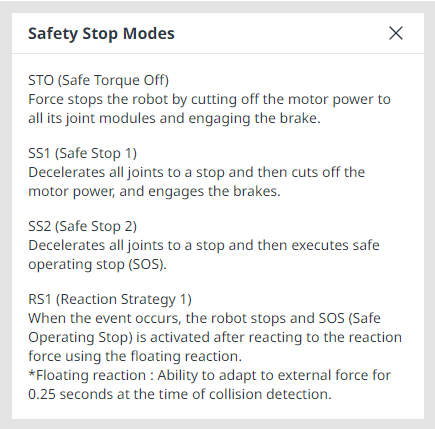
The stop modes provided to ensure user safety are as follows:
-
STO (Safe Torque Off): Stops Servo Off (motor power is immediately turned off)
-
SS1 (Safe Stop 1): Servo Off after maximum deceleration stop
-
SS2 (Safe Stop 2): Standby after maximum deceleration stop (pause)
-
RS1: Upon collision, it moves in the opposite direction of the collision and then enters standby (can only be set in Collision Detection/TCP Force Limit Violation)
Doosan Robotics robots have two types of safety stop functions. Emergency Stop is used for general emergency situations, and the robot can resume operation with Servo On after releasing the emergency stop. In case of Protective Stop, the robot can resume operation by resolving the cause of Protective Stop and releasing the stop.
-
Emergency Stop: It sets the stop mode when the Emergency Stop button of the teach pendant or an additionally installed external device is activated
-
It activates when the Emergency Stop switch of the teach pendant or the one connected to the TBSFT EM terminal is pressed.
-
Only STO or SS1 can be selected.
-
-
Protective Stop: It sets the stop mode when the externally connected protective equipment is activated
-
It activates when the protective equipment connected to the TBSFT PR terminal is activated.
-
For more information about the Safety Stop functions, refer to Safety Function.
How to engage/disengage Safety Stop
Press the Emergency Stop button on the teach pendant or activate the safety device connected to the Safety I/O to activate emergency stop. Safety devices can be connected to Emergency Stop or Protective Stop through Workcell Manager > Robot > Safety I/O functions of the teach pendant screen.
-
For more information about connecting a safety device to Safety I/O, refer to Connect Controller I/O.
-
For information on how to set the safety stop function for this connection in the program, See Safety Signal I/O.
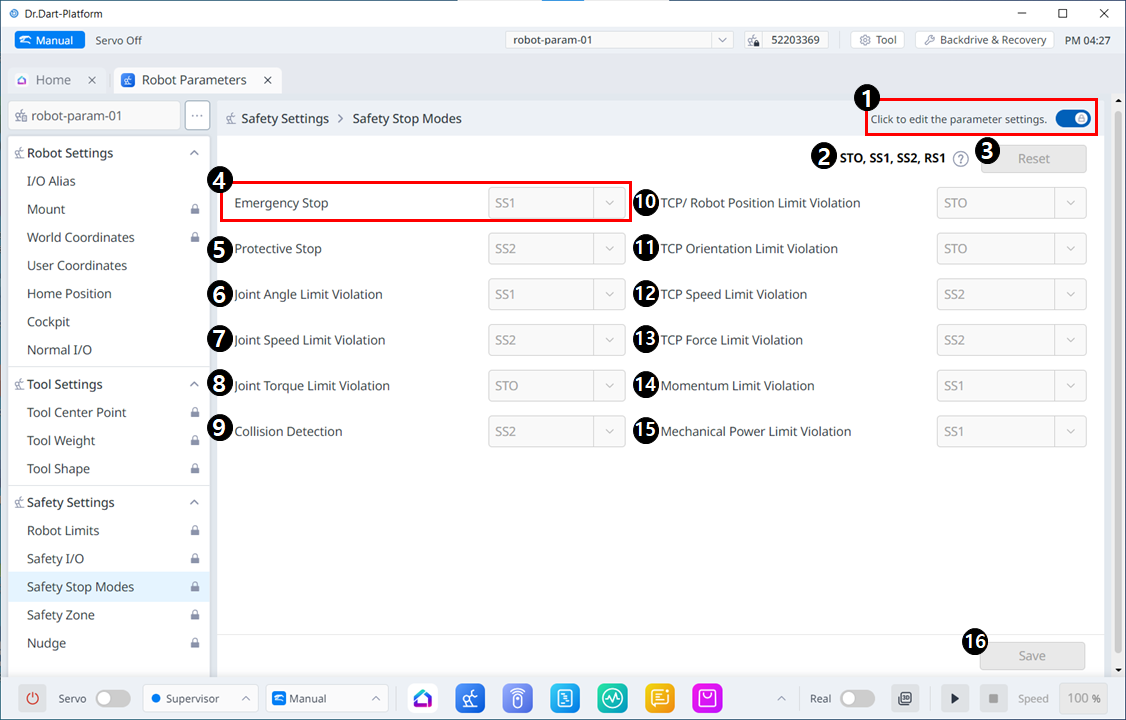
Menu Items
|
|
Item |
Description |
|---|---|---|
|
1 |
Lock Toggle Button |
Used to lock the set value. The safety password is required for modifying the set value. |
|
2 |
Information message |
A message providing information necessary for setting. |
|
3 |
Reset |
A button to reset the settings. |
|
4 |
Emergency Stop |
A Safety Stop can be selected to be used for the corresponding item. The drop-down menu includes the following: STO SS1 |
|
5 |
#Protective Stop# |
A Safety Stop can be selected to be used for the corresponding item. The drop-down menu includes the following: SS1 SS2 |
|
6 |
Joint Angle Limit Violation |
A Safety Stop can be selected to be used for the corresponding item. The drop-down menu includes the following: STO SS1 SS2 |
|
7 |
Joint Speed Limit Violation |
A Safety Stop can be selected to be used for the corresponding item. The drop-down menu includes the following: STO SS1 SS2 |
|
8 |
Joint Torque Limit Violation |
Only STO is available. |
|
9 |
Collision Detection |
A Safety Stop can be selected to be used for the corresponding item. The drop-down menu includes the following: STO SS1 SS2 RS1 |
|
10 |
TCP Robot Position Limit Violation |
A Safety Stop can be selected to be used for the corresponding item. The drop-down menu includes the following: STO SS1 SS2 |
|
11 |
TCP Orientation Limit Violation |
A Safety Stop can be selected to be used for the corresponding item. The drop-down menu includes the following: STO SS1 SS2 |
|
12 |
TCP Speed Limit Violation |
A Safety Stop can be selected to be used for the corresponding item. The drop-down menu includes the following: STO SS1 SS2 |
|
13 |
TCP Force Limit Violation |
A Safety Stop can be selected to be used for the corresponding item. The drop-down menu includes the following: STO SS1 SS2 |
|
14 |
Momentum Limit Violation |
A Safety Stop can be selected to be used for the corresponding item. The drop-down menu includes the following: STO SS1 SS2 |
|
15 |
Mechanical Limit Violation |
A Safety Stop can be selected to be used for the corresponding item. The drop-down menu includes the following: STO SS1 SS2 |
|
16 |
Save |
This button allows you to save the setting values. |
The following pop-up appears on the information message: