
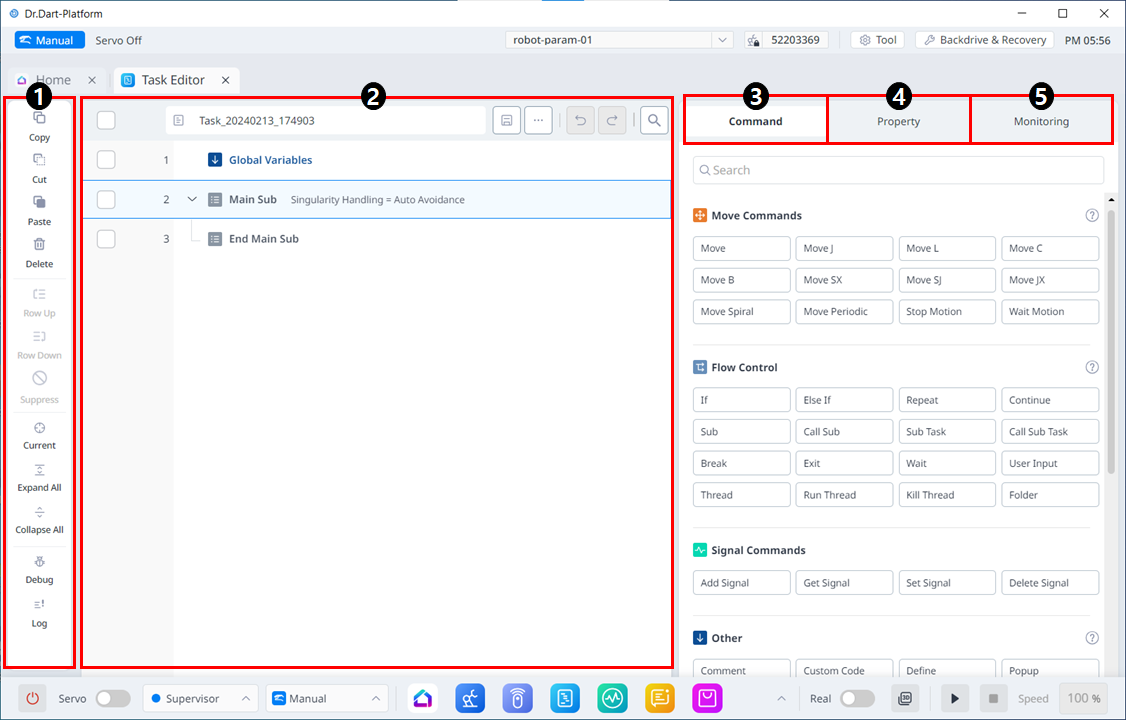
Menu Layout
|
|
Item |
Description |
|---|---|---|
|
1 |
Edit Command Tool (CTR) |
|
|
2 |
Task List |
Displays the task order and a list of commands added from the Command tab. Once the task is created, the Global Variables, Main Sub, and End Main Sub commands are automatically added. The list includes the following functions:
|
|
3 |
Command |
Displays a list of commands to add to the Task List. Once a command is selected, it is added to the Task List. |
|
4 |
Property |
In this section, you can view and modify the settings of commands added to the Task List. |
|
5 |
Monitoring |
In this section, you can simulate and further configure the commands added to the Task List. |
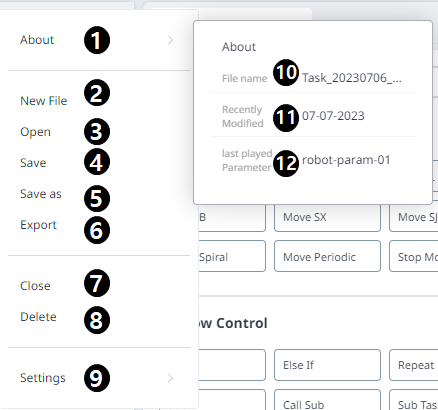
View More is organized as follows:
|
|
Item |
Description |
|---|---|---|
|
1 |
About |
Provides more information about the task. |
|
2 |
New File |
Creates a new file. |
|
3 |
#Open# |
Opens a task that already exists. |
|
4 |
Save |
Saves the current task. |
|
5 |
Save as |
Saves the current task with a different name. |
|
6 |
Export |
Exports the current task. |
|
7 |
Close |
Closes the task. |
|
8 |
Delete |
Deletes the task. |
|
9 |
Settings |
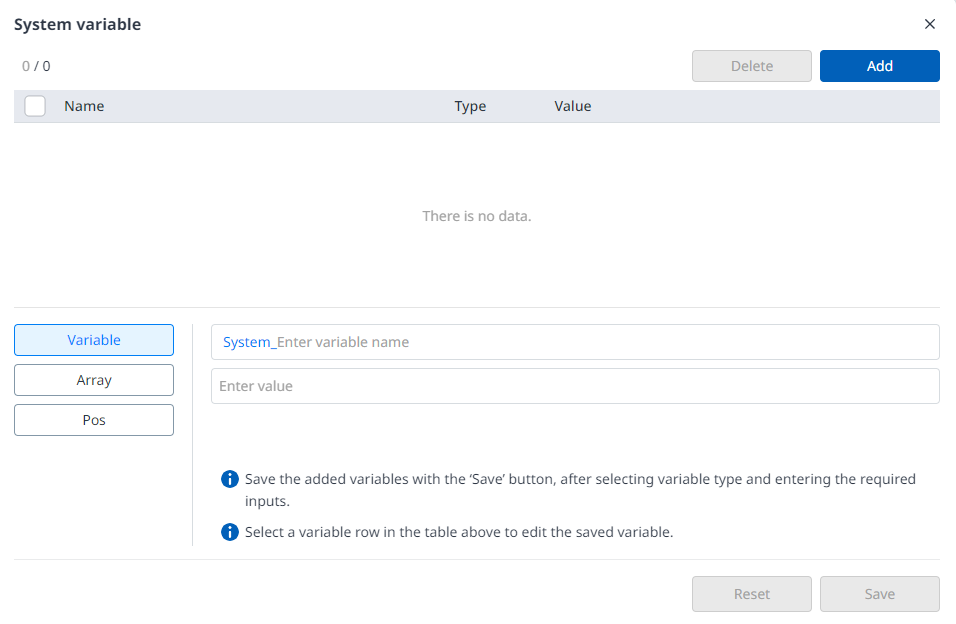
Sets system variables. |
|
10 |
About_File name |
This is where the file name is seen. |
|
11 |
About_Recently Modified |
This is where the date of the last modification is seen. |
|
12 |
About_Last played Parameter |
This is where the very last parameter executed is seen. |
-
Global Variables: The global variable and global pose of the task program can be entered in the Properties tab of Global Variables, and predefined global variables and global poses can be used in the property screen of the command added in the task list.
-
Main Sub, End Main Sub: The commands you select are added to the bottom of Main Sub, and are executed in order from top to bottom, from the commands listed at the bottom of Main Sub to the commands listed at the top of End Main Sub.
-
When monitoring is performed with a variable registered in the Variable tab, the value change frequency may be too fast to display the value on the screen.
-
System variables can be registered without any limit on the number starting from software version V2.8.
-
If there are too many system variables registered, there may be long loading times for task execution.