
The world coordinates of the robot can be set from World Coordinates. In case the robot coordinate is the base coordinates, this step can be skipped.
World coordinates can be set in Robot Parameters > Robot Settings > World Coordinates.
-
World coordinates are used when the robot base installation location is physically moved/rotated.
-
Changing the world coordinates will apply the same move/rotation to the robot simulator screen.
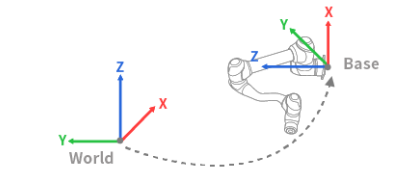
World coordinates can also be used even after the base location and angle are changed after robot teaching. If the coordinates of tasks created through robot teaching in the past are changed from BASE to WORLD, an offset corresponding to the move/rotation of world coordinates is applied to all motion coordinates.
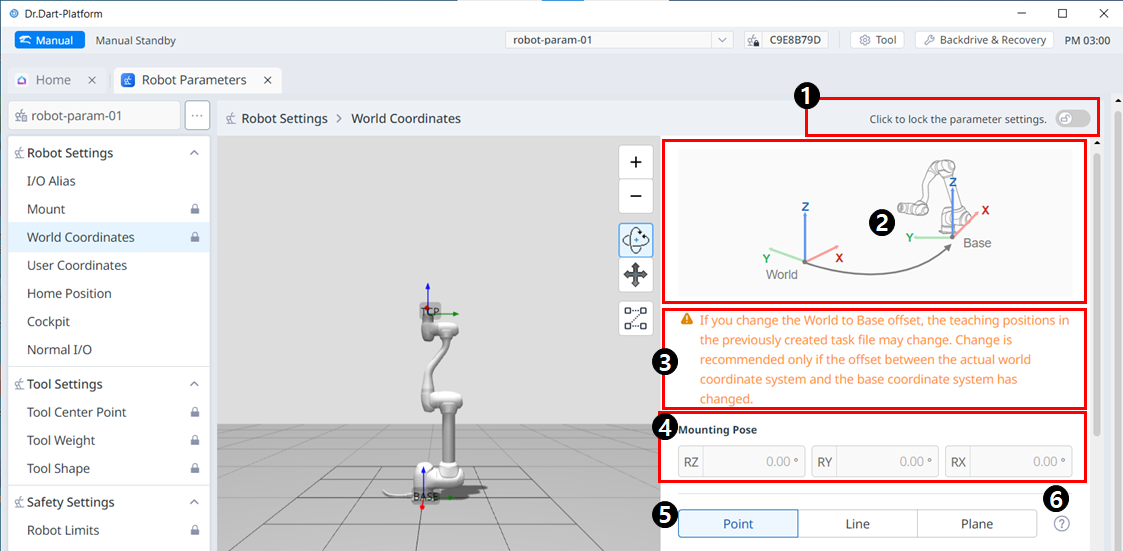
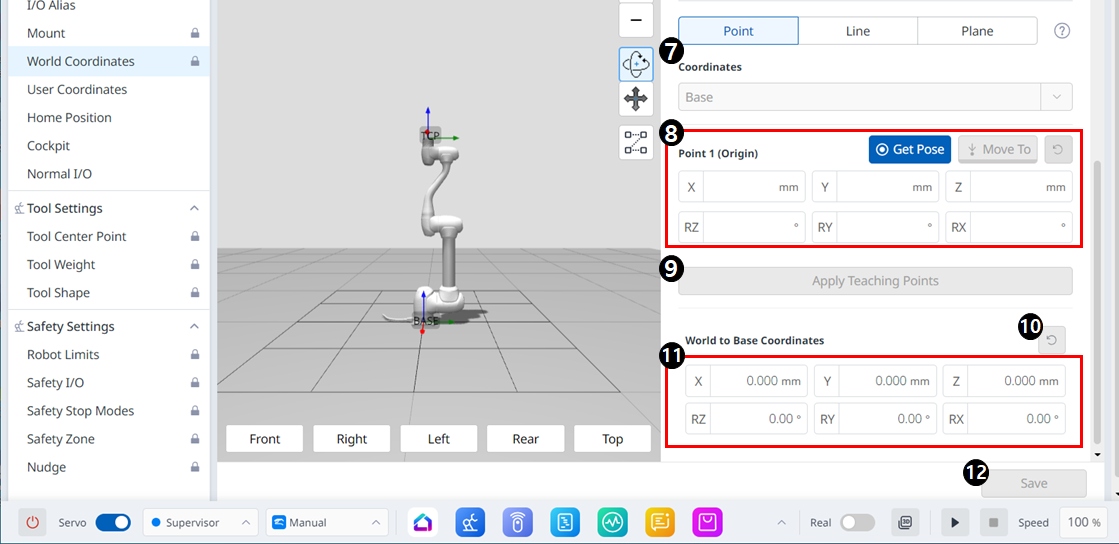
Menu Layout
|
|
Item |
Description |
|---|---|---|
|
1 |
Lock Toggle Button |
Used to lock the set value. The safety password is required for modifying the set value. |
|
2 |
Information Image |
This is an informative image required for the setting. |
|
3 |
Information Message |
This is an informative message required for the setting. |
|
4 |
Mounting Pose |
This section includes Mounting Pose values for A, B, and C. |
|
5 |
Point, Line and Plane settings |
This is where you can select and set the desired items among point, line and plane. |
|
6 |
Teaching Guide |
This is a guide for setting up point, line and plane. |
|
7 |
Coordinates |
This is where you can select the desired coordinate between Base and World. |
|
8 |
Point 1 setting |
This is where you can set the settings for each of the 6 axes, as well as Get Pose and Move To. |
|
9 |
Apply Teaching Points button |
This button allows you to enter the desired settings and apply them. |
|
10 |
World to Base Coordinates Reset |
This button allows you to reset the World to Base Coordinates already entered. |
|
11 |
World to Base Coordinates setting |
This is where you can enter settings for the 6 axes. |
|
12 |
Apply button |
The setting value can be applied. |