
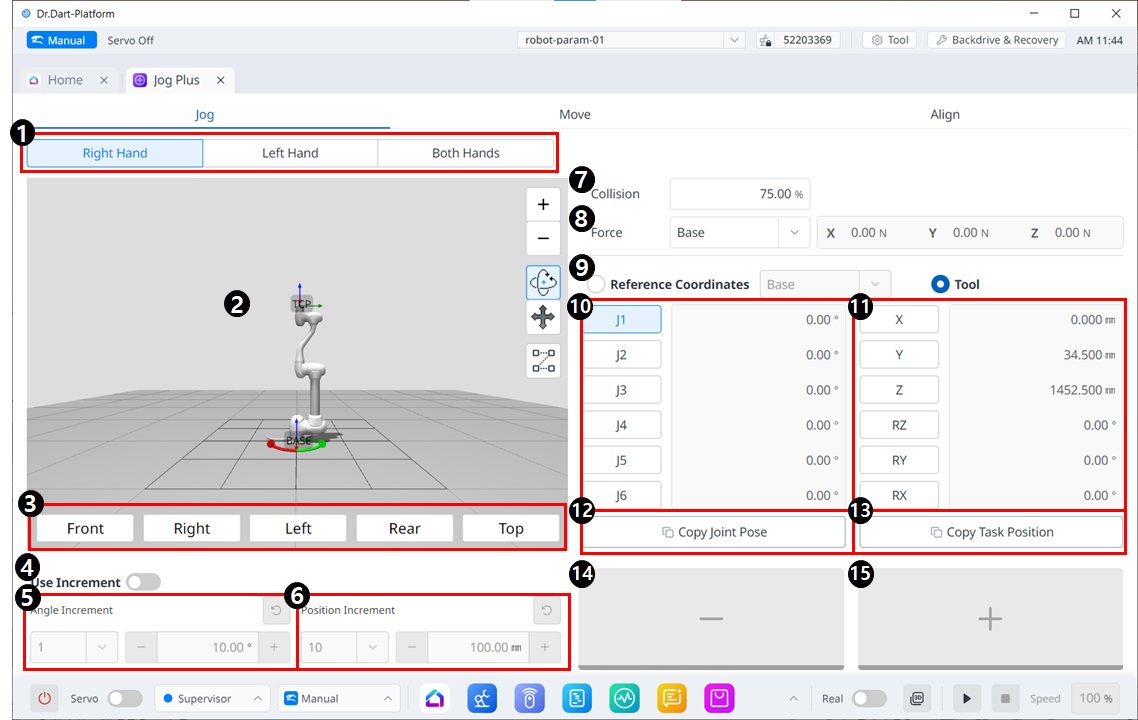
Jog Menu Layout
|
|
Item |
Description |
|---|---|---|
|
1 |
Select panel type |
You can choose the location of the move button. |
|
2 |
3D simulation |
This is the 3D viewer, where you can see how the robot looks. |
|
3 |
Simulator Alignment |
You can utilize this section to steer the simulator. |
|
4 |
Use Increment |
This button allows you to enable angle or position increments. |
|
5 |
Angle Increment |
This section is where the angle increment on the selected axis is set. |
|
6 |
Position Increment |
This section is where the position increment on the selected axis is set. |
|
7 |
Collision |
This field is where you set the Robot Collision. |
|
8 |
Force Monitoring |
This section is where you set the forces in the X, Y, and Z axes based on Base, Tool, World, Reference and among others. |
|
9 |
Select reference coordinate system |
Select a reference coordinate system to display or jog the task coordinates in Figure 11. It can be Base, World, or User coordinates. |
|
10 |
Joint panel |
You can select the joint axis to jog. |
|
11 |
Task panel |
You can select the task axis to jog. |
|
12 |
Copy Pose J button |
This button allows you to copy Pose J. |
|
13 |
Copy Pose X button |
This button allows you to copy Pose X. |
|
14 |
Move - Button |
You can have the robot move in the - direction based on each axis. At this time, you can figure out the direction of the - and + on the 3D simulation on the left-hand side. |
|
15 |
Move + Button |
You can have the robot move in the + direction based on each axis. At this time, you can figure out the direction of the - and + on the 3D simulation on the left-hand side. |