To perform data conversion, a PC with Dr.Dart-Bridge installed is required.
There are two methods for data conversion: connecting directly to the controller or uploading data files.
Connecting Directly to the Controller
-
Connect the controller and the PC with Dr.Dart-Bridge installed using an Ethernet cable.
-
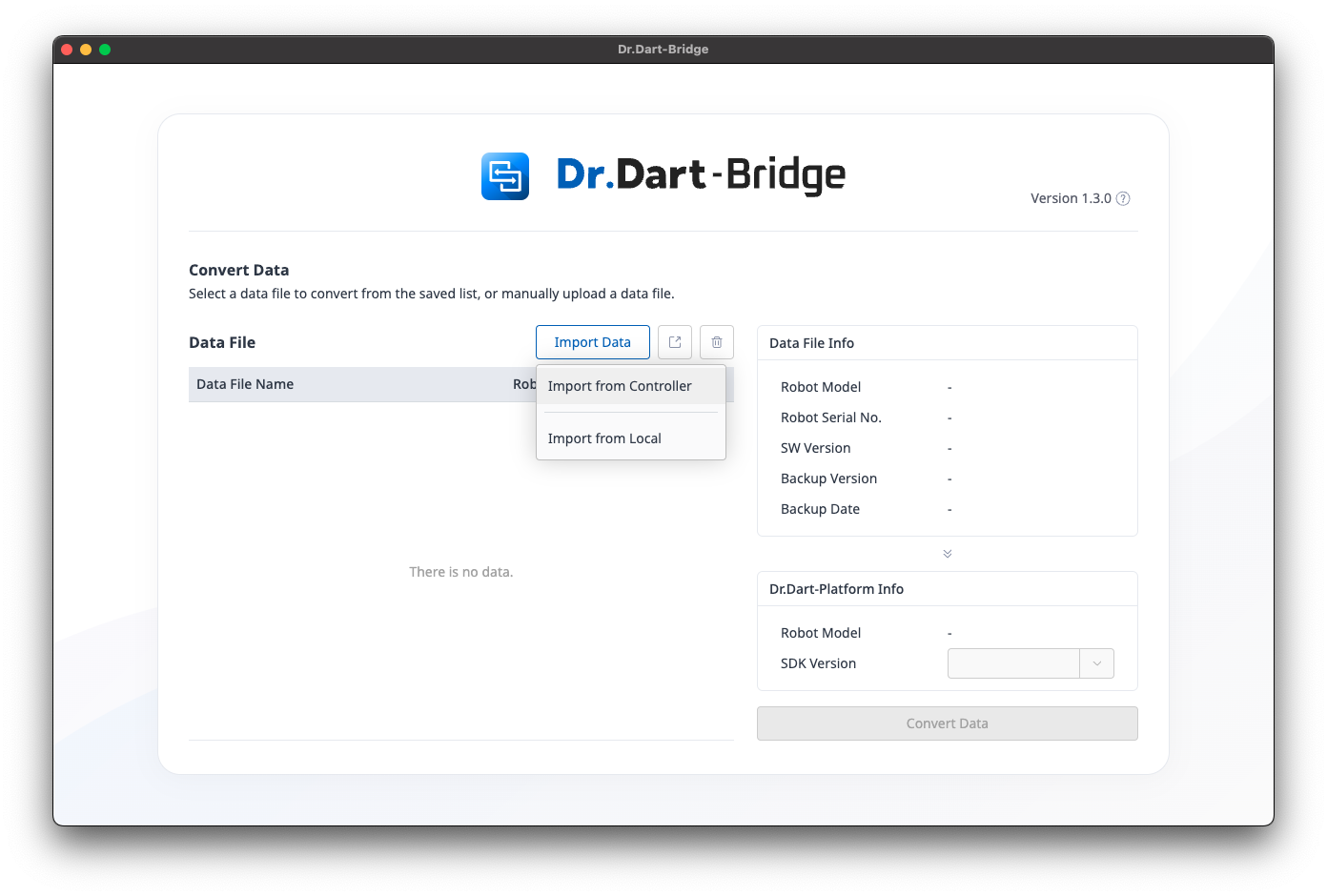
In the Dr.Dart-Bridge software, select "Import Data > Import from Controller.".
-
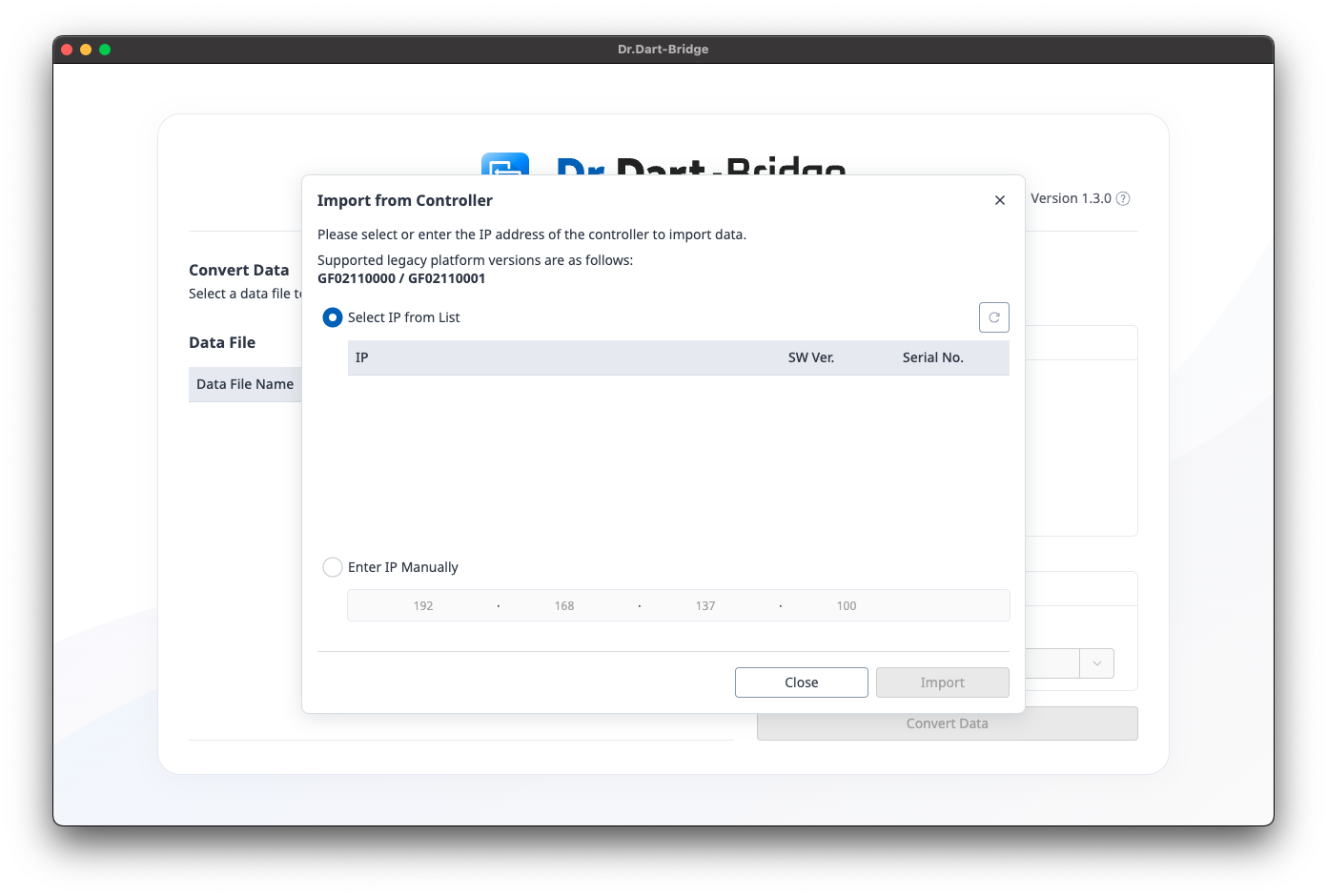
Choose the IP from the list or manually enter the IP address to retrieve data from the controller.
-
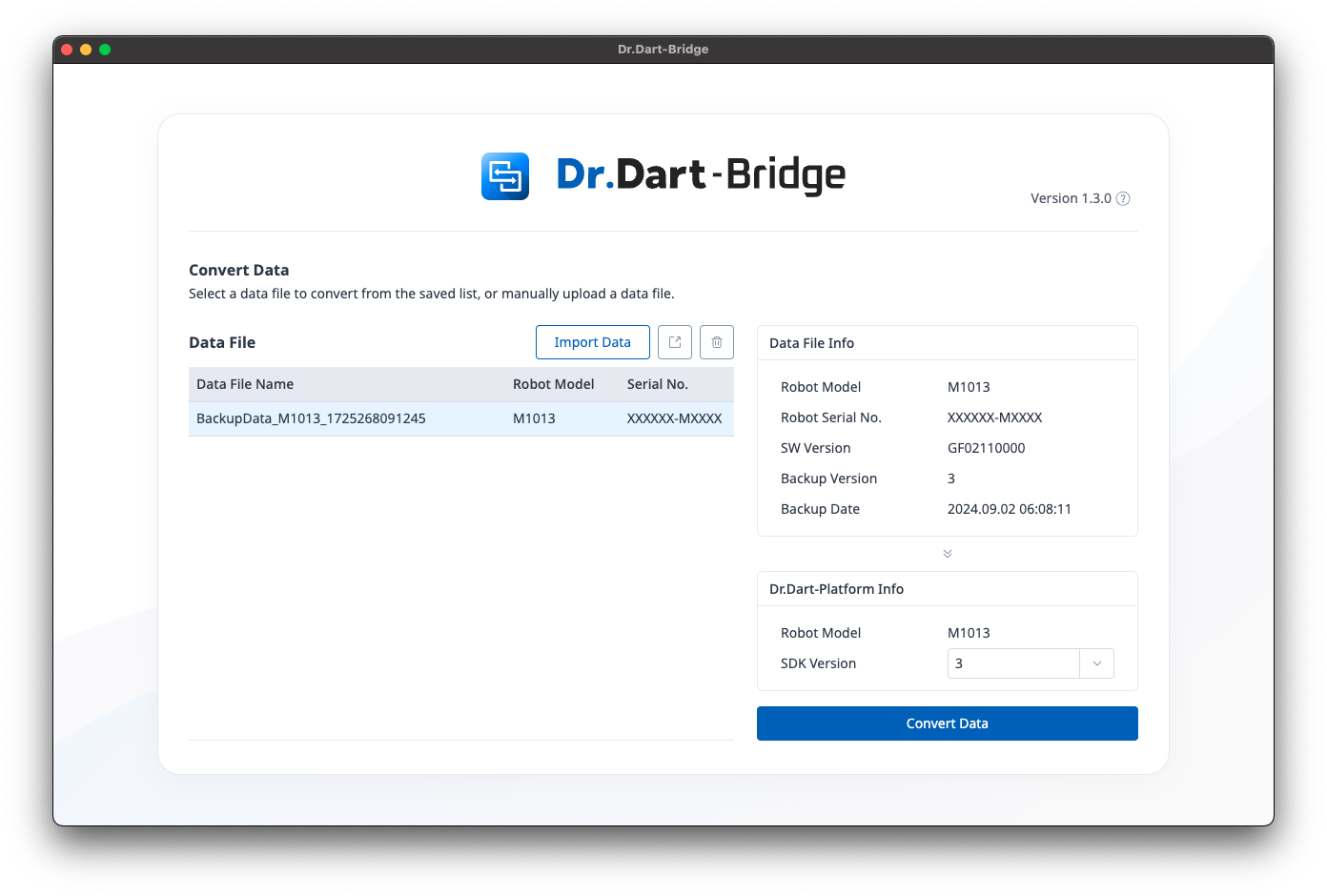
Review the imported data information, select the SDK version, and click the "Convert Data" button.
-
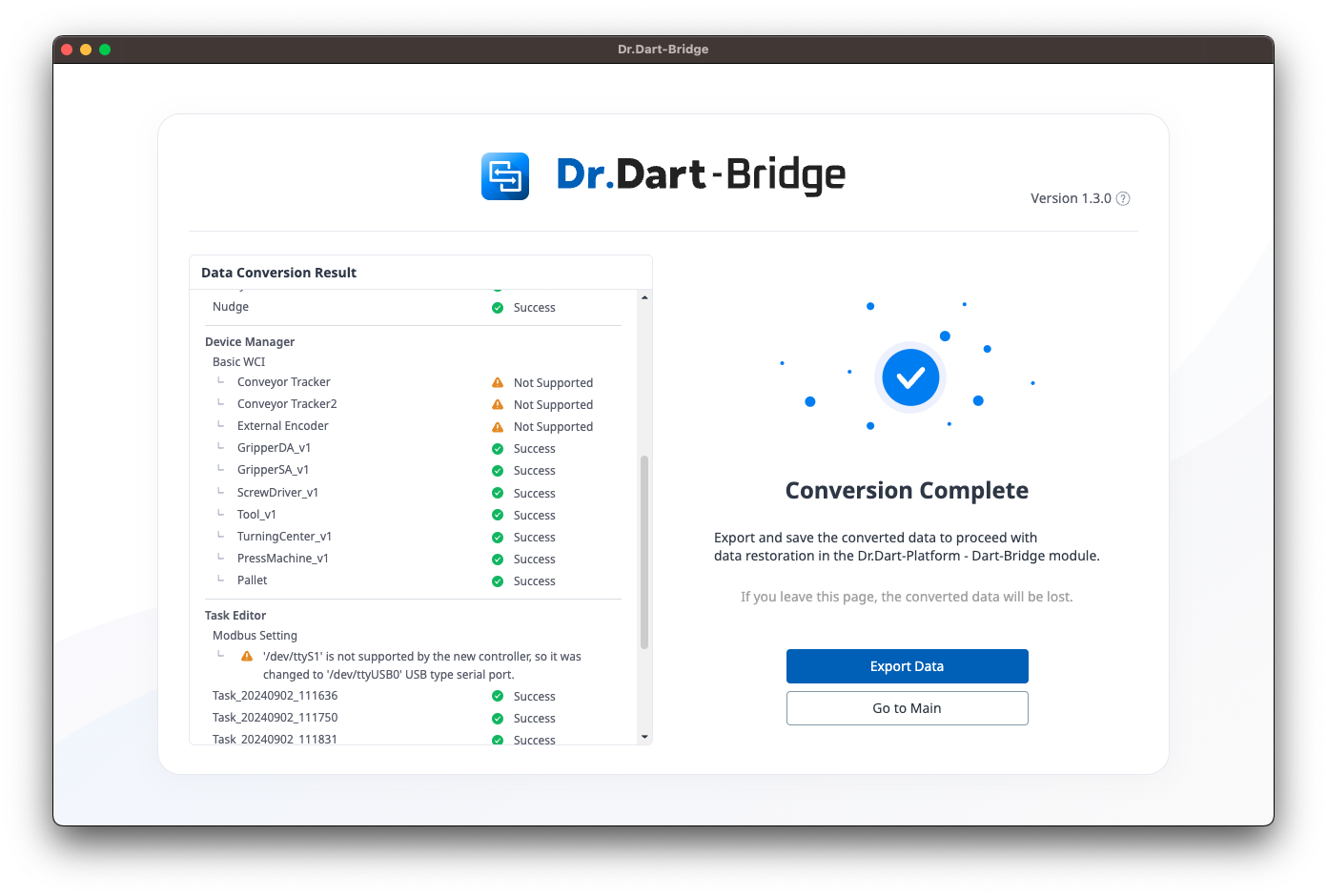
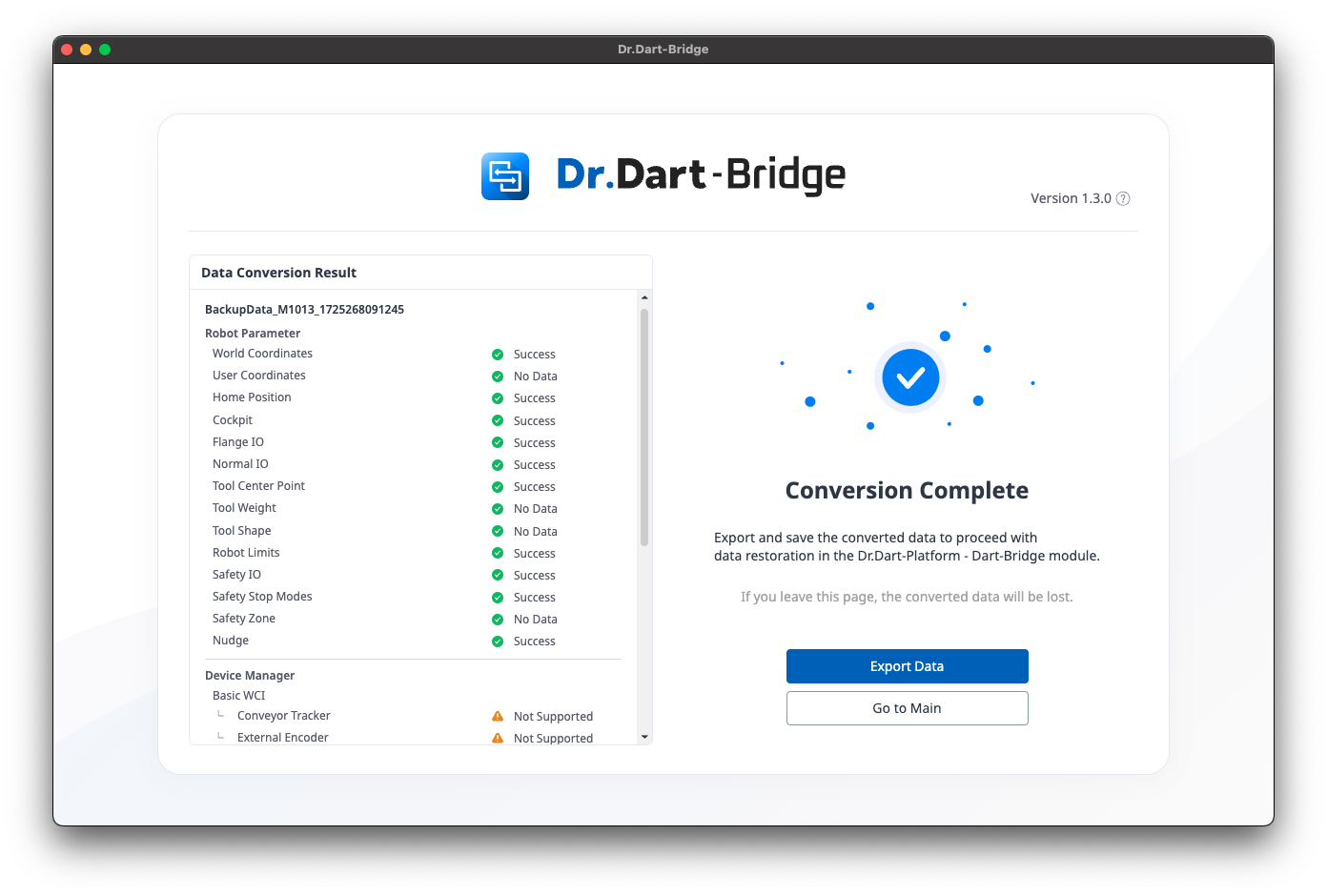
Check the conversion results and click the "Export Data" button at the bottom right to save the .dbr file.
Uploading Data Files
-
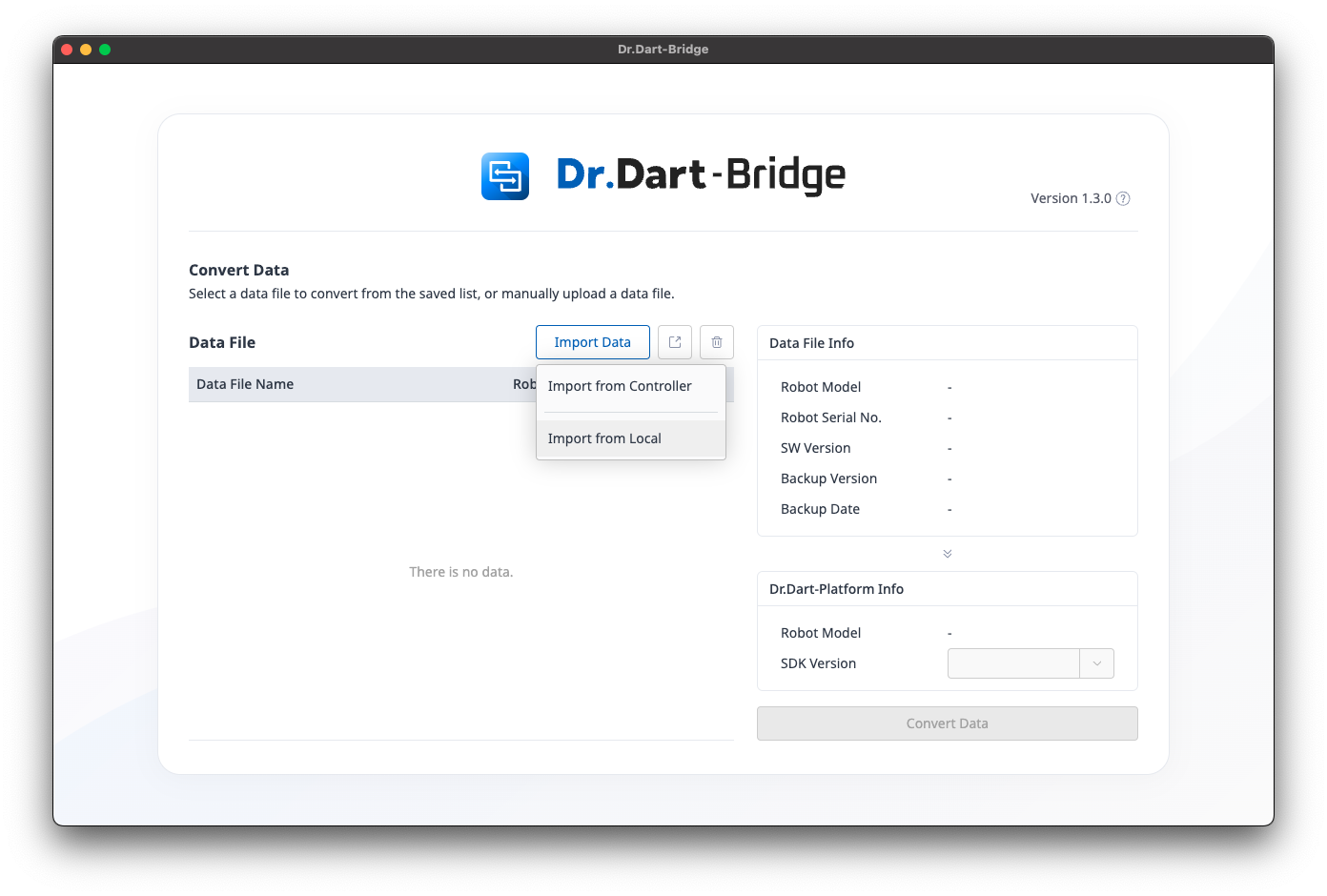
In the Dr.Dart-Bridge software, select "Import Data > Import from Local.".
-
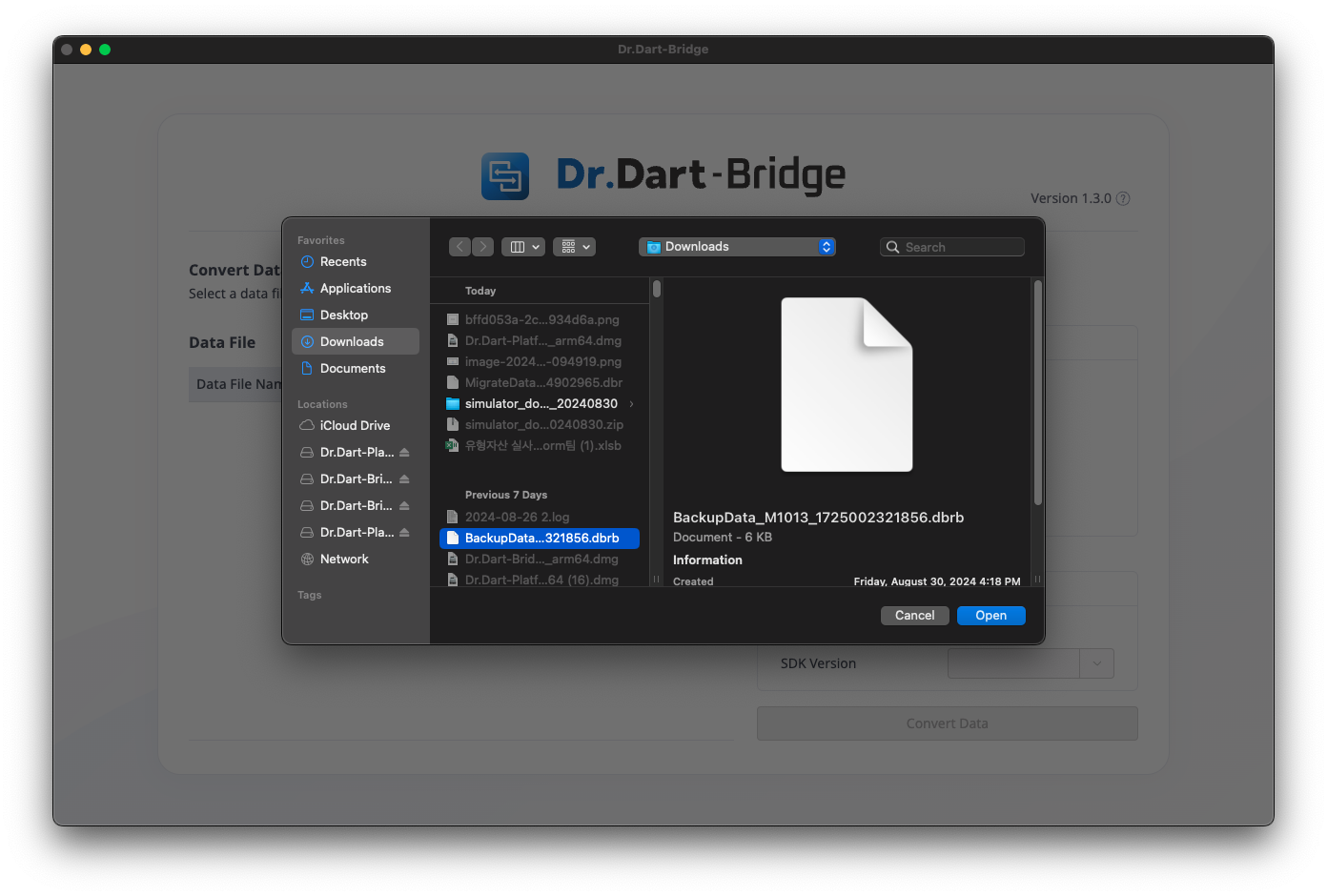
Choose and upload the backup data file with the .dbrb extension.
-
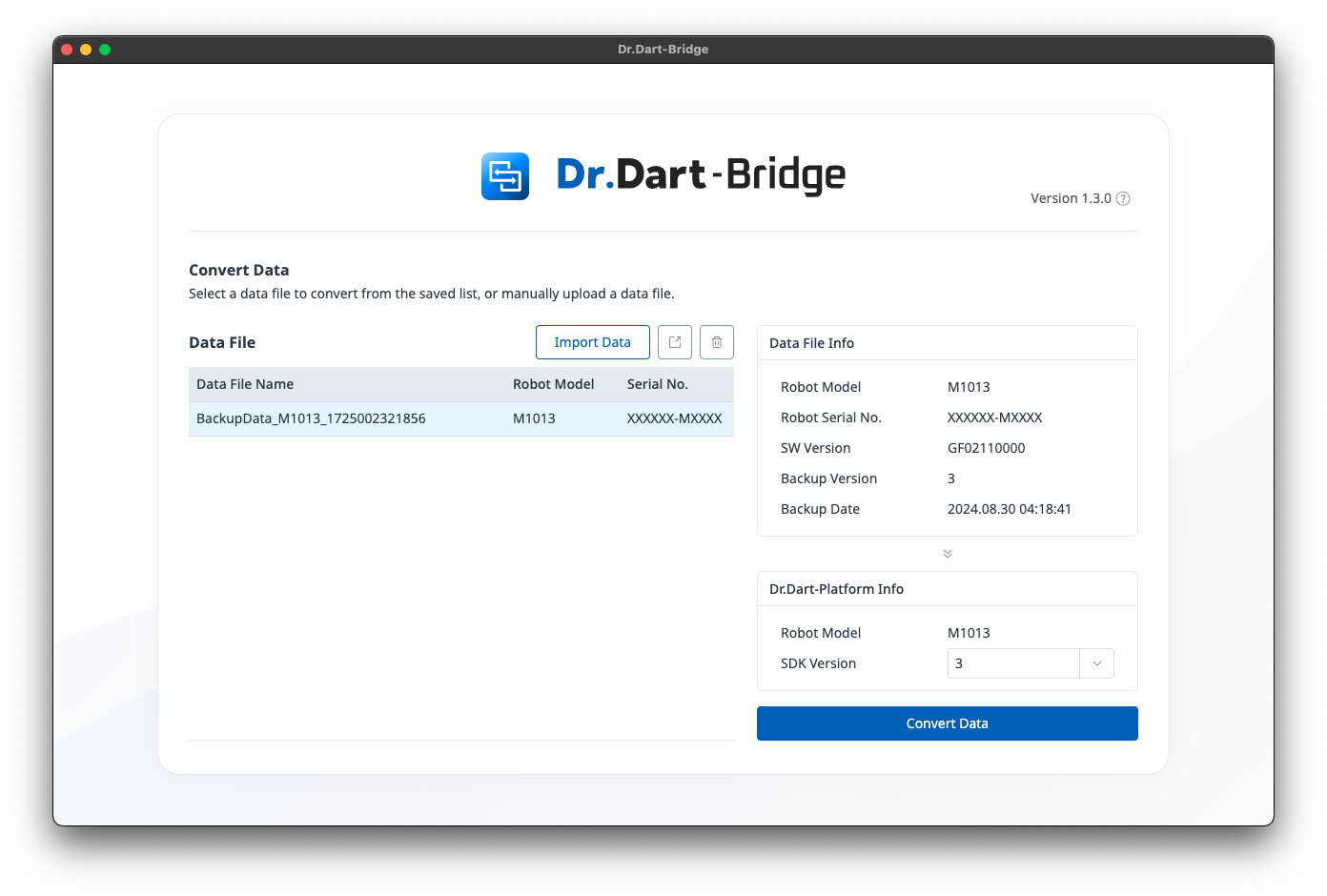
Review the imported data information, select the SDK version, and click the "Convert Data" button.
-
Check the conversion results and click the "Export Data" button at the bottom right to save the .dbr file.
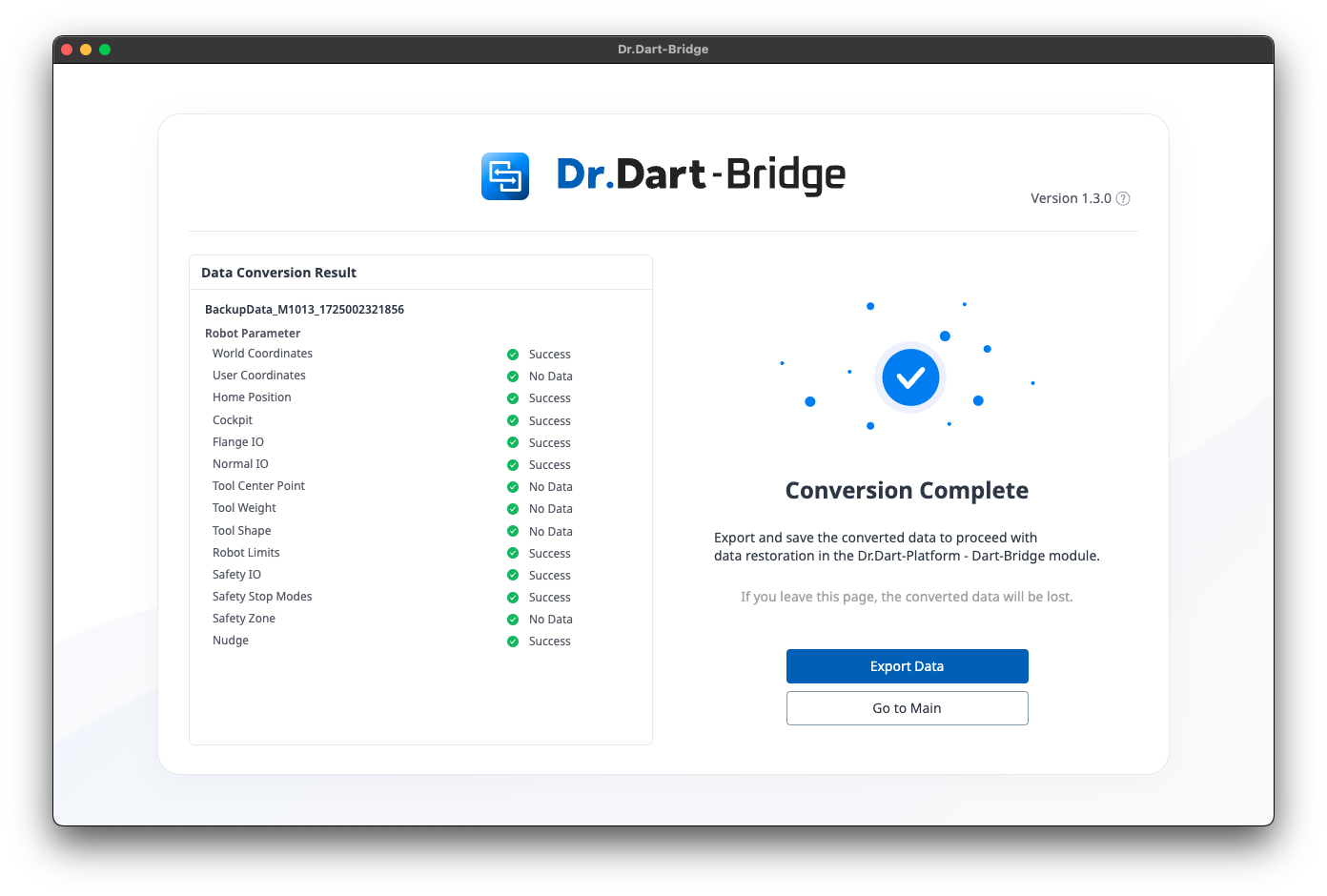
-
If there are blocks in the task that are not supported, those blocks and their sub-blocks will not be converted, and this information will be displayed in the conversion results.
-
For details on the target data for conversion, refer to System Requirements and Restrictions.
-
If there is Modbus RTU 'dev/ttyS1' port configuration information, it will be arbitrarily changed to 'dev/ttyUSB0'.