Menu Layout
|
|
Item |
Description |
|---|---|---|
|
1 |
Turn off button |
This button turns off the platform. Press and hold the button for about 1-2 seconds. |
|
2 |
Servo on/off switch |
This is the section where you can turn on/off the servo. |
|
3 |
Operator/Supervisor |
This button can change Operator/Supervisor level. |
|
4 |
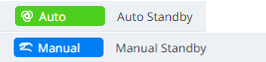
Auto switch |
This button changes the state of the robot to Auto or Manual. The changed value can be seen in the upper left corner of the screen. |
|
5 |
Home |
You can go to the Dart-Platform home screen. |
|
6 |
Favorite Modules |
This is a list of favorite modules. |
|
7 |
Virtual&Real switch |
|
|
8 |
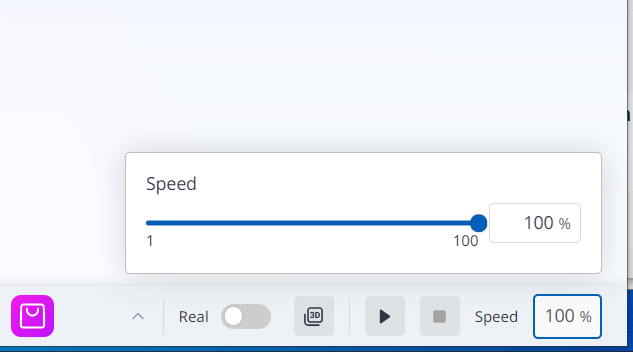
3D Simulator button |
This is a button that makes it easy to view the 3D Simulator while running the module. |
|
9 |
Play/Pause/Resume/Stop |
This button allows you to run, pause, resume, or stop the robot. |
|
10 |
Speed Slider |
|