
1.7 1.6 1.5 1.4 1.3 Korean English Chinese Czech Dutch French German Hungarian Italian Japanese Polish Portuguese Spanish

Pallet

This is a type of cradle that allows the target to be placed in a set formation.

  • All targets on a pallet can be handled with minimum (4-point) instructions.

  • Workpieces can be approached sequentially by entering the row, column, stack and thickness.
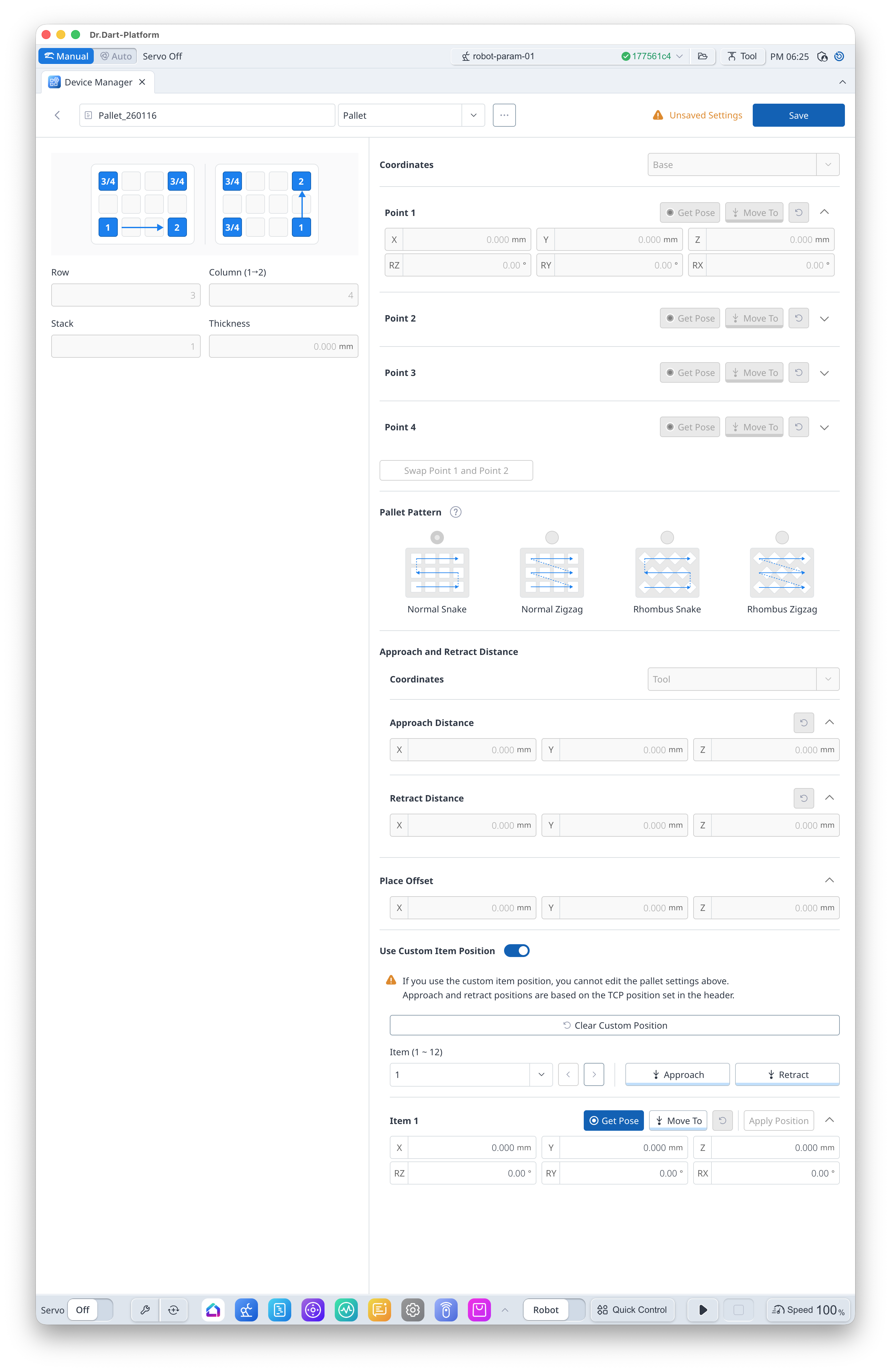
스크린샷 2026-01-16 오후 6.25.47.png


Item

Description

1

Pallet Row/Column/Stack/Thickness

This is for entering the number of the row/column/stack and the stack height.

  • Row: default 3 / range 1-200

  • Column: default 4 / range 1-200

  • Stack: default 1 / range 1-9999

  • Thickness: default 0 / range 0-10000 [mm]

2

Save Pose

This selects a reference coordinate and saves a reference point.

  • The pattern starts in the direction of Point 1->Point 2.

    • If necessary, Point 1/2 can be swapped.

  • Point 3 and Point 4 do not affect the order.

3

Pallet Pattern

This selects the robot’s movement pattern.

  • Snake, zigzag, rhombus snake, rhombus zigzag

4

Approach/Retract Distance

This is for entering the approach/retract distance in x, y and z values from the tool.

In general, to retract 100 mm in the z-direction, “0, 0, -100” must be entered.

5

Place Offset

This enters the offset values to apply to the points created based on the 4 poses (positions).
This value can be used to prevent friction between the workpiece and pallet wall during release pallet teaching.

6

Use Custom Item Position

You can use [Use Custom Item Position] to see the palette points created, or you can change the location arbitrarily.

[Clear Custom Position] button: All custom location information can be initialized.


You can enter a value in the item field or select from the list to select the points you want to check through the image-20250710-014741.png image-20250710-014752.png buttons. The order of points is generated according to the selected pattern

  • [Approach] button: Move to the approach pose

  • [Retract] button: Move to the retract pose

  • image-20250710-015134.png [Get Pose] button: Load the current position

  • image-20250710-015143.png [Move To] button: Move to the calculated pallet point

  • [Apply Position] button: Saves the changed poisition

  • image-20250710-015206.png button: Initializes the custom position of the selected item