
To convert Dart-Platform v2 data to v3 data, you need a PC with Dart-Bridge SW installed.
1. Back up and converting data through controller connections
-
Connect the controller and the PC with Dart-Bridge installed over the LAN.
-
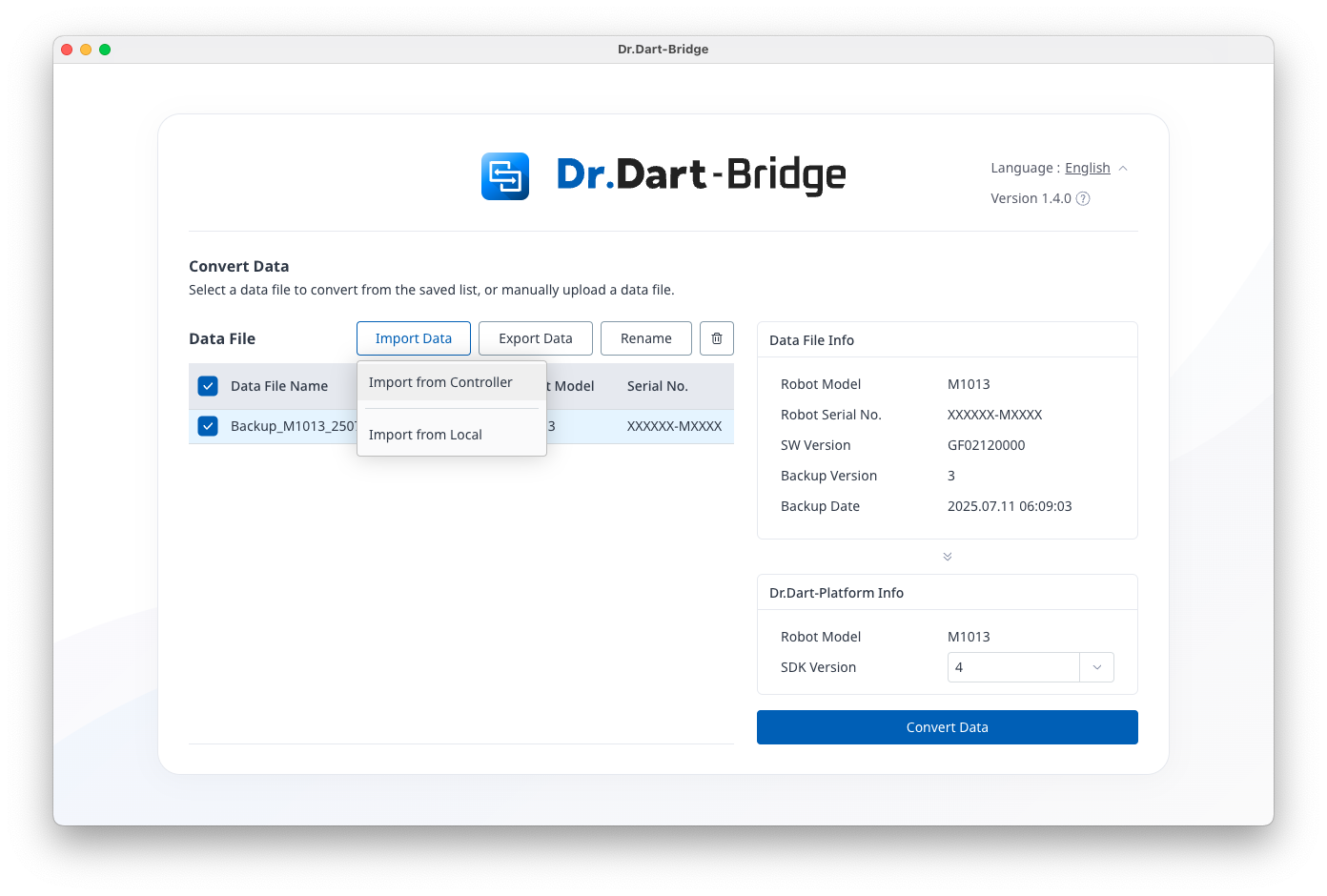
Select the Dart-Bridge Run > [Import Data[ > [Import from Controller] menu.
-
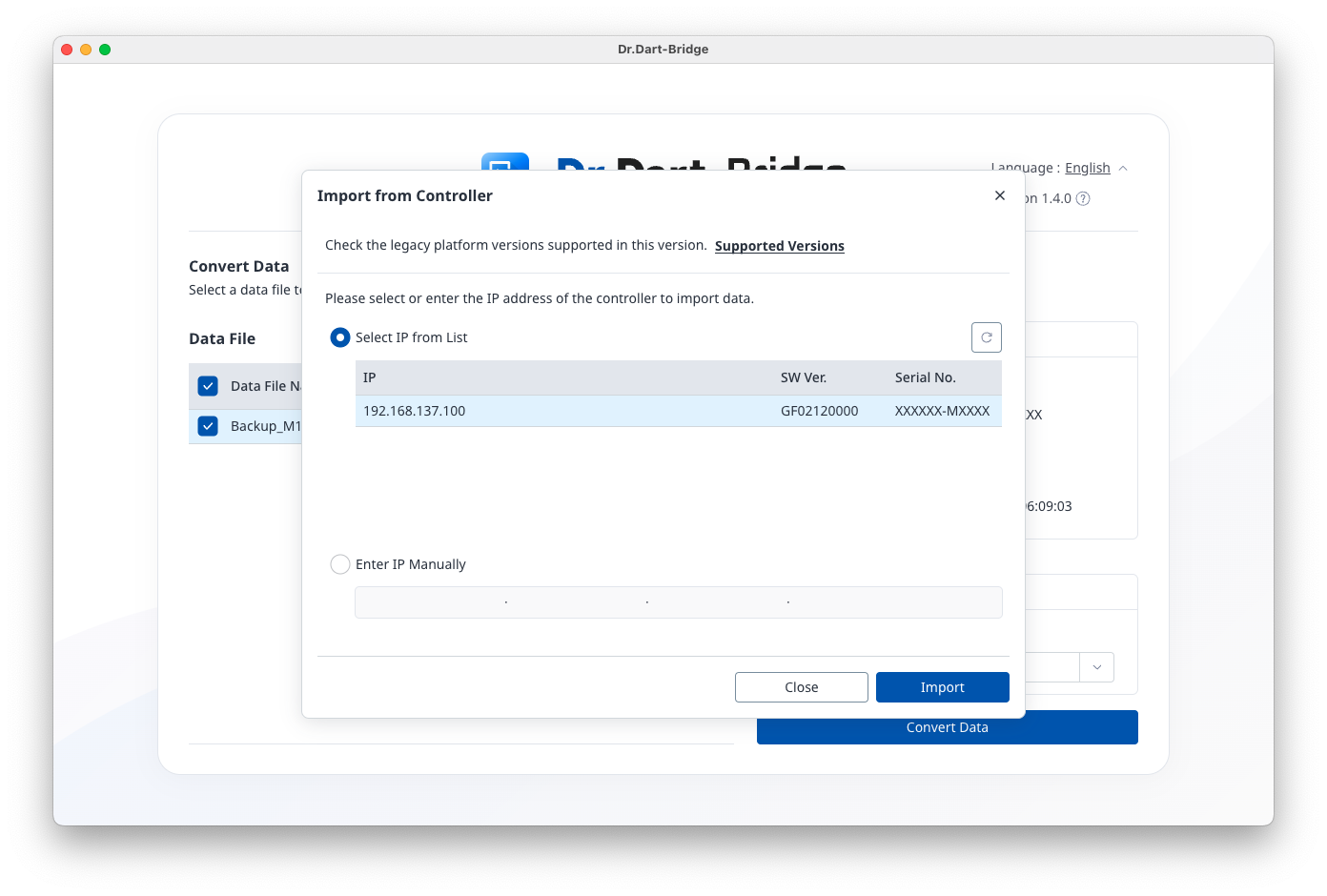
Select IP from the list, or manually enter IP to retrieve data from the controller.
-
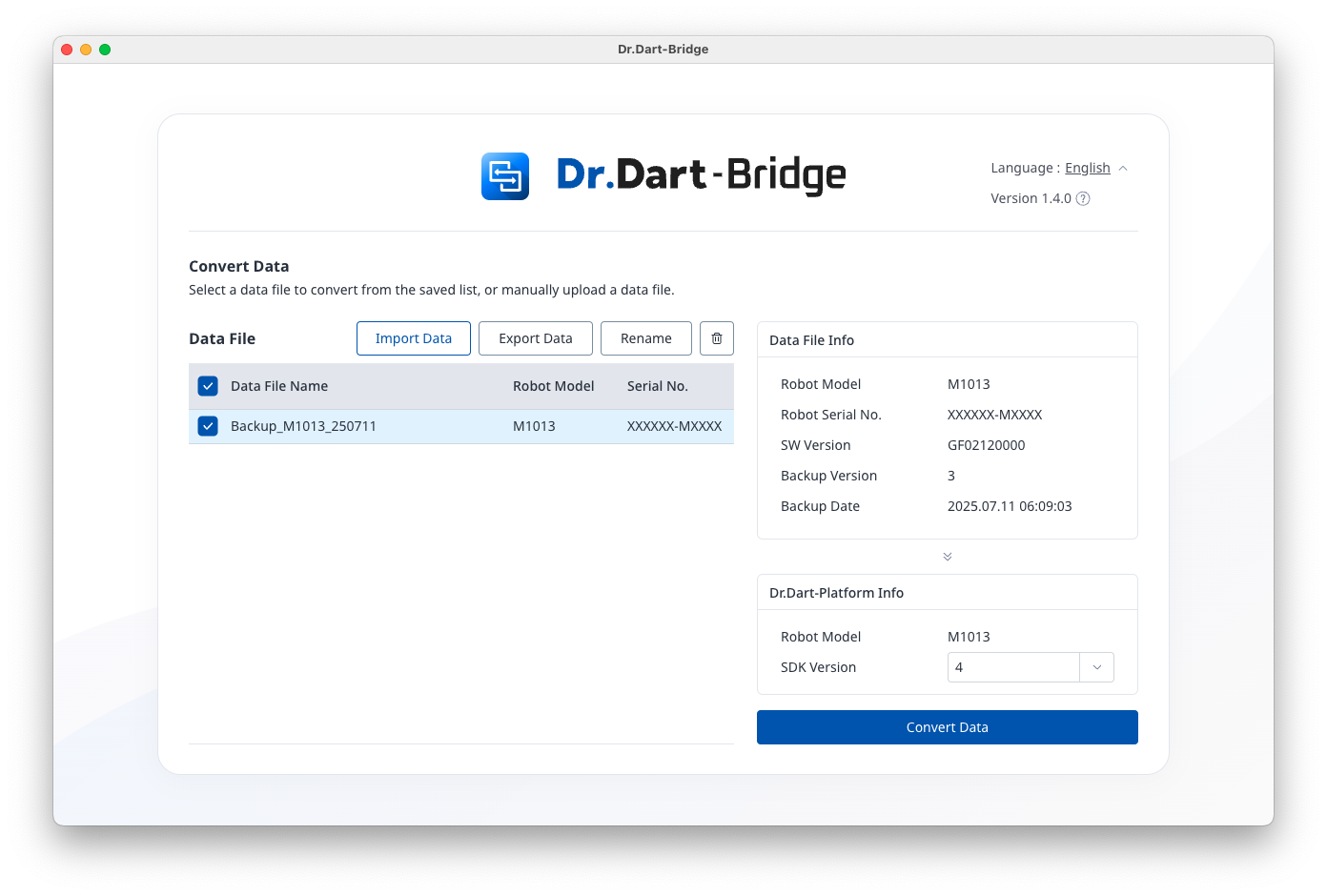
Review the imported data information, select the SDK version, and click the [Convert Data] button.
-
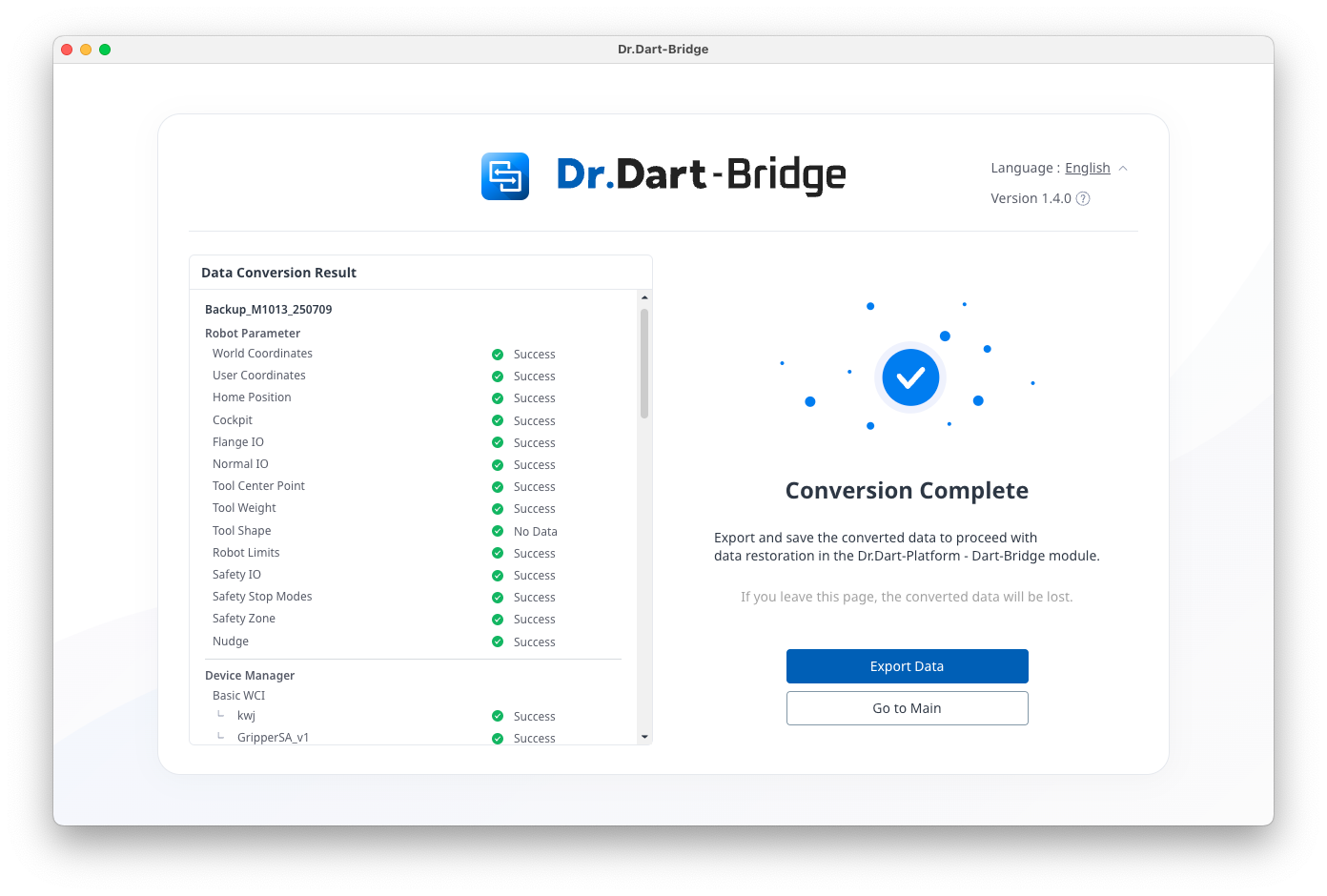
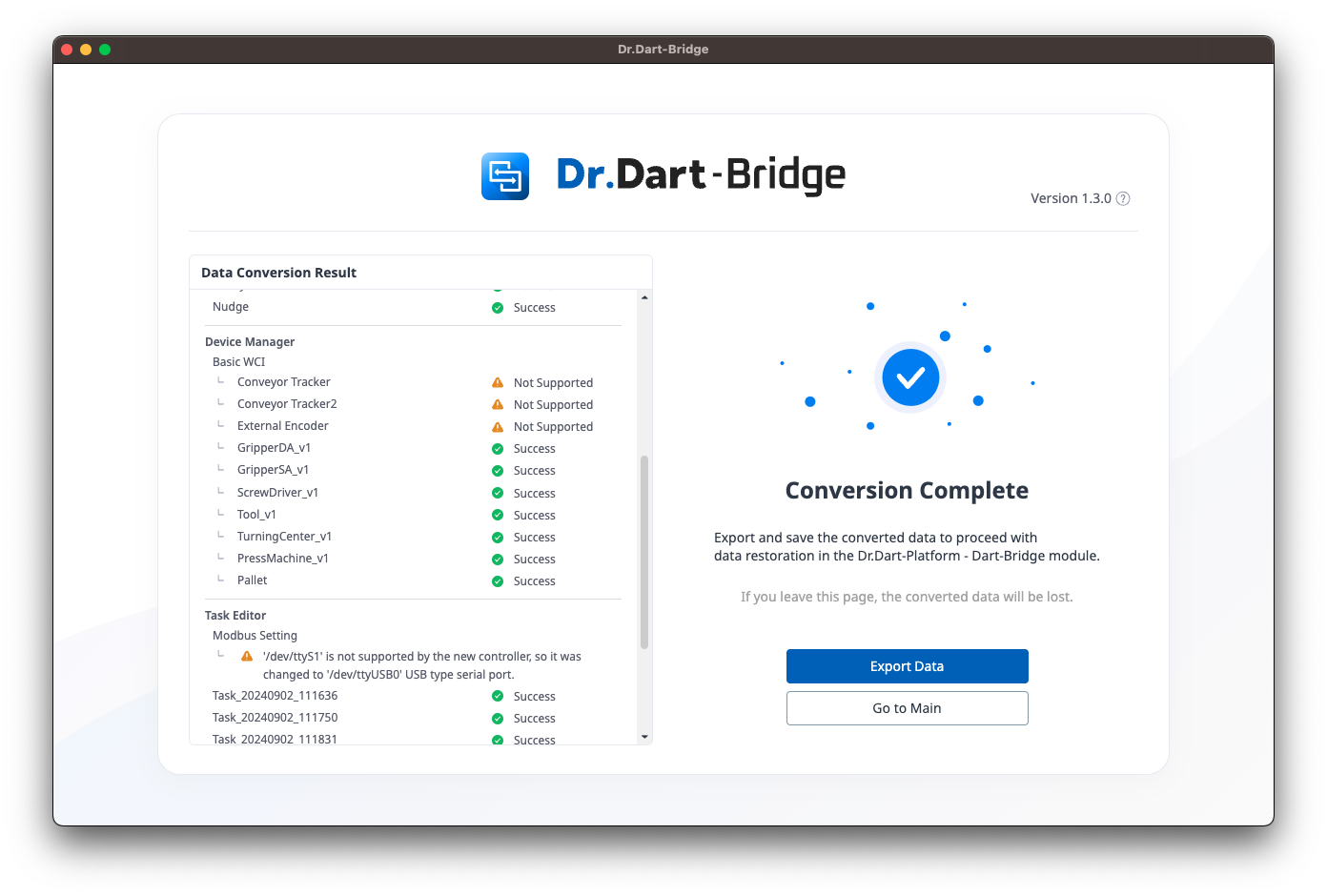
Check the data conversion results and click the [Export Data] button to save the file (*.dbr) on your PC.
-
If there are blocks in the task that are not supported, those blocks and their sub-blocks will not be converted, and this information will be displayed in the conversion results.
-
For details on the target data for conversion, refer to System Requirements and Support Information.
-
If there is Modbus RTU 'dev/ttyS1' port configuration information, it will be arbitrarily changed to 'dev/ttyUSB0'.
2. Data conversion for backup data files (*.dbrb)
-
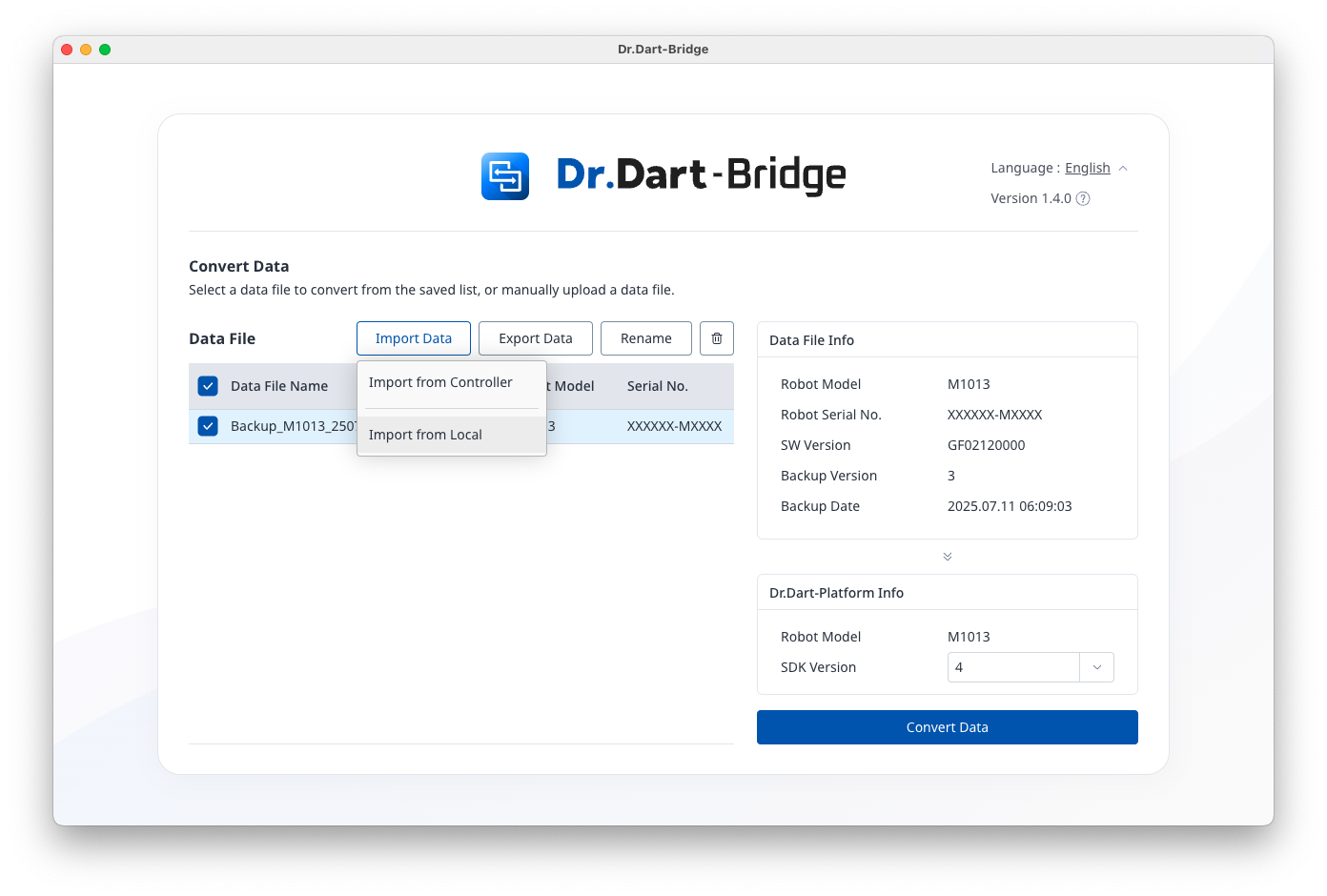
After running Dart-Bridge, select [Import Data] > [Import from Local] menu.
-
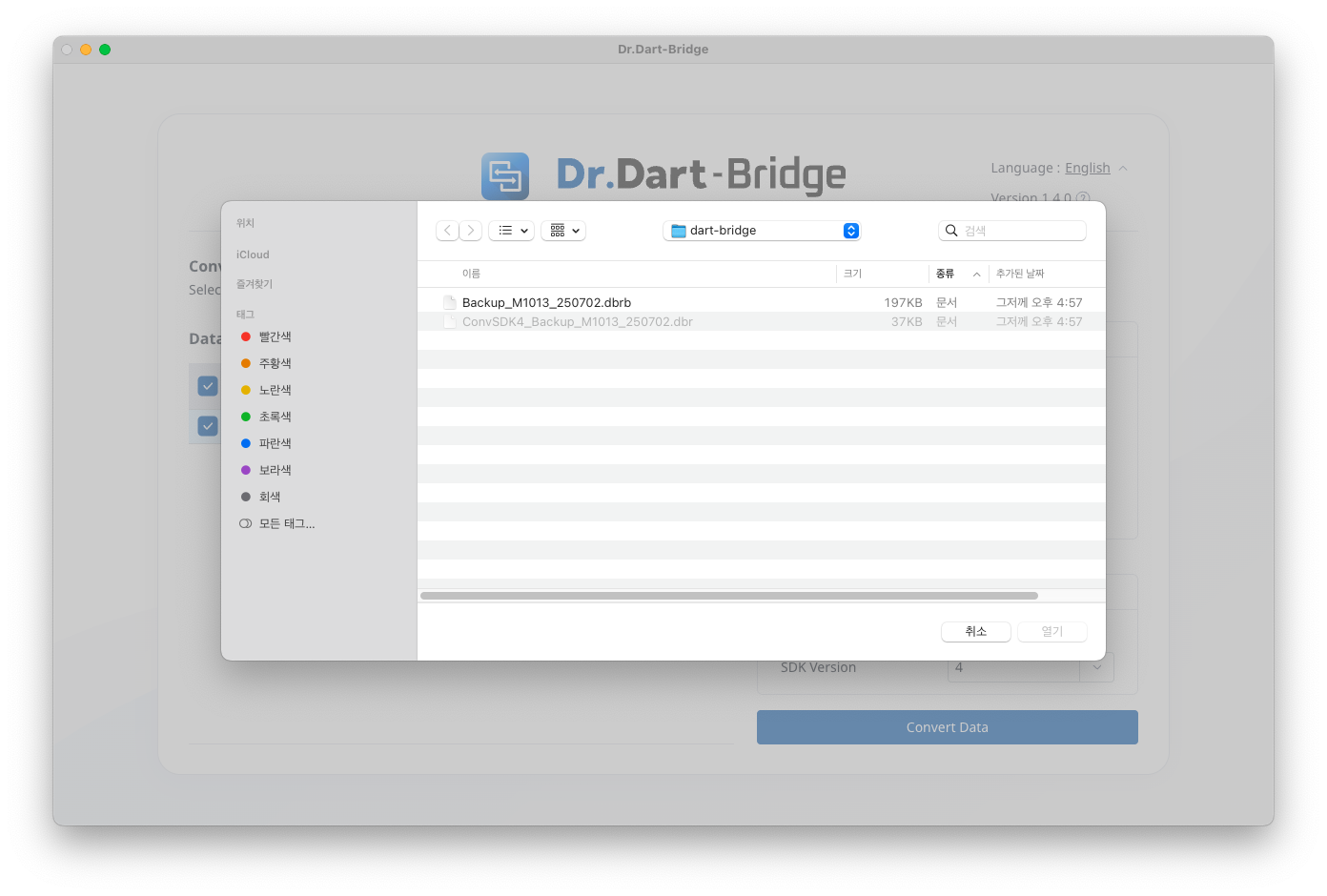
Select the backup data file (*.dbrb) on your PC.
-
From then on, [Back up and converting data through controller connections] - Step 4 is the same.