
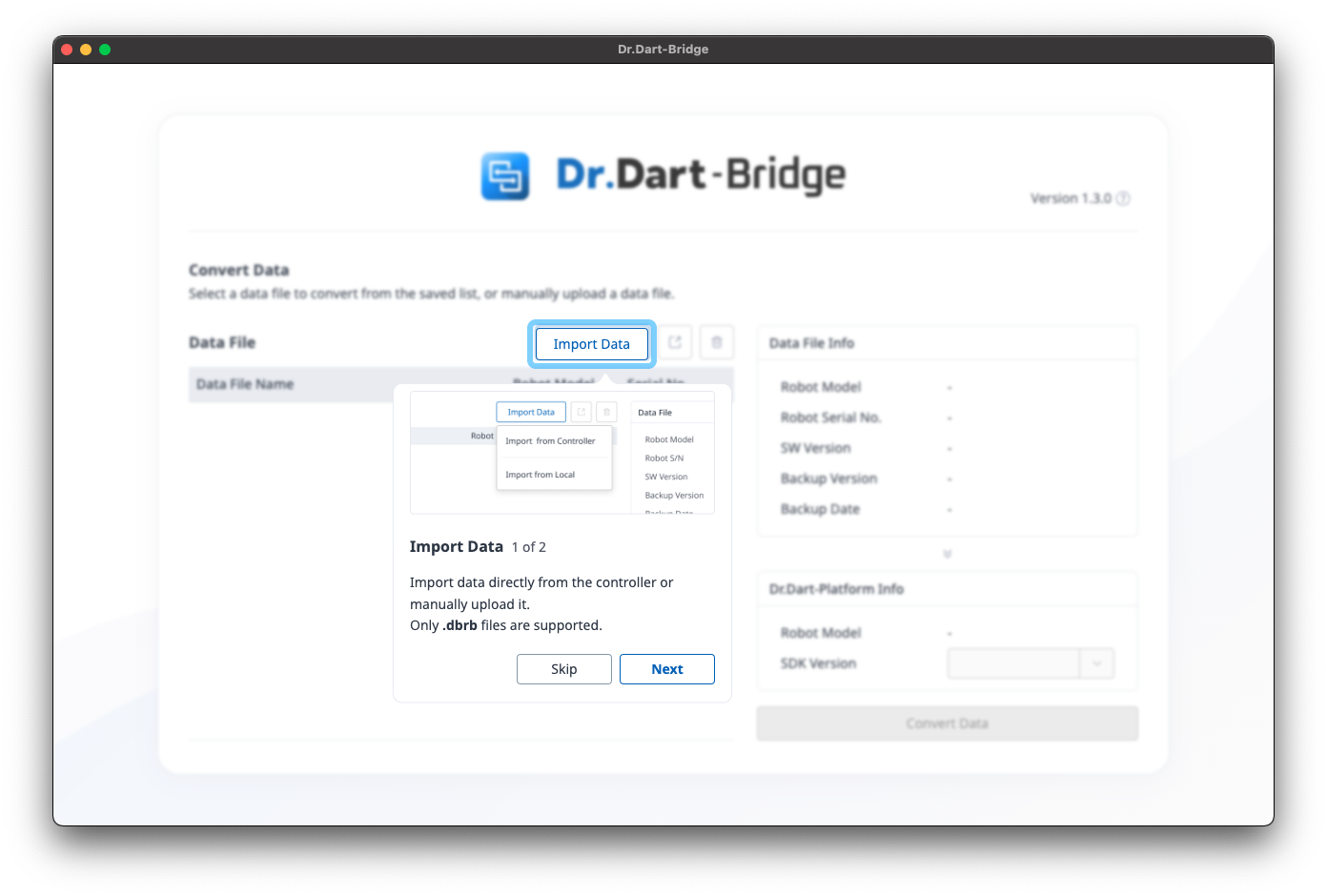
When entering the main screen for the first time, a Dart-Bridge will pop up.
Main Screen Features
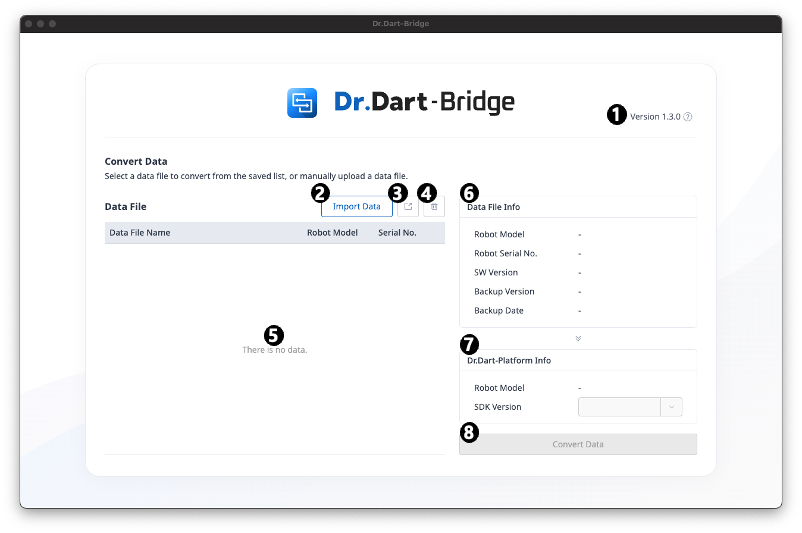
Category
|
Function
|
|
|---|---|---|
|
1 |
Version Information |
Displays the current version information and details of the Dart-Bridge. |
|
2 |
Import Data button |
Back up data from the Dart-Platform v2 controller, or import the backed-up data file. |
|
3 |
Export Data button |
Export saved backup data to a file. |
|
4 |
Delete backup data button |
Delete the selected backup data. |
|
5 |
Backup Data Table |
Displays a list of saved backup data. |
|
6 |
Data File Info |
Displays information about the selected backup data |
|
7 |
Dr.Dart-Platform Info |
Displays and sets up conversion information for backup data. |
|
8 |
Convert Data button |
Starts the data conversion. |
When you click the Import Data button, the Import from Controller / Import from Local menu is provided.
Import from controller
When selecting the 'Import from Controller' menu, the following pop-up occurs.
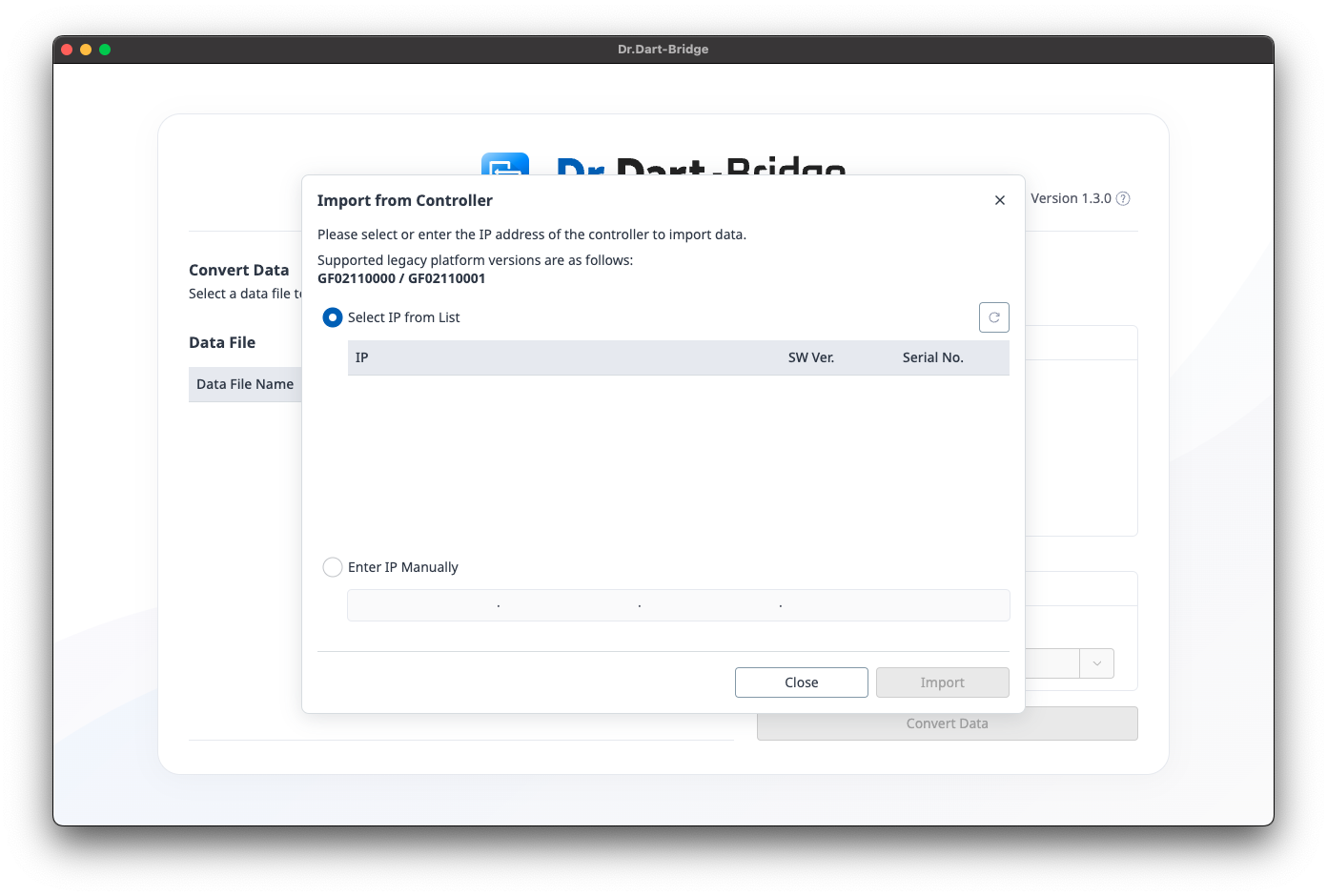
In the list, the IP selection list should display a list of controllers connected by LAN cables to the PC where Dart-Bridge is installed.
After IP selection or direct input, the data import from the selected controller begins when you click Import.
Import from local
When you select the ‘Import from local’ menu, the file selection dialog provided by the PC's OS occurs.
When the backup data file is selected and opened, the data import proceeds.
If the data import is successful, a successful import toast pop-up occurs, and backup data is automatically added to the top of the list.
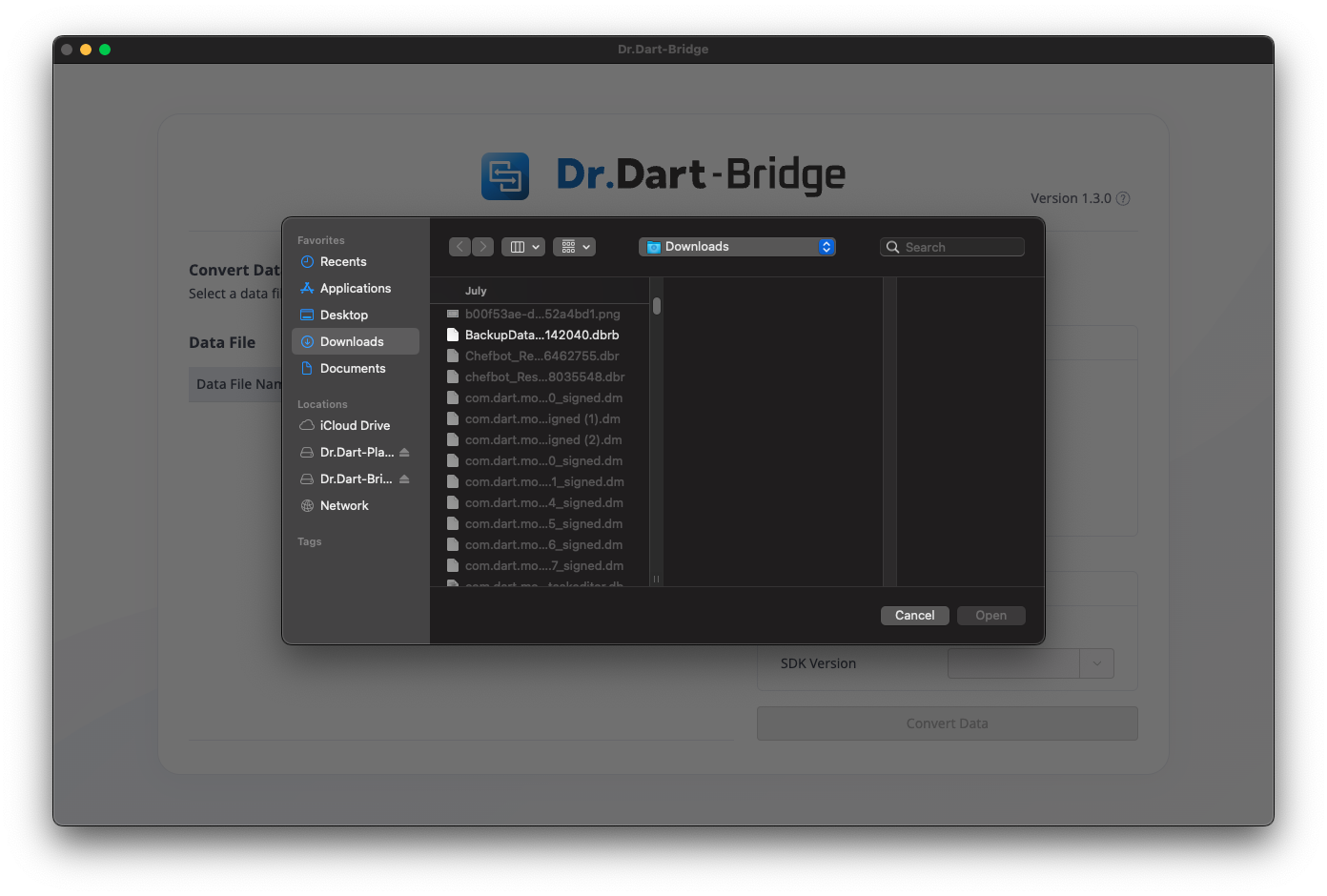
Only .dbrb extension files can be selected.
Select backup data
When selecting backup data, information about the file and information about the previous target Dart-Platform v3 are displayed in the selected data in the information window on the right.
The convert data button is enabled when an item in the backup data table is selected.

Data conversion
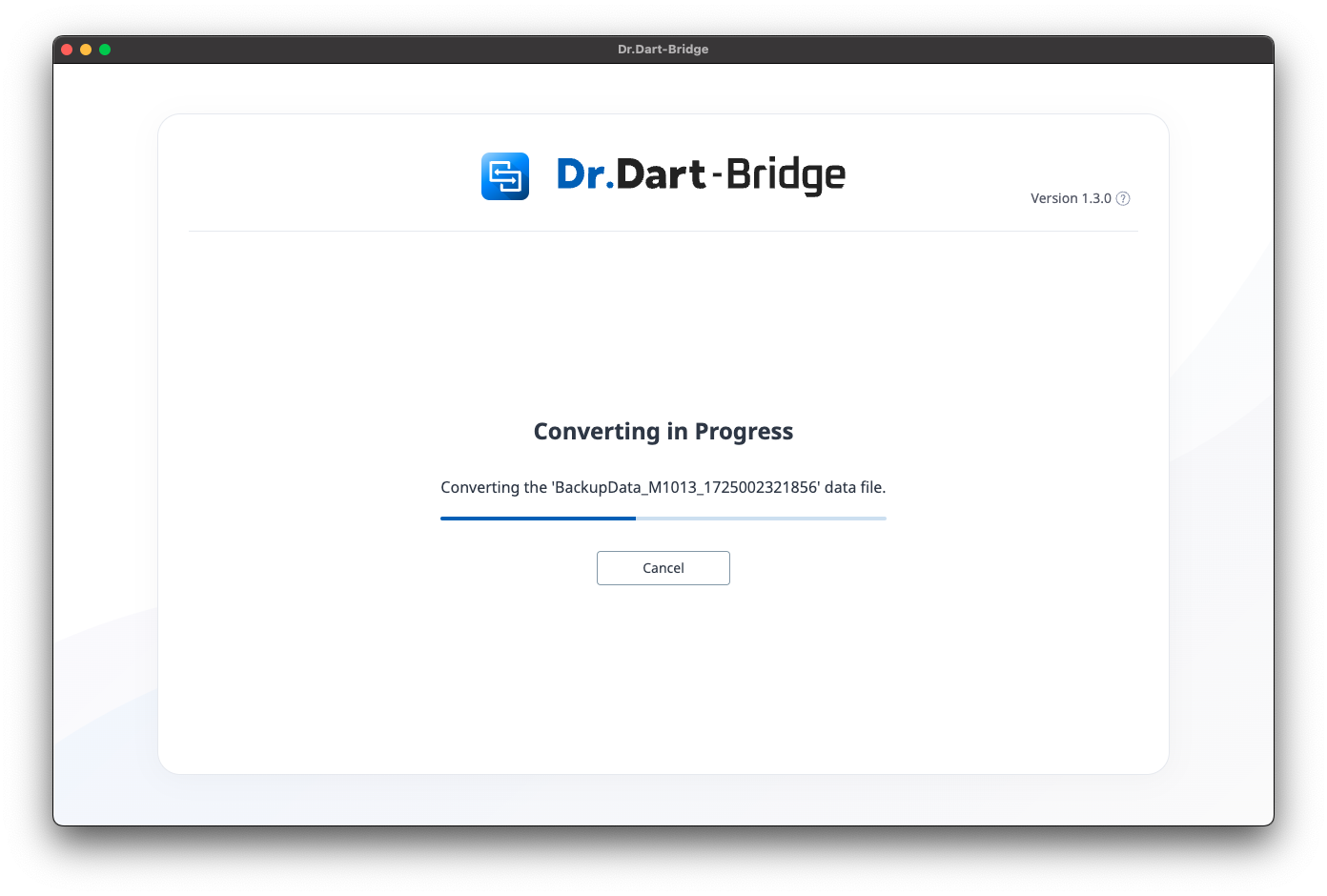
When you click the convert data button, the data conversion proceeds.
When Data Conversion Succeeds
If the data conversion is successful, the data conversion result information is displayed.
When you click the Export Data button, a selection pop-up of file storage locations provided by the PC's OS will occur.
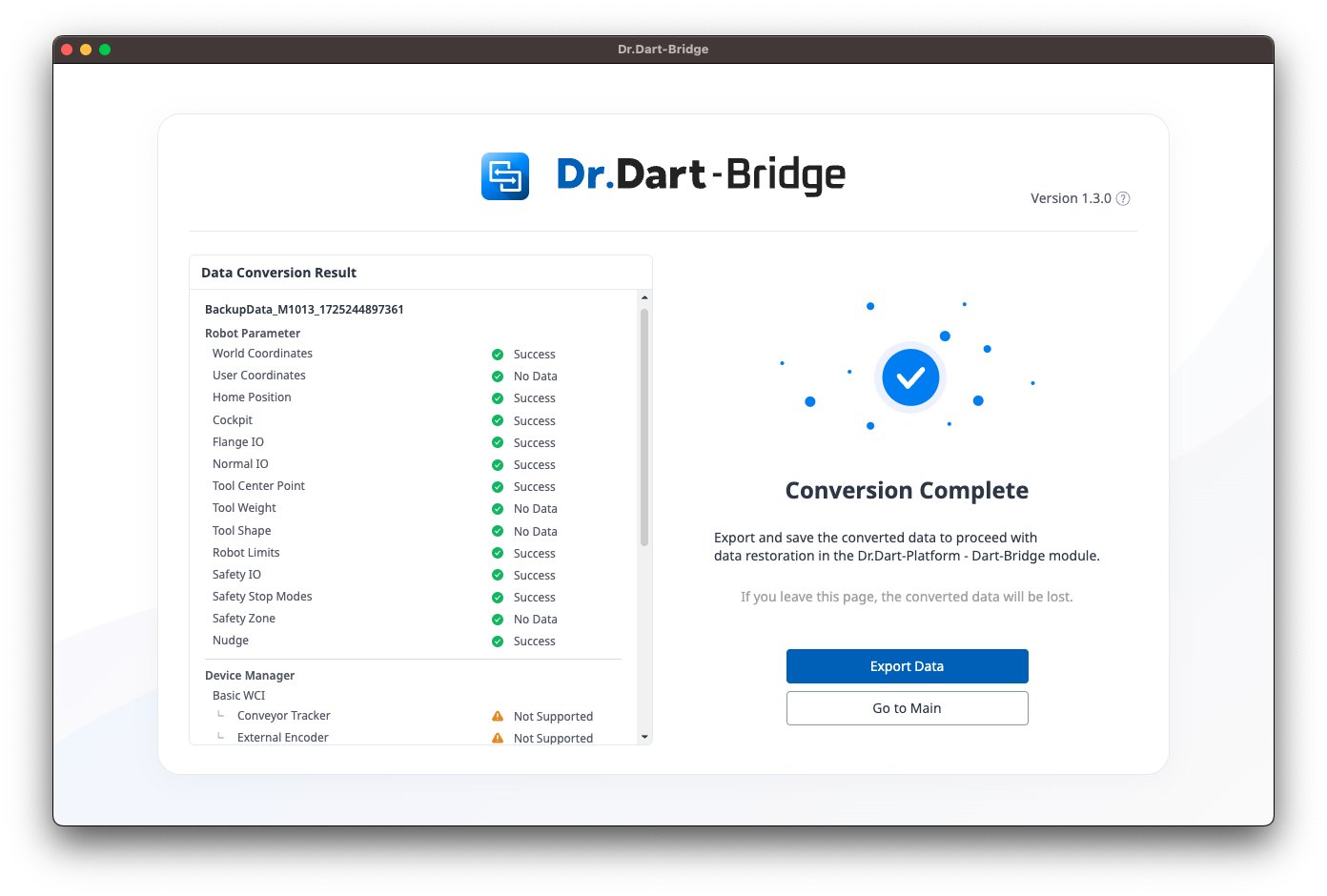
If you exit the page, the converted data is lost.
When Data Conversion Fails
If the data conversion fails, the corresponding screen will occur.
Click the Retry button to return to the data conversion progress screen.
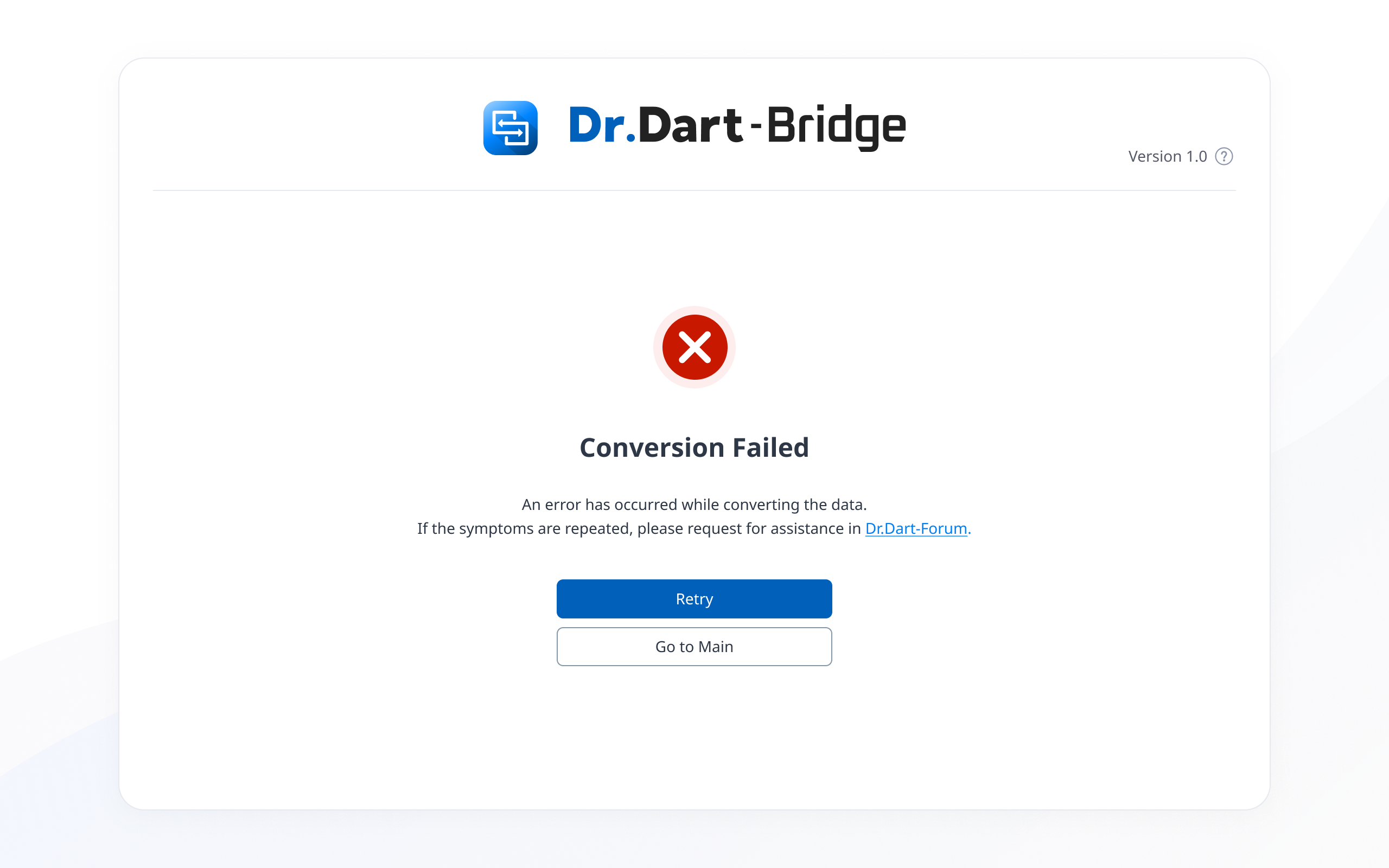
When you click on the Dr. Dart-Formum text, you will be directed to the Dr. Dart-Formum site through an external browser.