Update
Robot Update > Update menu provides the ability to update the system using update files.
Upload the desired update file in the update area. Once the upload is complete, an Update button will appear, and you can perform the update through that button.
Preparing Update Files
Update package files can be downloaded from the Doosan Robotics RobotLab website.
Caution
-
When updating, you must perform the update in the order of GS → GV.
-
The update file is provided in dsp.tar.gz format. Do not extract the file; upload it as is to proceed with the update.
Update Methods
Updates can be performed in the following two ways.
-
Update from Teaching Pendant (USB)
-
Download the update package file from the RobotLab website.
-
Copy the update package file to a USB drive and insert it into the controller.
-
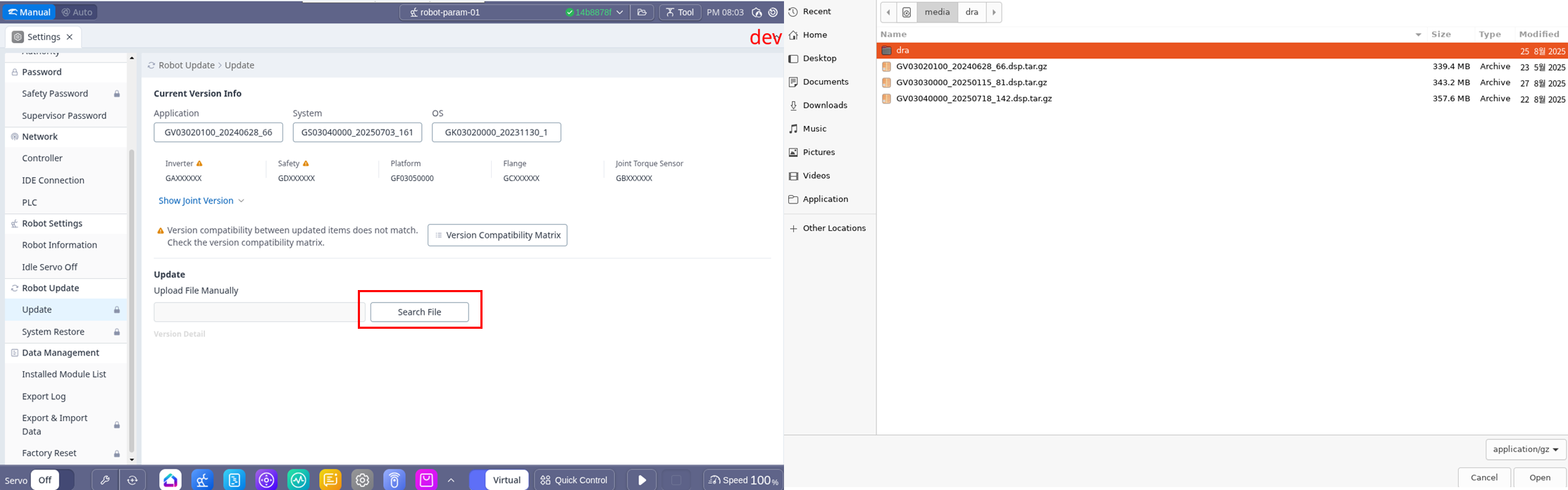
Select the update package file from the USB drive in the Settings → Update tab on the Teaching Pendant.
-
-
Update from External Laptop (Dart Platform)
-
Download the update package file from the RobotLab website.
-
Launch Dart Platform and select the update package file on the Laptop in the Settings → Update tab.
-
Note
-
Administrator mode required
-
Manual Mode Status
-
Status connected to actual controller
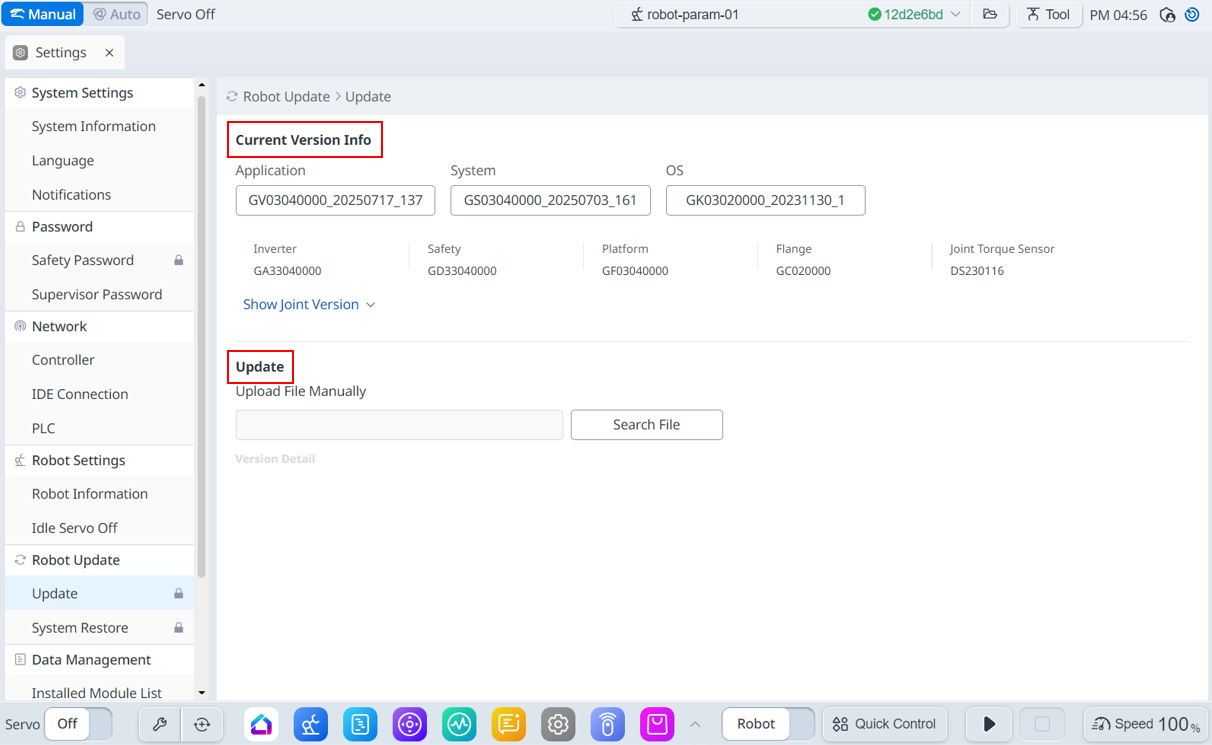
Menu
|
Items |
Description |
|
|---|---|---|
|
1 |
Current Version Info |
Shows current application/system/OS version information. |
|
2 |
Update |
You can download the update file manually. |
Note
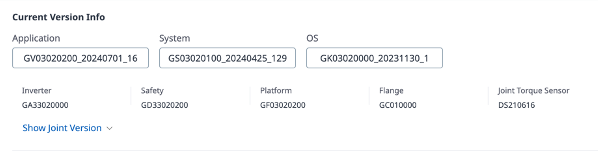
For JTS models, the JTS information is also displayed.
-
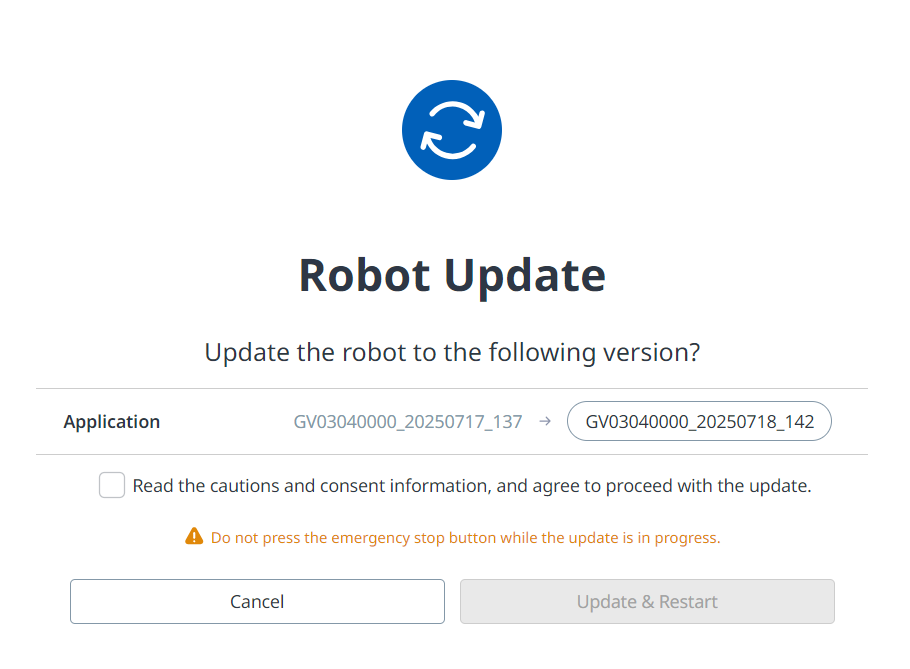
When you start the update, a package inspection will be performed. Once the package inspection is complete, the update screen will be displayed as shown below.
Note
The change notes displayed during the update are provided in the language set in the platform's language settings (Settings → Language).
-
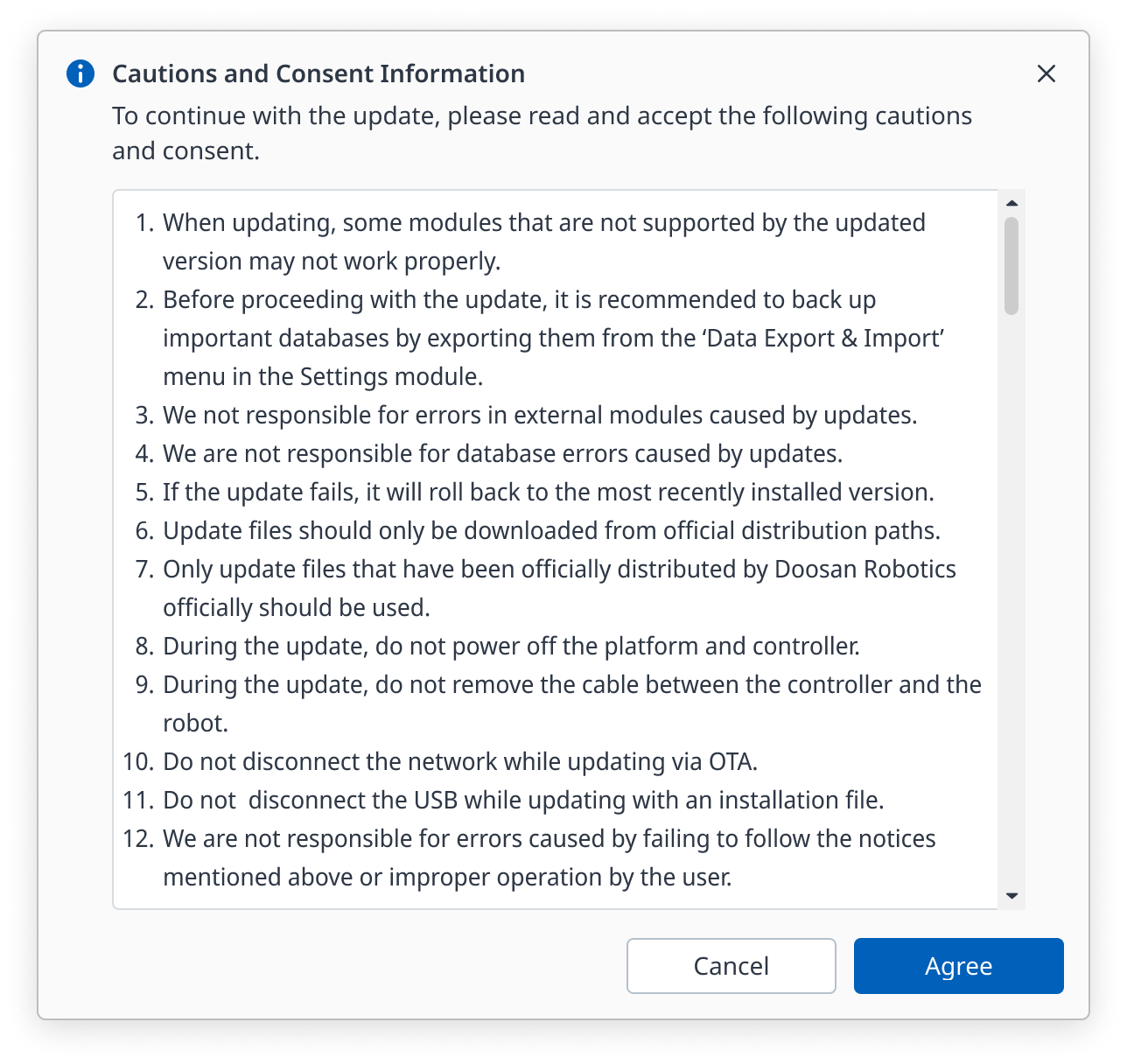
Please read the details about precautions and consent information before performing an update.
-
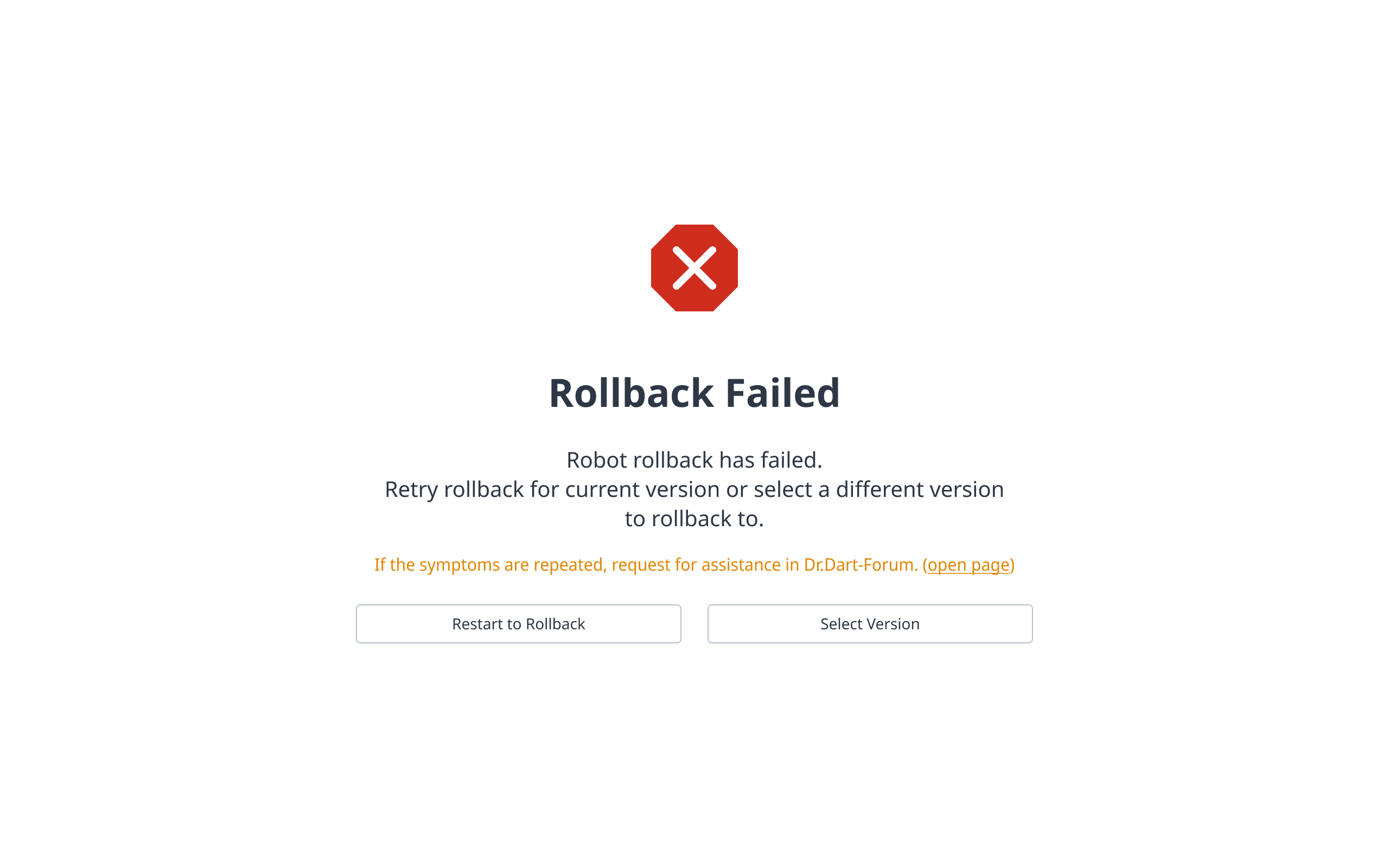
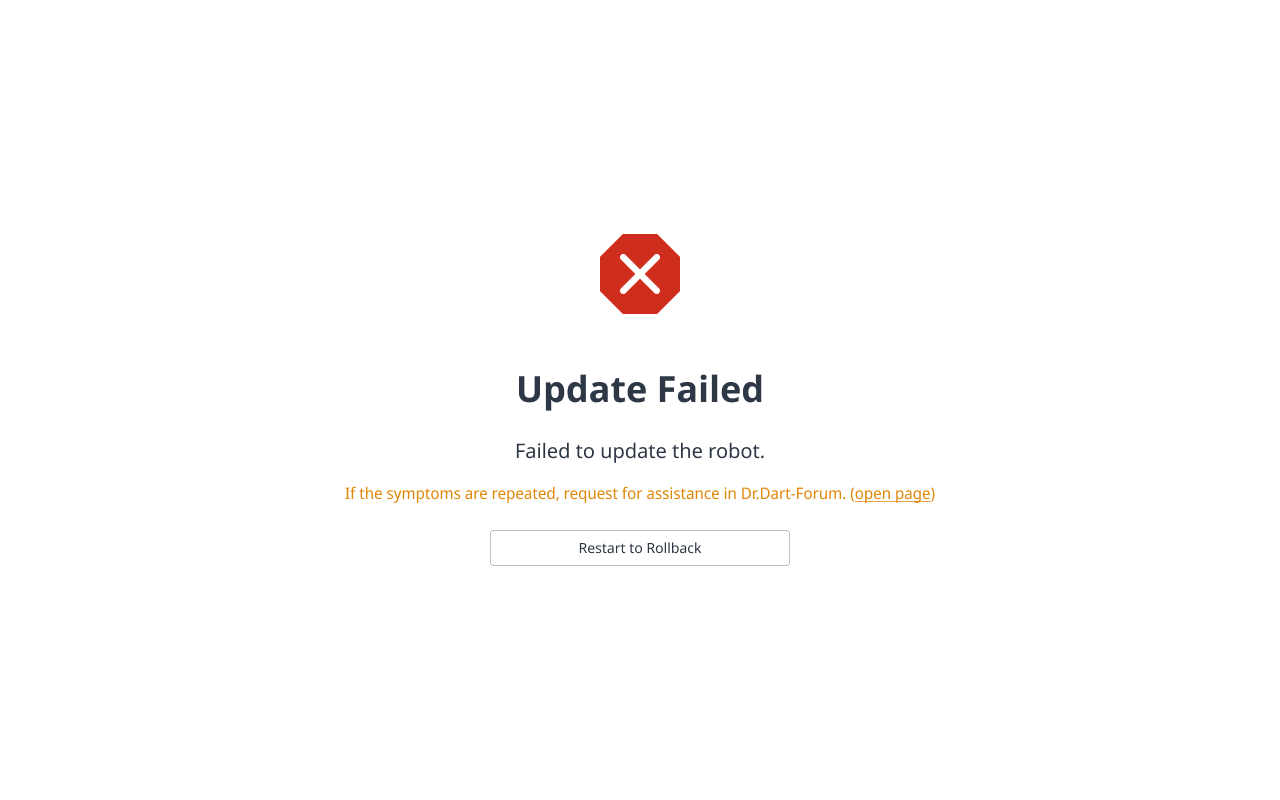
If the update fails, a rollback will be performed. If the rollback fails, the screen below will be displayed, and you can perform the rollback again by clicking the ‘Restart to Rollback’ button.
System Restore
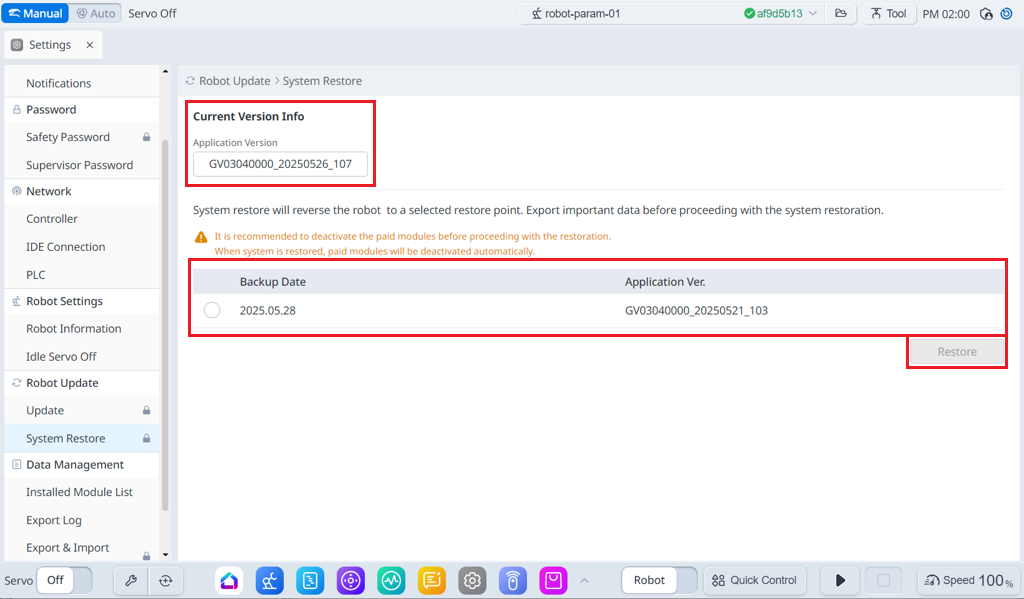
The Robot Update > System Restore menu provides the ability to restore the system based on the update information.
-
Select the desired restore point from the backup list, and then click the Restore button.
Note
-
Administrator mode required
-
Manual Mode Status
-
Status connected to actual controller
Caution
-
If you have a paid module installed, it is recommended to disable it.
-
Do not change control during the restore process.
-
If you exit the program during the restore process, the current version is retained.
-
Performing a factory reset will delete your restore points.
Menu
|
Items |
Description |
|
|---|---|---|
|
1 |
Current Version Info |
Shows current application/system/OS version information. |
|
2 |
Backup List |
It shows a list of restore versions that can be backed up. Items on the list are created when updated using the update function. |
|
3 |
Restore |
When you select the restore version list, the restore button becomes activated. |
-
Before performing Restore & Restart, check the details of cautions and consent information.
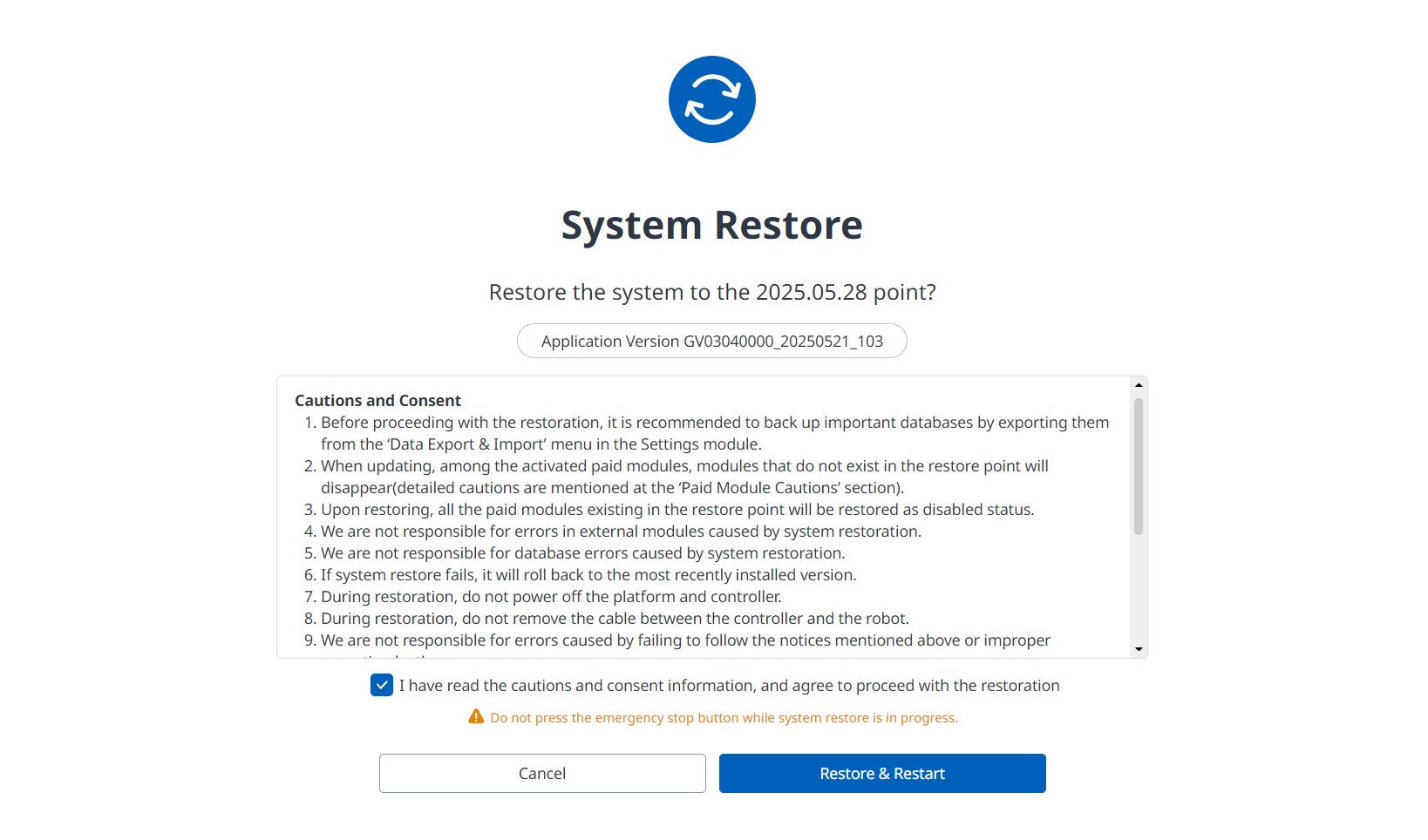
-
If the restore fails, you will see the following screen. To proceed with the rollback, click the ‘Restart to Rollback’ button.
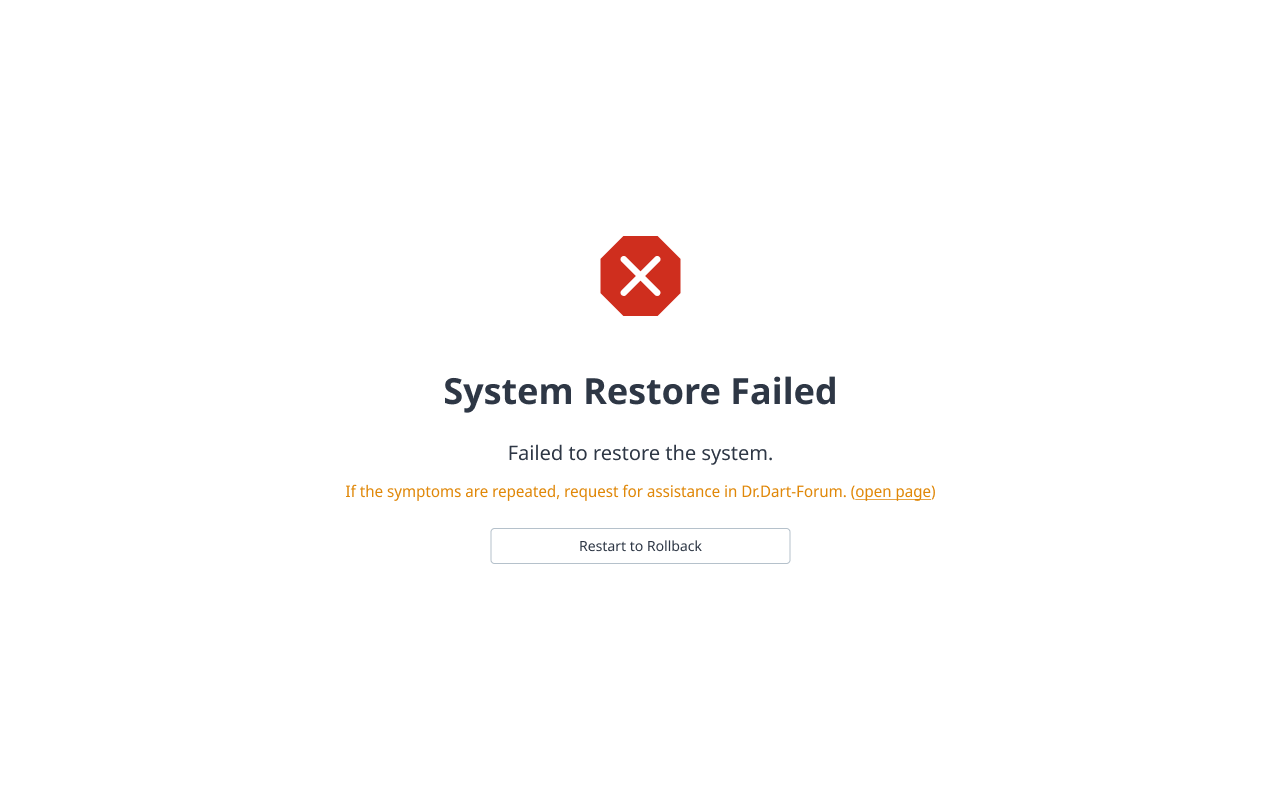
-
If the rollback operation fails, you will see the following screen, and you can try the rollback again or select a different version to perform the restoration.