1. Main Screen Features
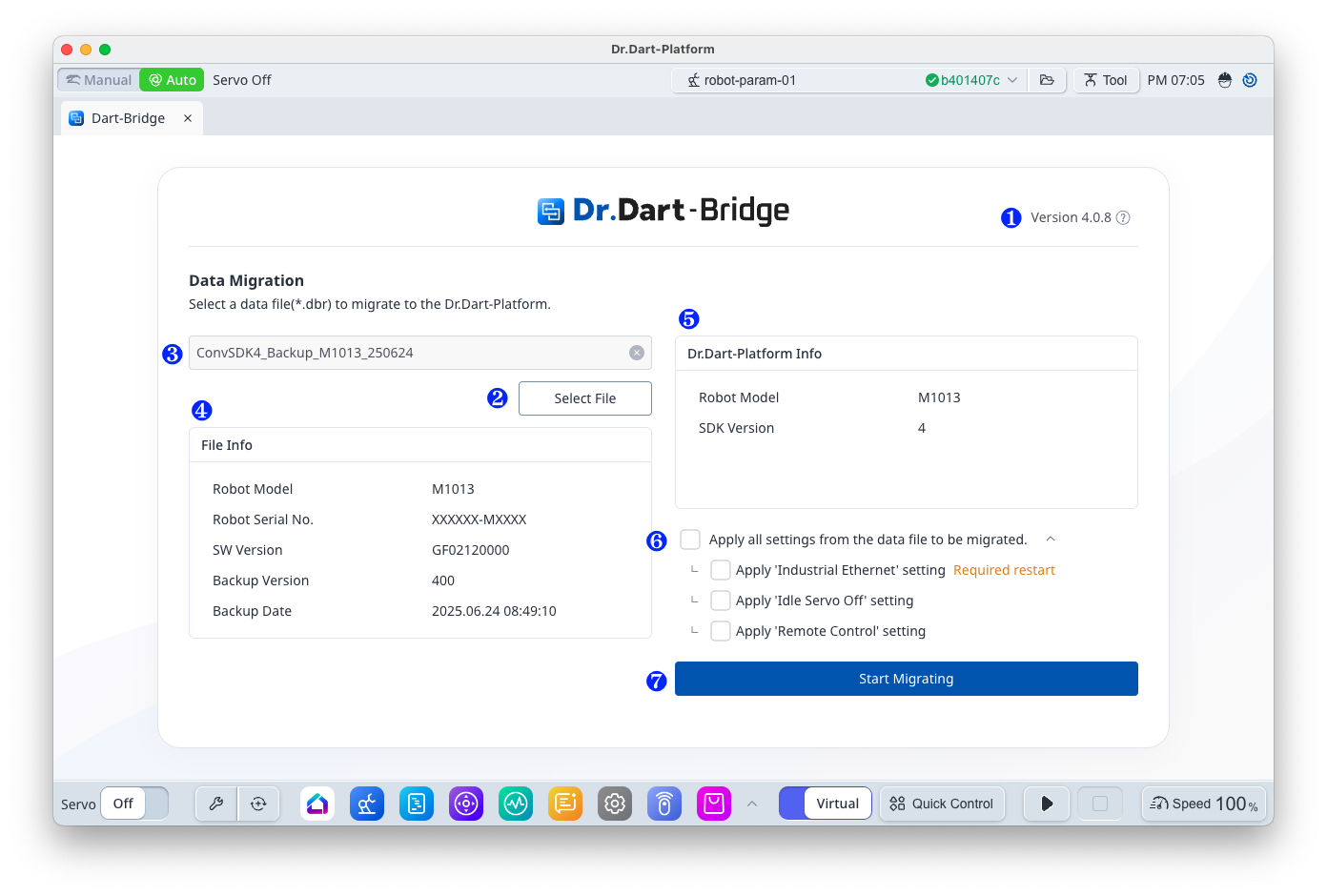
|
|
Item |
Function |
|---|---|---|
|
1 |
Version Information |
You can view the current version information and details of the Dart-Bridge module. |
|
2 |
File Selection |
Select the migration file created by Dart-Bridge (SW). |
|
3 |
File Name |
Displays the name of the selected migration file. |
|
4 |
File Info |
Displays information about the selected migration file. |
|
5 |
Dr.Dart-Platform Info |
Displays compatibility information for the current Dart-Platform v3 and robot models and migration files. |
|
6 |
Data selection menu |
Select the migration progress data among the data included in the migration file. ※ However, you cannot select required data (Robot Parameter, Task Editor, etc.). |
|
7 |
Start Migrating |
Start the migration. |
2. File Selection
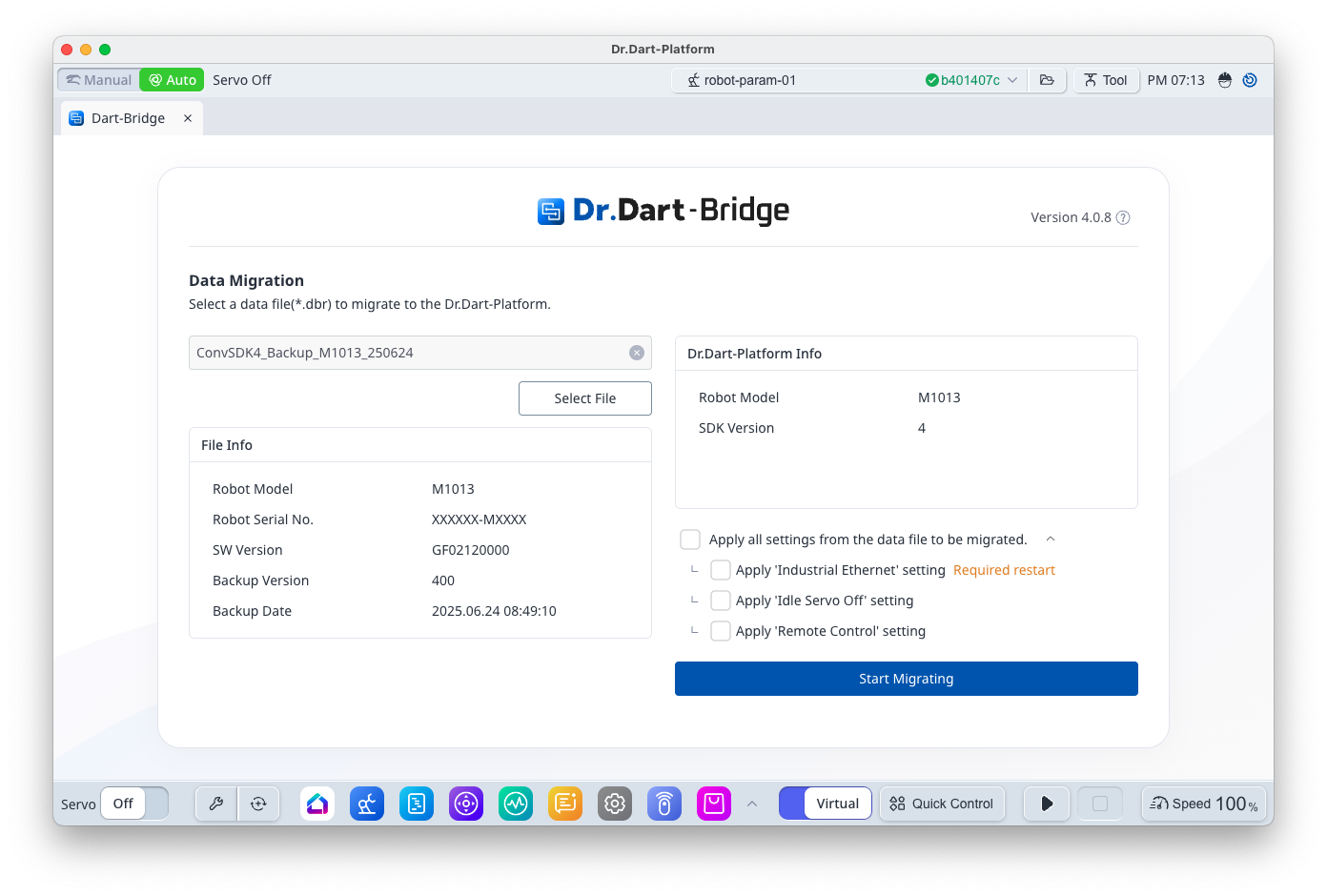
Click the [Select File] button to open the File Selection dialog.
When the user selects the migration data file (*.dbr) and clicks [Open], the import of the data file proceeds.
If the import is successful, the data file information is displayed.
3. Data Migration
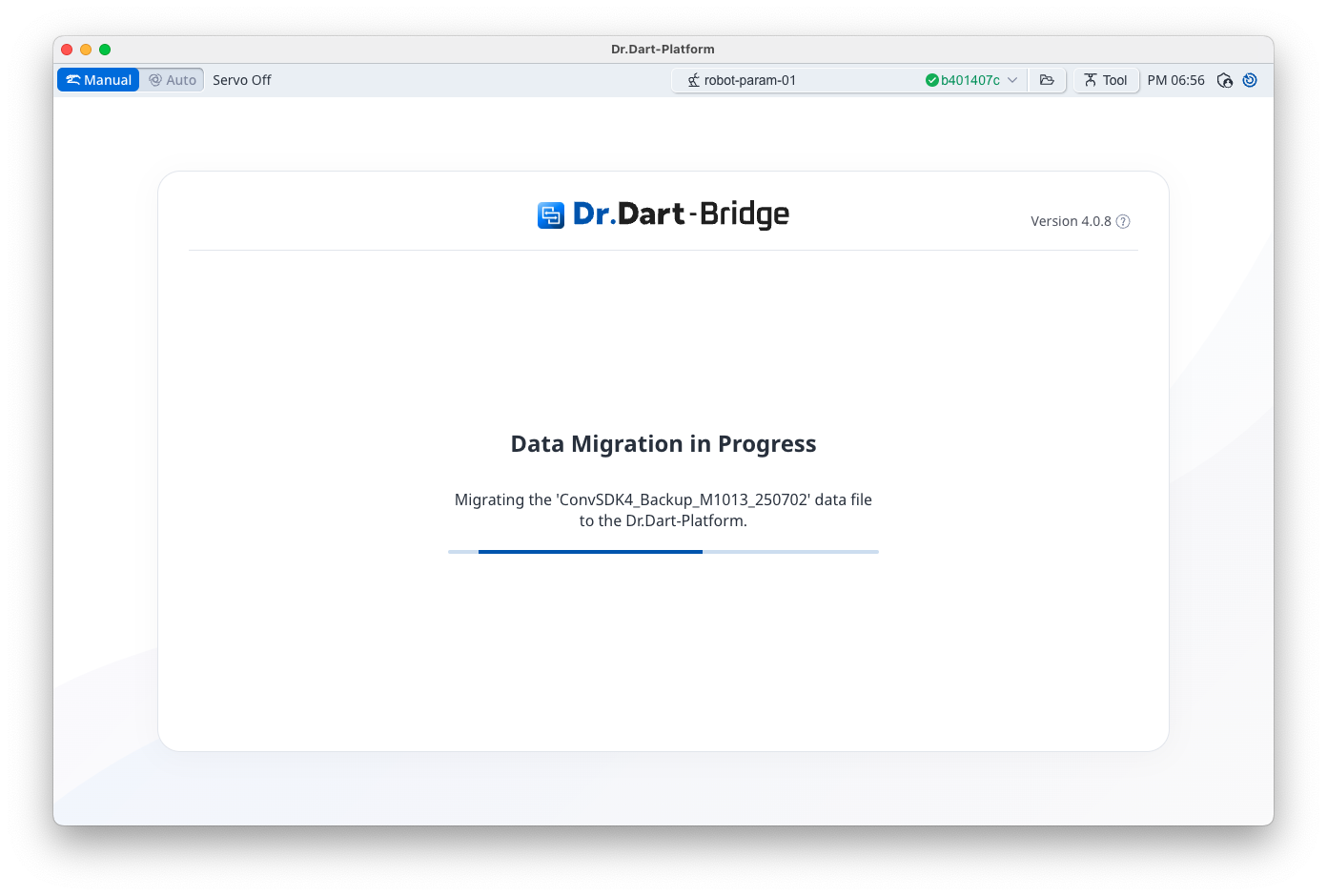
Click the [Start Migrating] button to perform the data migration.
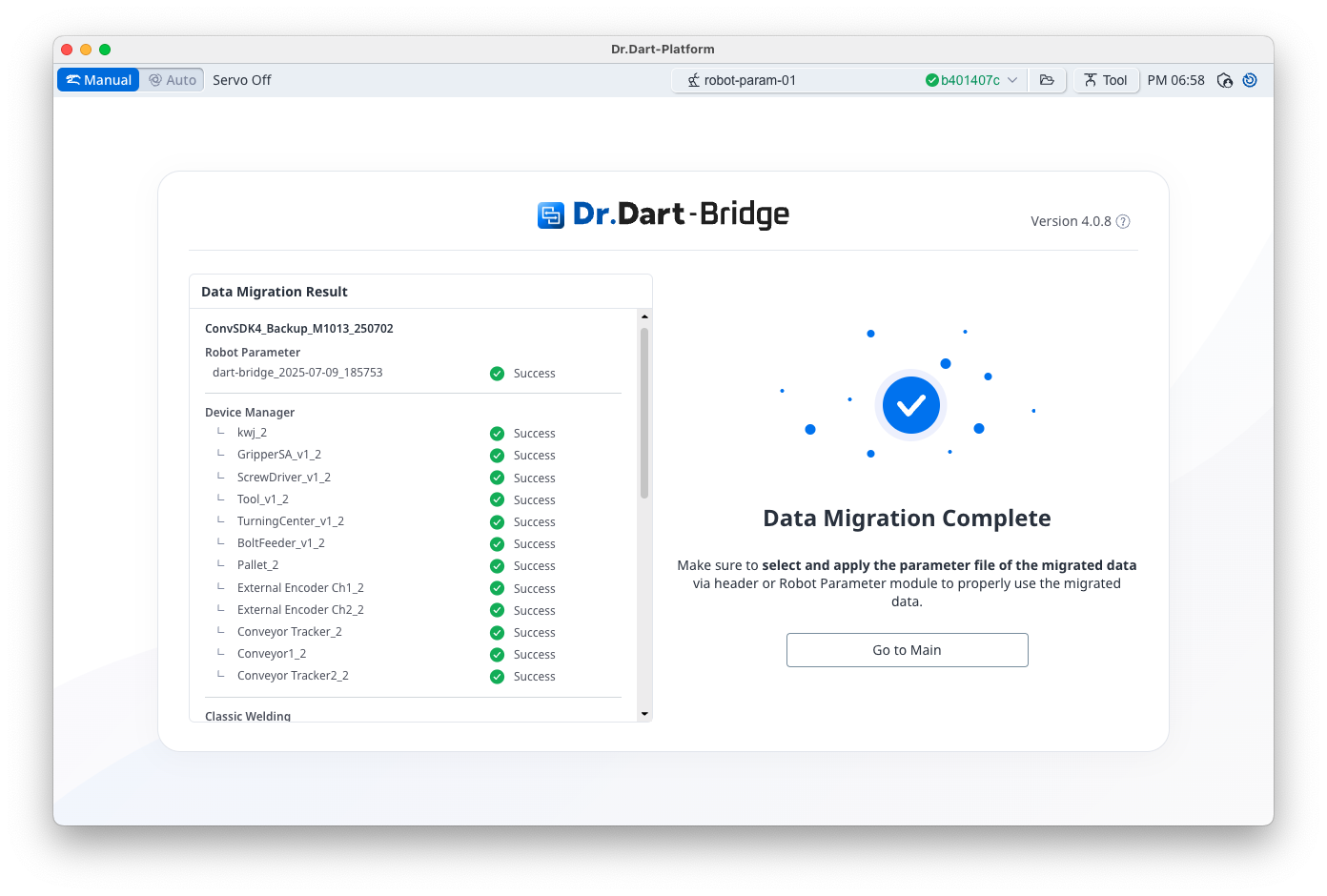
4. Data migration successful
If the data migration is successful, the migration result information is displayed.
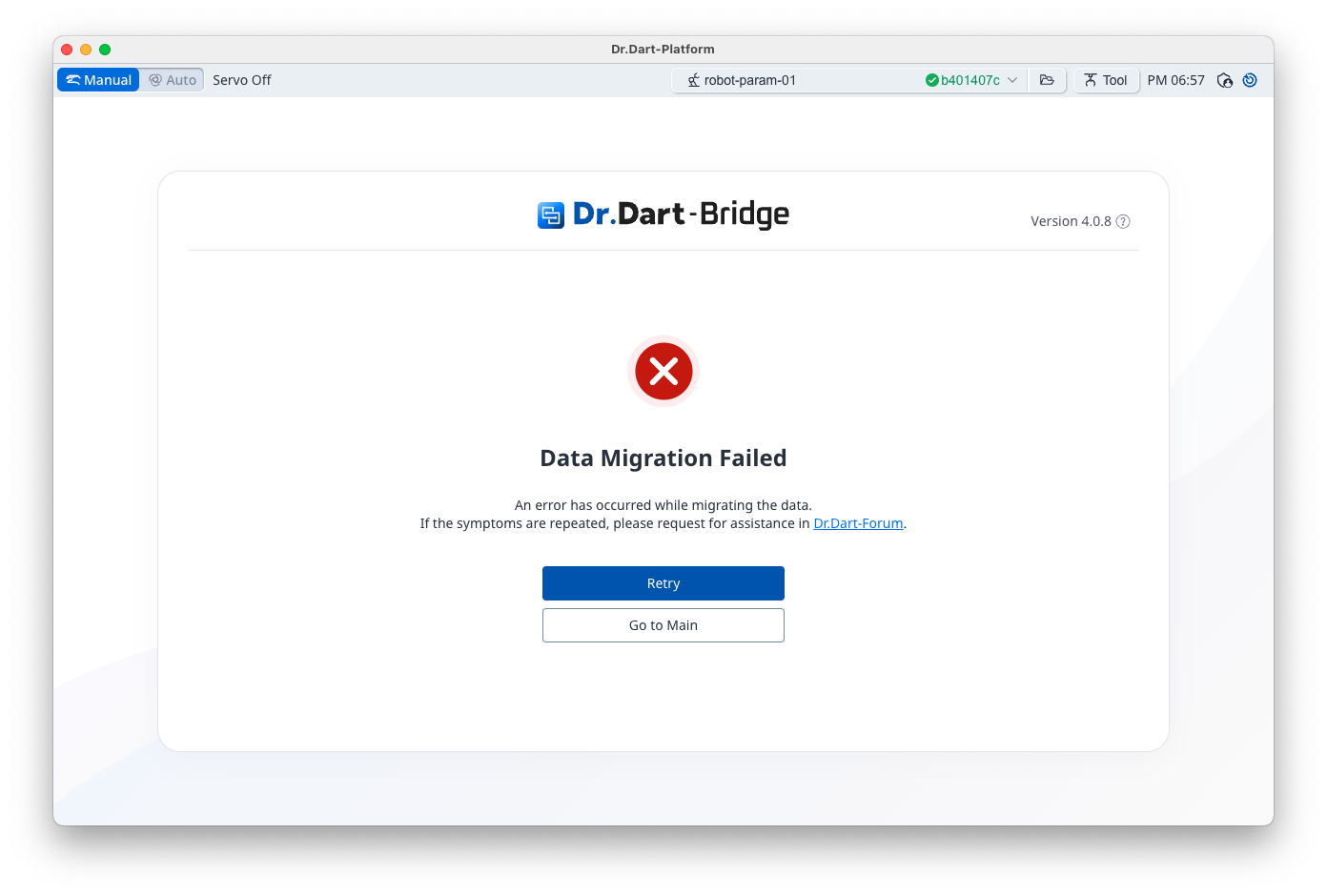
5. Data migration failure
If the data migration fails, a failure screen is displayed.
Click the [Retry] button to perform the data migration again.