
User Role Setting
Accessible menus can be limited according to user roles.
Select Password > Use User Role in the Settings menu.
The User Role On/Off, description of user role and Change Password buttons appear in the settings management window.
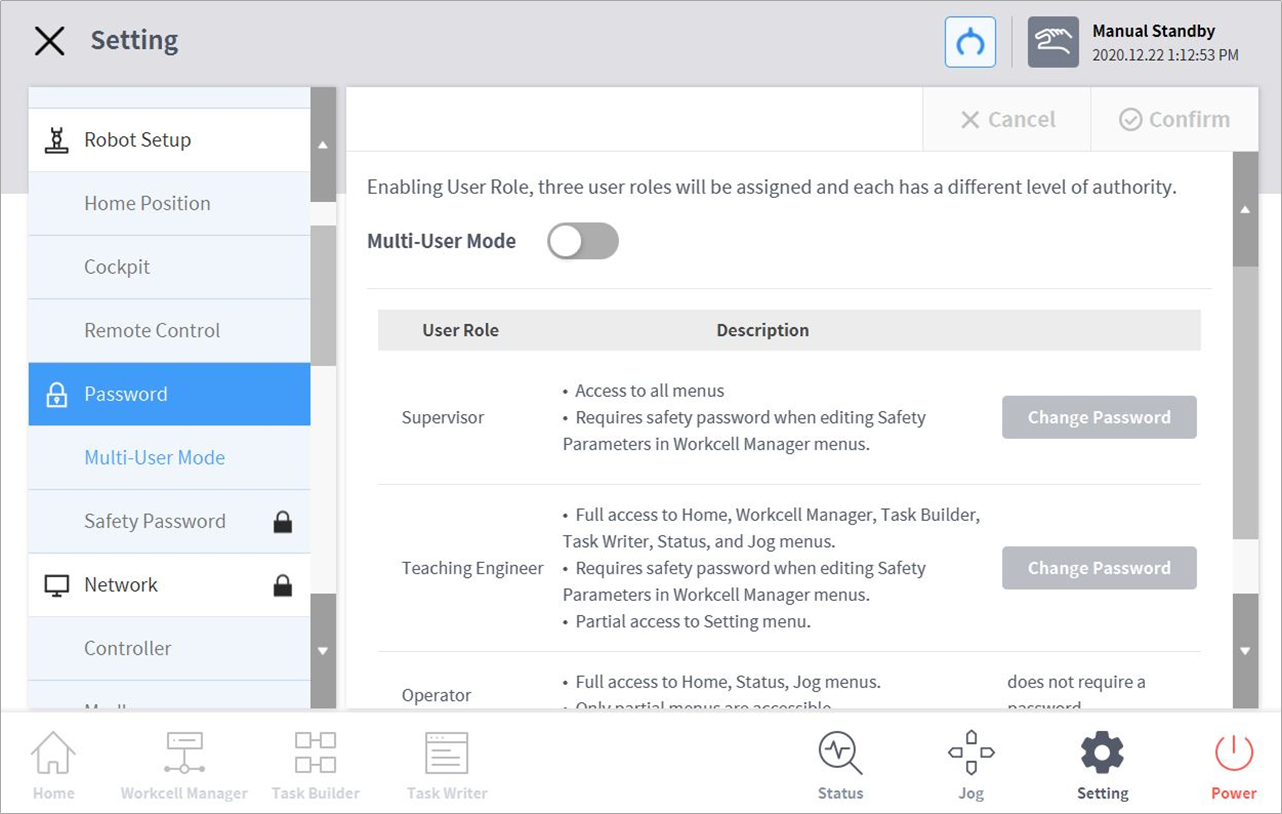
To enable/disable a user role, press the User Role On/Off button.
A screen asking for the administrator password is displayed.
When user authority is changed from Off to On, the screen returns to the Home screen and changes to operator role.
Enter the new password in the Change Password field and tap the Confirm button.
Password change settings are complete.
To change a user role, tap the User Role button.

Note
The initial administrator password is admin.
The initial teaching engineer password is admin.
If the User Role button is disabled, it operates in the same way as an administrator role.