
Overview of Program's Screen Layout
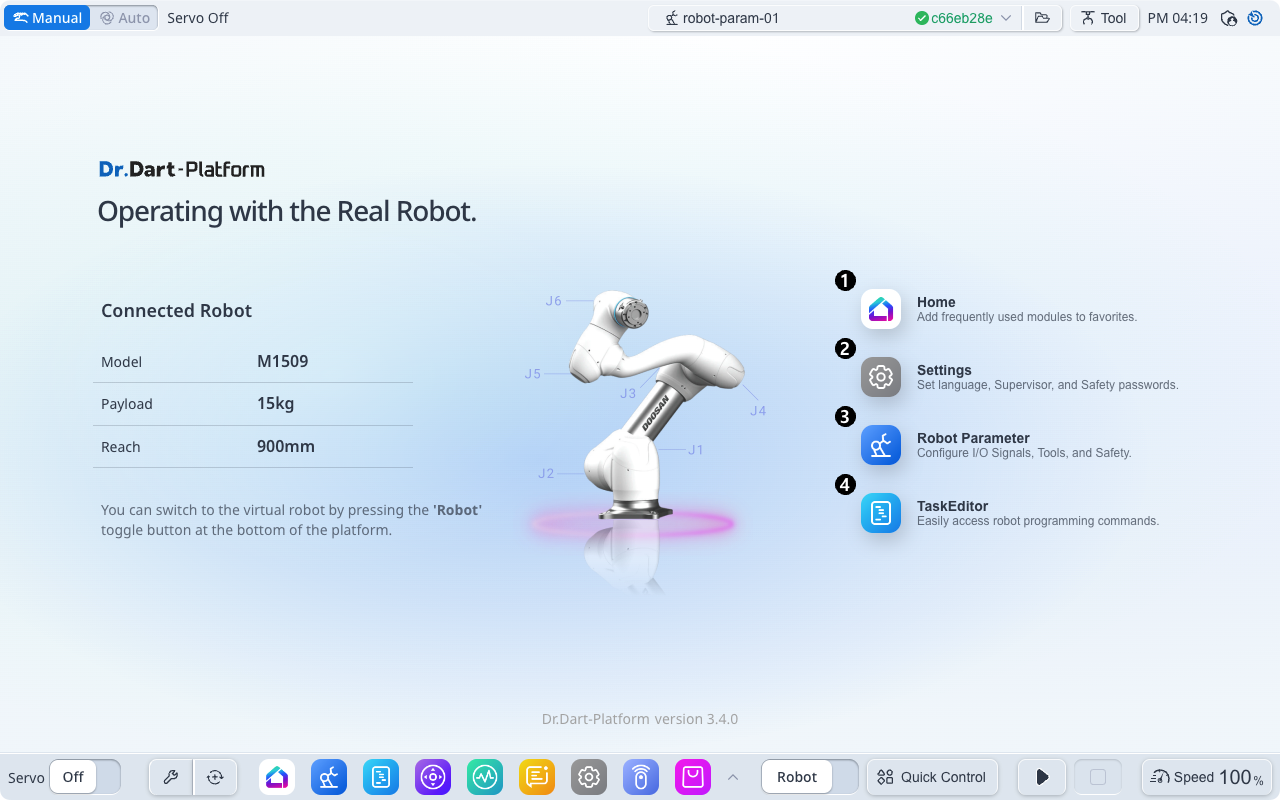
Items | Description | |
|---|---|---|
| 1 | Home module icon | Launch the Home module. |
| 2 | Settings module icon | Launch the Settings module. |
| 3 | Robot Parameter module icon | Launch the Robot Parameter module. |
| 4 | Task Editor module icon | Launch the Task Editor module. |
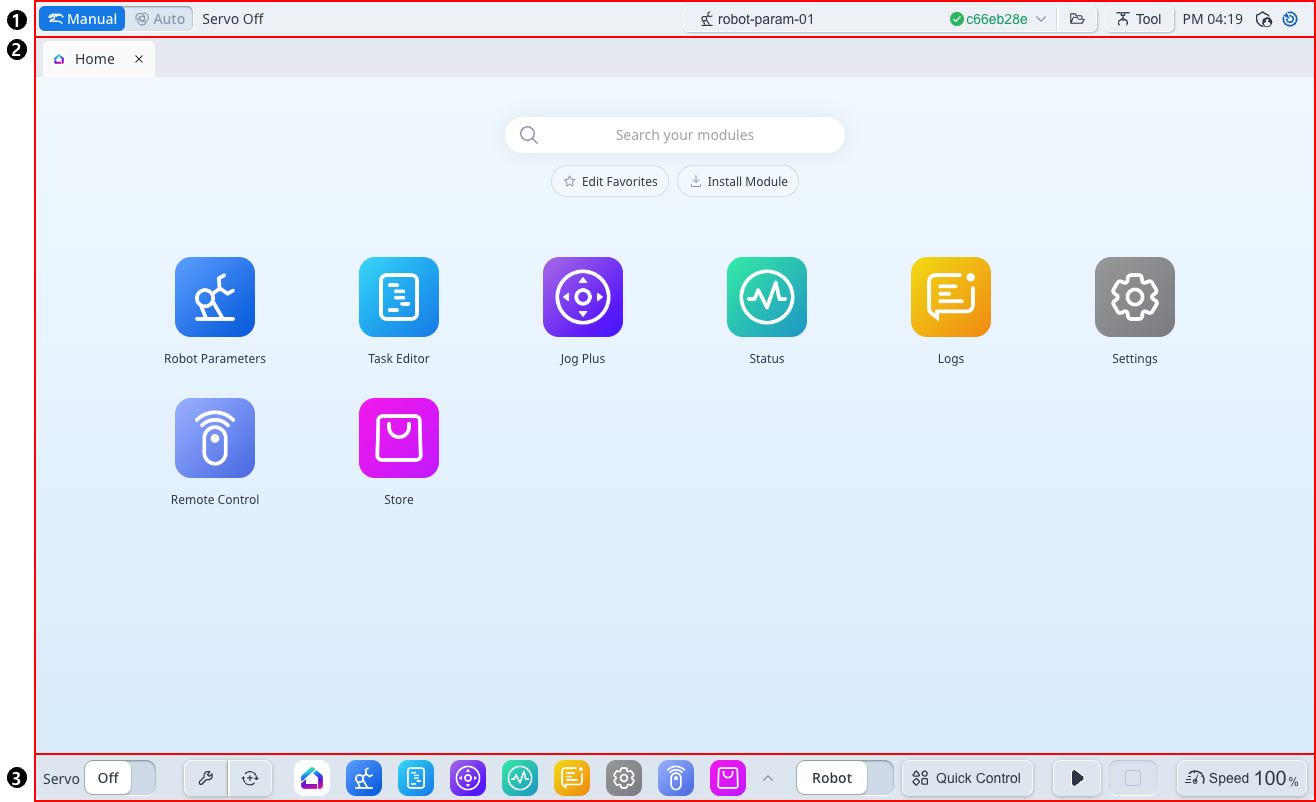
Items | Description | |
|---|---|---|
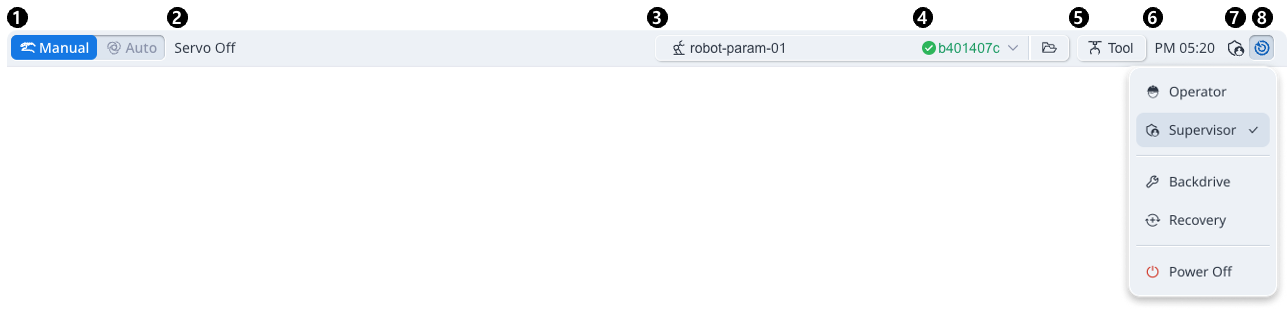
| 1 | Header | The panel that provides Auto/Manual mode switch, Robot Status, Robot parameters, Tool settings, Menu and Time. |
| 2 | Body | The panel that displays the screen of the module that you ran. |
| 3 | Footer | The panel that provides Servo switch, Favorite modules, Robot/Virtual mode switch, Quick Control and Program Control, and Robot Speed Control. |
Overview of Home Screen
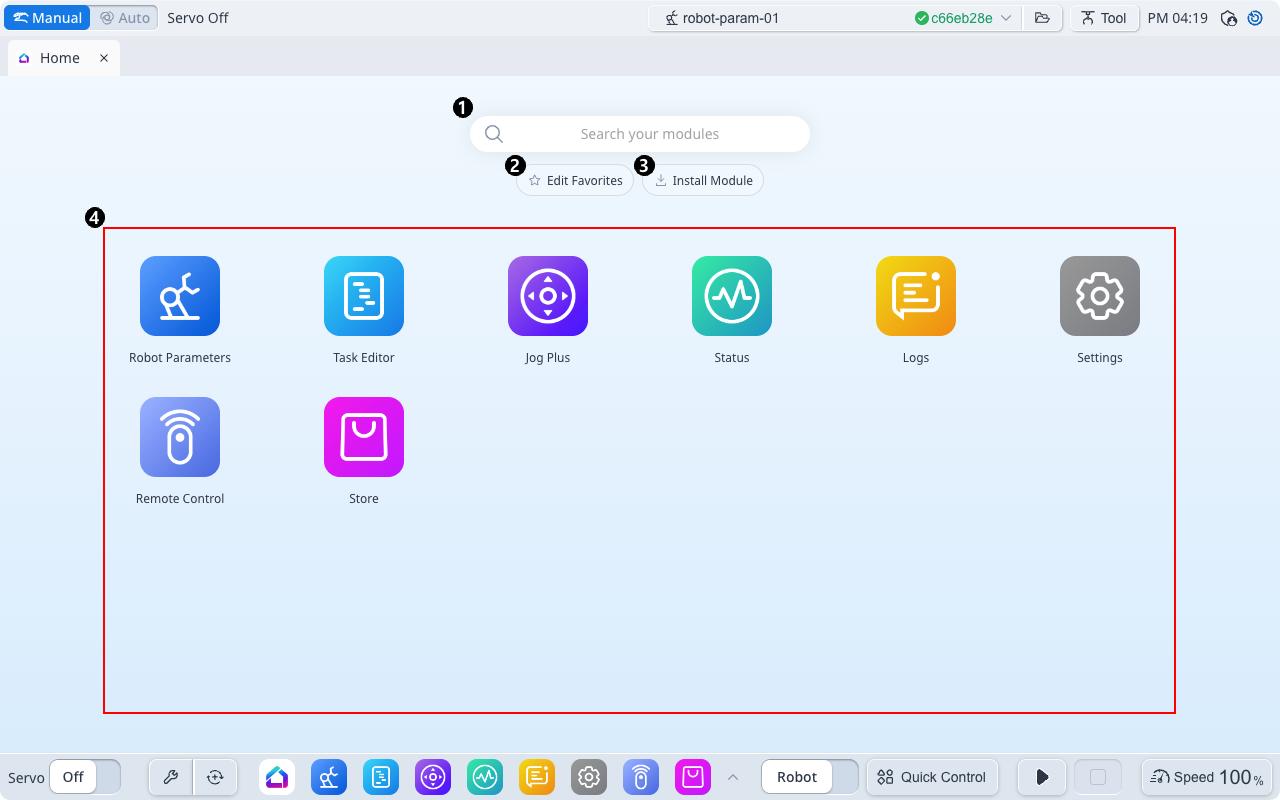
Items | Description | |
|---|---|---|
| 1 | Search | Allows you to search for installed modules. |
| 2 | Edit Favorite | You can select the modules to display in Footer's Favorite Modules list. If you click the EDIT FAVORITES button to check/uncheck the module, it will immediately apply to the list of Footer’s Favorite Modules list. Click the SAVE FAVORITES button to finish modifying your favorites. 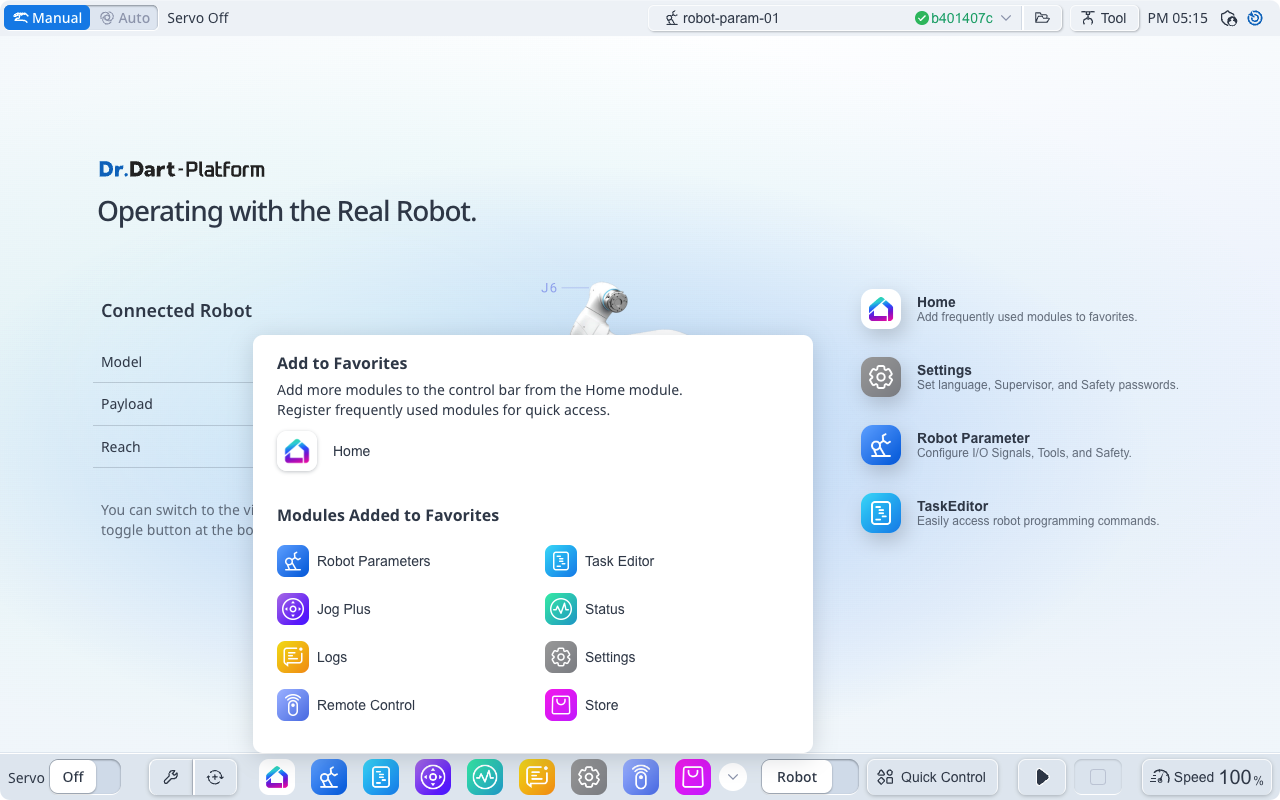 |
| 3 | Install Module | You can install the module by selecting the downloaded module package installation file (*.dm). |
| 4 | Modules | The executable module icons are displayed. |
Overview of header
Items | Description | |
|---|---|---|
| 1 | Robot Mode switch | This can be changed to Auto ↔︎ Manual. |
| 2 | Robot Status | See the link |
| 3 | Robot Parameter File | Displays the name of the currently set robot parameter file. If the setting value of the robot parameter file does not match the information set in the controller, it is displayed as below. 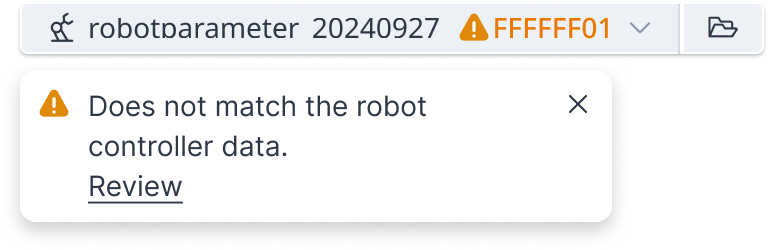 |
| 4 | Safety Checksum | Checksum information for the robot parameters set in the controller is displayed. |
| 5 | Tool Setting | This is where the current TCP, Tool Weight, and Tool Shape can be set. 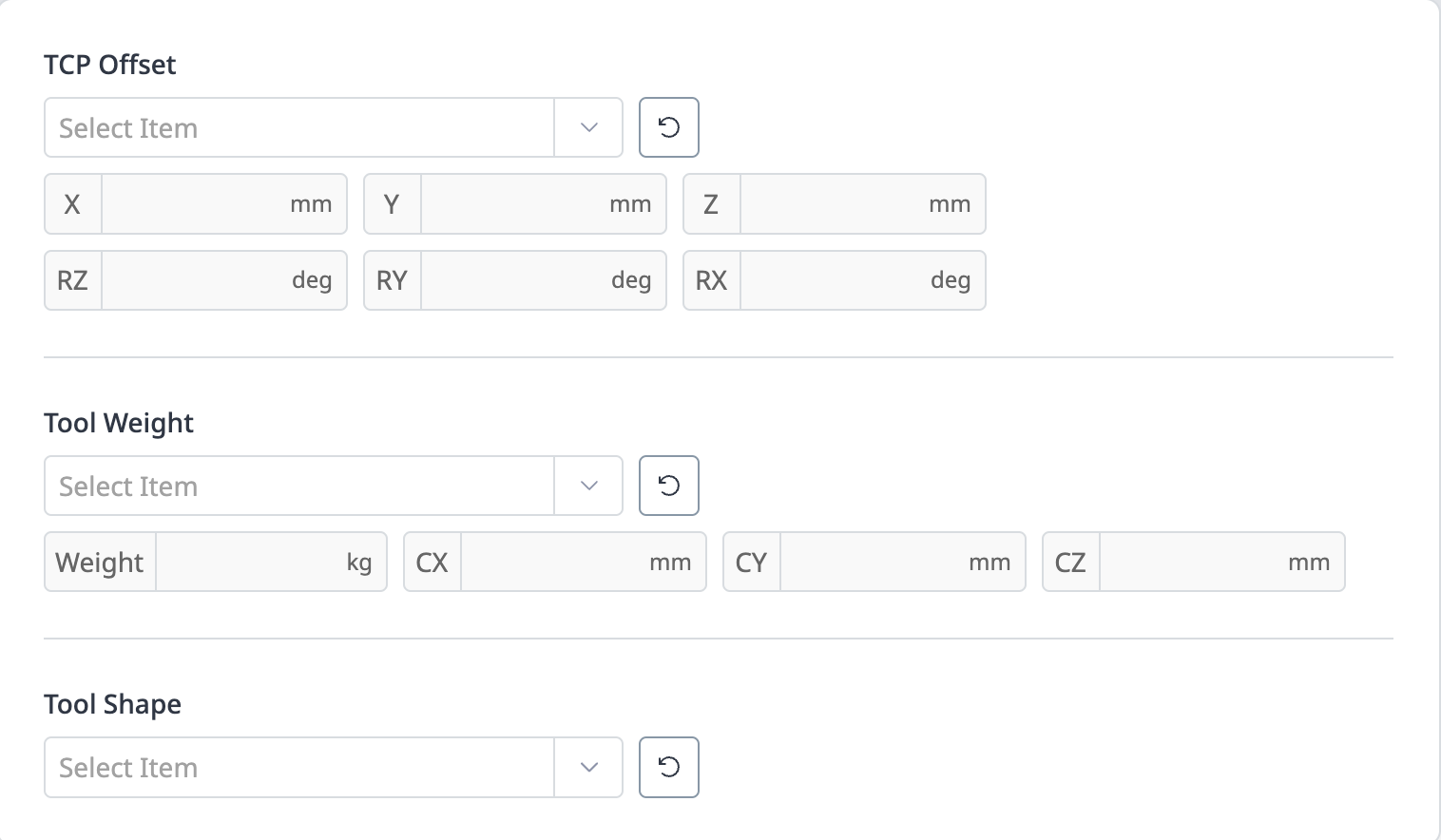 |
| 6 | Current Time Information | The current time can be seen. |
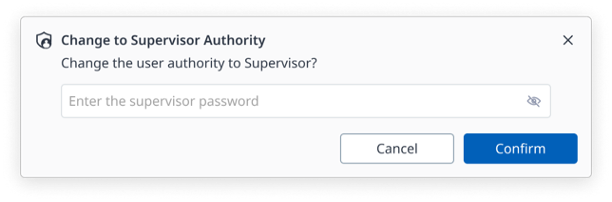
| 7 | User Authority | Displays the currently set user authority (Operator/ Supervisor) information. |
| 8 | Menu | Click the MENU button to display the following menus:
|
Overview of Footer
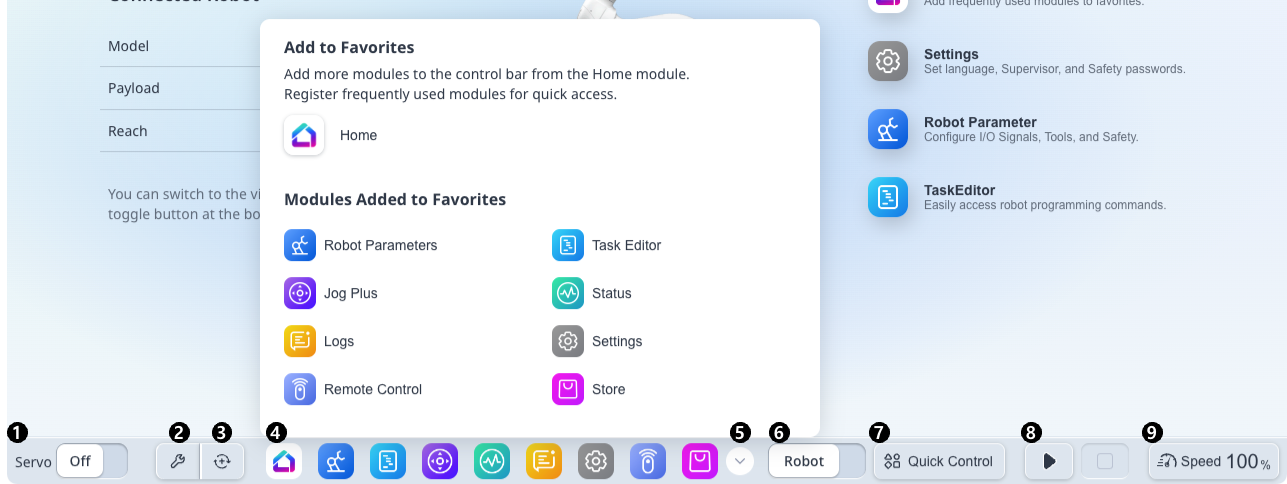
Items | Description | |
|---|---|---|
| 1 | Servo switch | The servo can be turned on or off. |
| 2 | Backdrive | Run the Backdrive module. |
| 3 | Recovery | Recovery: Run the Recovery Module. |
| 4 | Favorite Modules | The favorite modules that you have set up in the Home module are displayed. ※ The Home module is always displayed. |
| 5 | Favorite Modules Popup | You can display all favorite modules and change the order to Drag & Drop. |
| 6 | Robot / Virtual switch | You can switch Robot ↔︎ Virtual mode. ※ It can only be used if the actual robot is connected. |
| 7 | Quick Control | You can toggle pop-up that provide 3D Simulator, Jog, and Dashboard features. |
| 8 | Program Control | Provides control buttons to play, pause, resume and stop DRL/task programs. |
| 9 | Speed Control | The current robot speed information is displayed, and the speed change pop-up allows you to change the robot speed. 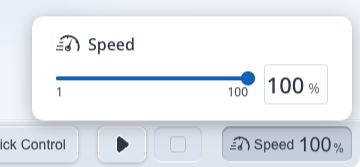 |