Initial start Up
Power on the controller
MANDATORY EASY 1 MIN
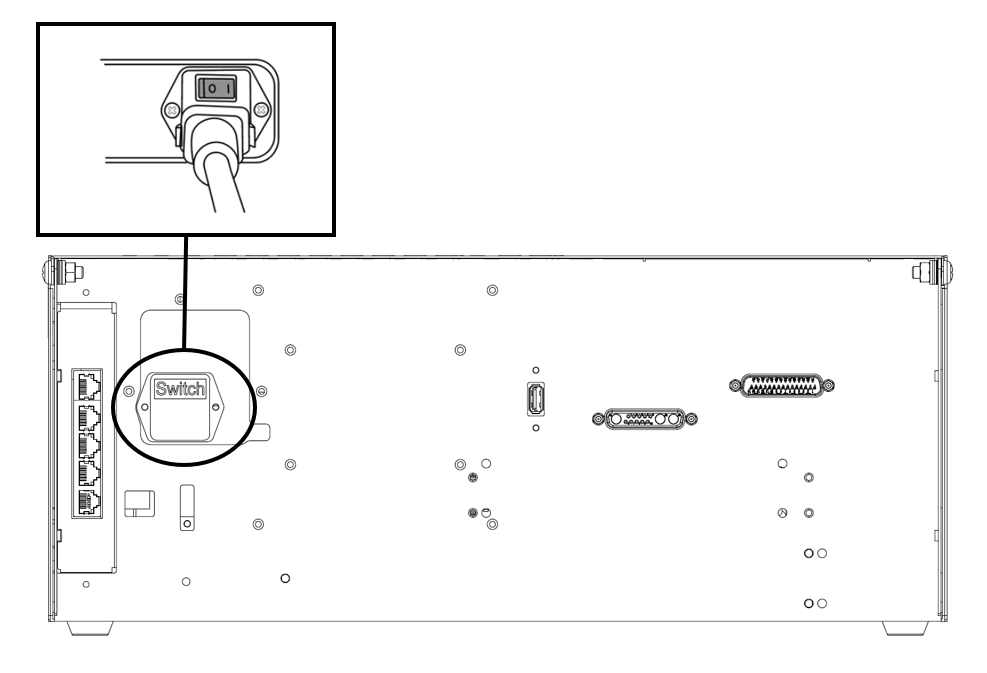
Press the power switch at the bottom of the controller. The power for systems such as the robot, controller and teach pendant is turned on.
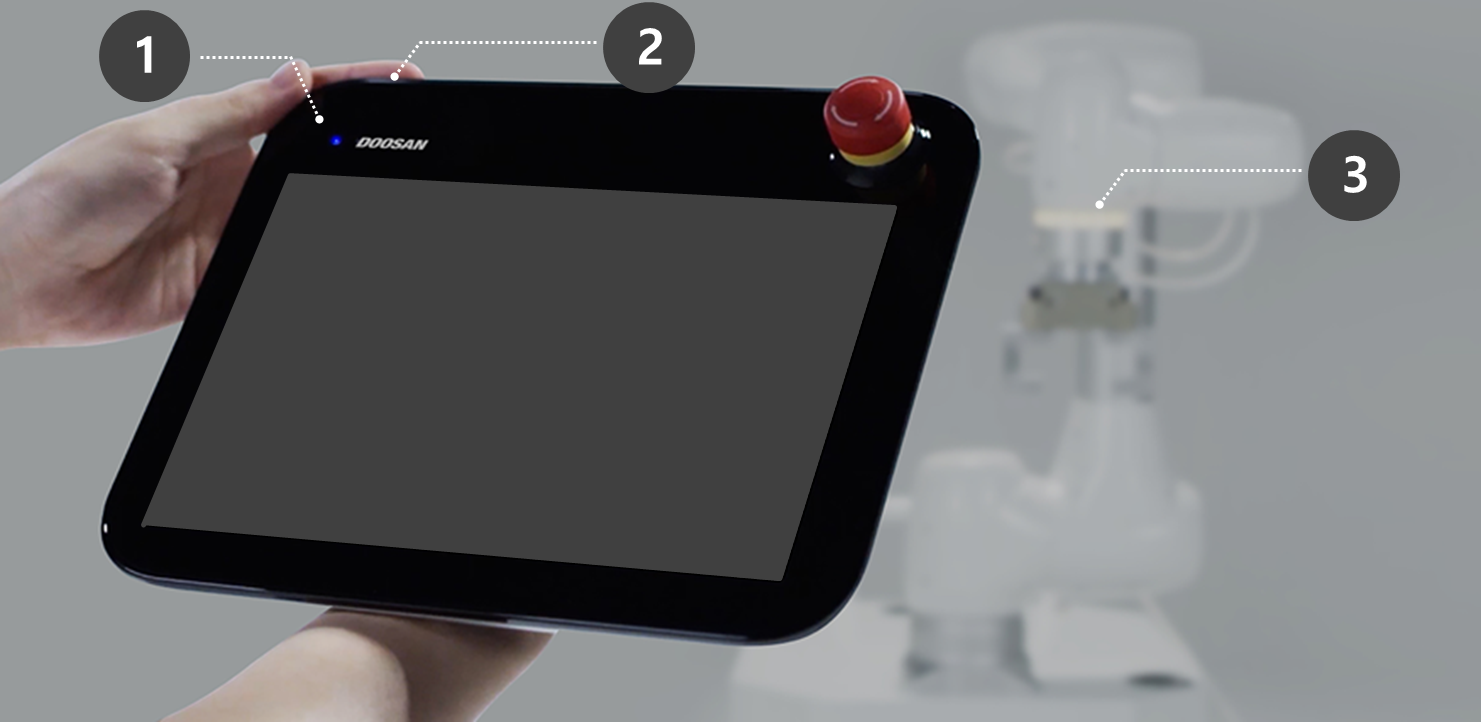
Press and hold the power button (Fig. 2) until the teach pendant screen powers up The teach pendant LED (Fig. 1) and flange LED (Fig. 3) will blink red until the robot controller connects to the network.
ㅤ
ㅤ
For more information about equipment other than the teach pendant, refer to System Power on/off.

Note
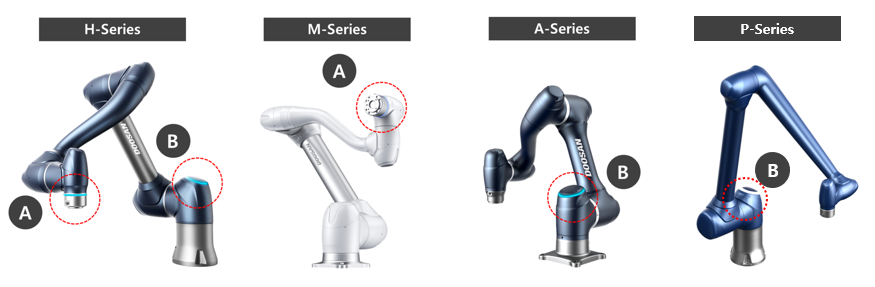
LED positions of each Doosan Robotics robot series are as follows:
A: Flange LED
B: Axis 1 LED
Disengage emergency stop button
MANDATORY EASY 1 MIN
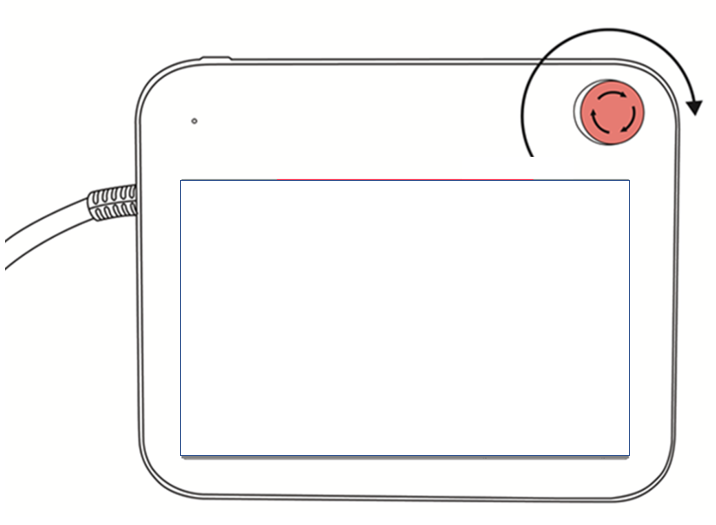
After robot installation and after the initial system boot up, a warning popup is displayed as the emergency stop button of the teach pendant is pressed. The emergency stop button must be disengaged in order to operate the robot.
Twist the emergency stop button clockwise to disengage the emergency stop state.
Disengage packaging pose
MANDATORY EASY 3 MIN
The robot is in its packaging pose to allow easy transportation or packaging. To use the robot, it is necessary to disengage the packaging pose. As the robot maintains a pose that exceeds the Joint Angle Limit when in packaging pose, it is impossible to set Servo On status due to safety limit violation. The robot LED is illuminated red in this state.
Note
If there is a case in which you need to package the robot due to relocating, set the package pose by using move with packaging pose in the packaging mode.
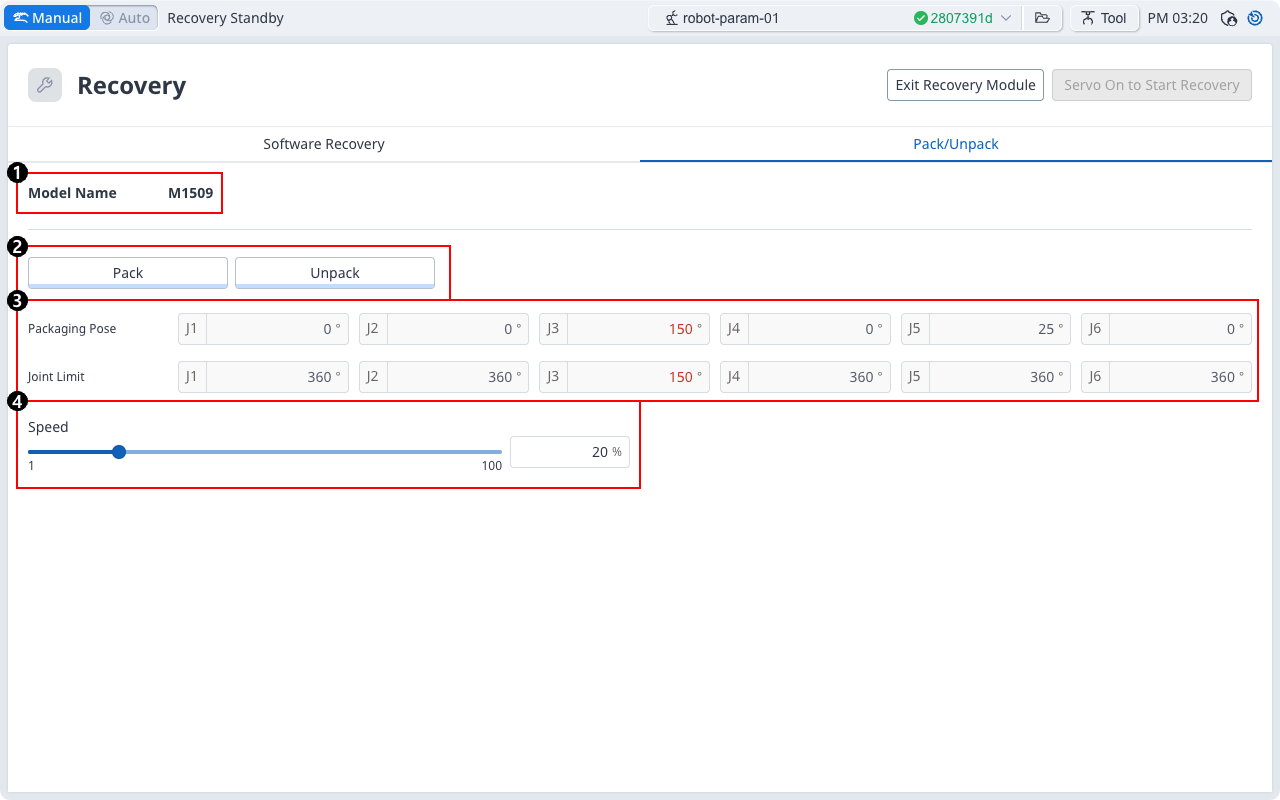
Items | Description | |
|---|---|---|
| 1 | Model Name | The name of the connected robot model appears. |
| 2 | Pack/Unpack | Either Pack or Unpack can be selected. |
| 3 | Packaging Pose/joint Limit | The pose and joint limit values appear. |
| 4 | Speed Ratio | The speed of the pack or unpack mode can be adjusted via a slider or input. |
The process of configuring the packaging pose is as follows:
Tap the Recovery menu in the header pane.
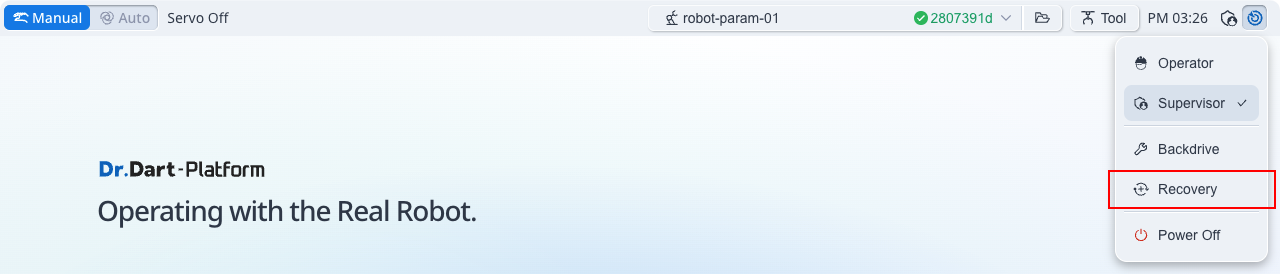
Select the Packaging Mode tab.

Tap the Servo On to Start Recovery button to enable packaging mode.

The robot automatically moves to the set packaging pose.
The Pack button allows you to put the robot in the Pack position and the Unpack button allows you to put the robot in the Default Home Position.
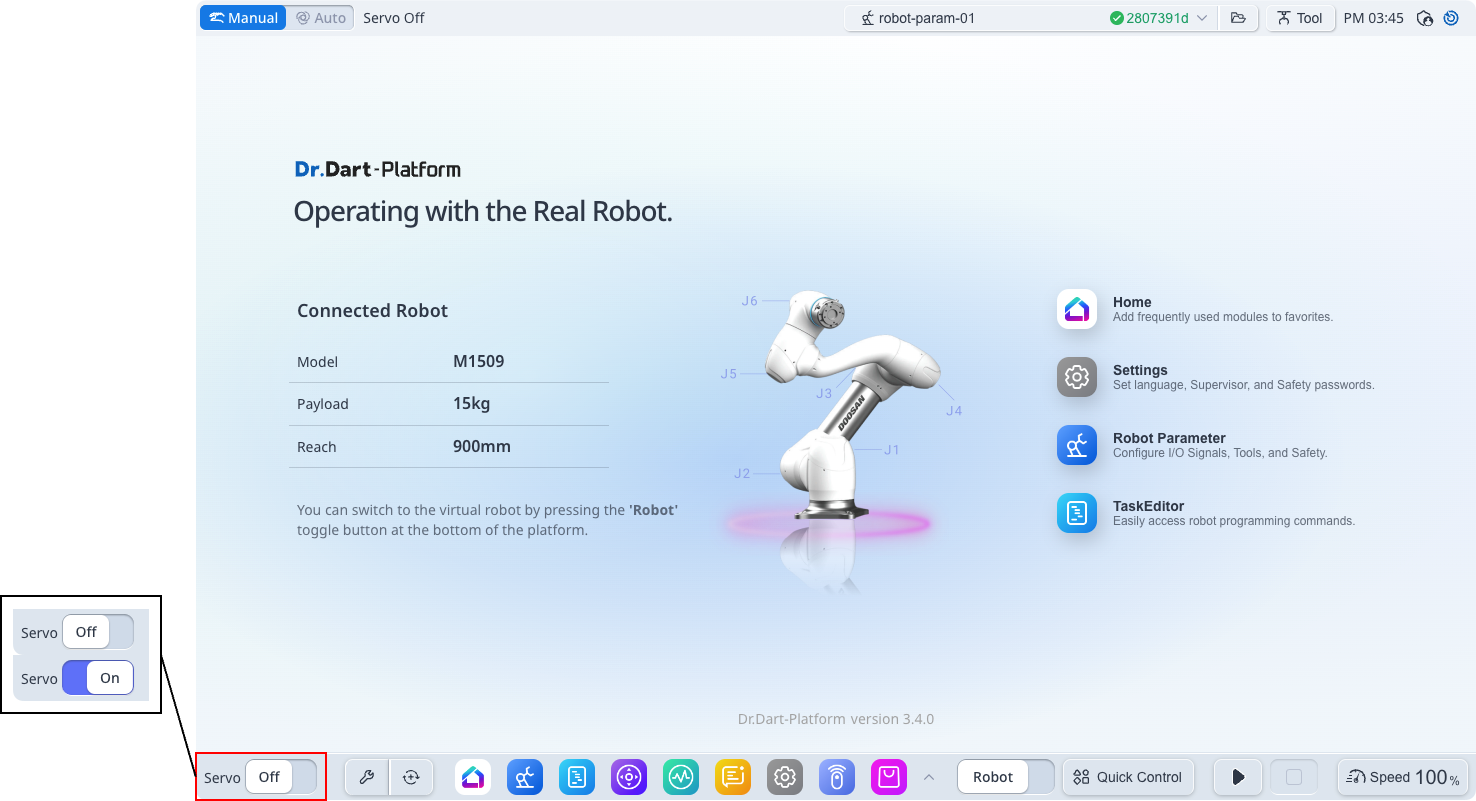
Servo Off
MANDATORY EASY 1 MIN
Servo on status is the status where the robot is ready with power supplied to robot joints to modify the robot pose.
Press Servo Off button to cut off power supplied to the robot joints and stop the robot. For more information, refer to Overview of Servo On.