
Tool Weight
The weight of the tool installed on the flange can be set by adding a tool weight Workcell Item. The Tool Weight can be set in Robot Parameters > Tool Settings > Tool Weight.
- The tool weight can be measured using the auto measure function.
- It is recommended to add tool weight as Workcell Items for each tool with a workpiece. If the workpiece weight is too heavy, the robot may recognize the weight of the workpiece as external force. It is because the robot determines this external force as a collision and stops.
- When creating a task, change the weight Workcell Item according to the process to change the tool weight. For example, it is possible to configure a task to select the standard tool weight Workcell Item before picking up a workpiece, and select the tool weight Workcell Item with the workpiece after picking up a workpiece.
The activated tool weight Item can be set as the standard tool weight by pressing the set tool icon (

- Set of the tool setting is the same as the set of Other Commands. Set command can be used when changing the Tool Weight while a task is being performed. For more information, refer to Task Editor Module.

Note
- Up to fifty different tool weights can be registered.
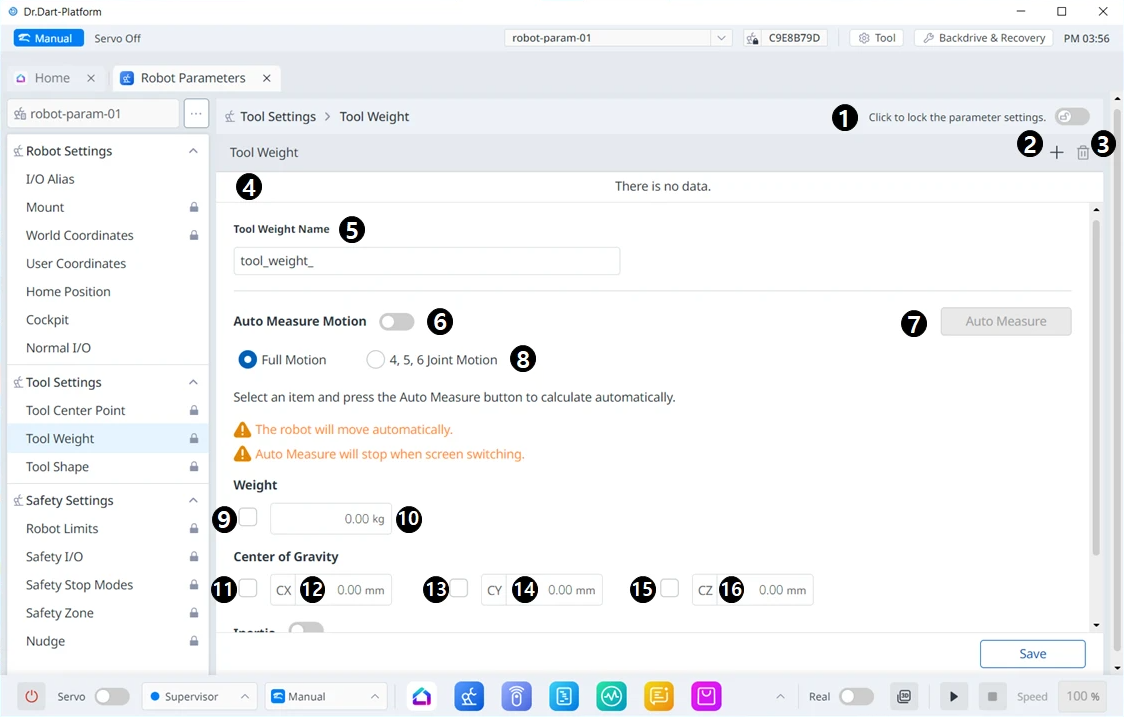
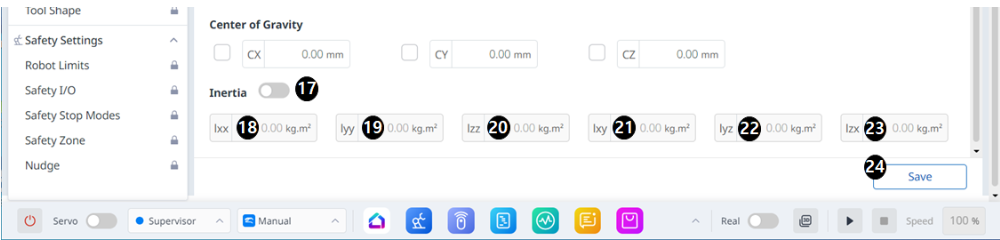
| Item | Description | |
|---|---|---|
| 1 | Lock Toggle Button | Used to lock the set value. The safety password is required for modifying the set value. |
| 2 | Adding | This button allows you to add a new Tool Weight. |
| 3 | Deleting | This button allows you to delete a Tool Weight. |
| 4 | Tool Weight List | A list of the configured Tool Weights |
| 5 | Tool Weight Name | This is where you can enter a name for the Tool Weight. |
| 6 | Auto Measure Motion | This button allows you to run the automatic measurement. |
| 7 | Automatic Measurement | This button allows you to select an option and run an automatic measurement for it. |
| 8 | Motion Selection | You can select the desired Motion from the options. |
| 9 | Selection of the Use of Weight | You can choose whether to use weight. This selection box is disabled for E Series or A Series without FPT sensors. |
| 10 | Weight Input | This is where you can enter the desired weight. |
| 11 | Selection of the Use of Center of Gravity CX | The use of the center of gravity CX can be selected. |
| 12 | CX Input | CX can be entered. |
| 13 | Selection of the Use of Center of Gravity CY | The use of the center of gravity CY can be selected. |
| 14 | CY Input | CY can be entered. |
| 15 | Selection of the Use of Center of Gravity CZ | The use of the center of gravity CZ can be selected. |
| 16 | CZ Input | CZ can be entered. |
| 17 | Whether to Use Inertia | This checkbox allows you to choose whether to use inertia. |
| 18 | lxx Input | An LXX entry for inertia can be entered. |
| 19 | lyy Input | An lyy entry for inertia can be entered. |
| 20 | lzz Input | An lzz entry for inertia can be entered. |
| 21 | lxy Input | An lxy entry for inertia can be entered. |
| 22 | lyz Input | An lyz entry for inertia can be entered. |
| 23 | lzx Input | An lzx entry for inertia can be entered. |
| 24 | Save | This button allows you to save the setting values. |